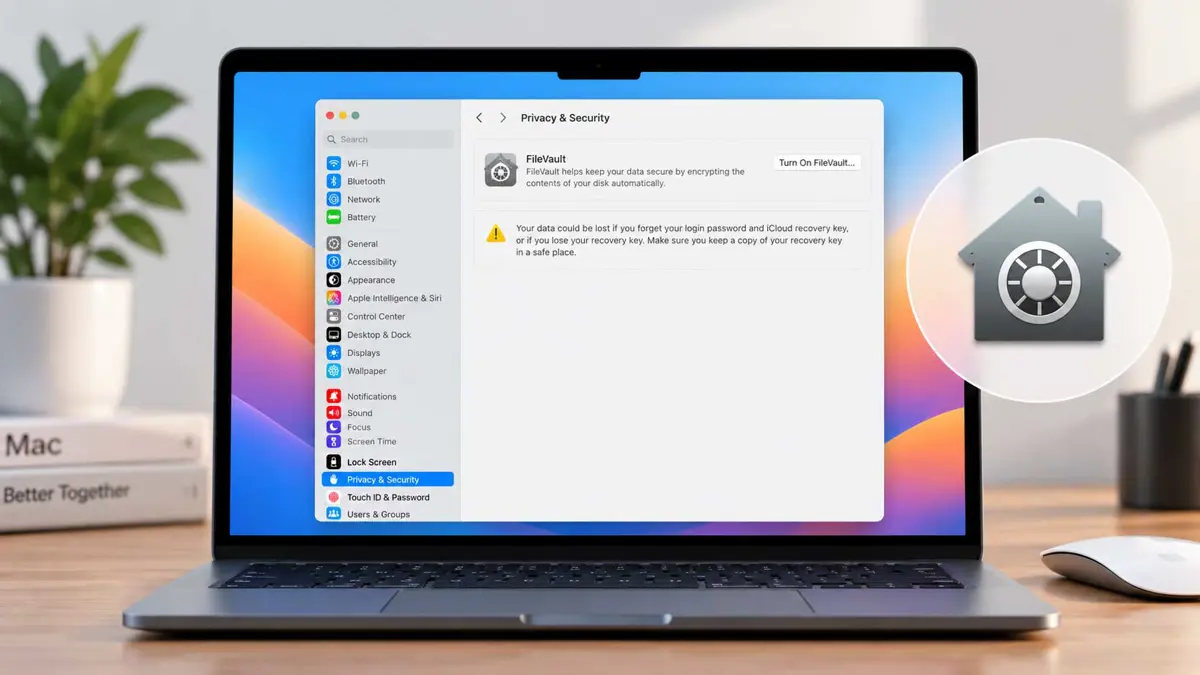
If you want to turn on FileVault on Mac, you can do it from System Settings. The setup takes only a few steps, but choosing and safely storing your recovery method is important because it can help you regain access if you forget your login password.
TL;DR
- FileVault protects the data stored on your Mac's startup disk.
- Macs with Apple silicon or an Apple T2 Security Chip already encrypt data automatically.
- FileVault setup requires an administrator account.
- Your recovery method matters because losing both your login password and recovery information can leave you unable to access the encrypted data.
What FileVault does on your Mac
FileVault encrypts the data on your Mac's startup disk so the files are protected from someone who does not have the credentials or recovery information needed to unlock them. On Macs with Apple silicon or an Apple T2 Security Chip, data is encrypted automatically, but Apple says enabling FileVault adds an extra layer of protection that requires your login password to access the data.
Before you turn on FileVault
Make sure you are signed in to an administrator account. Have a recovery method ready, because FileVault can use your iCloud account or a recovery key to help unlock the disk if you forget your login password.
Apple's current support instructions cover recent macOS releases, including macOS Tahoe 26, Sequoia 15, Sonoma 14, and Ventura 13.
How to turn on FileVault on Mac
- Open the Apple menu in the top-left corner of your screen.
- Select System Settings.
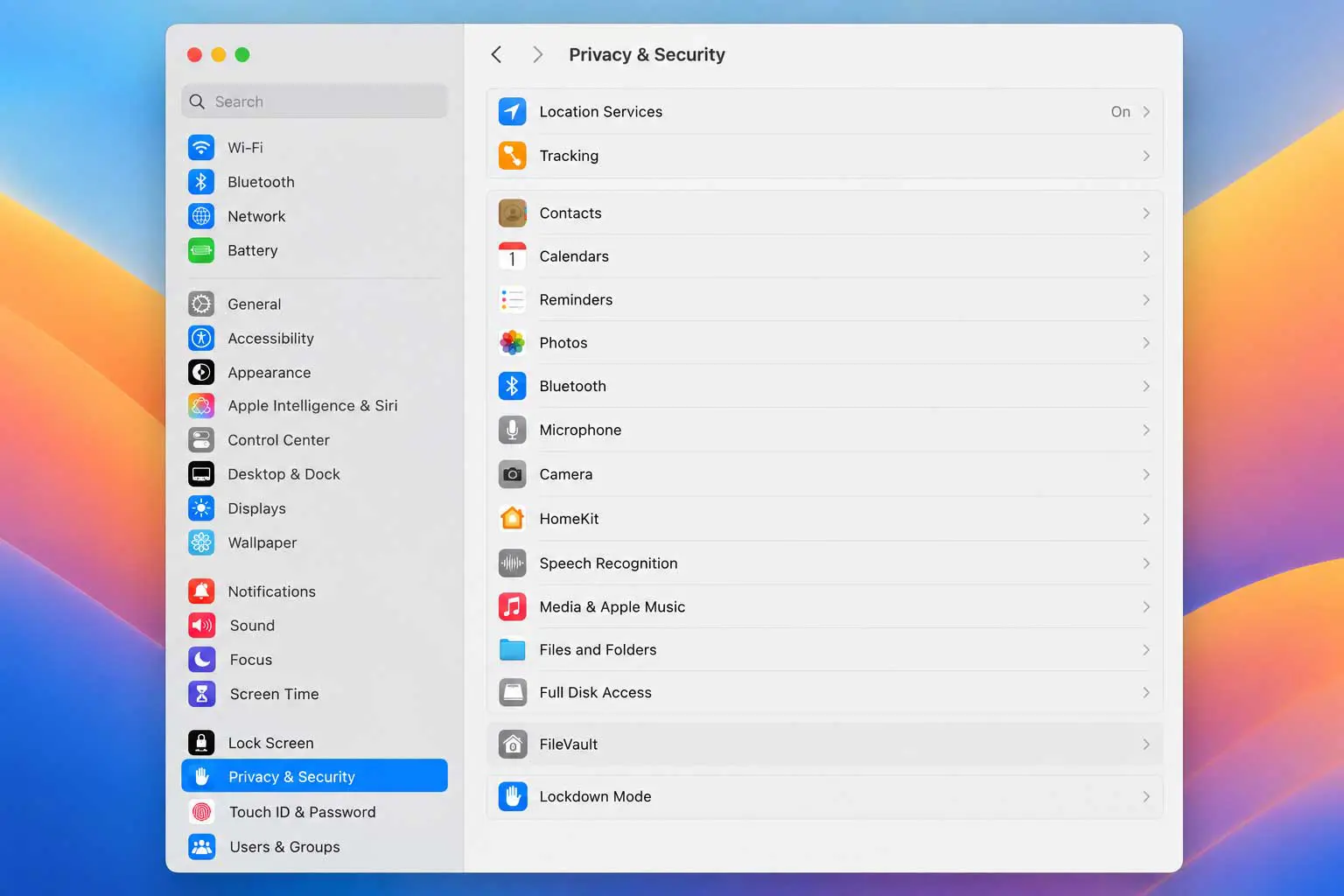
- Click Privacy & Security in the sidebar.
- Scroll down and select FileVault.
- Click Turn on FileVault.
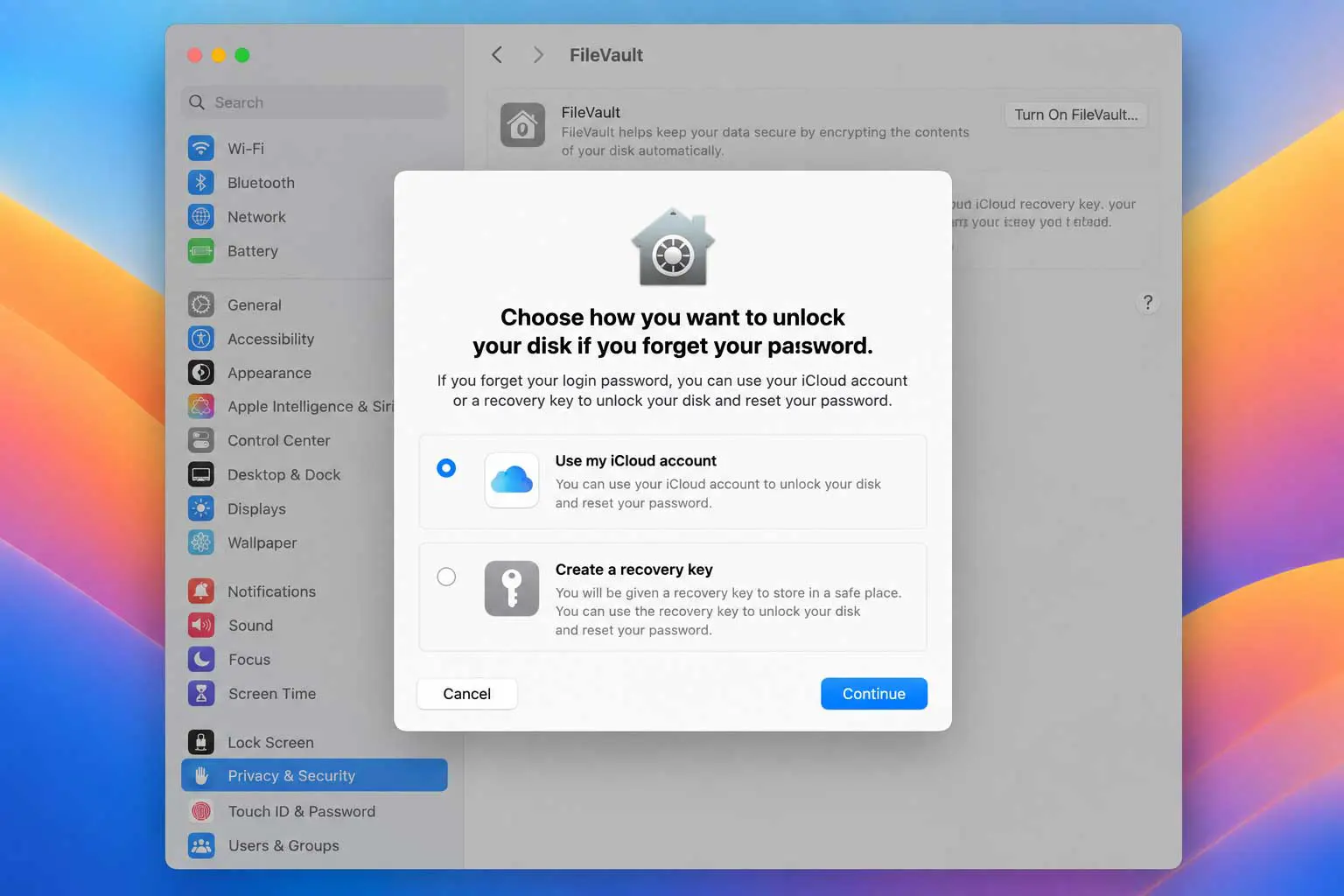
- Choose how you want to recover access if you forget your login password. Depending on the Mac and macOS version, Apple may present an iCloud-based recovery option or the option to create a recovery key.
- Follow the prompts shown on screen.
- If you choose a recovery key, store it somewhere safe that you can access later. Do not keep the only copy on the encrypted startup disk.
- Complete the setup and let macOS finish enabling FileVault.
What to do if FileVault asks to enable users
On some Macs, FileVault setup may show an Enable Users button. If you see it, select the users who should be able to unlock the encrypted disk and enter the requested login password for each account.
Keep your FileVault recovery information safe
Your recovery method is part of the access path to the encrypted data. Apple warns that if you cannot use your login password and also lose the recovery key or other recovery method, you may lose access to the files on the disk.
For a recovery key, keep it somewhere secure and separate from the Mac. Do not store the only copy on the encrypted startup disk.
If you cannot turn on FileVault
If FileVault will not enable for your disk, Apple notes that the disk's formatting information may need repair. Use Apple's Disk Utility guidance to check and repair the disk before trying again.
If the FileVault option is missing, make sure you are using an administrator account and that you are looking in System Settings > Privacy & Security > FileVault.
Frequently asked questions
Do newer Macs already encrypt their data?
Should I save the recovery key on my Mac?
What happens if I lose both my password and recovery information?
Protect your Mac before you need it
FileVault is most useful when it is already configured before your Mac is lost, stolen, or accessed by someone else. The setup is straightforward, but the recovery choice deserves just as much attention as the encryption setting itself.
