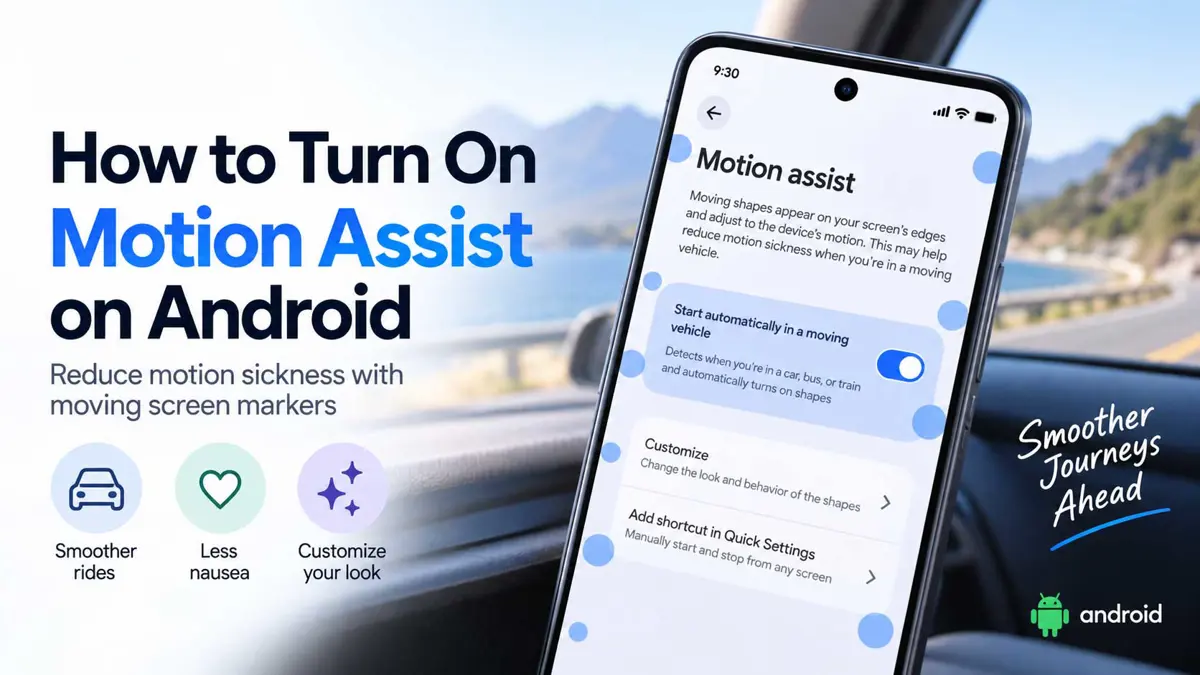
If using a phone in a moving vehicle makes you feel sick, Motion Assist on Android gives you a setting designed to make screen use more comfortable. Google says the feature shows subtle bubbles along the edges of the display and moves them in response to the phone's motion sensors. The goal is to help your eyes and body better match what is happening during a ride.
Google introduced Motion Assist in its September Android Drop, and 9to5Google reported on September 14 that the feature had broadly rolled out to Pixel and Samsung phones running Android 17. Availability can still vary by device and rollout status. Google's official support page says the feature requires Android 17 or later and updated Google Play services.
What You Need Before Turning On Motion Assist on Android
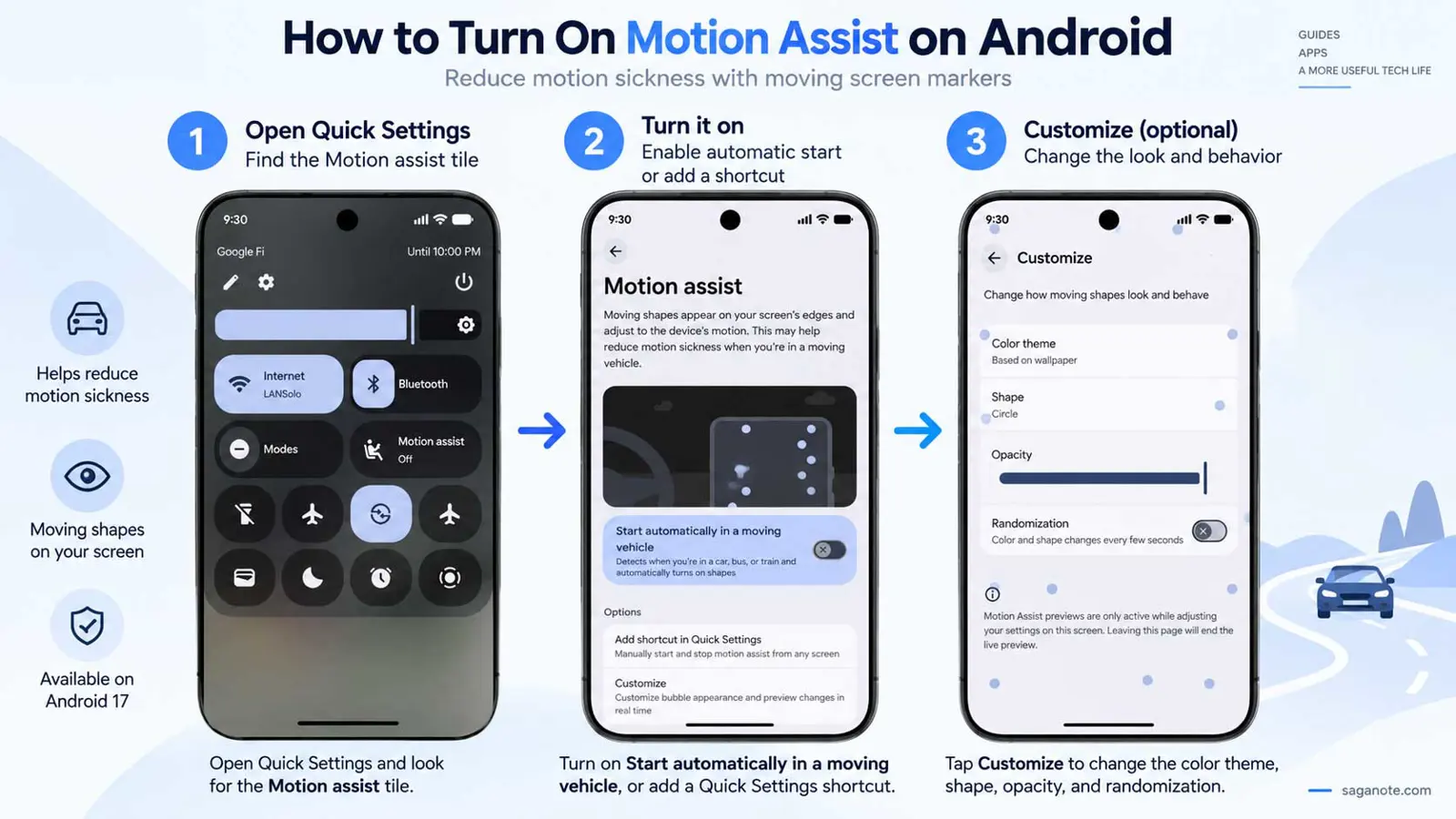
Before following the steps, check the two requirements Google lists for Motion Assist: the phone must run Android 17 or later, and Google Play services must be updated. If the setting is available, you can find it directly by searching for “Motion assist” in the Settings app.
- An Android phone running Android 17 or later.
- An up-to-date version of Google Play services.
- A passenger seat in a car, bus, train, or another moving vehicle when you want to use the feature.
Google also recommends using both automatic activation and the Quick Settings tile. Automatic activation can start the bubbles when the phone detects vehicle movement, while the tile gives you manual control from any screen.
Motion Assist on Android: Setup Steps
1. Open the Motion Assist settings
- Open Settings on your Android phone.
- Tap your profile, then tap All services.
- Under Personal & device safety, tap Motion assist.
If you do not want to browse through the menus, use the Settings search bar and search for Motion assist. Google lists both methods in its current Android Help documentation.
2. Turn on automatic activation
- Open the Motion assist settings page.
- Turn on Start in a moving vehicle.
- Allow the feature to detect when the phone is in a moving vehicle if Android presents the option.
Once enabled, Motion Assist can automatically show the moving bubbles when the phone detects vehicle motion. Google notes that vehicle detection may not always work, so adding the Quick Settings tile gives you a manual fallback.
3. Add Motion Assist to Quick Settings
- From the Motion assist settings page, tap Add tile to Quick Settings.
- Choose the tile format you prefer, such as Small tile or Large tile.
- Swipe down from the top of the screen whenever you want to open Quick Settings.
- Tap the Motion assist tile to turn the feature on or off.
This is the fastest option when you want control without opening Settings. Android's Quick Settings system also lets you edit and rearrange tiles, so you can place Motion Assist where it is easy to reach before or during a ride.
How to Customize Motion Assist
Motion Assist does not lock you into one bubble design. Google provides a Customize section where you can change how the bubbles look and how visible they are.
- Open Settings and go to Motion assist.
- Tap Customize.
- Adjust Opacity to make the bubbles more or less visible.
- Choose a Color theme.
- Select a Shape for the bubbles.
- Turn Randomization on or off if you want the color and shape to change every few seconds.
The customization screen provides a live preview while you adjust the settings. That makes it easier to choose a bubble style that stays visible without becoming distracting.
What Motion Assist Actually Does
Motion Assist is not a navigation feature and it does not change the movement of the vehicle. Instead, it places visual markers around the edges of the phone's screen. Those markers move in real time according to the device's motion sensors and respond to turns, acceleration, and braking.
Google designed the effect for passengers who want to read, browse, or watch content while traveling. The feature is part of the September Android Drop, alongside other Android updates such as new Google Messages features. For the wider rollout context, see our coverage of Google's September Android Drop. Google's original announcement is also available in its September Android Drop.
Motion Assist Is Missing From Settings
If you cannot find Motion Assist, first check the requirements. Google says the feature needs Android 17 or later and updated Google Play services. The rollout can also vary by device, so a compatible phone may not receive the feature at the same time as another Android 17 phone.
- Confirm that the phone is running Android 17 or later.
- Update Google Play services.
- Search for Motion assist in Settings instead of looking through menus.
- Restart the phone if the feature still does not appear. 9to5Google reported that a restart can help when the rollout has reached the device but the setting has not appeared yet.
If the setting is still missing after those checks, the device may not have received the feature yet. Google's support documentation does not promise availability on every Android 17 device at the same time.
Tips for Using Motion Assist
- Use automatic activation if you regularly use your phone as a passenger.
- Keep the Quick Settings tile enabled so you can manually start or stop the feature.
- Start with a lower opacity if the bubbles feel too prominent.
- Try different shapes and colors until the markers remain easy to see without distracting from the app you are using.
- Remember that Motion Assist is intended for passengers. The driver should not use a phone while driving.
Frequently Asked Questions
Frequently Asked Questions
Which Android phones support Motion Assist?
Can Motion Assist start automatically in a car?
Can I turn Motion Assist on without opening Settings?
Can I change the bubbles?
Does Motion Assist guarantee that motion sickness will stop?
The Quickest Way to Set Up Motion Assist
For most Android 17 phones with the feature available, the simplest setup is to open Settings > your profile > All services > Personal & device safety > Motion assist, enable Start in a moving vehicle, and add the Quick Settings tile. Once it is set up, the feature can be controlled without digging through Settings again.
