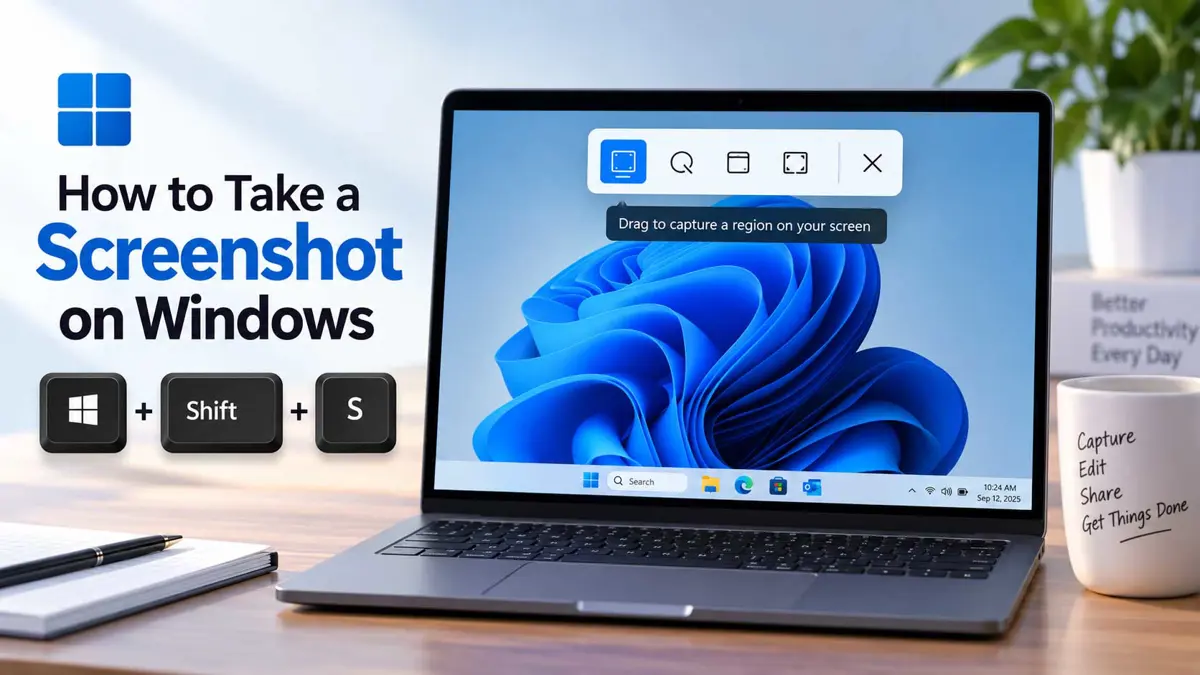
If you're looking for how to take a screenshot on Windows, the best method depends on what you want to capture and where you want the image to go next. Windows includes Snipping Tool for selected areas, individual windows, and full-screen captures, while keyboard shortcuts can save screenshots or copy them for pasting.
This guide focuses on Windows 11 and notes the important Windows 10 differences where they matter. Microsoft says Snipping Tool is available on both Windows 11 and Windows 10, but individual features and settings can vary by version and device.
How to take a screenshot on Windows with Snipping Tool
For most everyday screenshots, use Windows + Shift + S. It opens the Snipping Tool overlay so you can choose exactly what to capture.
- Press Windows + Shift + S.
- Wait for the screen to dim and the snipping toolbar to appear.
- Choose the capture mode you need.
- For a rectangular or freeform capture, select the part of the screen you want.
- Open the resulting snip in Snipping Tool if you want to edit, save, or share it.
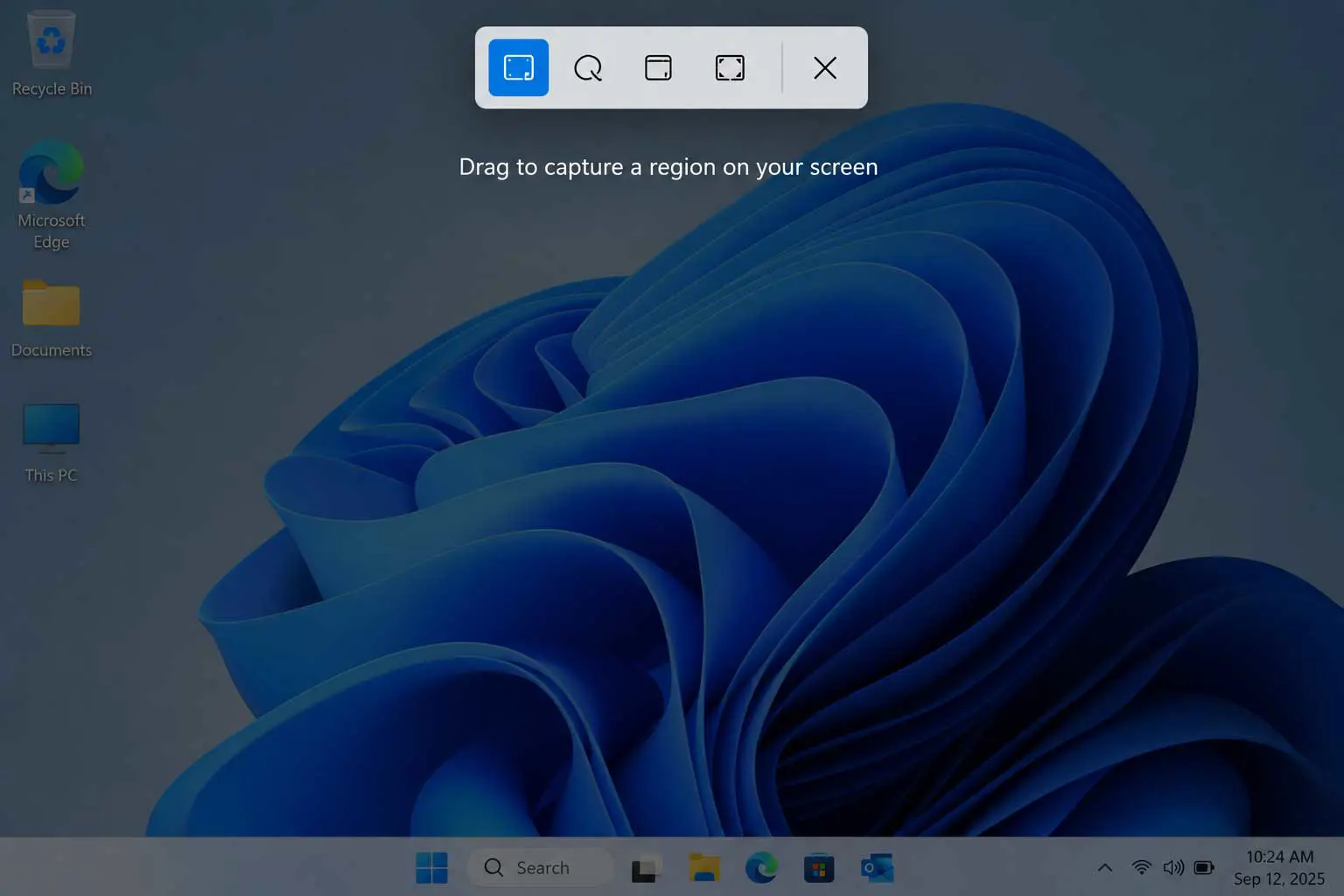
Microsoft's current Snipping Tool supports Freeform, Rectangle, Window, and Full screen image captures. On supported Copilot+ PCs, it also includes additional tools such as Perfect Screenshot and Color picker. See Microsoft's Snipping Tool guide for the current interface and supported features.
How to screenshot a specific window
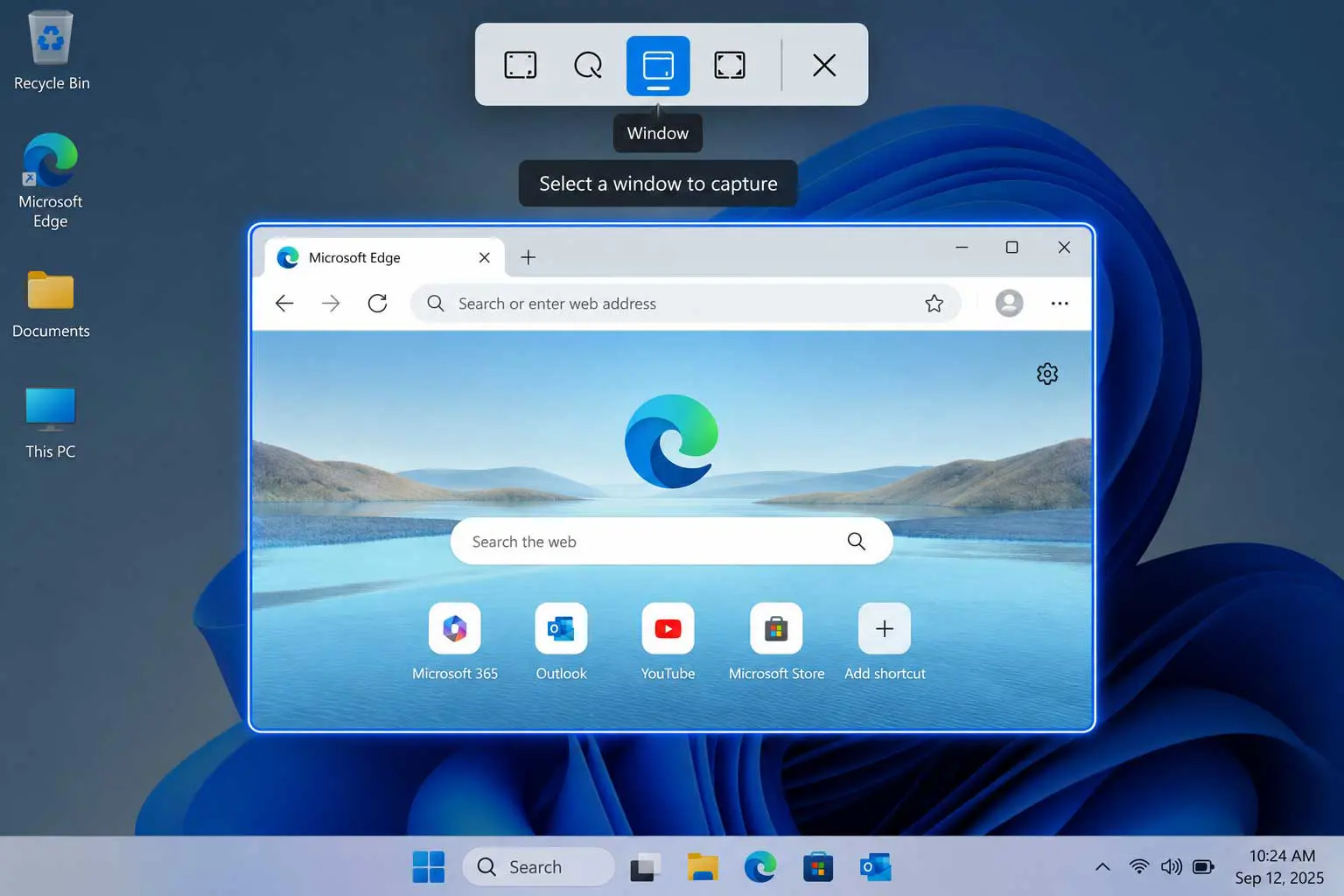
If you only need one app or dialog box, choose Window in Snipping Tool. This avoids capturing the rest of the desktop.
- Press Windows + Shift + S.
- Select Window from the snipping toolbar.
- Move the pointer over the window you want to capture.
- Select that window.
- Open the resulting snip if you want to annotate or save it.
How to screenshot the entire screen and save it automatically
When you want a full-screen screenshot saved as a file, use Windows + PrtScn.
- Press Windows + PrtScn.
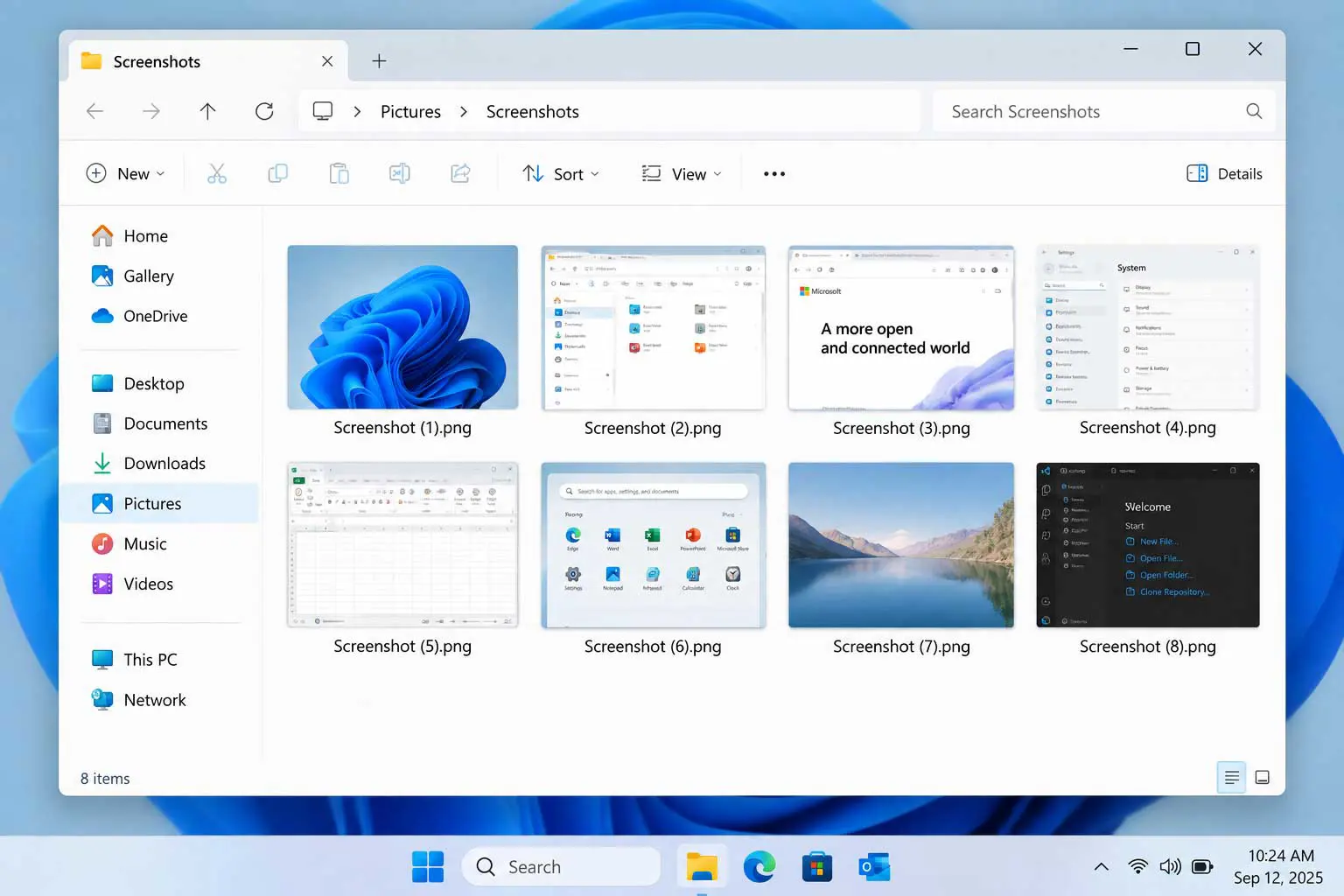
- Windows captures the entire screen and saves it.
- Open File Explorer.
- Select Pictures.
- Open the Screenshots folder.
Microsoft's Windows shortcut documentation says Windows + PrtScn captures the full screen and saves it in the Screenshots subfolder of Pictures. See Microsoft's Windows keyboard shortcuts documentation for the current shortcut list.
How to screenshot only the window you're using
For a quick active-window capture, Alt + PrtScn copies the active window to the clipboard.
- Click the window you want to capture so it is active.
- Press Alt + PrtScn.
- Open the app where you want to use the image.
- Press Ctrl + V to paste the screenshot.
This is useful when you want to paste a window capture directly into an email, document, chat, or image editor instead of saving a file first.
How to screenshot and paste it immediately
If your next step is editing, messaging, or inserting the screenshot somewhere else, a clipboard workflow can be faster than managing a saved file.
- Press PrtScn.
- Open the app where you want to place the image.
- Press Ctrl + V.
- Save the image from that app if you need a permanent file.
On current Windows versions, Microsoft documents PrtScn as opening screen snipping by default. The behavior can be changed under Settings > Accessibility > Keyboard by turning off “Use the Print Screen button to open screen snipping.” If PrtScn is set to screen snipping, use Windows + Shift + S for a predictable capture workflow.
How to screenshot a game or app with Xbox Game Bar
For a game or supported app, Windows provides a dedicated Xbox Game Bar screenshot shortcut.
- Open the game or app you want to capture.
- Press Windows + Alt + PrtScn.
- Windows saves the screenshot as a PNG file.
- To find it, open Videos > Captures.
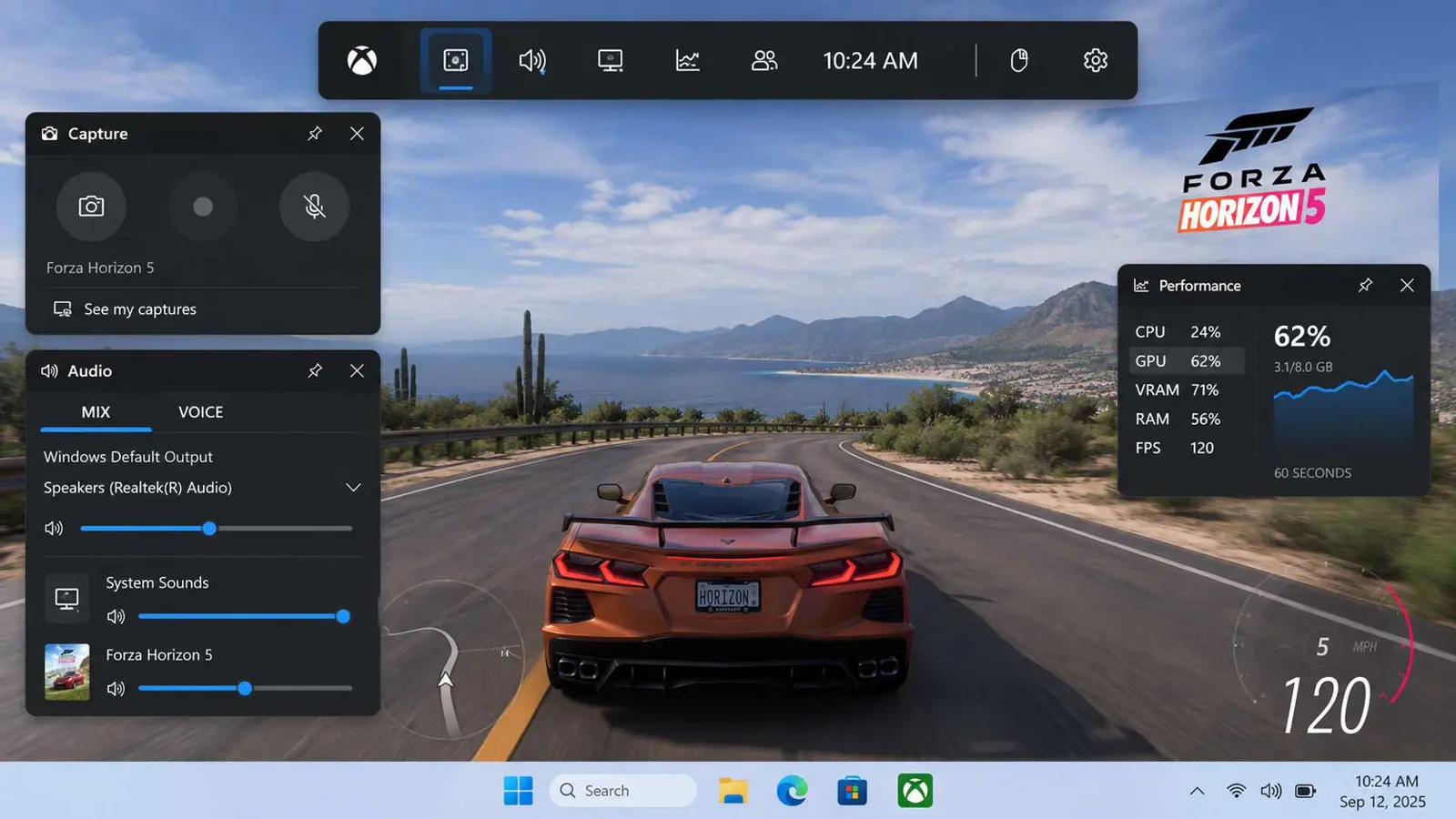
If you need the Game Bar controls, press Windows + G. Microsoft documents the screenshot shortcut and the Captures folder in its Xbox Game Bar support guide.
What if your keyboard does not have a Print Screen key?
Laptop keyboards do not all place the Print Screen function on a dedicated key. Look for labels such as PrtSc, PrtScn, or PrntScrn, and check whether the function is shared with another key.
On Microsoft Surface devices, the available screenshot shortcut depends on the keyboard. Microsoft also documents Windows + Shift + S as a quick way to open Snipping Tool, so it is usually the simplest option when the Print Screen key is difficult to find.
Which Windows screenshot method should you use?
| What you want | Shortcut or method | Where it goes |
|---|---|---|
| Capture part of the screen | Windows + Shift + S | Snipping Tool |
| Capture one window | Windows + Shift + S, then Window | Snipping Tool |
| Save the entire screen | Windows + PrtScn | Pictures > Screenshots |
| Copy the active window | Alt + PrtScn | Clipboard |
| Capture a game or supported app | Windows + Alt + PrtScn | Videos > Captures |
Troubleshooting Windows screenshots
Windows + Shift + S does nothing
Open Start, search for Snipping Tool, and launch it directly. Microsoft says Snipping Tool is available on Windows 10 and Windows 11. If the app is unavailable, check Microsoft Store availability for your Windows version.
Windows + PrtScn does not save a file
First, check Pictures > Screenshots. If the shortcut is not behaving as expected, use Windows + Shift + S instead or use PrtScn with a clipboard-based workflow, depending on your keyboard settings.
I cannot find the Print Screen key
Look for labels such as PrtSc, PrtScn, or PrntScrn. On some laptops the function is shared with another key and may require Fn. If your keyboard layout is different, check the device manufacturer's documentation.
Tips for cleaner screenshots
- Use Window mode when you only need one app and want to avoid capturing the rest of the desktop.
- Use Windows + PrtScn when you already know you want a full-screen file.
- Use Windows + Shift + S when you need to select exactly what appears in the image.
- Use the Snipping Tool editor when you need to crop, annotate, or save another copy.
- Before sharing a screenshot, check that notifications, private messages, passwords, or other sensitive information are not visible.
Frequently Asked Questions
Frequently Asked Questions
What is the easiest way to take a screenshot on Windows?
Where are screenshots saved on Windows?
Can I screenshot only one window?
Can I take a screenshot without saving a file?
Does this work on Windows 10?
The simplest Windows screenshot shortcut
For most people, Windows + Shift + S is the shortcut worth remembering because it gives you control over the capture area and opens the result in Snipping Tool. When you specifically need an automatically saved full-screen file, use Windows + PrtScn instead.
