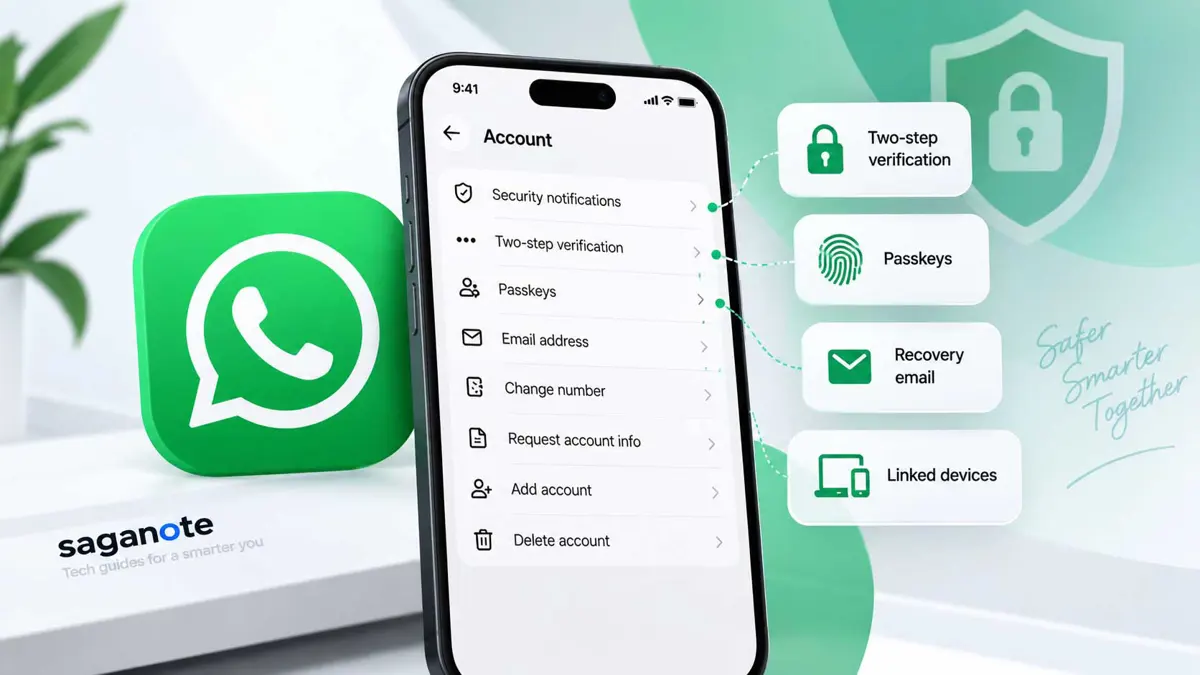
WhatsApp account security starts with the controls that protect the account before a takeover happens. Two-step verification, passkeys, recovery options, linked-device checks, and encrypted backups each cover a different part of the account.
The most important rule is simple: never share a WhatsApp registration code or account password with anyone. If an attacker has already taken over the account, changing a password is not enough. WhatsApp says the recovery path is to re-register the phone number with the six-digit code sent by SMS or phone call.
What You Need Before You Start
- Your WhatsApp account must still be accessible for most security settings.
- You need access to the phone number used by the WhatsApp account for account recovery.
- Keep WhatsApp updated so the latest security options are available when supported on your device.
- Use a device screen lock such as a PIN, password, fingerprint, or Face ID where supported.
WhatsApp says its extra security features cannot restore lost access or remove someone who is already using the account. If the account has been taken over, re-register the phone number first, then review the security settings and linked devices.
1. Turn On Two-Step Verification
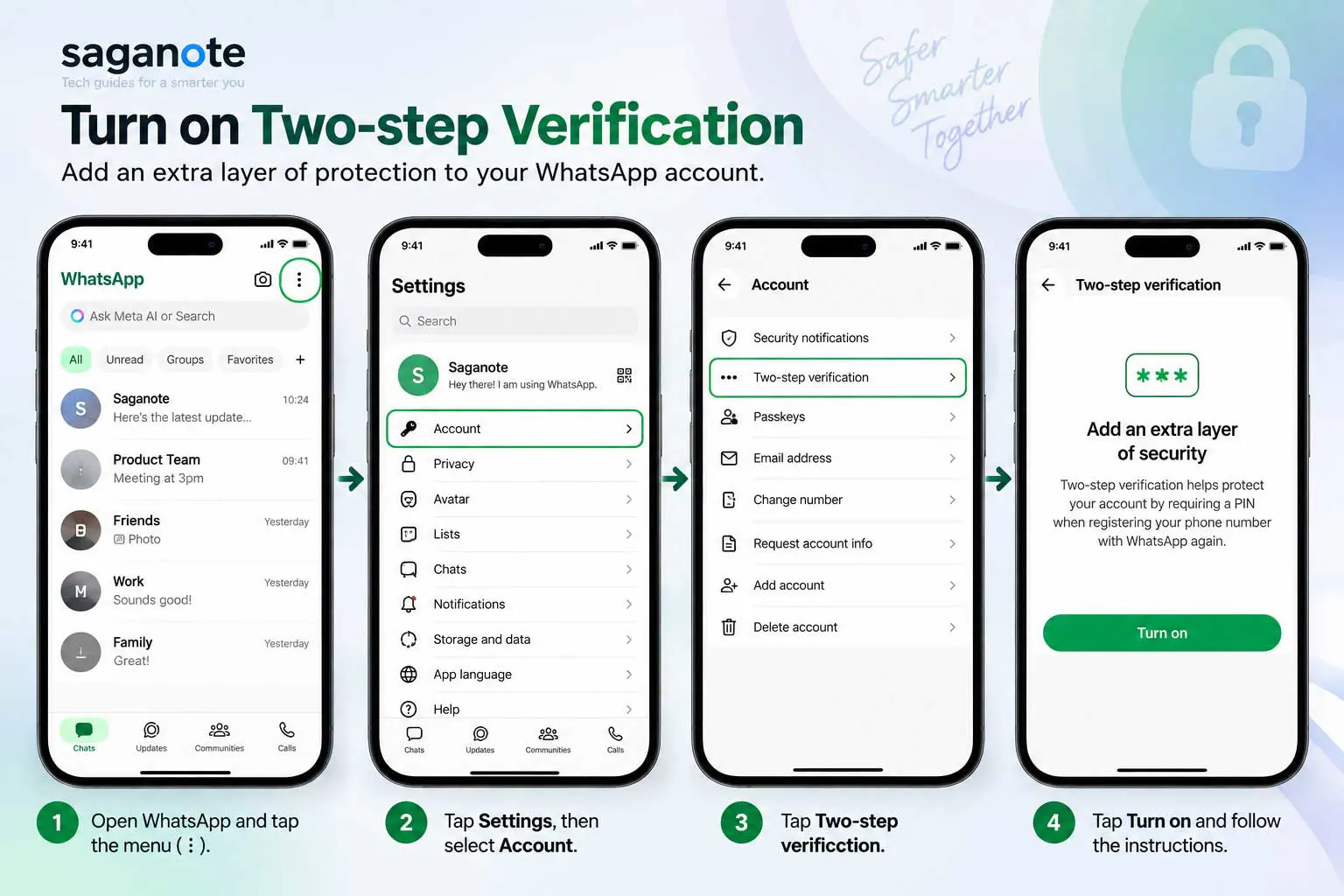
Two-step verification adds another authentication layer to the WhatsApp account. WhatsApp is also upgrading the older six-digit two-step verification PIN to a password, so the exact option shown can vary as the rollout reaches an account.
- Open WhatsApp.
- Open Settings on iPhone, or tap the three-dot menu and then Settings on Android.
- Open Account, then select Two-step verification.
- Follow the prompts to enable the feature and set the required password or PIN.
- Add or confirm the email address used for recovery when WhatsApp offers the option.
WhatsApp says the registration code and two-step verification password or PIN should never be shared with anyone, even if the request appears to come from a friend, family member, or someone claiming to be WhatsApp support.
For more context on WhatsApp's account-protection features, see WhatsApp Security Gets Three New Features for Safer Accounts.
2. Create a WhatsApp Passkey
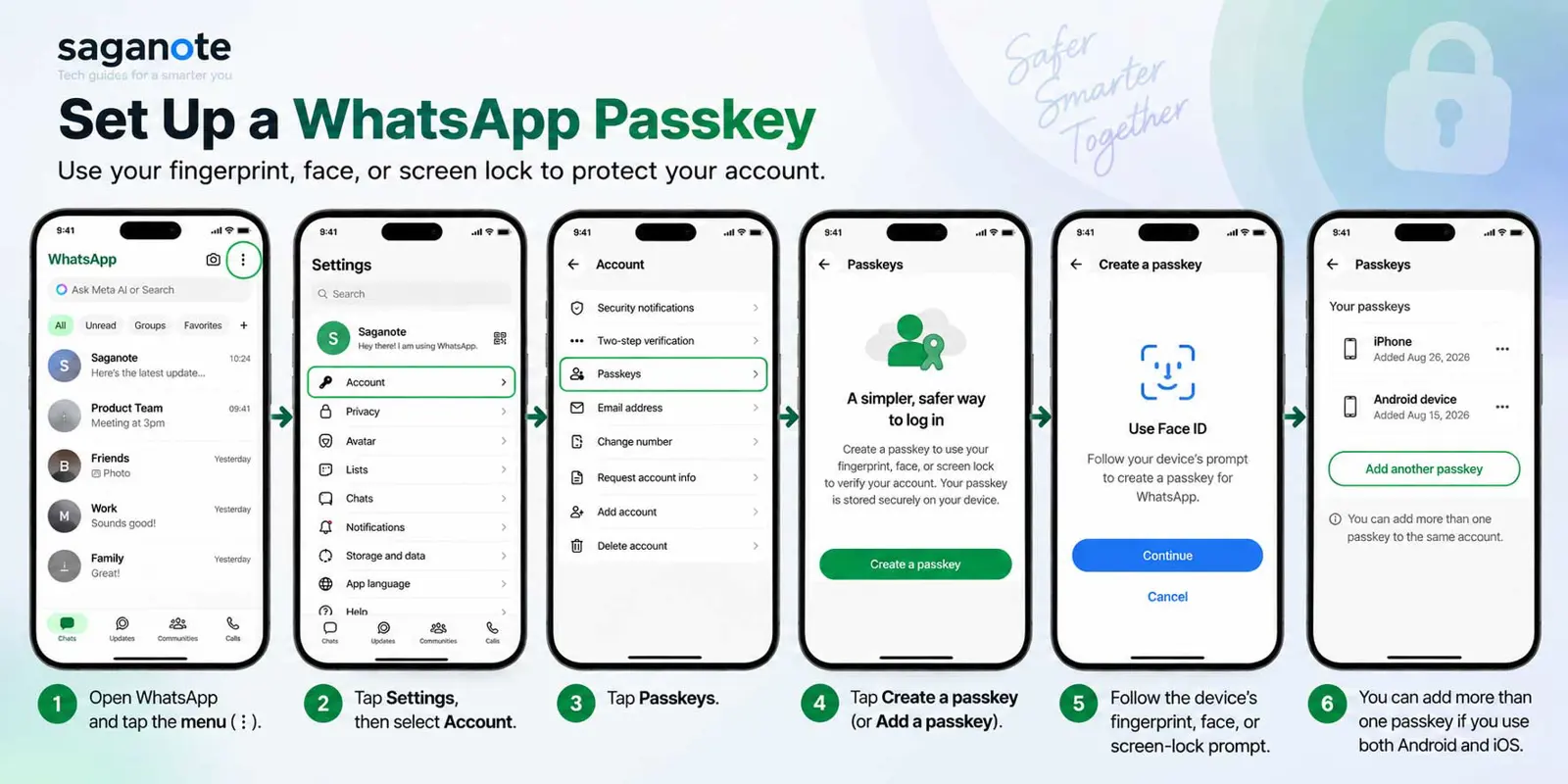
A passkey links the WhatsApp account to the device's security system. Depending on the device, WhatsApp can use a fingerprint, face authentication, or the screen lock to verify the account holder.
- Open WhatsApp.
- Open Settings.
- Tap Account > Passkeys.
- Tap the option to create or add a passkey.
- Follow the device's fingerprint, face, or screen-lock prompt.
- If you use both Android and iOS, WhatsApp now supports adding more than one passkey to the same account.
WhatsApp's current documentation also says a passkey can be created after registering a phone number and setting up the profile. Availability and the exact menu placement can vary by platform and account rollout.
3. Add and Verify a Recovery Email
A recovery email gives the account another way to verify ownership. WhatsApp says an email address added to the account can provide an extra security layer and can help with account recovery without relying only on an SMS or phone call.
- Open WhatsApp Settings.
- Tap Account > Email Address.
- Enter an email address that you control.
- Complete the verification prompt sent by WhatsApp.
A recovery email only helps if the email account itself is protected. Use a strong password and the email provider's available security features, and never forward WhatsApp verification codes to someone else.
4. Check Linked Devices Regularly
Linked devices can keep a WhatsApp account active on a computer or another supported device. A device that no longer belongs to the account owner should not remain connected.
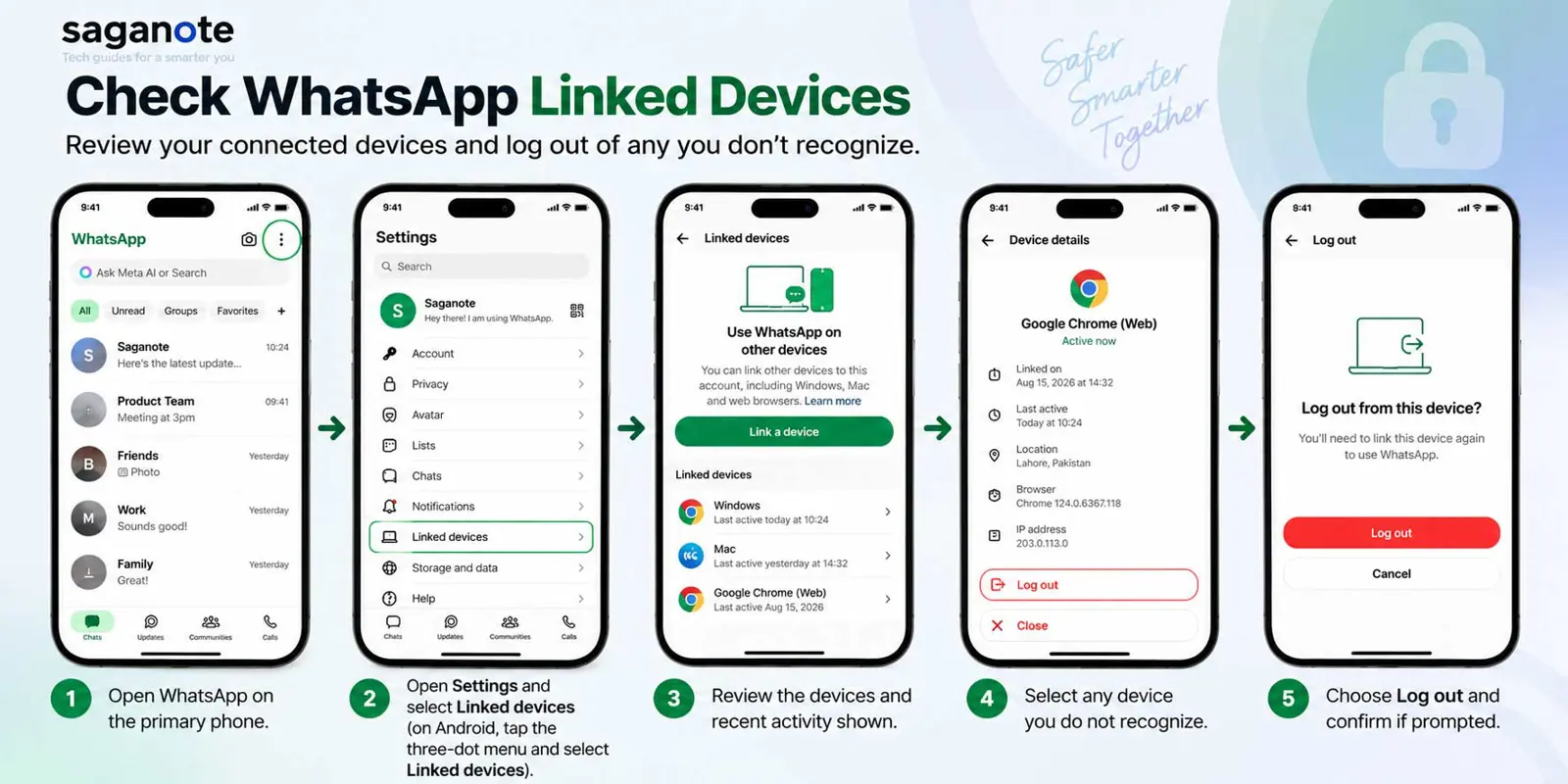
- Open WhatsApp on the primary phone.
- Open Settings and select Linked devices on iPhone, or open the three-dot menu and select Linked devices on Android.
- Review the devices and recent activity shown.
- Select any device you do not recognize.
- Choose Log out and confirm if prompted.
WhatsApp recommends checking linked devices regularly. Its help documentation also notes that it cannot tell an account holder who accessed the account or when and where that access happened, so regular device reviews are useful for spotting sessions that should no longer be active.
For a related look at WhatsApp's device features, see WhatsApp Web Gets Voice and Video Calls and a Way to Switch Devices Mid-Call.
5. Turn On App Lock
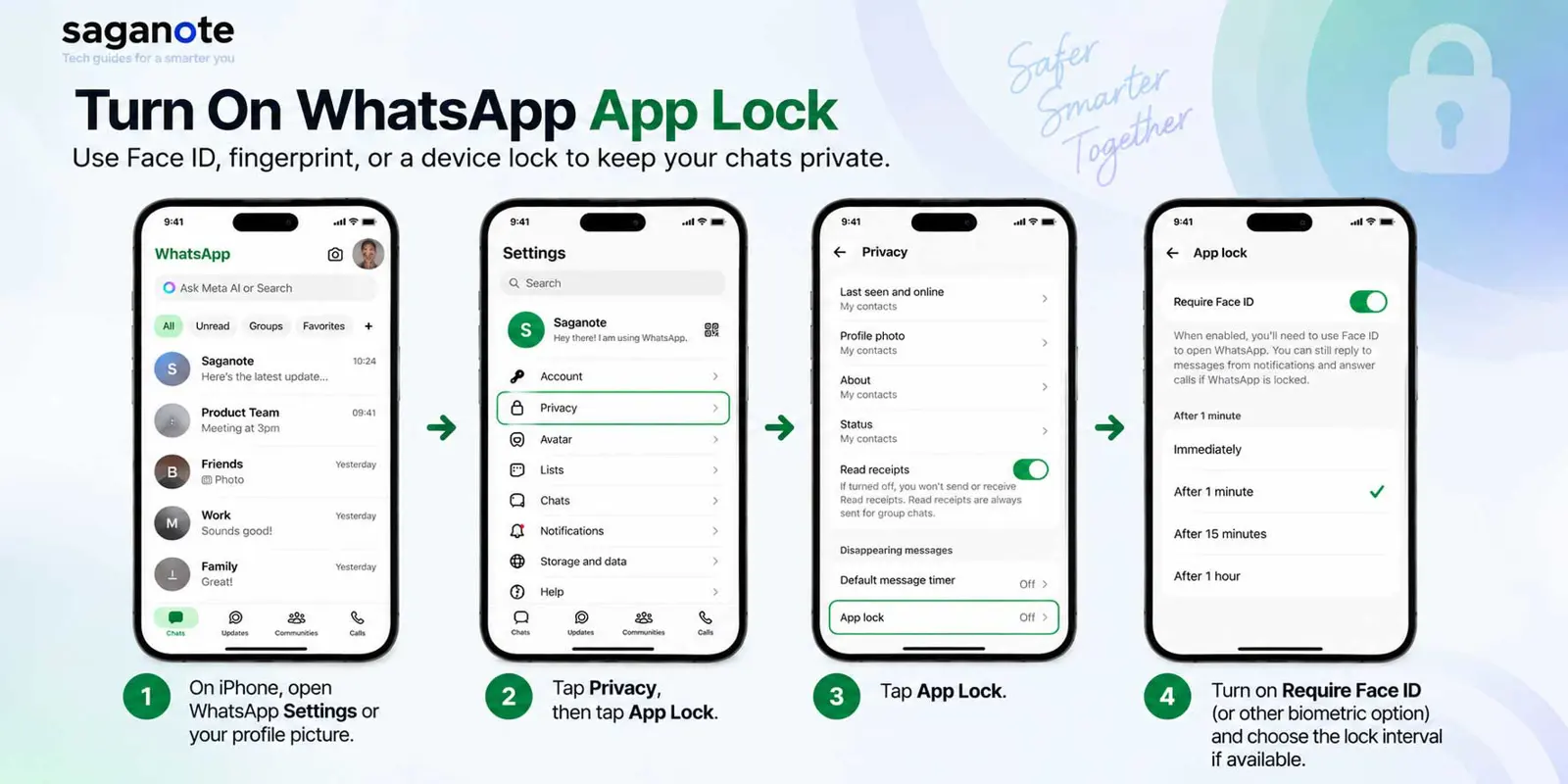
App lock protects access to WhatsApp on the device itself. It is different from account takeover protection because it helps stop someone with access to an unlocked phone from opening WhatsApp.
- On iPhone, open WhatsApp Settings or your profile picture.
- Tap Privacy > App Lock.
- Turn on Require Face ID or the available biometric option.
- Choose the automatic lock interval if WhatsApp offers the setting.
On WhatsApp Web, the current path is Settings > Privacy > App lock. WhatsApp also supports a password-based app lock on Web, Windows, and Mac. Android and iOS options can differ, so use the controls shown on the device.
6. Protect WhatsApp Backups With End-to-End Encryption
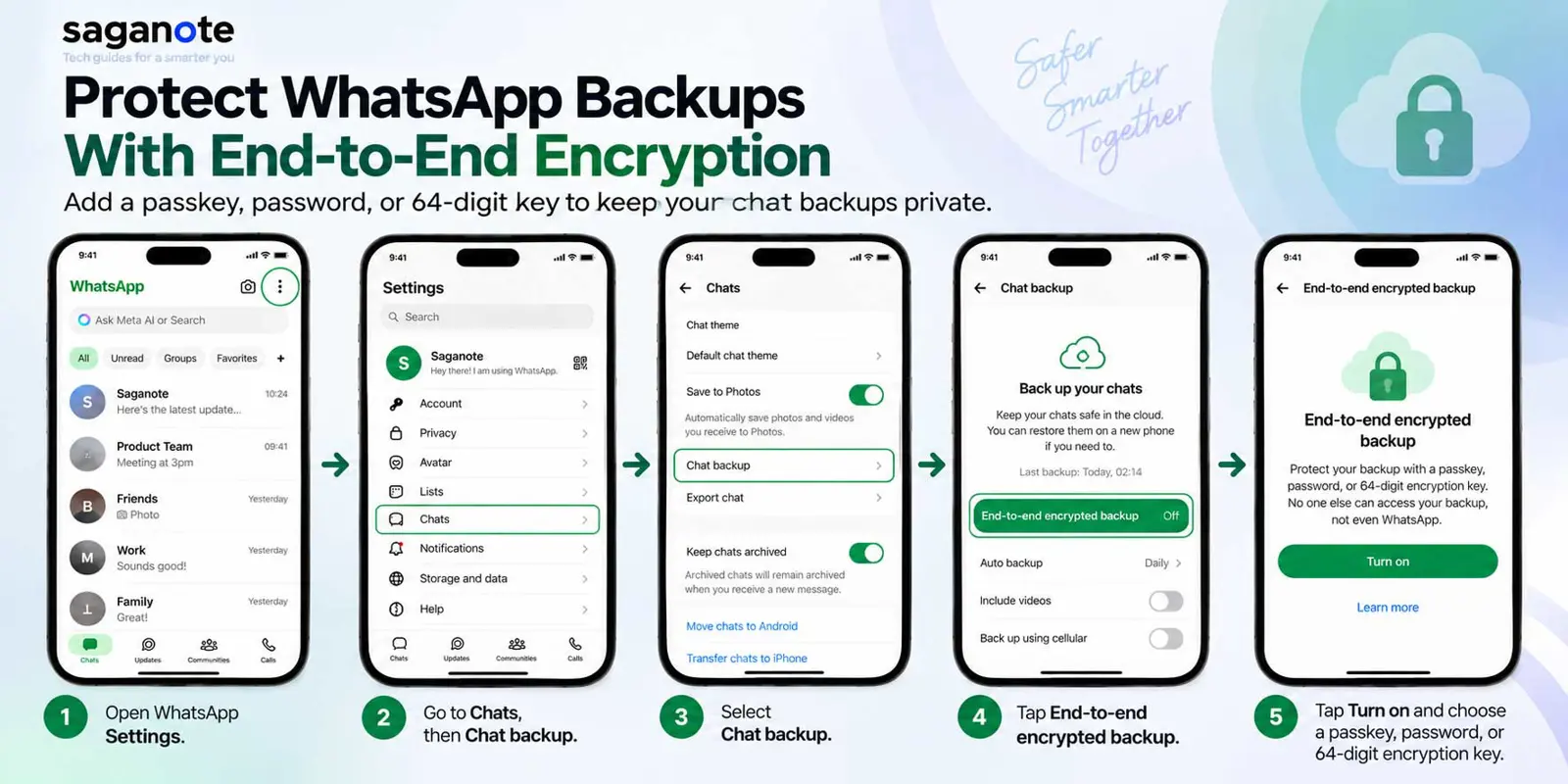
WhatsApp messages are end-to-end encrypted in personal chats, but cloud backups need their own protection. WhatsApp offers end-to-end encrypted backups that can be protected with a passkey, a password, or a 64-digit encryption key.
- Open WhatsApp Settings.
- Go to Chats, then Chat backup.
- Select End-to-end encrypted backup.
- Tap Turn on.
- Choose a passkey, password, or 64-digit encryption key and follow the prompts.
WhatsApp says it cannot reset the backup password or provide a copy of the 64-digit encryption key. Without the password, key, or passkey, the encrypted backup cannot be accessed.
This is also useful background for WhatsApp Is Building Its Own Cloud Backup for iPhone With Encryption iCloud Does Not Force On You.
7. Consider Strict Account Settings If the Risk Is High
WhatsApp's strict account settings are designed for people who believe they may face an elevated risk. The feature applies stricter privacy and security controls to help reduce exposure to certain cyber attacks.
- Use strict account settings when the additional restrictions match the risk you face.
- Do not turn it on simply because it sounds stronger if the added restrictions are not useful for your situation.
- Keep the core protections enabled even if strict account settings are not available on the account.
Never Share Your WhatsApp Registration Code
The six-digit registration code is used to prove control of the phone number when registering WhatsApp. Giving that code to another person can allow them to register the account on another device.
WhatsApp says never share your six-digit registration code or password. If an unexpected registration code arrives, do not pass it to anyone. Treat an unsolicited code as a reason to check the account and linked devices.
What to Do If Your WhatsApp Account Is Stolen
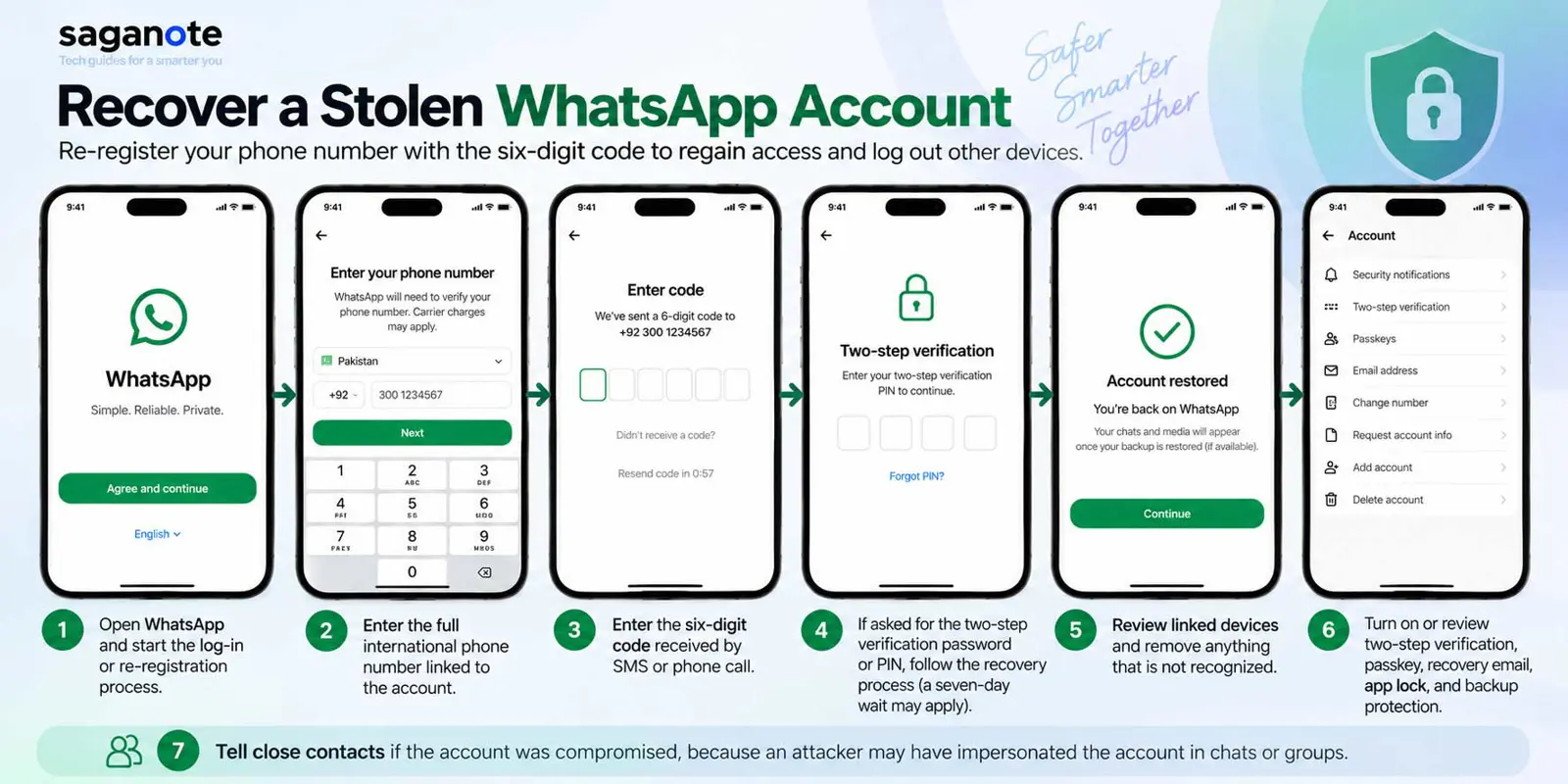
If someone has taken over the account, do not rely on changing the WhatsApp password alone. WhatsApp's recovery instructions say that re-registering the phone number with the six-digit code logs out other devices using the account.
- Open WhatsApp and start the log-in or re-registration process.
- Enter the full international phone number linked to the account.
- Enter the six-digit code received by SMS or phone call.
- If WhatsApp asks for the two-step verification password or PIN and it is not known, follow WhatsApp's recovery process. Its current guidance says a seven-day wait may apply in cases where another person enabled two-step verification.
- After access is restored, review linked devices and remove anything that is not recognized.
- Turn on or review two-step verification, passkey, recovery email, app lock, and encrypted backup protection.
- Tell close contacts if the account was compromised, because an attacker may have impersonated the account in chats or groups.
If the phone or SIM is lost or stolen, WhatsApp says to contact the mobile provider, block the SIM, request a replacement SIM with the same phone number, and then re-register WhatsApp. Account recovery requires access to the same phone number.
WhatsApp Account Security Checklist
- Two-step verification is enabled and its password or PIN is kept private.
- A passkey is created when supported and appropriate.
- A recovery email is added and verified.
- Linked devices are reviewed regularly.
- App lock and the phone's screen lock are enabled where appropriate.
- End-to-end encrypted backups are enabled and the recovery secret is stored safely.
- Strict account settings are considered if the account holder faces elevated risk.
- WhatsApp registration codes are never shared.
- The recovery steps are known before an account takeover happens.
Frequently Asked Questions
Does two-step verification stop every WhatsApp account takeover?
Can changing the WhatsApp password remove an attacker?
What happens to WhatsApp sessions after re-registering the phone number?
Can WhatsApp recover an encrypted backup if the password or key is lost?
Good WhatsApp account security is not one switch. The strongest setup combines account-level authentication, device protection, recovery options, linked-device checks, and encrypted backups. The most important habit is still to keep registration codes and security passwords private.
Official references: WhatsApp Help Center: Account security tips, WhatsApp Help Center: About two-step verification, WhatsApp Help Center: How to check linked devices, WhatsApp Help Center: How to recover a compromised account, and WhatsApp Help Center: About end-to-end encrypted backup.
