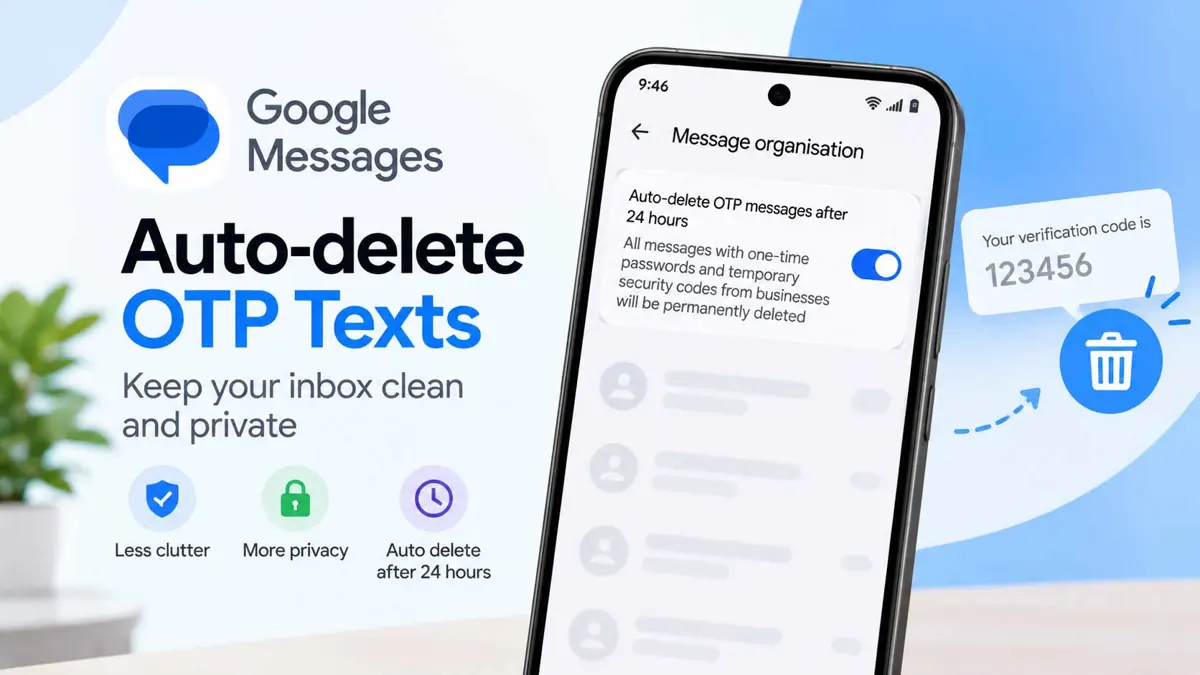
If your Google Messages inbox is full of old verification codes, there is a simple setting worth checking. Google Messages can automatically delete OTP messages after 24 hours, including temporary security codes sent by businesses.
How to turn on OTP auto-delete in Google Messages
The option is inside the Messages app settings. On a recent version of Google Messages, the path is:
- Open Google Messages.
- Tap your profile photo in the top-right corner.
- Tap Messages settings.
- Open Message organization.
- Turn on Auto-delete OTP messages after 24 hours.
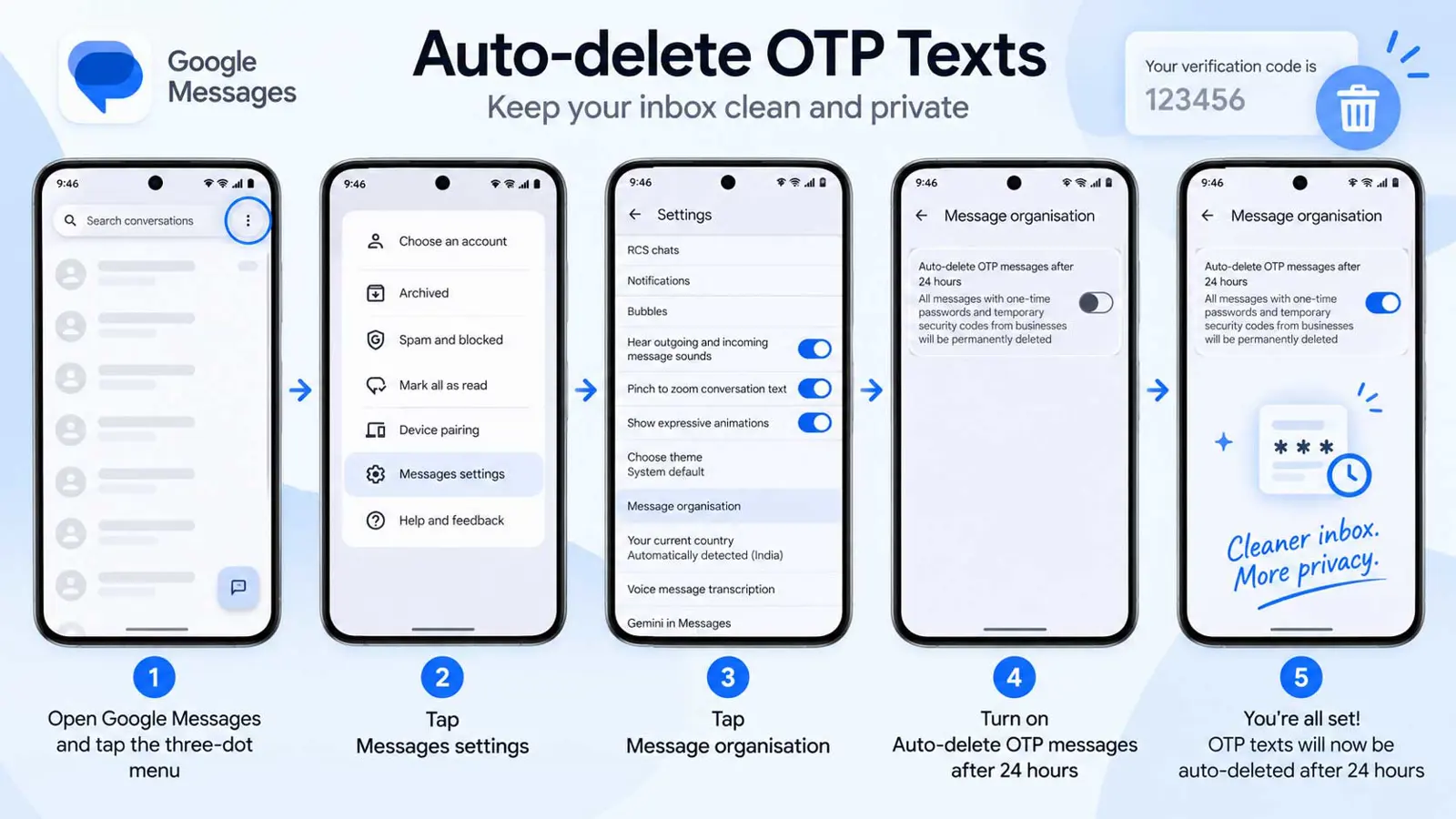
Android Authority says the steps were tested on a Pixel 10 Pro XL running Android 17, although the setting should be similar on other phones using a recent version of Google Messages. Menu names or placement can vary slightly between versions.
What the setting actually deletes
The feature is designed for one-time passwords and temporary security codes. Android Authority reports that it can also remove OTP messages that arrive inside an existing message thread, such as codes from a carrier or courier.
The setting is separate from ordinary message cleanup. Turning it on does not mean Google Messages will automatically delete your regular conversations after 24 hours.
Why it is worth checking
OTP messages are normally useful for only a short time, so keeping expired codes in your inbox offers little benefit. Auto-delete gives you a simple way to reduce that clutter without manually finding and deleting each code.
Google Messages has also been getting other changes. If you use RCS, see our guide on How to Turn On RCS Chats in Google Messages. You can also read about Google's September Android Drop, which includes a new checklist feature in Messages.
One caveat: some Google Messages users report that the option can be missing or that OTPs do not always get deleted as expected. If you do not see the setting, updating Google Messages may be worth checking before assuming your phone does not support it.
