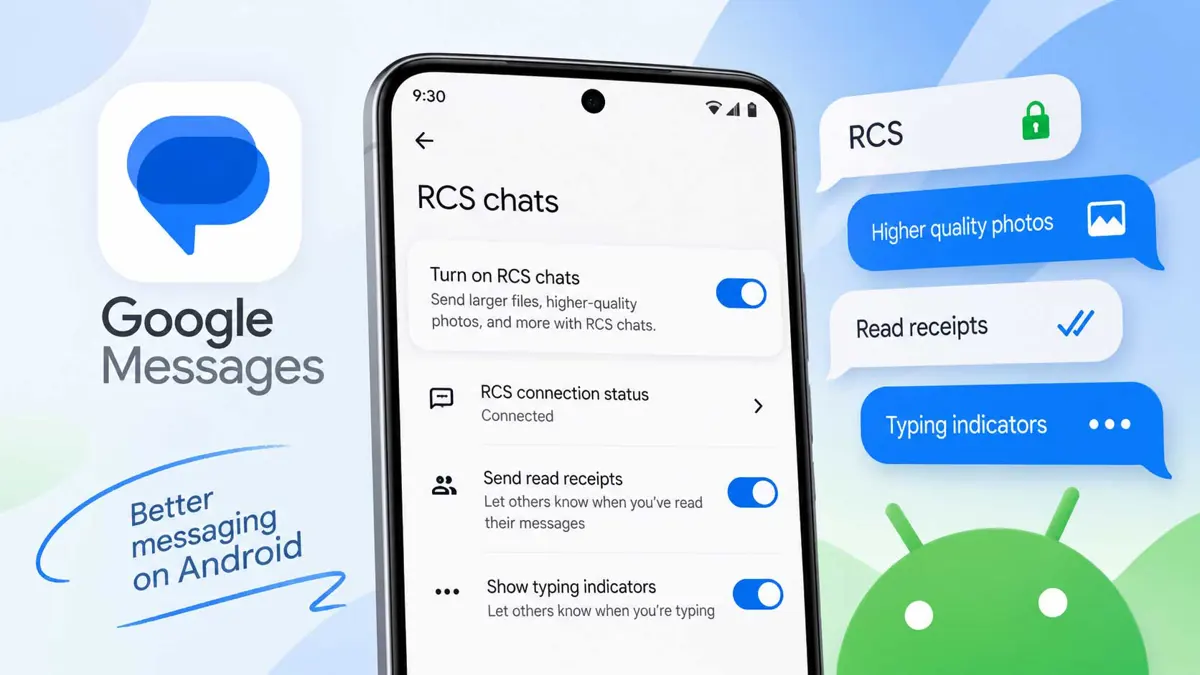
If you want richer messaging on Android, you can turn on RCS chats in Google Messages in a few taps. RCS can send messages over Wi-Fi or mobile data and adds features such as read receipts, typing indicators, high-resolution photos and videos, and richer group conversations. Google says RCS availability can vary by device, carrier, and region.
This guide shows exactly where to find the setting, how to confirm that RCS is connected, and what to check if the option does not appear.
What You Need Before You Turn On RCS Chats in Google Messages
Before you start, make sure Google Messages is installed and set as your default SMS app. Your Android phone also needs an internet connection and must be able to receive SMS messages. Google currently says RCS chats require Android 5.0 or later, while availability also depends on carrier support.
- Google Messages installed on your Android phone
- Google Messages set as your default SMS app
- A working Wi-Fi or mobile data connection
- A phone number and carrier that support RCS
- Android 5.0 or later
If you are switching from an iPhone, Saganote also has a separate guide covering how to enable RCS on iPhone.
How to Turn On RCS Chats in Google Messages
The current Google Messages path is straightforward. Menu names can vary slightly by device or app version, but Google currently documents the following route.
- Open the Google Messages app.
- Tap your profile picture or initial in the top-right corner.
- Tap Messages settings.
- Tap RCS chats.
- If you do not see RCS chats, Google says the setting may instead appear as Chat features.
- Turn on RCS chats.
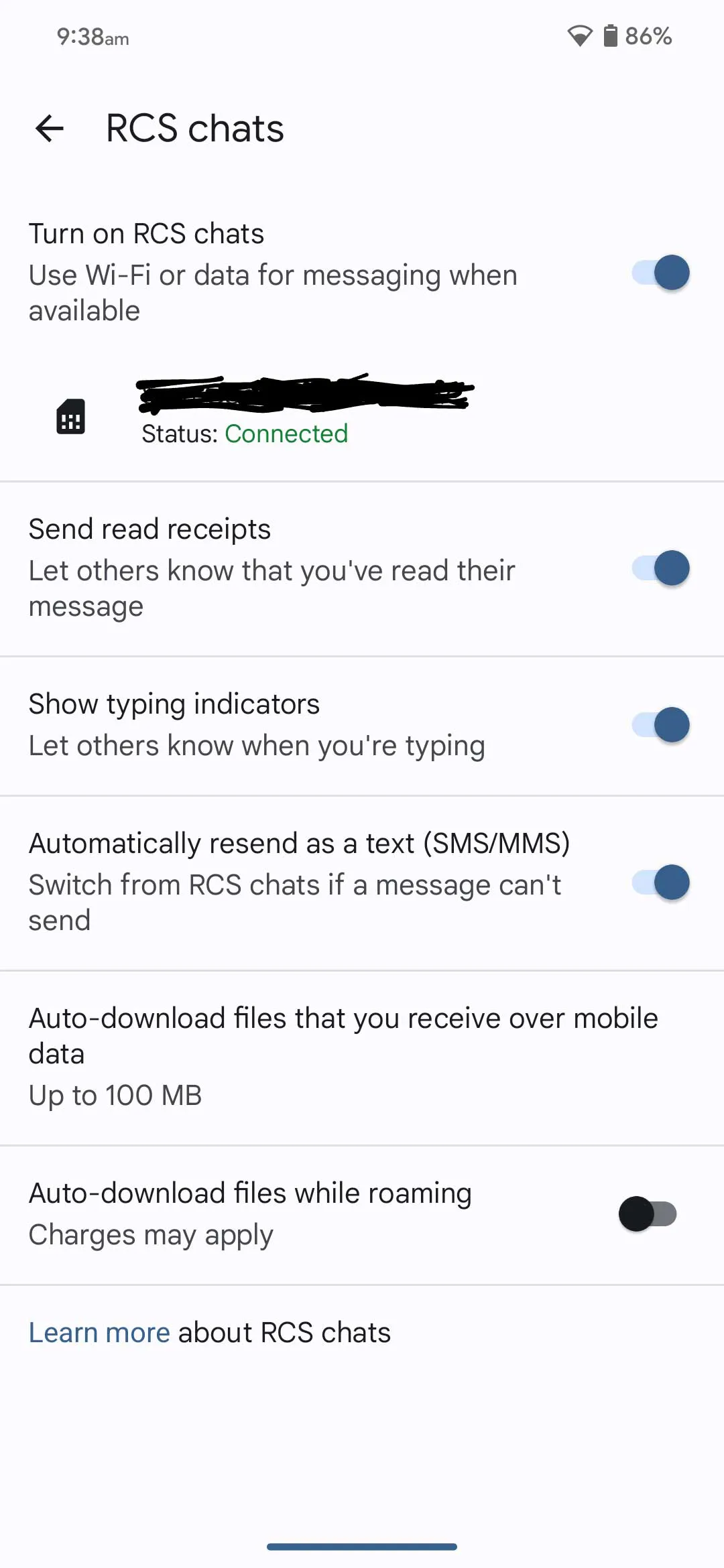
After you enable the setting, Google Messages will show the current RCS status underneath the RCS settings. When the status says Connected, your phone can use RCS with contacts who also have RCS enabled.
How to Check If RCS Is Connected
You do not need to send a test message just to check the connection. Open Google Messages, tap your profile picture, choose Messages settings, and open RCS chats again.
- Connected: RCS is ready to use with other people who have RCS turned on.
- Connecting: Google Messages is verifying your phone number. Give it time to finish.
- Trouble connecting. Awaiting retry: Google says there is a problem with phone-number verification. If it lasts more than 30 minutes, tap Details and submit feedback.
- Not supported: Your device or carrier cannot currently use RCS.
You can also tell which messaging method a conversation is using from the compose area. Google says an RCS message is indicated by the RCS message label, while SMS or MMS conversations show the corresponding text-message method.
What RCS Adds to Google Messages
RCS is designed to improve on traditional SMS and MMS without requiring a different phone number. With RCS enabled, supported conversations can use Wi-Fi or mobile data and offer features that are not available through basic text messaging.
- High-resolution photos and videos
- Typing indicators
- Read receipts
- Richer group chat features
- Messaging over Wi-Fi or mobile data
- End-to-end encryption for RCS conversations between Google Messages users, where supported
RCS is also the foundation for some newer Google Messages features. For example, Saganote's guide to Google Messages chat themes and custom backgrounds explains how individual RCS conversations can use custom colors and wallpapers.
What to Do If RCS Chats Is Missing
If you cannot find RCS chats in Google Messages, do not assume the app is broken. Google says the option may be unavailable because of device or carrier support.
- Check that Google Messages is your default SMS app.
- Make sure your phone has an internet connection and can receive SMS messages.
- Update Google Messages from Google Play.
- Check that your Android version is supported.
- Check whether your carrier supports RCS.
- If your phone uses two SIMs, check that the correct SIM is configured for mobile data when required.
If Google Messages says RCS chats have been disabled by your carrier, Google recommends contacting the carrier. Once the carrier resolves the issue, return to RCS chats and tap Retry if that option appears.
If RCS Stays on Connecting
A Connecting status means Google Messages is still verifying your phone number. If it remains stuck for more than 30 minutes and changes to a trouble-connecting message, Google recommends checking your connection and following the troubleshooting steps in its RCS support documentation.
Make sure you can receive SMS messages because Google uses SMS during phone-number verification. Also check that Google Messages and Google Play services are up to date.
How to Turn RCS Off Again
Google documents the same settings path for turning RCS off: open Google Messages, tap your profile picture, choose Messages settings, tap RCS chats, and turn RCS chats off.
Google specifically advises against repeatedly turning RCS on and off because doing so can remove you from group chats. If you have changed phones, switched messaging apps, or lost access to an old phone, use Google's RCS deactivation guidance rather than repeatedly toggling the setting.
RCS on Android and iPhone
RCS now works between Android phones and supported iPhones, although the available features and encryption depend on the platforms and services involved. Google says RCS between Google Messages users can use end-to-end encryption, while RCS conversations with iPhone users do not currently have the same end-to-end encryption protection.
For a separate Apple-focused guide, see Saganote's RCS on iPhone setup guide.
FAQ
Does RCS replace SMS?
Why does Google Messages say RCS is not supported?
Does RCS use mobile data?
Can I still message someone who does not have RCS?
Does RCS work with iPhone users?
The Quickest Way to Enable RCS
For most Android users, the setup takes only a few taps: Google Messages > profile picture > Messages settings > RCS chats > turn on RCS chats. Once the status changes to Connected, RCS is ready for supported conversations.
If the setting is missing or remains stuck on Connecting, check your default messaging app, internet connection, app version, Android version, and carrier support before trying more advanced troubleshooting.
Saganote's September Android Drop guide also covers recent Google Messages updates, including chat themes, Keep integration, and other Android features.
