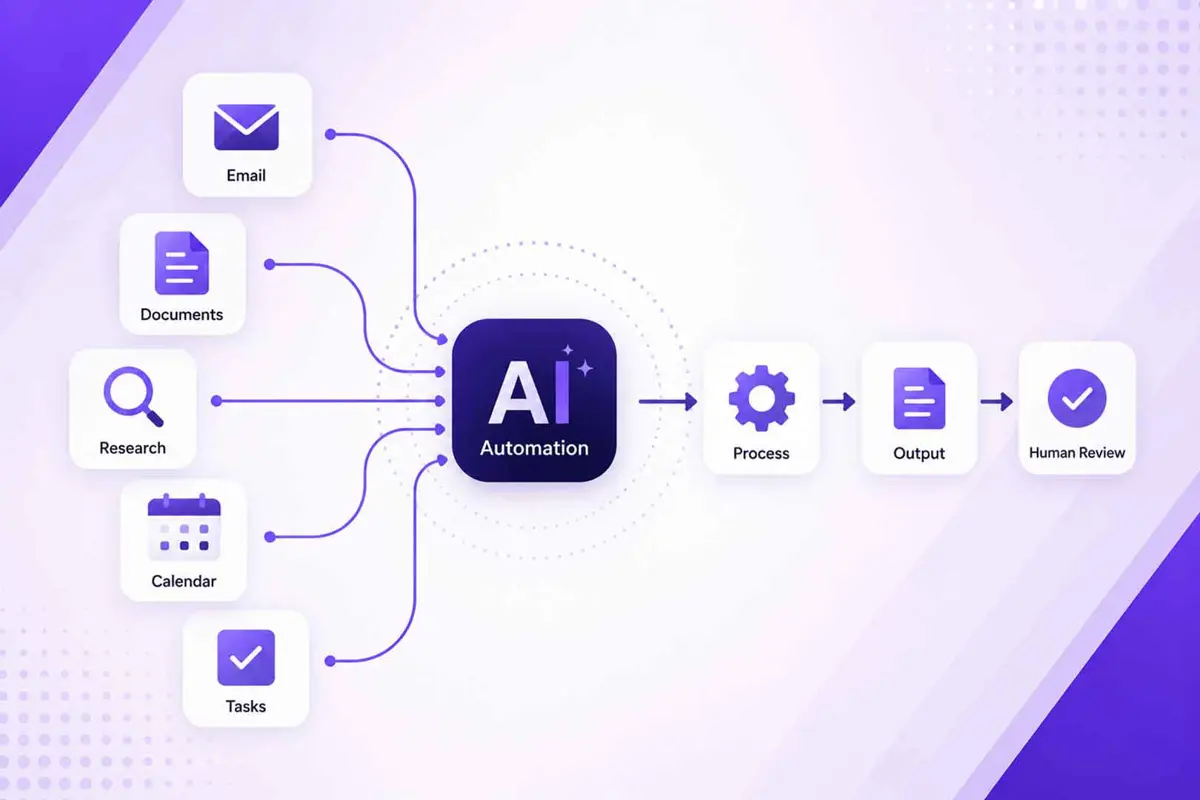
If you want to know how to use AI to automate everyday tasks, start smaller than the word "automation" suggests. You do not need to build a complicated AI agent. A useful first workflow can be as simple as turning new emails into summaries, turning meeting notes into action items, or creating a recurring research brief.
The basic pattern is trigger → input → AI task → rules → output → review. Once you understand that pattern, you can apply it to email, documents, research, scheduling, and repetitive work across the apps you already use.
What AI automation actually means
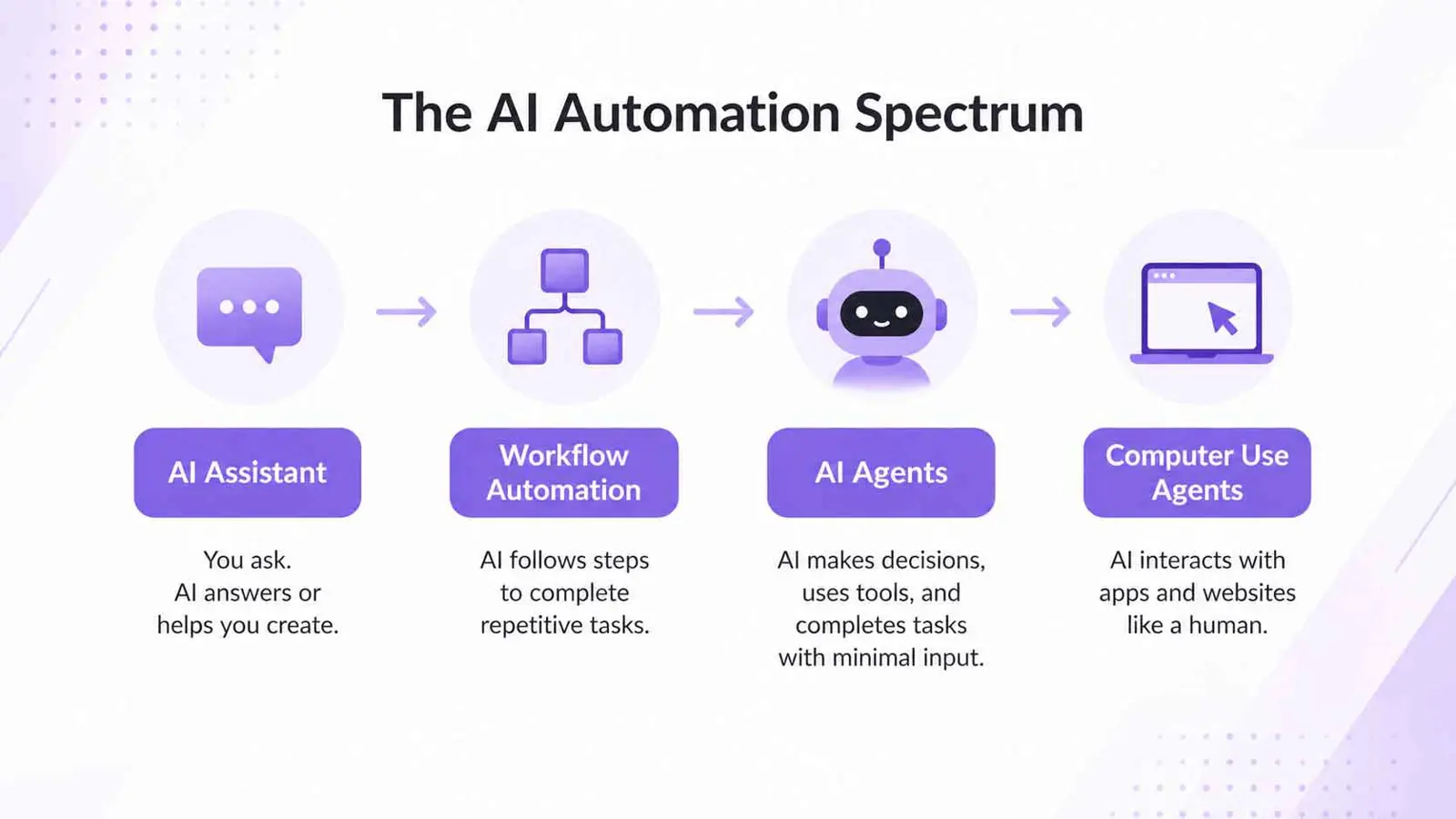
An AI assistant responds when you ask it to do something. Automation goes a step further: the system can start the work when a defined event happens, apply instructions, and produce a result without you repeating the same prompt every time.
- AI assistant: You provide the task and the AI helps complete it.
- AI workflow: A trigger starts a repeatable sequence that can include AI.
- AI agent: The system can decide among multiple steps and use tools to work toward a goal.
- Computer-use agent: The AI can interact with graphical interfaces using actions such as clicking, scrolling, and typing.
These categories overlap. The important distinction for a beginner is control: the more freedom you give an AI system to choose actions and operate applications, the more important testing, permissions, and human review become.
Current tools are already moving in this direction. Microsoft 365 Copilot's Workflows can generate workflows from natural-language instructions, use triggers such as schedules or events, and connect supported Microsoft 365 services such as Outlook, Teams, SharePoint, and Planner. Microsoft also says AI-generated workflows should be reviewed and tested before production use. Source: Microsoft Support.
Start with tasks that are worth automating
The best first automation is not necessarily the most impressive one. Choose something you already understand and do often enough that repeating it is annoying.
Look for repetitive work
- Summarizing recurring emails or documents
- Turning meeting notes into action items
- Preparing a weekly research brief
- Extracting information from invoices, reports, or forms
- Turning rough notes into a first draft
- Categorizing incoming requests
- Moving information from one app into a task or document
- Preparing recurring status updates
Avoid high-risk tasks at first
Do not begin by giving an AI system permission to make purchases, delete files, change important account settings, send sensitive messages, or perform other irreversible actions without approval. Start with work where an incorrect result is easy to spot and fix.
Computer-use systems are particularly important to test carefully. OpenAI's computer-use research describes agents that can operate graphical interfaces, but also notes that the systems have limitations and may require user confirmation for sensitive actions. Source: OpenAI.
Use the simple AI automation formula
Before choosing a tool, write the workflow as six parts:
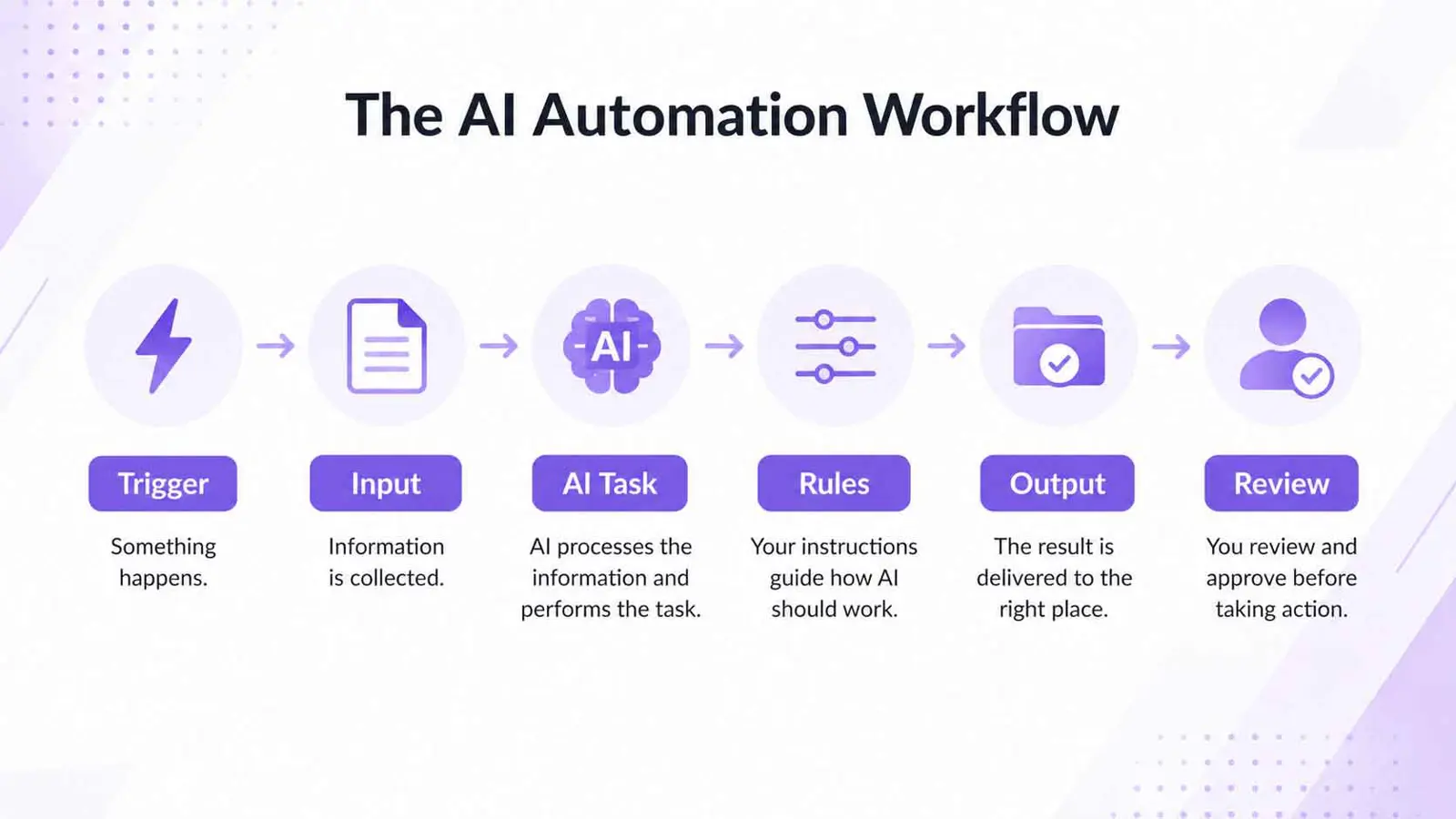
For example, an email workflow could look like this: new email → email content → summarize and extract action items → ignore newsletters and flag deadlines → create a draft task list → review before sending or assigning anything.
7 everyday tasks you can automate with AI
1. Summarize email
A simple email workflow can identify messages that need attention, summarize long threads, and extract deadlines or requested actions. Gmail already includes Gemini features for summarizing threads and finding next steps, which shows how AI assistance can remove repetitive reading before you build a larger workflow. Source: Google Workspace.
For more advanced examples, Saganote has covered how Claude can send emails in Gmail without your approval. The important lesson is not to copy the most autonomous setup immediately; start with drafts or summaries and add approvals before sending.
2. Turn meeting notes into action items
Instead of manually rereading notes after every meeting, have AI turn them into a structured list with the task, owner, deadline, and context. Keep the original notes available so you can verify names, dates, and commitments before creating tasks.
3. Automate document summaries
For reports, proposals, research papers, or long PDFs, a workflow can take a new document, produce a short summary, extract important numbers, and identify questions that deserve human attention.
If your work already involves connected files, Saganote has also covered ChatGPT opening and editing Google Drive files inside the chat. That kind of file access can become one part of a larger document workflow.
4. Build recurring research briefs
If you repeatedly research the same topic, define the sources, time period, format, and filtering rules once. A scheduled workflow can then collect new information, summarize it, remove obvious duplicates, and prepare a brief for review.
The key is to make the research scope explicit. "Find interesting AI news" is vague. "Every Friday, summarize new product announcements from these sources and separate launches from rumors" gives the workflow a much clearer job.
5. Turn rough notes into documents
AI can turn bullet points, meeting notes, or scattered ideas into a structured first draft. This is often a better starting point than asking an automation to publish the document automatically.
- Notes → project brief
- Notes → meeting summary
- Notes → checklist
- Notes → proposal draft
- Notes → internal documentation
Keep the human review at the drafting stage. The goal is to remove repetitive formatting and organization, not remove your judgment from the final document.
6. Move information between apps
A workflow can watch for an event in one application, ask an AI model to classify or summarize the information, and then place the result in another application. For example: new form submission → AI categorization → create task → notify the appropriate person.
Microsoft's Workflows documentation provides a current example of this model: natural-language instructions can describe a workflow that reads unread Outlook email, identifies important messages, organizes the results, and sends a summary to Teams. Availability and connectors vary, so check the current requirements before building around a specific feature. Source: Microsoft Support.
7. Automate repetitive browser or computer work
The most advanced category is computer-use automation, where an AI can operate a browser or desktop interface rather than relying only on a dedicated integration. OpenAI describes computer-use agents that interpret screenshots and use mouse and keyboard actions to complete multi-step tasks.
This can be useful when an application does not offer the integration you need, but it is also the category where you should be most conservative. Current systems can make mistakes, so sensitive actions should stay behind explicit user confirmation. Source: OpenAI.
Saganote has also covered Claude in Chrome working directly in the browser, which is another example of AI moving from answering questions toward operating software.
How to build your first AI automation
1. Write down the task
Describe the task exactly as you perform it today. Include the starting event, the information you use, the decisions you make, and the final result. If you cannot explain the task clearly, automate the process only after you understand it.
2. Define the trigger
Choose what starts the workflow. Common triggers include a new email, a new file, a form submission, a calendar event, a scheduled time, or a change in a task list.
3. Define the AI instruction
Tell the AI exactly what to produce. Include the desired format, important context, and what it should do when information is missing.
Summarize each message in three bullets. Then list action items with the exact deadline and sender. If no action is requested, write "No action required." Do not invent dates, names, or commitments.4. Add rules and boundaries
Decide what the automation should ignore, what it should flag, and what it must never do automatically. Good rules are specific enough that another person could understand them without asking you what you meant.
5. Define the output
Choose where the result belongs. It might be a draft email, task, spreadsheet row, document, notification, or database record. A clear destination makes the workflow easier to test.
6. Add human approval
Do not let a new automation send sensitive messages, delete data, make purchases, change important settings, or publish information without an appropriate review step. Start with drafts and recommendations before granting permission to act.
7. Test with real examples
Run the workflow against several representative examples before trusting it. Include an ordinary case, an edge case, missing information, and an example where the correct action is to do nothing.
8. Monitor and improve it
Review the results after the workflow goes live. Look for repeated mistakes, unnecessary actions, false positives, and cases where the instructions are ambiguous. Change one rule at a time so you can tell which change improved the result.
Choose the right type of AI automation
| What you need | Best starting point |
|---|---|
| Summarize or rewrite something | AI assistant |
| Repeat the same task on a schedule | Workflow automation |
| Move information between supported apps | Workflow automation |
| Make decisions across several steps | AI workflow or agent |
| Operate a website or desktop interface | Computer-use agent |
| Perform a sensitive or irreversible action | Human approval |
You do not need an agent for every problem. If a normal prompt solves the task in one step, use the simpler option. Automation becomes more valuable when the same work happens repeatedly and follows a recognizable pattern.
How to automate AI tasks without losing control
The more access a workflow has, the more carefully you should define its boundaries. Treat permissions as part of the automation design, not as an afterthought.
- Give the workflow only the access it needs.
- Keep sensitive credentials outside prompts whenever possible.
- Require approval before destructive or external actions.
- Log important actions so you can review what happened.
- Test changes before enabling them for regular use.
- Have a clear failure path when the AI is uncertain.
- Recheck important facts before acting on them.
Microsoft's current Workflows guidance specifically recommends reviewing and testing AI-generated workflows before production use and provides run history for monitoring. OpenAI likewise recommends human oversight for computer-use scenarios where reliability is not yet sufficient. Sources: Microsoft Support and OpenAI.
A beginner AI automation workflow you can copy
A weekly research brief is a good first project because it is repetitive, easy to review, and does not require the AI to make irreversible decisions.
Once this workflow works reliably, you can add more automation. For example, the workflow could create tasks from selected items or notify you when a source contains a specific type of update. Build those additions only after the basic version is dependable.
Common AI automation mistakes
- Automating a task before understanding the manual process
- Giving the AI more access than it needs
- Using vague instructions
- Skipping human review
- Automating rare tasks that are faster to do manually
- Failing to define what happens when information is missing
- Building a complicated agent when a simple workflow would work
- Assuming the AI will always recognize the correct context
When AI automation is not worth it
Automation has a cost. You may need to configure a workflow, connect accounts, test outputs, handle failures, and maintain it when an application changes.
A good rule is simple: automate tasks that are frequent, repetitive, predictable, time-consuming, and easy to verify. If a task takes 20 seconds once a week, building a 30-minute automation may make your workflow worse rather than better.
Frequently Asked Questions
Do I need coding skills to automate tasks with AI?
What everyday tasks can AI automate?
What is the difference between AI assistance and AI automation?
Is AI automation safe?
How do I know which task to automate first?
Start with one repeatable task
The best way to learn how to use AI to automate everyday tasks is to automate one small workflow first. Define the trigger, input, AI instruction, rules, output, and review step, then test it with real examples.
Once the workflow is reliable, you can connect it to more applications or let it handle more of the process. The goal is not to give AI control over everything you do. It is to remove repetitive work while keeping the decisions that matter in your hands.
