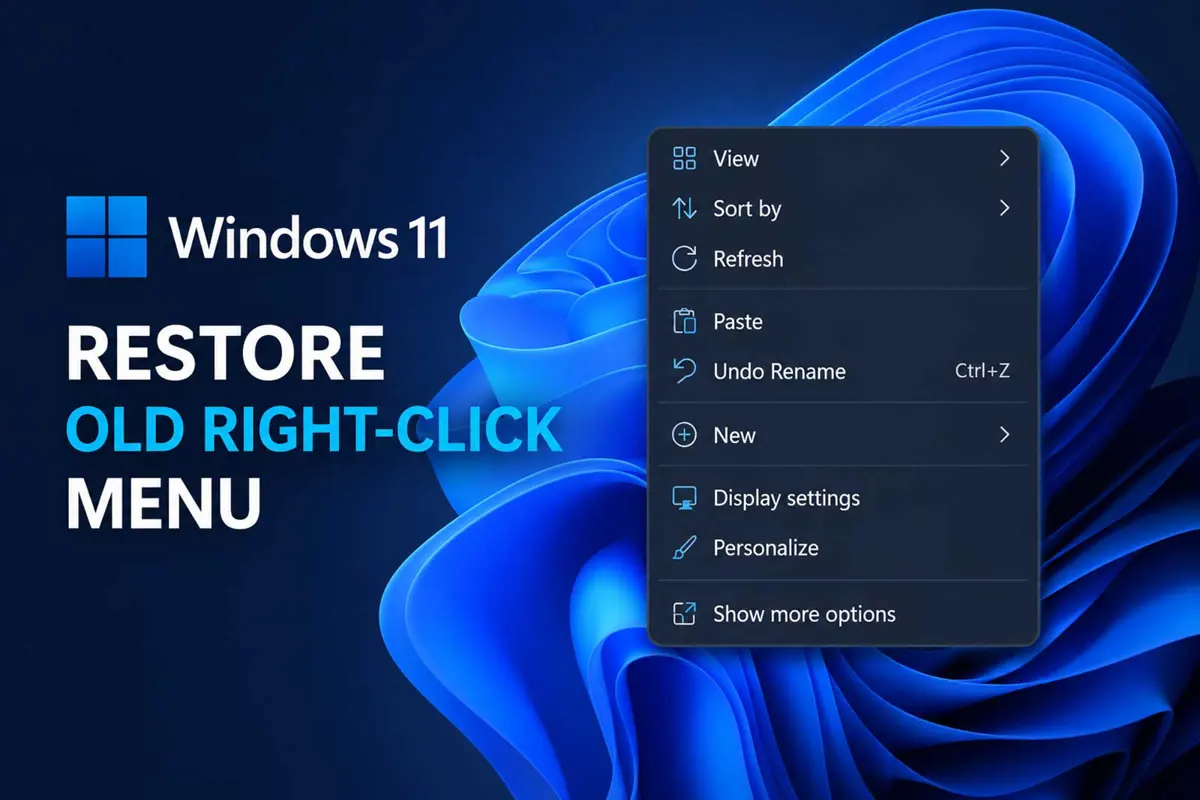
Windows 11 uses a streamlined right-click menu in File Explorer, so commands that were immediately visible in older versions of Windows may now sit behind Show more options. If you prefer the older layout, you can restore the old right-click menu Windows 11 users are familiar with by adding a Registry entry for your account.
This Registry workaround is not a Microsoft-supported setting and its behavior can vary between Windows 11 builds. Microsoft Support documents Show more options as the supported way to access commands from the previous Windows 10 context menu. If the Registry method does not work on your build, use the temporary method near the end of this guide instead.
How to restore the old right-click menu in Windows 11
The quickest version of the workaround uses Windows Terminal or Command Prompt. The command creates the Registry entry under your Windows user account, so you do not need to take ownership of a protected system Registry key.
1. Open Windows Terminal as administrator
- Right-click the Start button.
- Select Terminal (Admin) or Windows Terminal (Admin), depending on the apps installed on your PC.
- Select Yes when User Account Control asks whether you want to allow the app to make changes.
An elevated Terminal window is required because the command changes Windows configuration.
2. Add the Registry entry
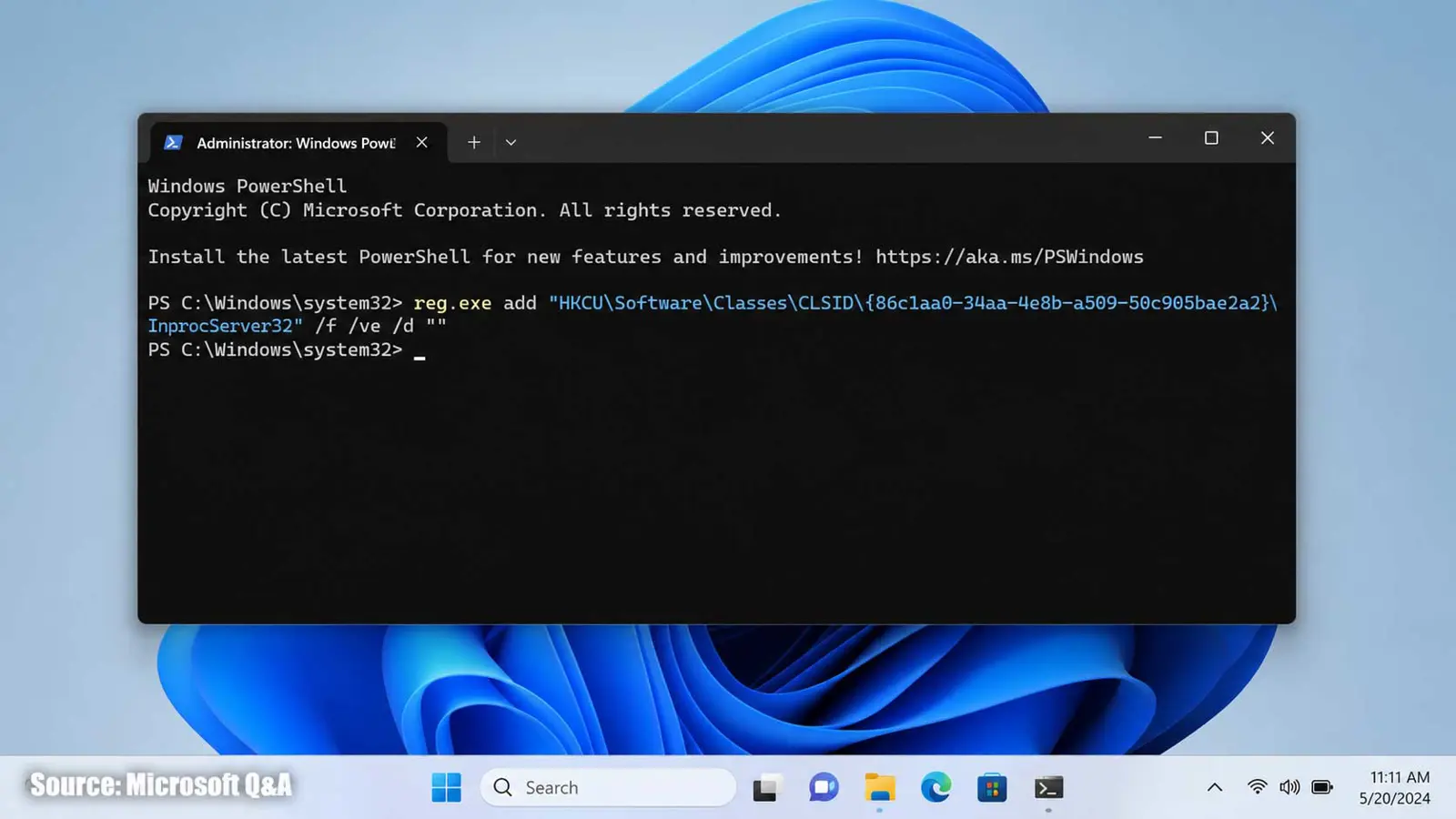
Copy the command below into Terminal and press Enter:
reg.exe add "HKCU\Software\Classes\CLSID\{86ca1aa0-34aa-4e8b-a509-50c905bae2a2}\InprocServer32" /f /ve /d ""The command creates the InprocServer32 entry and sets its default value to blank. Microsoft Q&A guidance documents this Registry path and command as a way to make the legacy context menu the default.
3. Restart Windows Explorer
Windows Explorer needs to reload before the context-menu change appears. You can restart Explorer without restarting the whole PC.
- Press Ctrl + Shift + Esc to open Task Manager.
- Find Windows Explorer in the process list.
- Right-click Windows Explorer.
- Select Restart.
- Wait for the taskbar and desktop to reload.
You can restart the entire PC instead if you prefer.
4. Test the context menu
- Open File Explorer.
- Right-click a file or folder.
- Check whether the classic context menu now opens directly.
- If the compact Windows 11 menu still appears, restart Explorer again and test once more.
The workaround changes the default behavior for the Windows user account where the Registry entry was added. It does not remove the newer Windows 11 context-menu commands.
How to undo the Registry change
If you decide the Windows 11 context menu is better for your workflow, you can remove the Registry entry and return to the default behavior.
1. Open Terminal as administrator
- Right-click the Start button.
- Select Terminal (Admin) or Windows Terminal (Admin).
- Select Yes if User Account Control appears.
2. Delete the Registry entry
Paste this command into Terminal and press Enter:
reg.exe delete "HKCU\Software\Classes\CLSID\{86ca1aa0-34aa-4e8b-a509-50c905bae2a2}" /f3. Restart Windows Explorer
Restart Windows Explorer from Task Manager using the same process described above, or restart Windows. The standard Windows 11 context menu should return after Explorer reloads.
Use the old menu without changing Windows
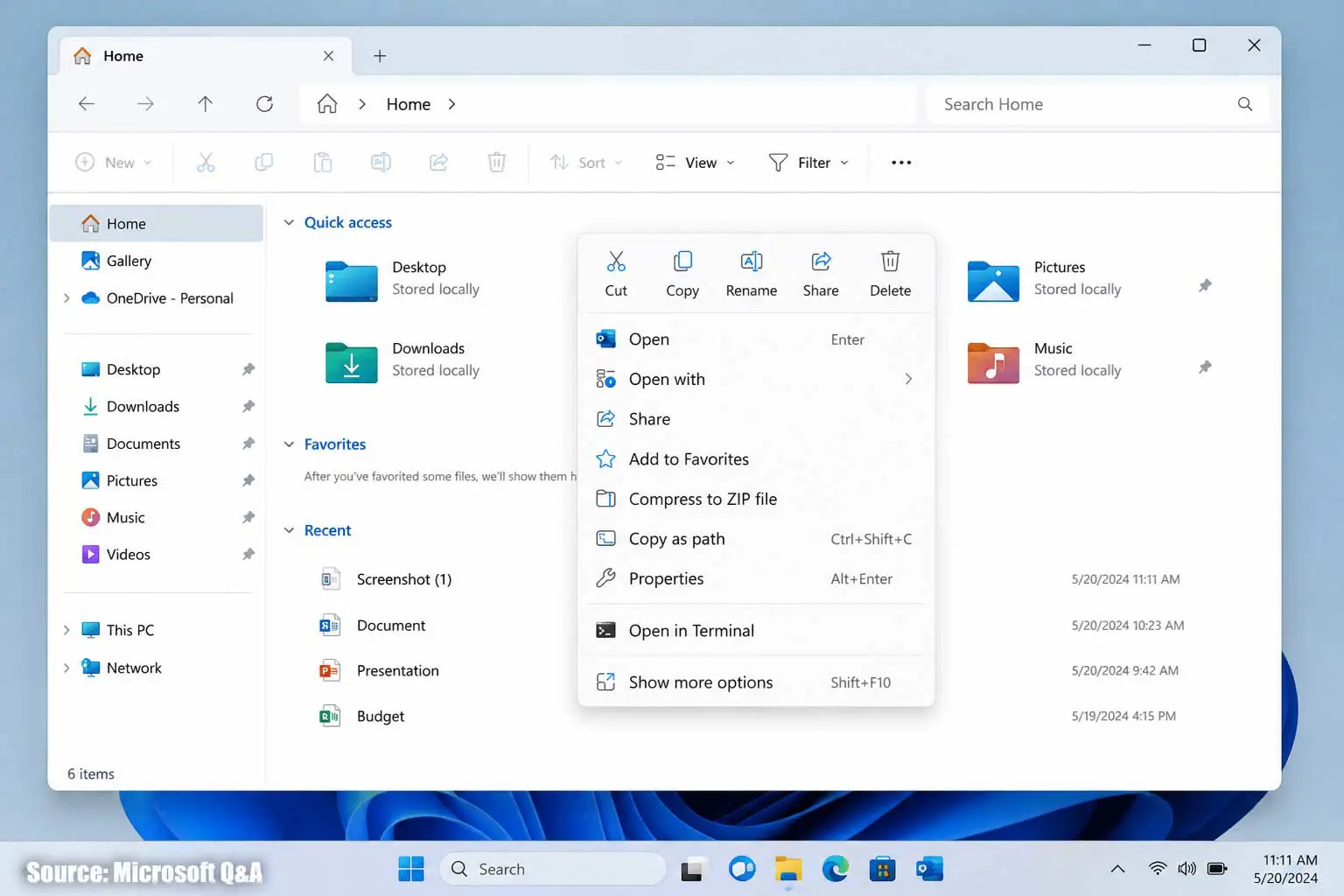
You do not need a Registry change if you only want the classic commands occasionally. Microsoft Support says Windows 11 keeps the previous context-menu commands under Show more options.
- Right-click a file or folder and select Show more options.
- Hold Shift while right-clicking to open the classic menu directly.
This is the safer choice if the Registry workaround does not work on a particular Windows 11 build or if you do not want to change Windows configuration.
Microsoft documents the supported File Explorer behavior in File Explorer in Windows.
Why the Registry method may not work
The Registry workaround has produced mixed results across Windows 11 versions and builds. Microsoft Q&A includes reports from users who found that the original command did not take effect until the default Registry value was explicitly set to blank, while other reports describe builds where the workaround stopped working.
If the old right-click menu does not appear after adding the entry and restarting Explorer, avoid changing unrelated Registry permissions or protected system keys just to force the workaround. Use Show more options or Shift + right-click instead.
The Microsoft Q&A discussion documents both the Registry workaround and reports about its limitations: Restore old Right-click Context menu in Windows 11.
Frequently Asked Questions
Does this restore the Windows 10 context menu permanently?
Can I undo the change?
Is there a way to use the old menu without changing the Registry?
Does the change affect all users on the PC?
The simplest option depends on how often you need the classic menu
If the older menu is needed for most right-click actions, the Registry workaround can make it appear first on supported Windows 11 builds. If it is only needed occasionally, Show more options or Shift + right-click avoids changing the Registry and is easier to reverse because there is no system configuration to undo.
