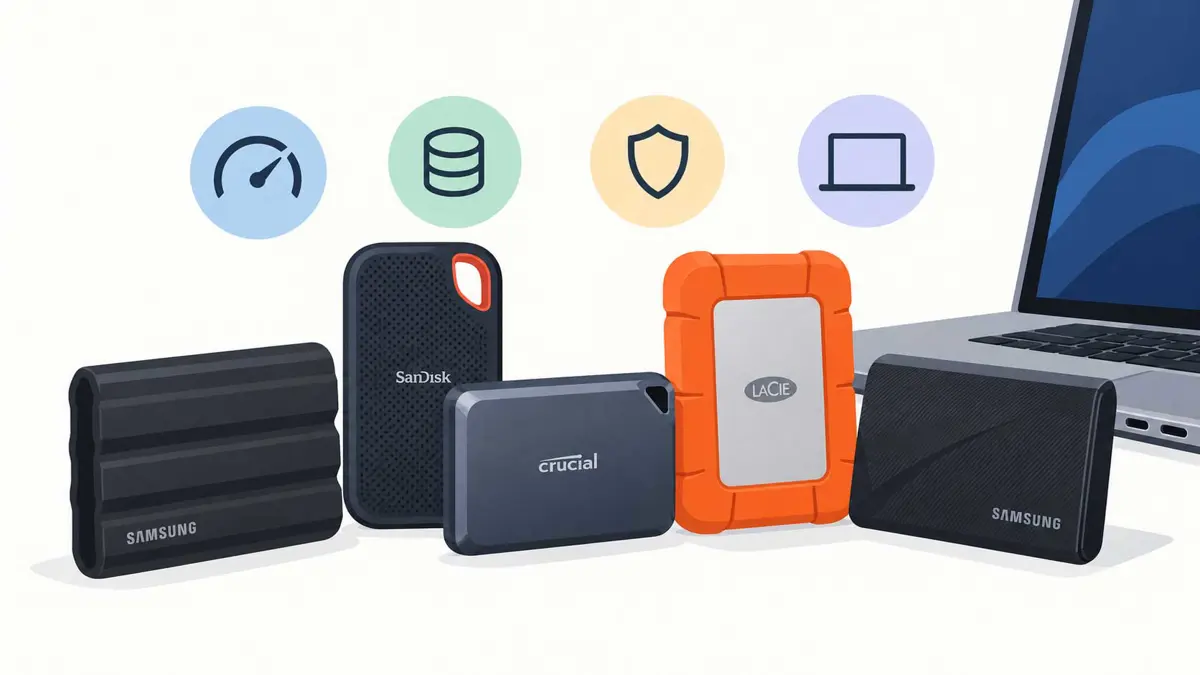
The best external SSD gives you enough space for your files without making transfers or backups painfully slow. For most people, the Samsung T7 Shield is a sensible starting point because it combines useful speed with dust and water resistance. The Kingston XS1000 is a compact alternative, while the Samsung T9 is worth considering when your computer supports its faster connection.
These are buying recommendations based on published specifications and independent testing, not claims that Saganote personally tested every drive. Check current availability and pricing before purchasing.
Best external SSDs at a glance
| Drive | Best for | Advertised speed | Main advantage | Main drawback |
|---|---|---|---|---|
| Samsung T7 Shield | Most people and travel | Up to 1,050 MB/s read | IP65 dust and water resistance | Not as fast as 20Gbps or USB4 drives |
| Kingston XS1000 | Compact everyday storage | Up to 1,050 MB/s read | Tiny, lightweight design | No stated IP protection rating |
| Samsung T9 | Faster transfers | Up to 2,000 MB/s read/write | High peak speed and hardware encryption | Full speed requires a compatible 20Gbps USB port |
| Crucial X10 | Large files and high capacity | Up to 2,100 MB/s read | IP65 protection and capacity options | Maximum speed depends on the host connection |
| LaCie Rugged SSD4 | Demanding creative work | USB4, up to around 4,000 MB/s class | High performance with rugged protection | Costs more than mainstream USB drives |
Advertised speeds are maximum sequential figures, not guaranteed everyday results. Your computer, cable, file sizes, and sustained workload can all affect transfer speeds.
The best external SSDs
1. Samsung T7 Shield - best for most people
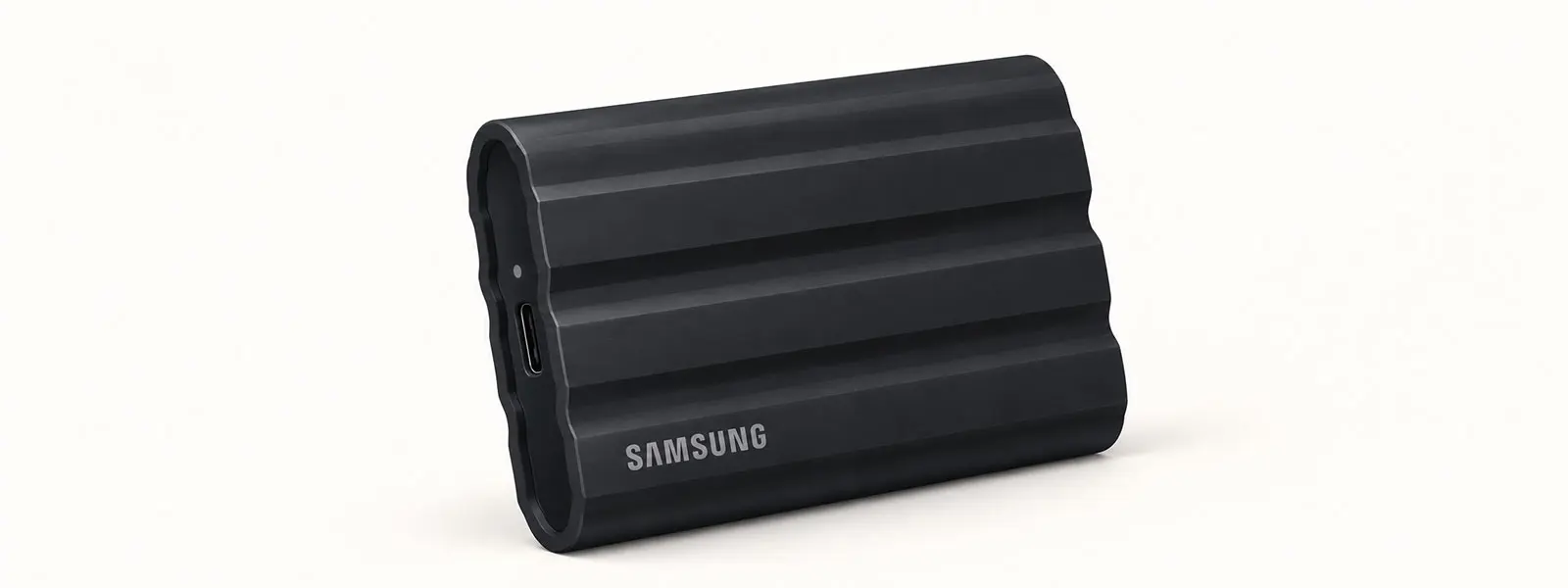
The Samsung T7 Shield is a practical choice for backups, photos, documents, and carrying files between computers. It uses USB 3.2 Gen 2, supports speeds of up to 1,050 MB/s read and 1,000 MB/s write, and has an IP65 rating for dust and water resistance.
- Pros: IP65 protection, compact design, broad device compatibility, hardware encryption.
- Cons: Its 10Gbps interface is slower than compatible 20Gbps USB and USB4 drives.
- Choose it if: You want a portable drive for everyday use and travel.
Official specifications: Samsung T7 Shield.
2. Kingston XS1000 - best compact option
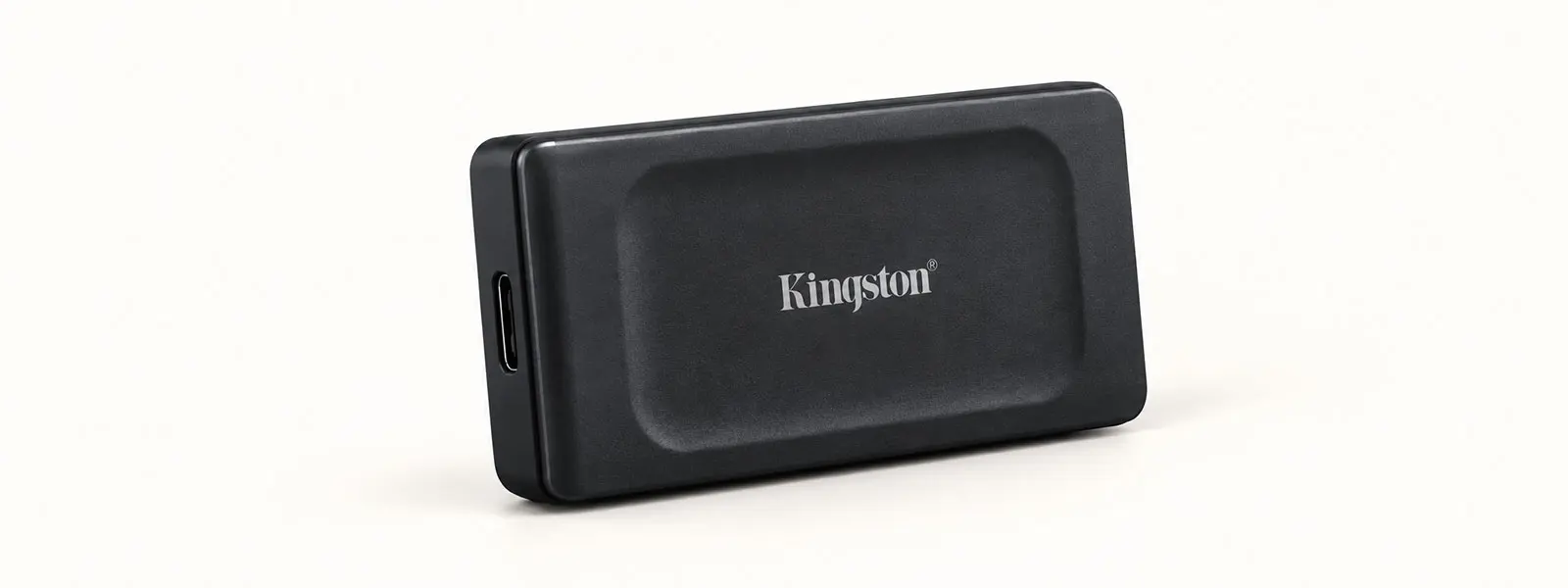
The Kingston XS1000 weighs about 29 grams and offers up to 1,050 MB/s read and 1,000 MB/s write speeds. It is a straightforward choice for documents, photos, and routine backups, especially when a small drive matters more than rugged protection.
- Pros: Very small and light, USB-C and USB-A connectivity with included accessories, five-year limited warranty.
- Cons: Capacity tops out at 2TB in the listed range, and Kingston does not specify an IP dust/water rating.
- Choose it if: You want a simple, pocket-sized drive for everyday files.
Official specifications: Kingston XS1000.
3. Samsung T9 - best for faster USB transfers
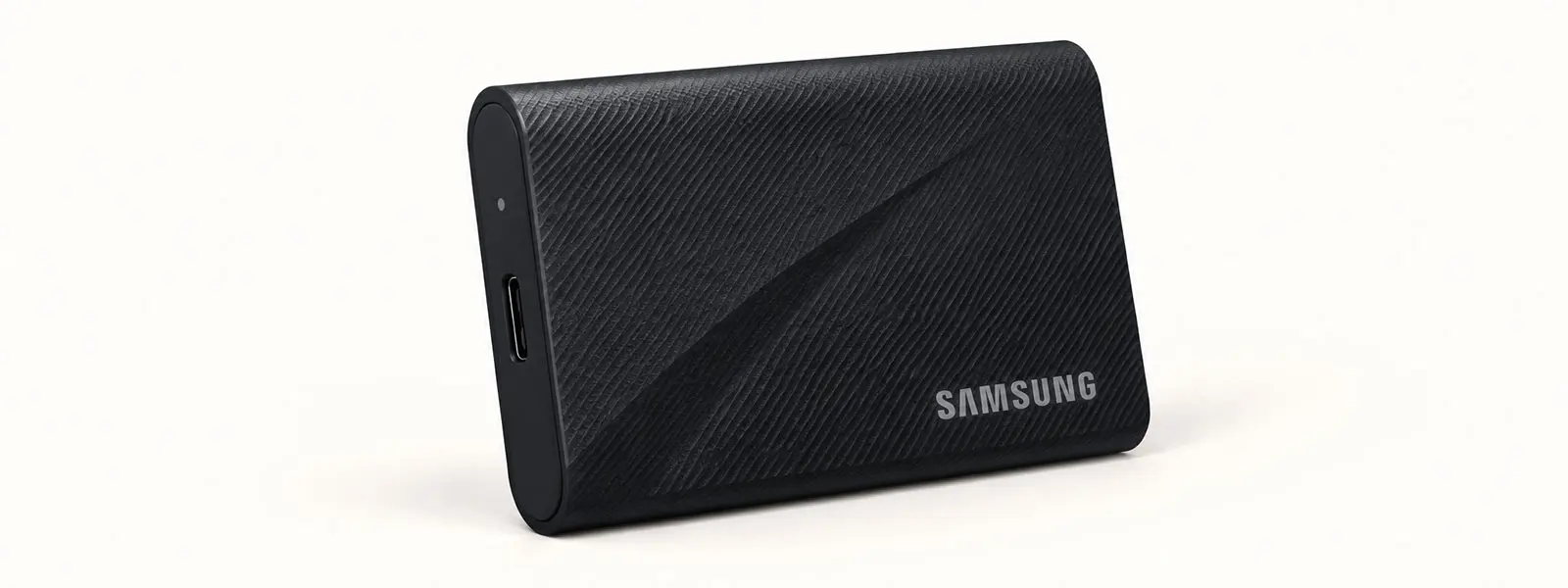
Samsung rates the T9 for sequential read and write speeds of up to 2,000 MB/s. It is suited to frequent large transfers and creative projects, but the key limitation is its USB 3.2 Gen 2x2 interface. Some computers, including many Macs, do not support this mode, so the drive may run below its advertised maximum.
- Pros: High peak transfer speeds, hardware encryption, capacities up to 4TB, five-year limited warranty.
- Cons: The speed advantage depends on a compatible 20Gbps host connection.
- Choose it if: Your computer supports USB 3.2 Gen 2x2 and you regularly move large files.
Official specifications: Samsung portable SSDs.
4. Crucial X10 - best for large files
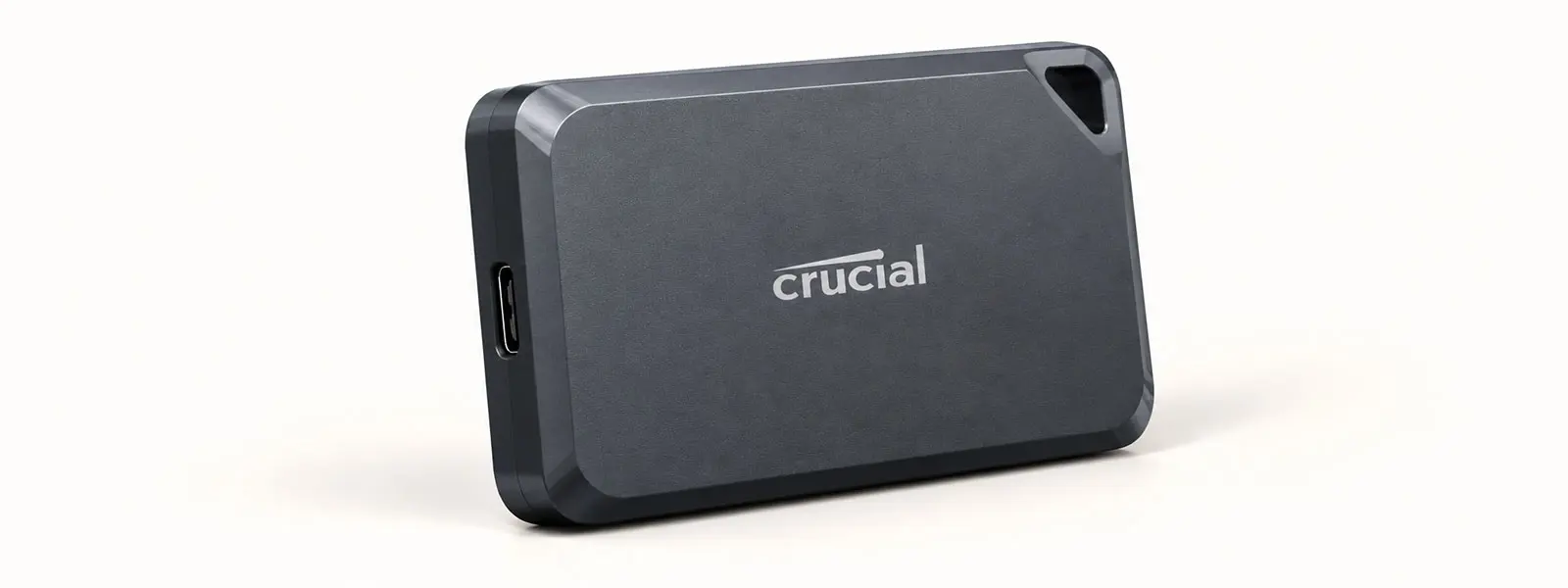
The Crucial X10 is a high-capacity portable SSD with advertised read speeds of up to 2,100 MB/s and an IP65 rating. It is worth comparing for large photo libraries, video files, and moving project folders between devices. Confirm the exact model and supported connection before relying on the maximum speed.
- Pros: High advertised read speed, rugged dust and water resistance, capacity options for larger libraries.
- Cons: Not every computer can use its maximum bandwidth; check the exact model's warranty and write-speed specifications.
- Choose it if: You regularly move large files and need a rugged, higher-capacity drive.
Official product information: Crucial portable SSDs.
5. LaCie Rugged SSD4 - best premium option for creative work
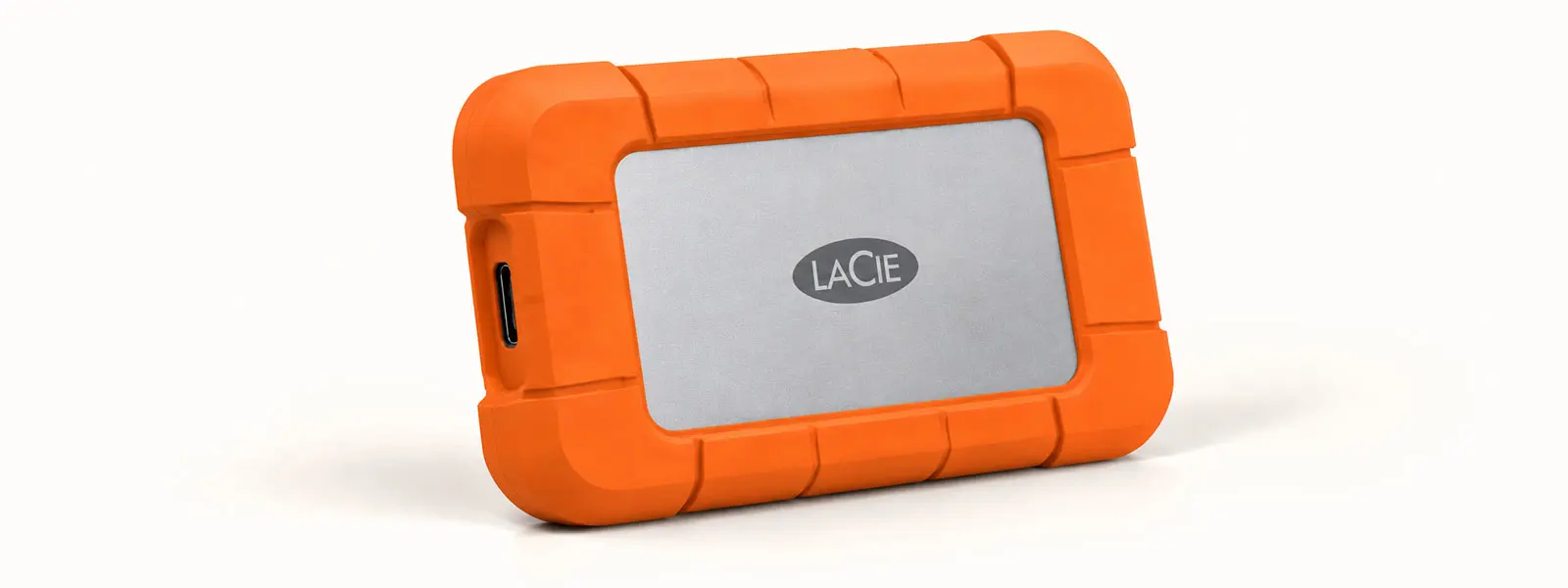
The LaCie Rugged SSD4 targets people who need high transfer performance for large creative projects. Independent lab testing has measured read and write speeds above 3,000 MB/s in suitable conditions. The extra speed is useful only when the computer and cable support USB4.
- Pros: Fast USB4 connection, rugged design, suitable for demanding file-transfer workflows.
- Cons: Higher cost and little benefit on slower USB ports.
- Choose it if: You regularly transfer large video or design projects on a compatible USB4 system.
Before buying, verify the current capacity options and availability on the official LaCie website.
How to choose the best external SSD
1. Check the port before paying for speed
USB-C describes the connector shape, not the transfer speed. A drive rated for 2,000 MB/s or more may run much slower when connected to a 10Gbps port. Check the computer's specifications and use a suitable cable. This matters especially for Mac buyers, because a USB-C connector alone does not tell you which data-transfer speed the port supports.
2. Choose enough capacity
- 500GB: Documents, schoolwork, and a modest photo collection.
- 1TB: A good starting point for everyday backups, photos, and general use.
- 2TB: Better for large photo libraries, games, and ongoing creative projects.
- 4TB or more: Useful for large video libraries and extensive project files, if the model offers it.
Capacity needs vary. Leave free space for new files, and compare the price per terabyte rather than the total price alone.
3. Decide whether rugged protection matters
If the drive will travel in a bag or be used outdoors, look for a stated IP rating and drop-resistance specification. IP65 indicates tested dust protection and resistance to water jets under defined conditions; it does not make a drive waterproof in every situation. A protective casing also does not replace careful handling.
4. Consider security and warranty
Hardware encryption can help protect files if a drive is lost, but check whether password protection must be enabled in the manufacturer's software. Compare the limited warranty and its conditions before buying. Warranty coverage is not a substitute for a backup.
External SSD vs. external hard drive
| Choose an external SSD if... | Choose an external hard drive if... |
|---|---|
| You move files frequently | You need lots of storage for less money |
| You travel with the drive | The drive mostly stays on a desk |
| You edit photos or videos from external storage | You keep a large archive that is rarely accessed |
| You want a small, quiet drive with no moving parts | Capacity per dollar matters more than speed |
An SSD is often the better choice for active work, while a hard drive can be economical for large archives. For important files, keep another copy on a separate drive or a trusted backup service. One portable SSD should not be the only copy of irreplaceable data.
Frequently Asked Questions
Is a 2TB external SSD worth it?
Will an external SSD work with a Mac and Windows PC?
Is the fastest external SSD always the best?
Can an external SSD replace a backup?
Which external SSD should you buy?
For most everyday users, start with the Samsung T7 Shield. Choose the Kingston XS1000 if a tiny drive is the priority, the Samsung T9 if your computer supports its 20Gbps interface, and a USB4 model such as the LaCie Rugged SSD4 for demanding creative transfers. Before choosing, match the drive to your port, storage needs, and budget.