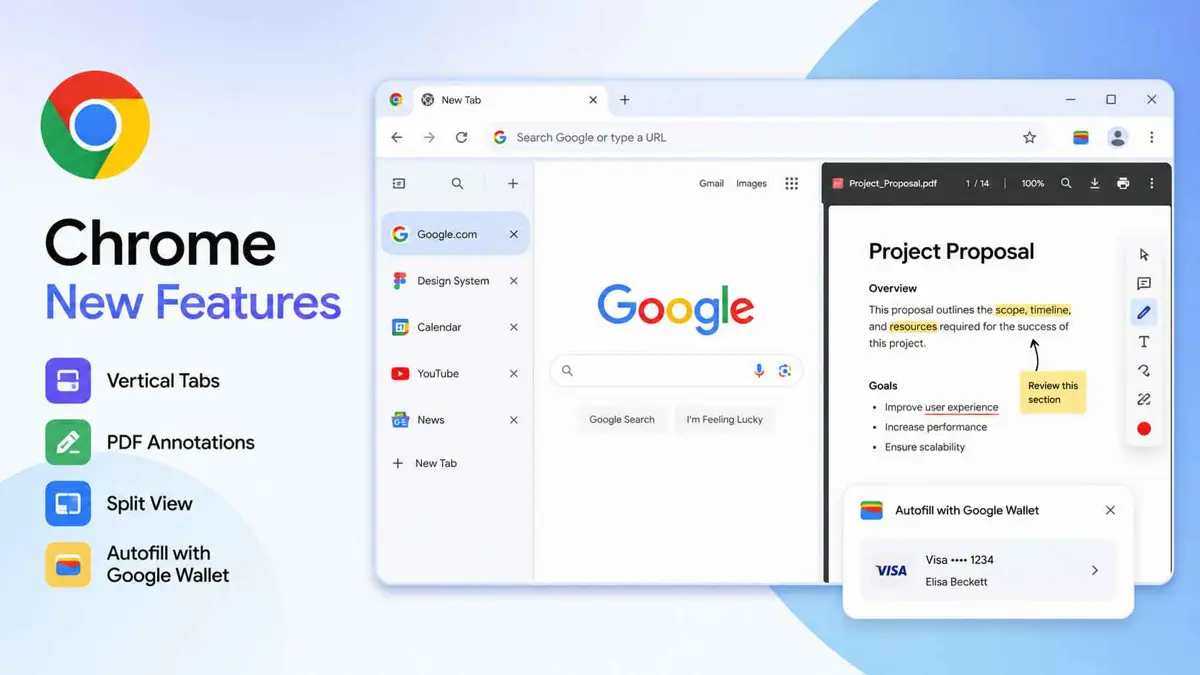
Four features, one update. Chrome new features in the current What's New walkthrough cover how users organize tabs, mark up documents, split the browser view, and fill payment forms - all shipped in the same cycle. Google pushed Gemini Spark to Chrome earlier this year for AI-powered task handling - these four additions sit alongside that layer, focused on workflow rather than intelligence. Chrome surfaces the walkthrough automatically after updating; users can also reach it from the three-dot menu under Help → What's new in Chrome.
Takeaways
- Vertical Tabs moves the tab strip to the left sidebar - right-click the tab bar and select Show tabs vertically to enable
- PDF Annotations adds highlight, text, and freehand drawing tools to Chrome's native PDF viewer - no plugin required
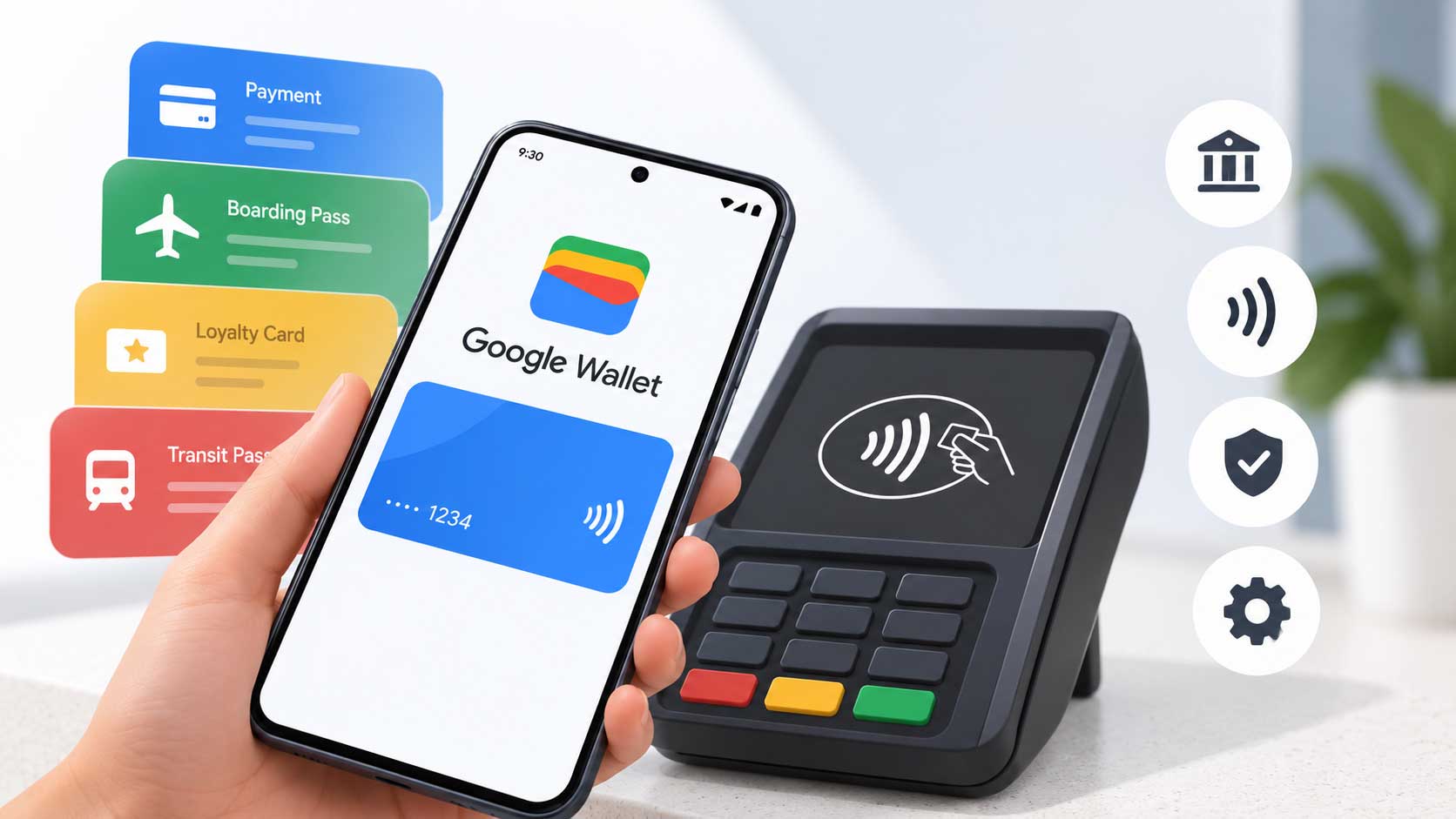
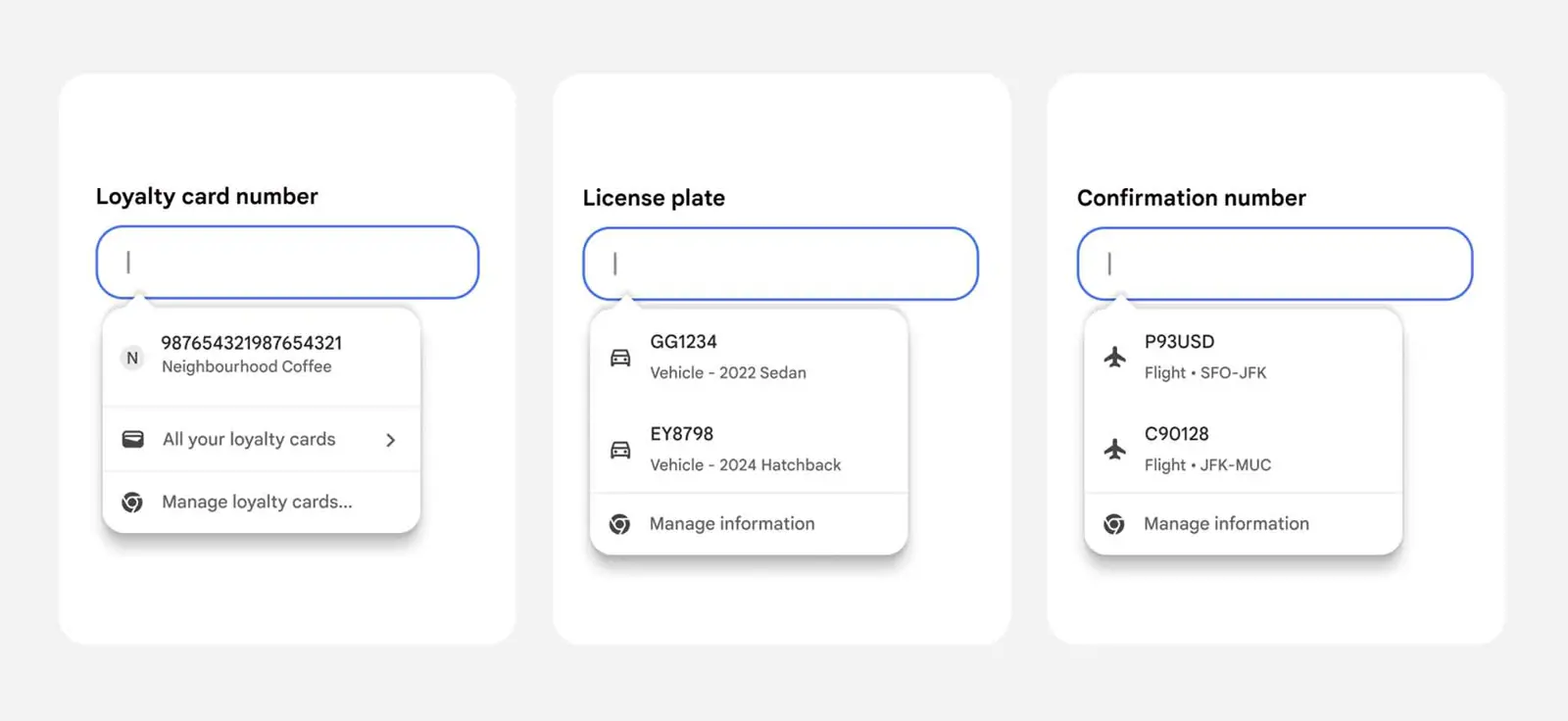
- Autofill with Google Wallet fills payment methods and addresses stored in Google Wallet directly into checkout forms
- Split View opens two tabs side by side in one Chrome window - right-click any tab to trigger it
- All four features are in Chrome's built-in What's New page, reachable from the three-dot menu under Help
Vertical Tabs
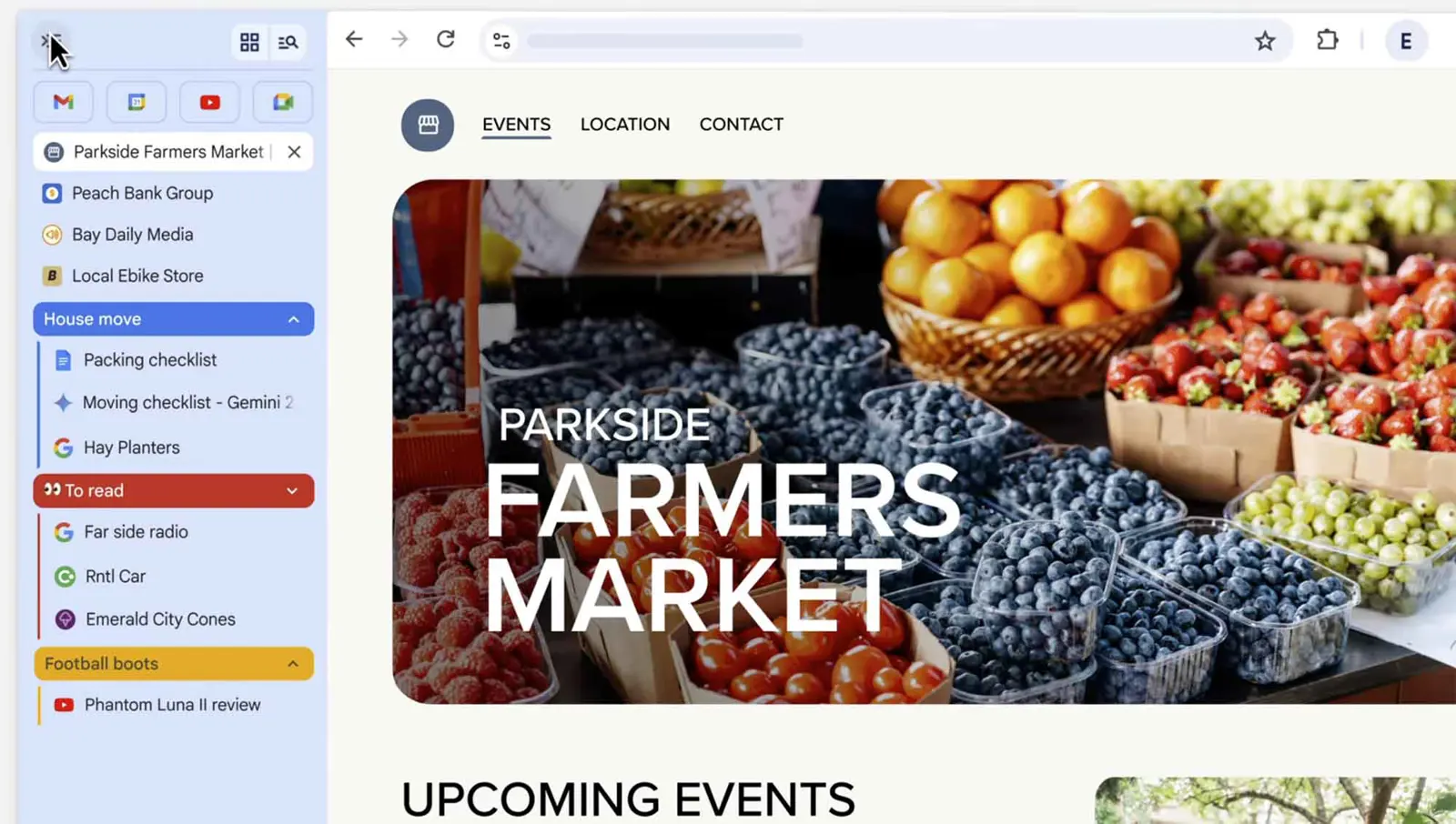
Vertical tabs move the entire tab strip from the top of the window to the left sidebar. Each tab shows its full title instead of truncating after a few characters, and tab groups collapse and expand in the sidebar without cluttering the header row. Chrome has offered this via the three-dot menu under Settings for some time, but the What's New card makes it the primary discovery path. To enable: right-click anywhere on the tab strip and select Show tabs vertically. Right-click again and choose Show tabs horizontally to revert. The sidebar width adjusts by dragging its edge.
PDF Annotations
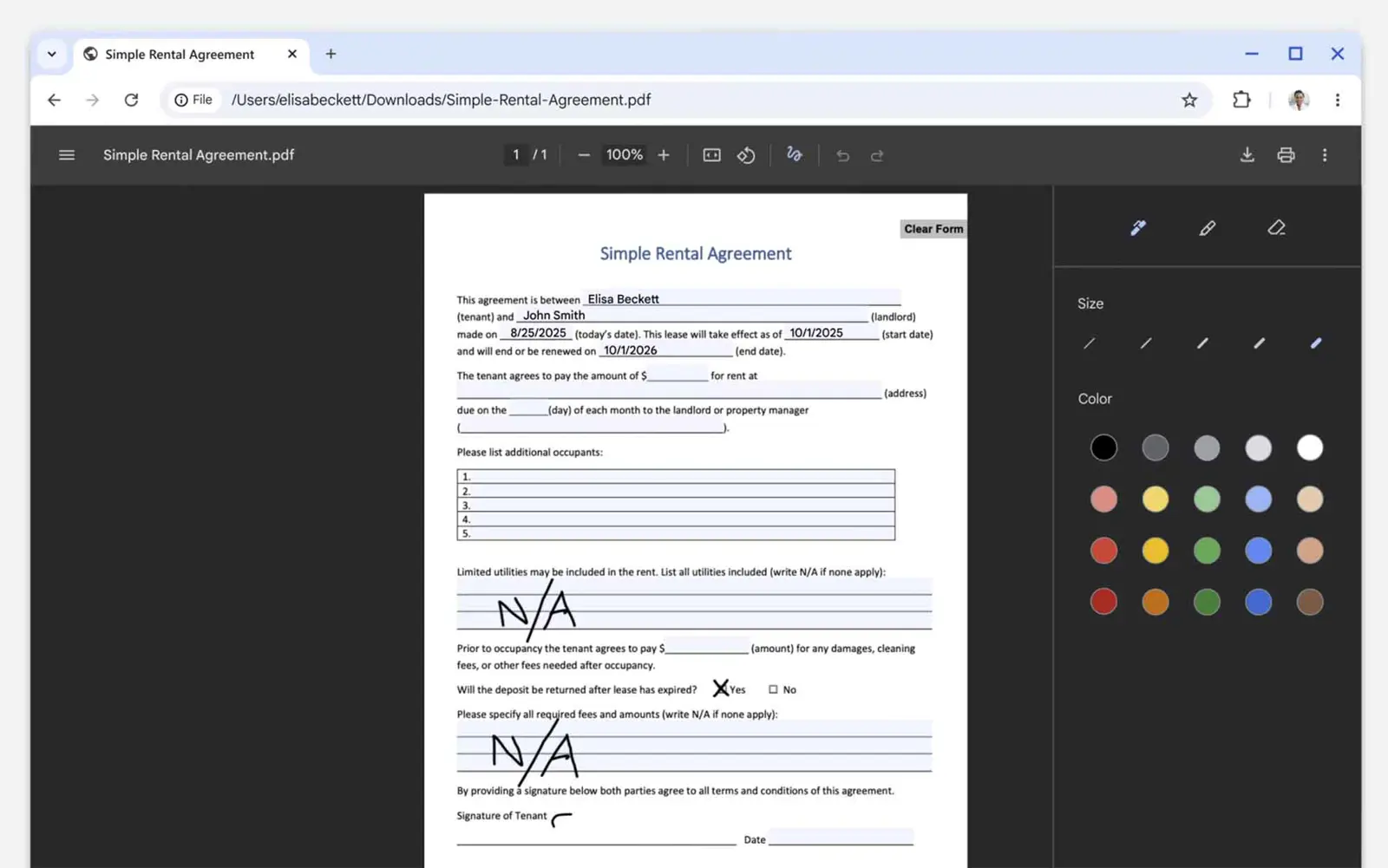
Chrome's built-in PDF viewer gains annotation tools - highlight text in multiple colors, add freehand ink drawings, and insert text notes directly on the page. No extension or third-party app required. Open any PDF in Chrome and the annotation toolbar appears at the top of the viewer. Annotations save inside the PDF file on download, so the markup travels with the document. For teams that share design specs or technical documents as PDFs, keeping review notes inside the file rather than in a separate tool removes one handoff step.
Autofill with Google Wallet
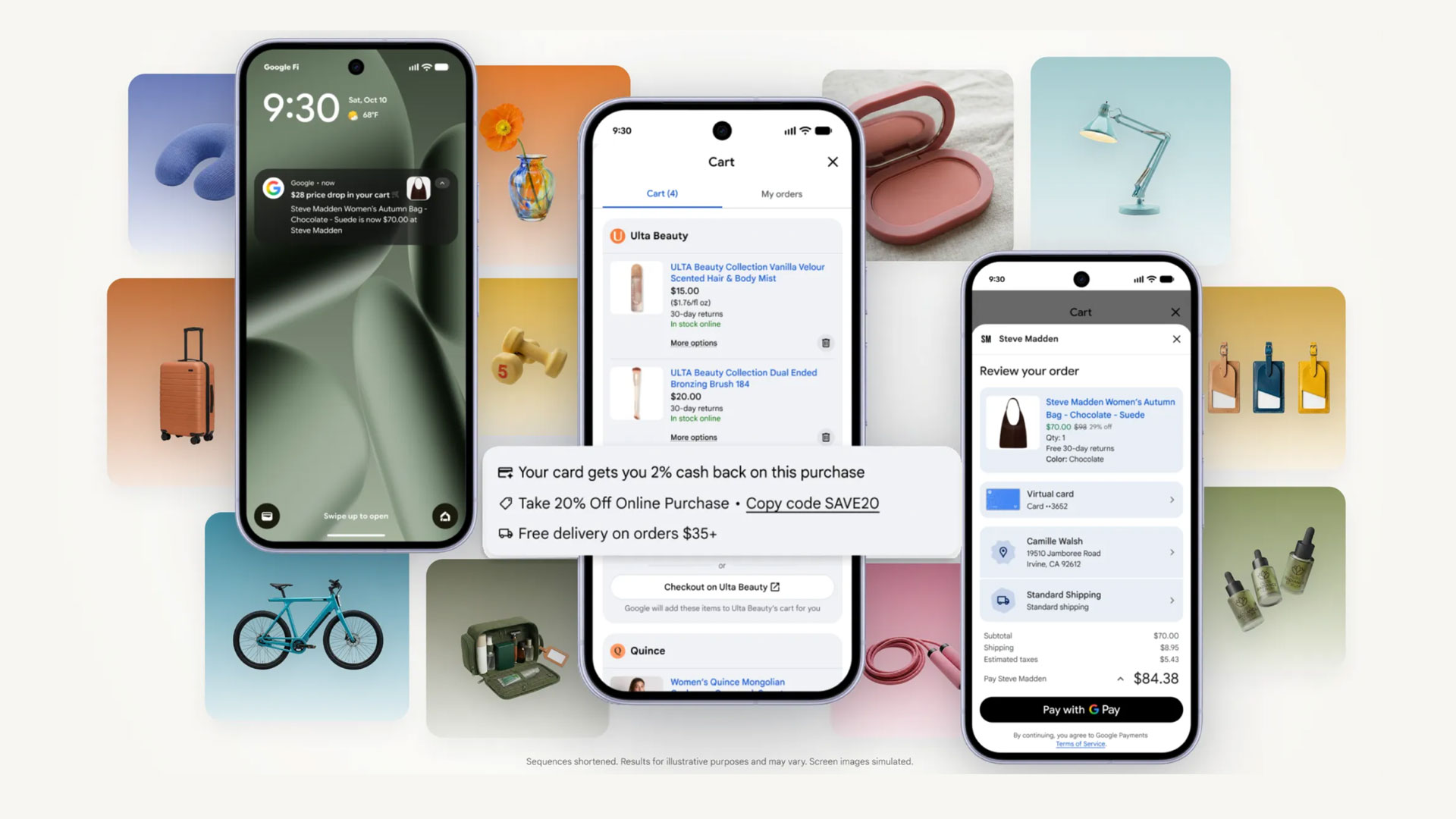
Autofill with Google Wallet connects Chrome's autofill to the payment methods and addresses stored in a Google account's Wallet section. At checkout, Chrome offers to fill card numbers, expiry dates, CVVs, and shipping addresses from whatever is saved in Wallet - the same cards visible at pay.google.com. Google Wallet already handles tap-to-pay on Android and virtual cards for privacy-conscious purchases; Chrome autofill is the desktop extension of that same store. The feature works across sites where Chrome detects a standard payment or address form, with a prompt to confirm before each fill.
Split View
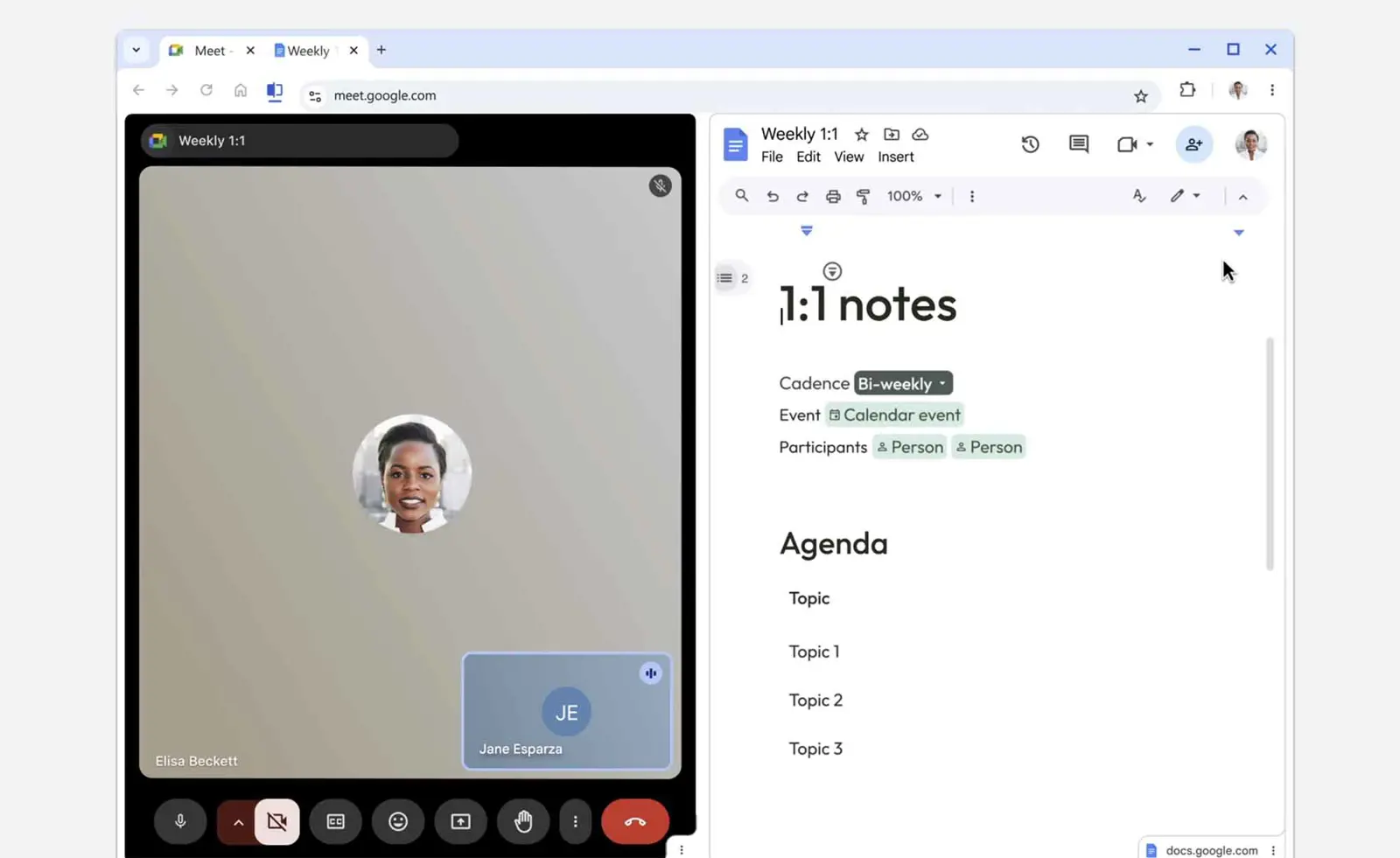
Split View opens two Chrome tabs side by side inside a single window - no OS window snapping required. Right-click any tab and choose Split tab, then pick the second tab from the open list. Both pages display at equal width with a draggable divider to resize the split. The feature targets research workflows where users want a reference page alongside a document, or a comparison between two sites without switching contexts. Close either panel and the other tab returns to normal. Gemini Chrome on Android launched auto browse this same month, aimed at the same multitasking angle from a different direction - agentic task handling rather than manual side-by-side.
Each feature targets a separate class of Chrome user - heavy tab collectors, document reviewers, frequent online shoppers, and dual-panel researchers. Safari added an MCP server for developers this year, leaning into developer tooling as its differentiator. Chrome's What's New batch leans toward productivity for general users. Whether these additions move users away from vertical-tab extensions like Sidebery or dedicated PDF editors depends on how fully Chrome's implementations replace those workflows - a question that only daily use answers.