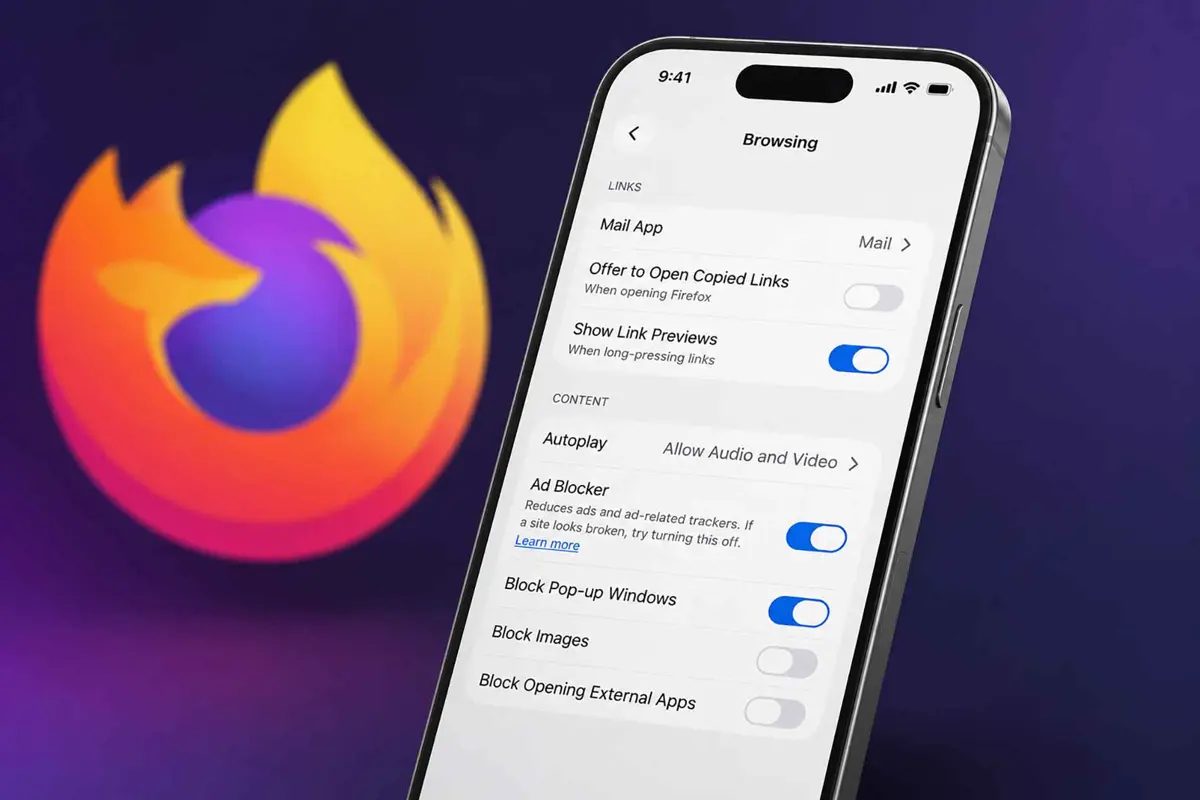
Built in. Firefox iOS ad blocker arrived in version 156 for iPhone and iPad - no extension required, no App Store download, no configuration. Off by default during the current progressive rollout, and not yet available to every user. For those who have it, a single toggle in Settings or a tap from the site menu starts blocking third-party ads at the network level. Here's what it does, what it skips by design, and how to turn it on.
Takeaways
- Firefox iOS ad blocker is built into Firefox v156 - a progressive rollout, not yet live for every user
- Off by default; enable it once in Settings or per-session from the Site Menu
- Uses EasyList to block third-party ad networks, trackers, pop-ups, and overlays before they load
- Search engine ads (Google, Bing, DuckDuckGo) are intentionally not blocked
- No speed penalty and no third-party extension needed
Quick toggle from any page: Open Firefox → tap menu → tap Ad Blocker → tap Ad Blocker again to turn on or off
What the Firefox iOS Ad Blocker Blocks
Firefox iOS ad blocker uses EasyList - one of the most widely maintained open filter lists on the internet. Blocking happens at the network level. Ads stop before they load, not after. Firefox doesn't layer a cosmetic filter over a page; ads simply never arrive.
- What it blocks:
- Third-party advertising networks and ad exchanges
- Ad-related trackers that follow users across sites
- Many third-party ads served inline by websites
- Intrusive formats including pop-ups and overlays
- What it does not block:
- Ads on search engine results pages - Google, Bing, DuckDuckGo, and other providers
- Sponsored tiles on the Firefox Home and New Tab page
- First-party ads served by the site's own domain
How to Enable the Firefox iOS Ad Blocker From Settings
Settings is the right method for persistent ad blocking across every site you visit. Enable it once and it stays on across sessions.
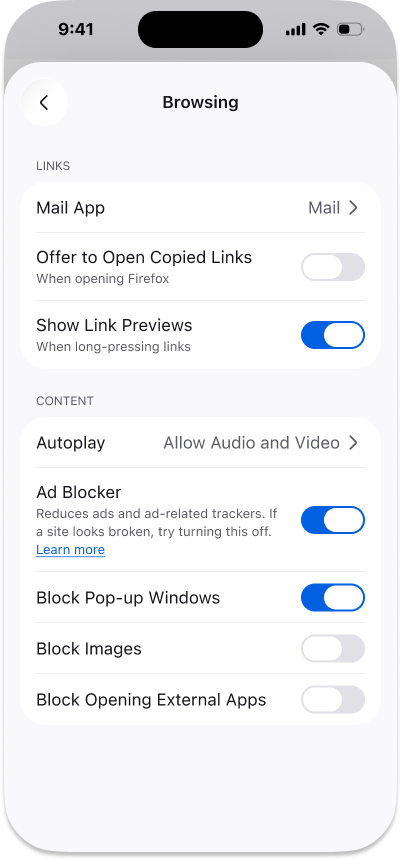
- Steps to enable from Settings:
- Open Firefox on iPhone or iPad
- Tap the menu button (bottom right on iPhone, top right on iPad)
- Tap Settings
- Scroll to the Browsing section
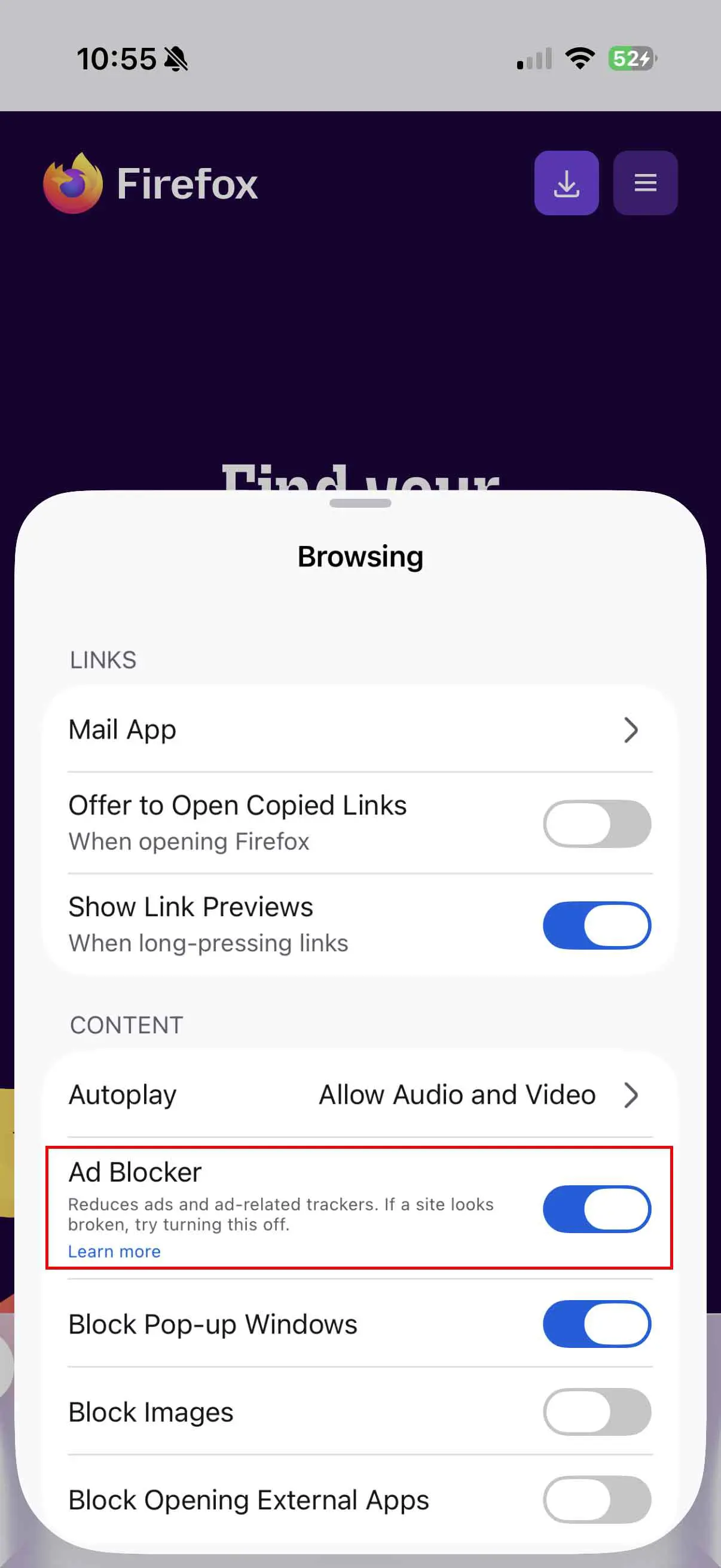
- Under Content, find Ad Blocker and tap the toggle to turn it on
Once enabled, the toggle turns blue. Ad blocking applies to all sites and persists across every browsing session on iOS 27 and earlier until you turn it off from the same path.
How to Toggle Ad Blocking Per Browsing Session (Site Menu)
Site menu toggling opens Settings - so changes still apply globally, not just to the current page. Use it as a fast path to reach the toggle without navigating through menus.
Why the Firefox iOS Ad Blocker Doesn't Touch Search Ads
Search ads - the paid placements at the top of a Google or Bing results page - load from the same domain as organic results. EasyList can't cleanly separate an ad result from a regular result at the network level without also breaking search. Firefox also follows Mozilla's position on contextual advertising: straight text ads served by a search engine in response to a query are treated differently from third-party tracking networks that follow users across sites. Whether that distinction is principled or convenient depends on how you look at it - but it's consistent with how every major browser ad blocker draws the line.
Firefox iOS Ad Blocker vs Safari Content Blockers
Safari on iOS relies on third-party extensions from the App Store - AdGuard, 1Blocker, and similar apps that plug into the iOS Content Blocker API. Those tools often let you customize filter lists, set per-site rules, and control blocking at a granular level. Firefox iOS ad blocker is EasyList only: no user-defined rules, no allowlist UI, no filter customization. What Firefox gives back is zero friction - one toggle versus an App Store download, a subscription, and a configuration screen. For most users who just want ads gone without any setup, Firefox's approach covers the common case.
Does the Firefox iOS Ad Blocker Replace a VPN?
No - they operate at different layers. Firefox's ad blocker works only inside Firefox; ads in other iPhone apps, background data collection, and DNS-level tracking all remain untouched. A free VPN for iOS covers all traffic leaving the device, not just what passes through one browser. For users serious about iPhone privacy, combining both makes sense: browser-level blocking for web browsing and a VPN for system-wide coverage.
Worth pairing this with: recent iOS security patches addressed 23 WebKit vulnerabilities in a single update. Firefox stopping ad scripts before they reach the browser means less attack surface for code that exploits browser rendering bugs - which is a real, practical benefit beyond just faster page loads.
FAQ
Why do I still see some ads with the Firefox iOS ad blocker turned on?
Does the ad blocker slow Firefox down?
Can I whitelist specific sites to allow ads on them?
Does this feature exist on Firefox for Android?
My Settings don't show an Ad Blocker toggle - why?
Firefox iOS ad blocker is still experimental in Mozilla's own language. Some users on v156 won't see the toggle yet - the progressive rollout is ongoing with no announced completion date. For those who have it, the gains are most noticeable on news sites and content aggregators where ad density tends to be highest. Whether Mozilla locks down the EasyList-only approach or adds filter customization down the line is the open question.
