Samsung's One UI 9 hidden features sit behind Settings menus and Quick Panel buttons that a default setup never surfaces. Saganote verified the paths on November 17, 2026. Tech Advisor's list of 10 tips ran on November 3, and Talk Android's 15 settings, tested on a Galaxy Z Fold 8 Ultra, ran on November 12.
Sources here are limited. Saganote's tools could not read two of the five source pages, and Saganote tested none of these settings on a device. SamMobile, 9to5Google, and Geeky Gadgets coverage dates from April to August, so features from those pages carry no menu paths here.
Update before anything else. One UI 9 is based on Android 17, and the path is Settings, Software update, then Check for updates or Download and install depending on the model. Samsung recommends at least 20% battery before updating.
Display and Lock Screen
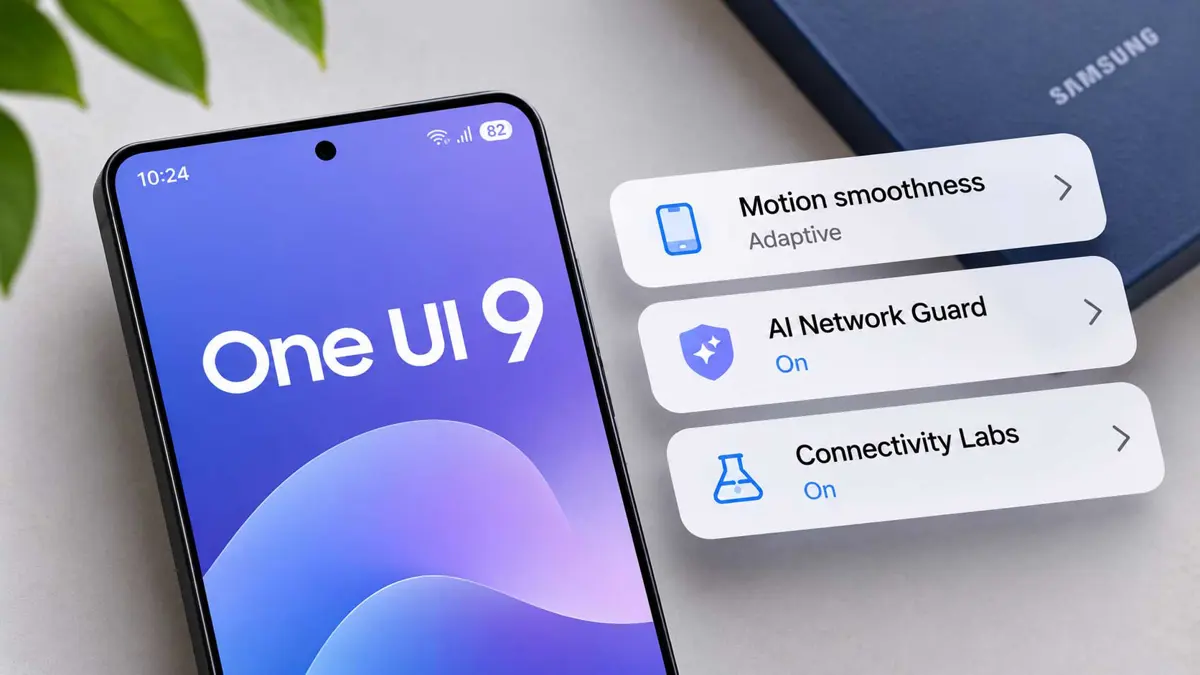
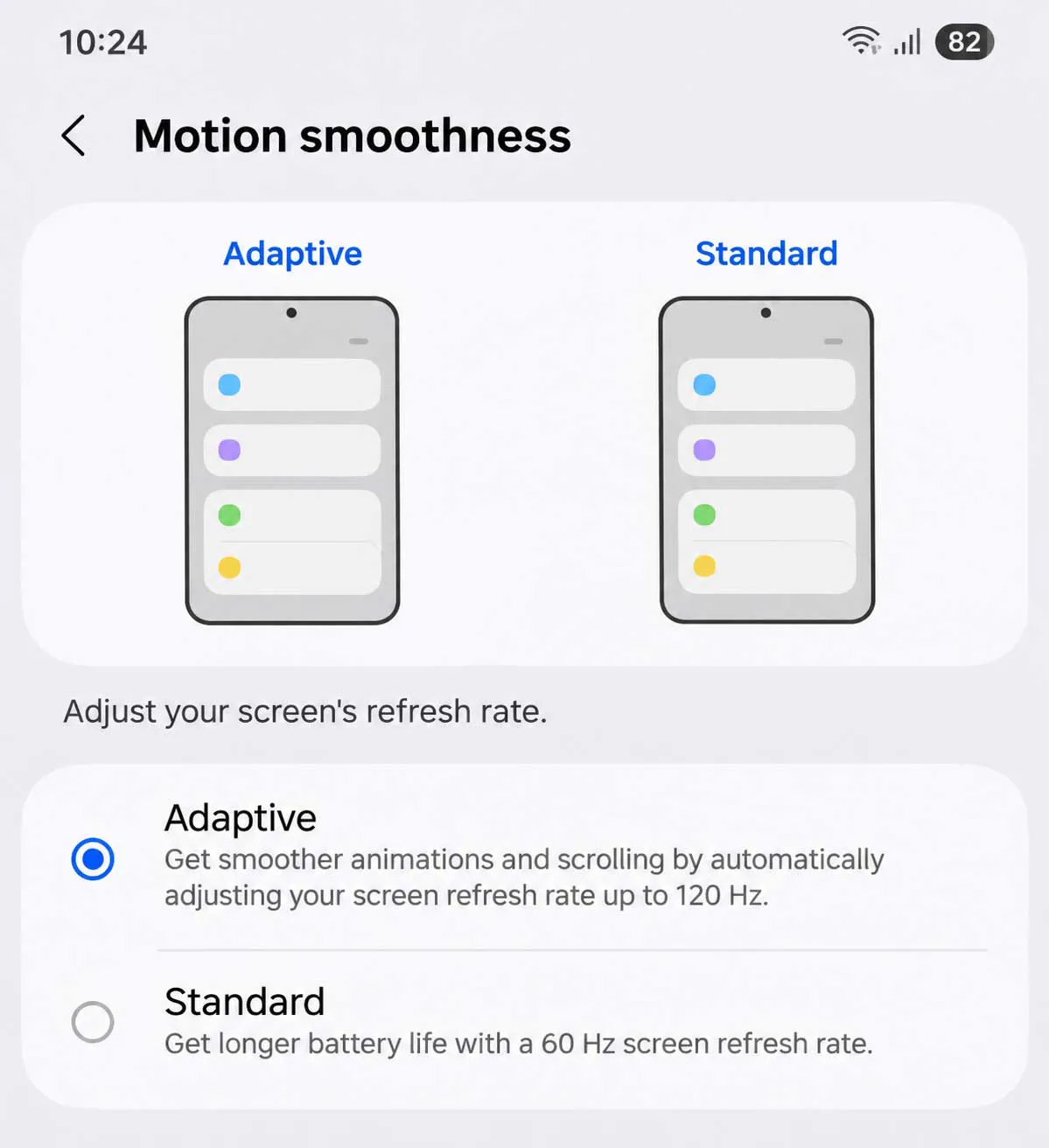
Motion smoothness sits under Settings, Display, Motion smoothness. Talk Android picks Adaptive, says Standard is only worth choosing when battery life matters more than smoothness, and gives no measured battery figure for either mode.
Eye comfort shield offers Adaptive and Custom modes. Screen mode, for white balance, sits at Settings, Display, Screen mode, with Font size and style and Screen zoom in the same menu. Talk Android does not tie any of them to battery life.
Home screen grid runs from 4 by 6 to 5 by 6. Now bar has its own menu. Settings, Home screen, Home screen grid and Settings, Lock screen and AOD, Now bar are the paths, and Talk Android tested both settings on a Galaxy Z Fold 8 Ultra, so slab phones may differ slightly.
Quick Panel, Camera, and Good Lock
Quick Panel edits start with the pencil icon. Swipe down, tap the pencil icon, then Done, and Tech Advisor says Audio Eraser now has its own Quick Panel button while a video plays on YouTube, TikTok, or Netflix. SamMobile's April hands-on, run on a leaked build, described Audio Eraser as a menu of toggles for each supported app instead.
My FanCam keeps a selected person centered in recorded video. Tech Advisor puts it in the Samsung Gallery app: open a video, tap the Galaxy AI icon, and choose My FanCam. Model scope is covered below.
Good Lock is a separate download from the Play Store or Galaxy Store, with 25 modules including Home Up, Sound Assistant, and QuickStar. Camera Assistant is one module, and Expert RAW is a separate Samsung camera app. Neither ships in One UI 9 itself.
Battery and Performance
Two items tie to battery life. Motion smoothness is one, and Talk Android's bonus Good Lock Display Assistant module is the other, with a per-app Standard refresh rate meant to save battery. Tech Advisor's 10 tips do not mention battery at all, and neither guide gives a measured figure.
| Setting | Path | Battery note | Source |
|---|---|---|---|
| Motion smoothness | Settings, Display, Motion smoothness | Standard trades smoothness for battery, no figure given | Talk Android |
| Per-app refresh rate | Good Lock, Display Assistant | Meant to save battery | Talk Android |
| Background usage limits | Settings, Battery, Background usage limits | A fix in Saganote's battery guide | Saganote |
9to5Google reported on October 22 that One UI 9 battery drain cases were not widespread, and Samsung has not confirmed a defect or fix. Background usage limits sit under Settings, Battery. Saganote's guide treats an overnight loss of 20% or more as a sign of an app or fault.
Privacy and Security
Quick Lockdown Mode uses a press and hold of Volume Down and the Side key, per Tech Advisor, which lists the shortcut without any setup step or any statement about which Galaxy models include it. Test it on a device before relying on it. Neither guide covers accidental triggers.
Call Brief needs two steps. First, Settings, Security and privacy, More privacy settings, Personal data intelligence, with the Phone app toggle on. Then, in the Phone app, the three-dot menu leads to Settings, Call Assist, and Call brief, and Tech Advisor does not say which Galaxy models include it.
Motion Assist ships in Android 17 and needs updated Google Play services, and Tech Advisor places it at Settings, Google services, All services, Personal and device safety, Motion Assist. Another route starts at the profile menu.
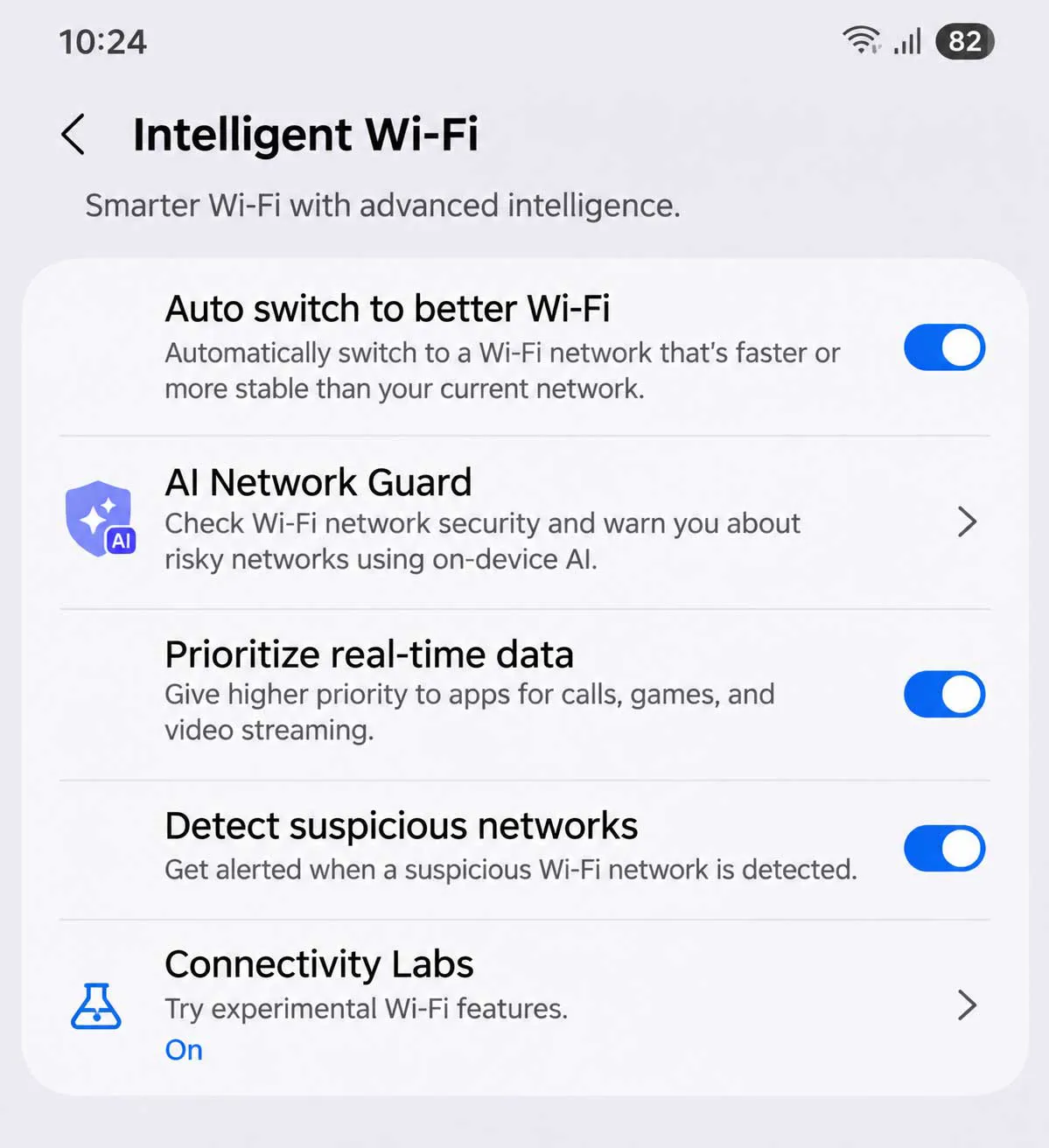
AI Network Guard hides under Intelligent Wi-Fi. Tech Advisor says to open Settings, Connections, Wi-Fi, the three-dot menu, then Intelligent Wi-Fi, and tap Intelligent Wi-Fi repeatedly until Connectivity Labs is enabled appears. Open Connectivity Labs, choose AI Network Guard, and use Manage Restrictions, Restrict Apps, or Advanced Settings, Downtime.
Samsung announced the One UI 9 rollout on September 16 with a location access indicator, Text Spotlight, and Select to Speak, starting with the Galaxy S26 series. Rollout is staged by model, country, and provider.
Galaxy AI and Side Button Settings
Bixby gets a gesture wake-up at Settings, Advanced features, Bixby, Gesture wake-up. Both sit under Advanced features. Side button choices, at Settings, Advanced features, Side button, include Digital assistant (Google), Bixby, and the Power off menu, and Talk Android says the default long press is Bixby while Tech Advisor suggests mapping the key to wake Gemini.
SamMobile's April hands-on, run on a leaked build on a Galaxy S26 Ultra, found Photo Assist suggesting prompts after it analyzes a photo, plus an Audio Eraser menu with a toggle for each supported app. Those are single-source and pre-release. Check Gallery on the final build.
Which Galaxy Models Get Each Feature
Model scope is the weakest part of the sourcing. Tech Advisor says My FanCam debuted on the Galaxy Z Fold 8 and now runs on most phones with One UI 9, including the S26 series, and gives no model scope for its other nine tips. Talk Android says most display and gesture settings exist on other One UI 9 phones, while cover screen, aspect ratio, and taskbar options are Fold-specific or behave differently on a regular slab phone.
| Feature | Scope per sources |
|---|---|
| My FanCam | Debuted on Z Fold 8, now most One UI 9 phones including S26 (Tech Advisor) |
| Motion smoothness, Eye comfort shield, Screen mode, fonts, zoom, grid | Tested on Z Fold 8 Ultra, most exist on other One UI 9 phones (Talk Android) |
| Aspect ratio, camera cutout, taskbar, cover screen options | Fold-specific or different on slab phones (Talk Android) |
| Quick Lockdown, Call Brief, AI Network Guard, Bixby gesture wake-up, Audio Eraser | Not stated |
| Motion Assist | Android 17 or later with updated Google Play services |
| Good Lock modules | Separate download, models not stated |
Saganote did not read Samsung's official release notes or device lists, so confirm any feature on the phone itself before relying on a path. These One UI 9 hidden features come from beta-era demos and November guides. Paths can shift between builds.
Features Reported Without Menu Paths
Several features appear only in July and August demos with no menu path. 9to5Google's July 14 look on a Galaxy S26 lists the items below, and Saganote could not confirm any of them on the final build. Treat these as unverified.
- Quick Settings toggles can be moved and resized, and the volume and brightness sliders can shrink to 2 by 1, per 9to5Google.
- A PIN is required to restart or power off the phone, per 9to5Google.
- Simultaneous vertical video from the selfie and rear cameras saves as a 1:1 square at 1080p only, per 9to5Google, and Geeky Gadgets also mentions front and rear recording.
- Samsung Notes adds a tape tool that hides text until tapped with the S Pen, per 9to5Google.
- Game Booster adds screenshot resolution and bypass charging options, per 9to5Google.
- A driving report lists rapid acceleration, hard braking, sharp turns, and phone use after a drive, and 9to5Google objects to it on privacy grounds.
Sources conflict on network speed in the status bar. 9to5Google says it needs the QuickStar module in Good Lock, while Geeky Gadgets places the indicator directly in the control center.
Paths come from two November guides, one tested on a Galaxy Z Fold 8 Ultra, and Saganote has not run them on a device. Names and locations can differ by model, country, and software version, so check Settings search if a path is missing.
Rollout is staged, so One UI 9 hidden features can differ between two Galaxy phones on the same day. Check the phone, not the guide. Samsung has not confirmed a fix for the S24 and S25 battery reports, so battery settings may change with later updates.
Frequently Asked Questions
How is the One UI version checked?
Does Motion smoothness affect battery?
Is Good Lock required?
Do these settings exist on every Galaxy phone?