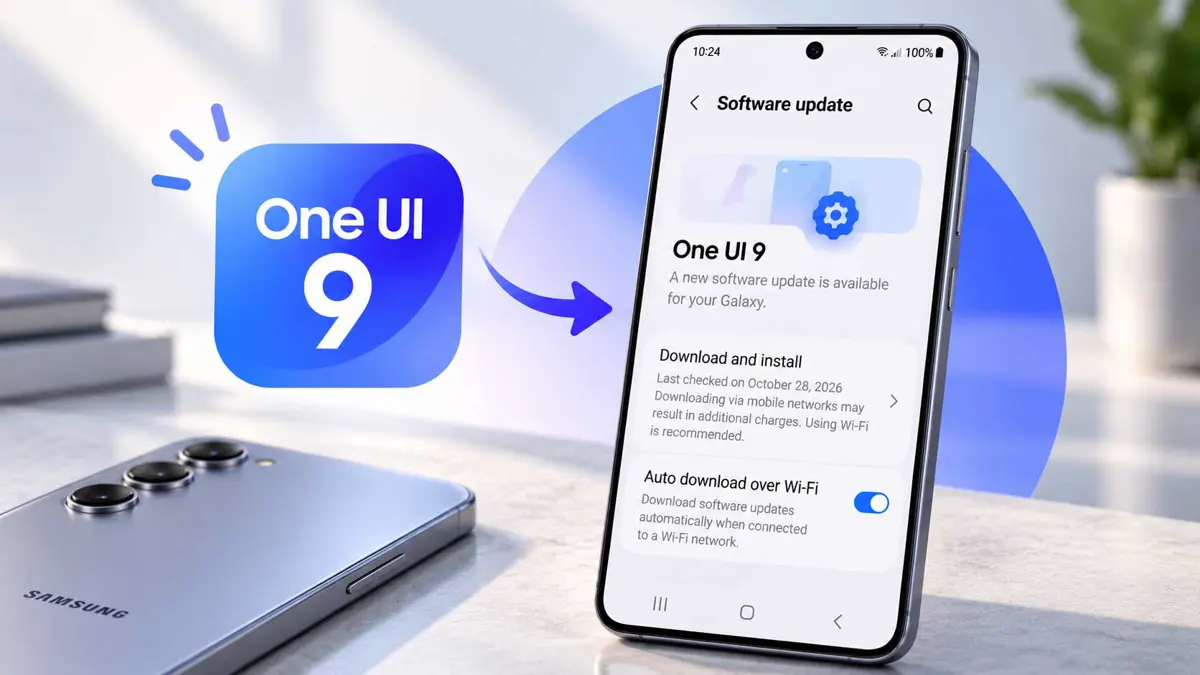
If you want to upgrade Samsung Galaxy to One UI 9, the main process is handled directly from the phone's Software update menu. Samsung's current support instructions use Settings > Software update, followed by Check for updates or Download and install, although the exact wording can vary by Galaxy model, carrier, and software version.
Back up important data, make sure the phone has enough battery and storage, and use a reliable network. Samsung says Galaxy devices should have at least 20% battery for an update. Menu names can also differ between models.
What You Need Before Updating to One UI 9
| Check | What to do |
|---|---|
| Supported Galaxy | One UI 9 must be available for the specific model, carrier, and region |
| Battery | Charge the phone before starting the installation |
| Internet | Use a stable Wi-Fi connection when possible |
| Storage | Make sure the phone has enough free space for the update |
| Backup | Back up important photos, files, and other data before installing |
One UI 9 is based on Android 17, and Samsung's rollout is expanding across Galaxy devices rather than arriving on every model at the same time. The initial public rollout began with the Galaxy S26 series, while the latest Galaxy Z devices and Galaxy S26 FE are among the devices that feature One UI 9. Availability continues to vary by device and market.
For more detail on the rollout, see our guide to Samsung One UI 9 reaching more Galaxy S26 phones in the US.
How to Upgrade a Samsung Galaxy to One UI 9
1. Open Settings
Open the Settings app on your Galaxy phone.
2. Open Software Update
Scroll through Settings and tap Software update. On some Galaxy models, Samsung may use System updates instead.
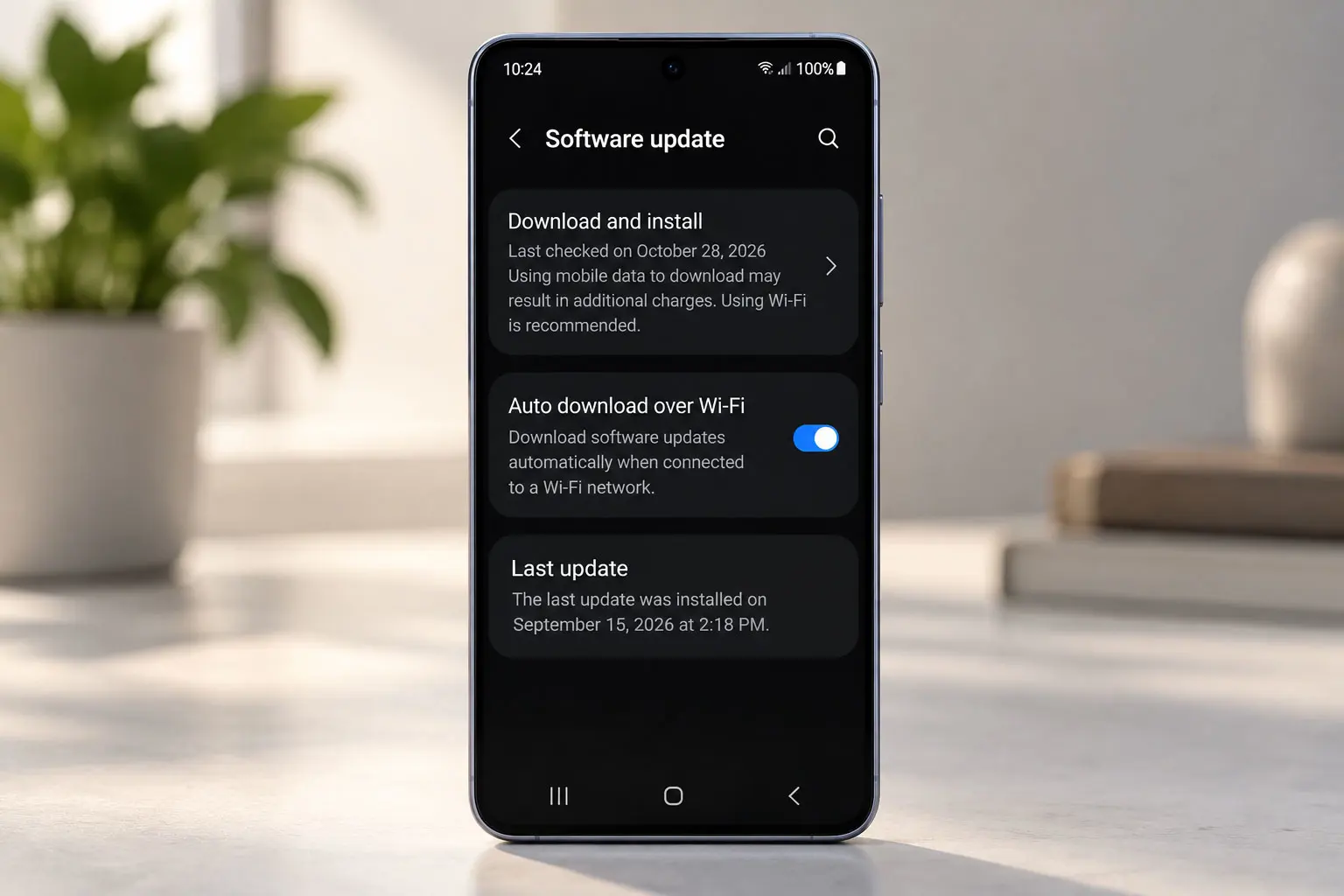
3. Check for the Update
Tap Check for updates. On other Galaxy models, the button may appear as Download and install or a similar update option.
The phone will check Samsung's servers for software available for that specific device. If One UI 9 is available, the phone should present the download and installation options.
4. Download One UI 9
If One UI 9 appears, review the update information and begin the download. Keep the phone connected to a stable network while the update files are downloaded.
5. Install the Update
Follow the on-screen instructions to install the downloaded software. The Galaxy will restart during the process, and Samsung advises not to disconnect a USB connection or use the device while an update is being installed.
The phone may restart more than once. Once the installation finishes, let the Galaxy complete its startup process before opening apps or changing settings.
If One UI 9 Does Not Appear
The most important thing to understand is that a missing One UI 9 update does not automatically mean the phone cannot receive it. Samsung's rollout can vary by model, carrier, network, and region.
- Check the Software update menu again later if the rollout is still expanding.
- Confirm that the phone is connected to the internet.
- Make sure there is enough free storage for the update.
- Check the exact Galaxy model under the phone's device information.
- Check Samsung's official support information for the model and market.
- If the phone is managed by a carrier, check whether the carrier has released the update for that model.
If One UI 9 is not available through Samsung's normal update path, do not treat an unofficial firmware download as the default solution. The supported update path is safer and keeps the procedure tied to the software intended for the device.
How to Update a Galaxy Using Smart Switch
Samsung also supports software updates through Smart Switch on Windows and Mac. This can be useful when the phone does not show an available update through its normal software-update screen but Samsung has made an update available through Smart Switch.
- Install and open Smart Switch on a Windows PC or Mac.
- Connect the Galaxy phone to the computer with a USB cable.
- Let Smart Switch detect the phone.
- If an update is available, select Update.
- Follow the on-screen instructions until the process is complete.
Samsung says the phone can restart during the Smart Switch update process. Do not disconnect the USB cable or use the device until the update is finished.
How to Check That One UI 9 Installed
After the phone restarts, open Settings and look for the device's software information. Samsung's menus can differ by model, so the exact location and wording may vary.
The important check is the One UI version shown in the software information. If it shows One UI 9, the upgrade is complete.
What to Do After the One UI 9 Upgrade
- Open a few important apps and confirm that they work normally.
- Check your storage after the update finishes.
- Review any new privacy, security, or permission prompts.
- Look through the new One UI 9 features on your Galaxy.
- Update apps that have pending updates in the Play Store or Galaxy Store.
If the phone feels different after the upgrade, give yourself a little time to review the updated settings rather than assuming a changed menu is a problem. One UI 9 introduces changes across Galaxy AI, personalization, security, accessibility, and device management.
Common Problems After Updating
The update downloaded but will not install
Make sure the phone has enough battery and storage, then retry the installation. If the update repeatedly fails, use Samsung's official support resources or Smart Switch rather than attempting an unofficial firmware installation.
The phone keeps showing an older One UI version
Check the software information again after the phone has fully restarted. If the update was installed successfully but the version has not changed, check Samsung's support information for the specific Galaxy model.
The update is still missing
If Samsung has not released One UI 9 for the particular model, carrier, or region yet, there is no setting that can force the official rollout to appear. The normal Software update screen will show the update when it becomes available for that device.
Related Samsung and Android Guides
If you are preparing a Galaxy phone for the One UI 9 upgrade, these Saganote guides provide additional context around Samsung and Android software:
- Samsung Galaxy S26 FE costs $699 with new AI features
- Samsung Galaxy Z Fold 8 Ultra vs. Galaxy Z Fold 7
- Android 17 can transfer an eSIM and passwords when switching from iPhone
- Android 17 QPR2 Beta 5 arrives with Pixel bug fixes
- Android 17 QPR2 Beta 3 adds Pixel features and call-forwarding security
- Android 17 QPR2 Beta 1 fixes a Gemini crash on Pixel phones
- Samsung Messages shuts down as Google Messages takes over
- How to Upgrade to iOS 27
- iPhone Duo vs. Galaxy Z Fold8
Frequently Asked Questions
Can every Samsung Galaxy phone upgrade to One UI 9?
What if I do not see One UI 9 in Software update?
Can I update One UI 9 with Smart Switch?
Will my Galaxy restart during the update?
The normal upgrade path is straightforward: open Settings, check Software update, download One UI 9 when it is offered, and follow the installation instructions. If the update is not available yet, the phone may simply be waiting for Samsung's rollout to reach that model or market.
