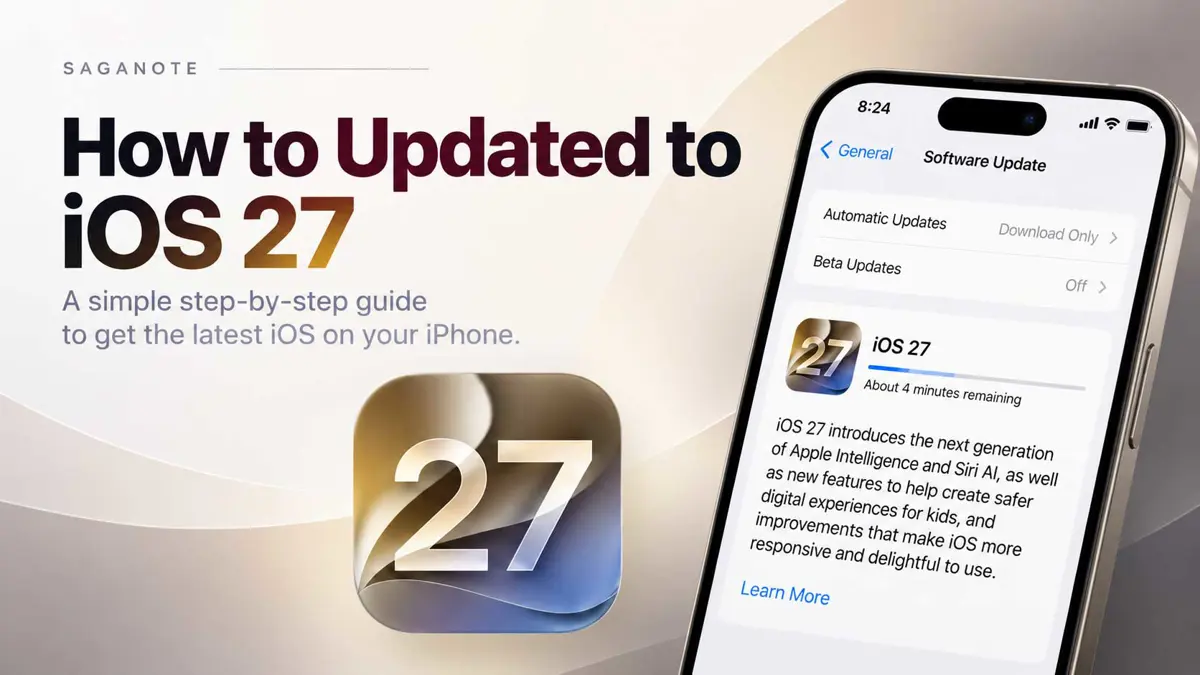
If you want to upgrade to iOS 27, you can do it directly from your iPhone without connecting it to a computer. Apple provides the update through Settings > General > Software Update, where your iPhone checks whether a newer version is available.
iOS 27 is available starting September 14, 2026. Apple lists support for iPhone 11 and later, iPhone SE (2nd generation) and later, and newer models including iPhone 17, iPhone Air, iPhone 18 models, and iPhone Duo.
What to Check Before You Upgrade to iOS 27
Before you upgrade to iOS 27, take a few minutes to prepare the iPhone. The update process is straightforward, but a backup gives you a recovery point if something goes wrong.
- Make sure your iPhone is compatible with iOS 27.
- Back up the iPhone to iCloud or a computer.
- Connect the iPhone to Wi-Fi.
- Plug the iPhone into power.
- Make sure you have enough available storage.
- Avoid starting the update when you need the iPhone immediately.
How to Upgrade to iOS 27
The wireless update is the simplest method for most people. The menu names below follow Apple's Software Update path. The exact wording of the update button can vary depending on the iOS version already installed and what Apple is offering on the device.
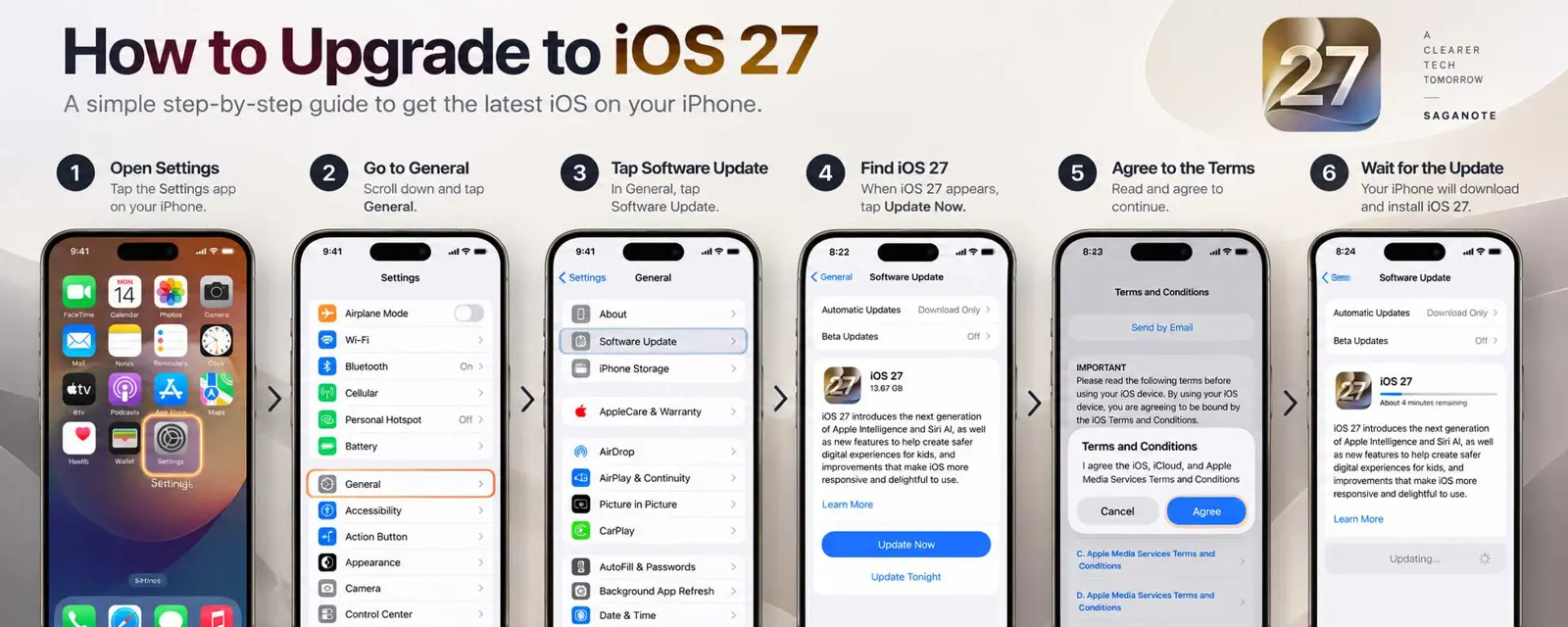
1. Open Settings
Open the Settings app on your iPhone. You do not need to connect the iPhone to a Mac or Windows PC for the normal wireless update.
2. Tap General
Scroll through Settings and tap General. This section contains the system controls used to manage software updates and other iPhone settings.
3. Open Software Update
Tap Software Update. Your iPhone will check for updates and show the version currently installed and any update available for the device.
4. Select the iOS 27 Update
If your iPhone is eligible and iOS 27 is available, the Software Update screen will show the iOS 27 update. Review the information shown, then tap the update button, such as Update Now or Download and Install, depending on the interface presented by your iPhone.
The download can take time, particularly if Apple's servers are busy or your Wi-Fi connection is slow. Keep the iPhone connected to Wi-Fi and power while the update is being prepared.
5. Accept the Terms and Conditions
If Apple presents updated terms and conditions, review them and tap Agree to continue. You may see a confirmation dialog asking you to agree again before the installation can proceed.
6. Wait for iOS 27 to Install
Once the update begins, the iPhone may show a progress indicator and restart during the installation. Leave the device connected to power and do not interrupt the process.
When the installation is complete, unlock the iPhone and check that your apps, settings, photos, and other data are still available. Apple says updating iOS keeps your data and settings unchanged.
Trending
What If iOS 27 Does Not Appear?
If you open Settings > General > Software Update and iOS 27 is not listed, first confirm that the iPhone is compatible. Apple also notes that if an update does not appear on the device, you can update the iPhone using a computer.
- Check that the iPhone is connected to Wi-Fi.
- Make sure the device has enough available storage.
- Restart the iPhone and check Software Update again.
- Confirm that the model is supported by iOS 27.
- If the update still does not appear, use the computer update method.
How to Update iPhone Using a Computer
A computer is an alternative when the wireless update is unavailable. Apple says you can connect the iPhone by cable and use Finder on a Mac running macOS Catalina or later. On older Mac versions or Windows, Apple provides the iTunes route.
- Connect the iPhone to the computer with a cable.
- On a Mac with macOS Catalina or later, open Finder and select the iPhone from the sidebar.
- Click General.
- Click Check for Update.
- If an update is available, click Update and follow the onscreen instructions.
For most users, the wireless method is easier because it avoids the computer connection. Use the computer method when Software Update on the iPhone does not provide the update or when Apple's support process directs you to use a computer.
What to Do After Upgrading to iOS 27
- Open Settings > General > Software Update and confirm that the iPhone reports that it is up to date.
- Check that Wi-Fi and cellular connectivity are working normally.
- Open a few important apps and confirm they work as expected.
- Check Photos, Messages, Mail, and other apps you rely on.
- Review storage if the iPhone was close to full before the update.
- Give the iPhone some time to finish background work before judging battery life or performance.
If you want to see what changed after the upgrade, read our Apple iOS 27 release coverage. For broader context around the launch, see our Apple September 2026 event coverage.
Troubleshooting iOS 27 Installation Problems
The update is stuck on downloading
Keep the iPhone connected to Wi-Fi and power and give the download time to finish. A slow connection or heavy demand on Apple's update servers can make the process take longer.
There is not enough storage
Free up space by removing large downloads or apps you no longer need, then return to Settings > General > Software Update and try again. Keep a backup before deleting important local files.
The update fails during installation
If the installation fails, restart the iPhone and check Software Update again. If the wireless method continues to fail, Apple's computer-based update method is the next option to try.
iOS 27 is missing from Software Update
Check the iPhone model first. If it is supported, make sure the device is online and has enough storage. Apple says a computer can be used when the update does not appear on the iPhone.
FAQ
Can I upgrade to iOS 27 without a computer?
Should I back up my iPhone before installing iOS 27?
Does updating to iOS 27 delete my photos and apps?
What if my iPhone does not support iOS 27?
Can I install iOS 27 from a Windows PC?
Bottom Line
For most people, upgrading to iOS 27 takes only a few taps. Back up your iPhone, connect it to Wi-Fi and power, then go to Settings > General > Software Update and follow the onscreen instructions. If the update is not offered, check compatibility and use Apple's computer-based method if necessary.
