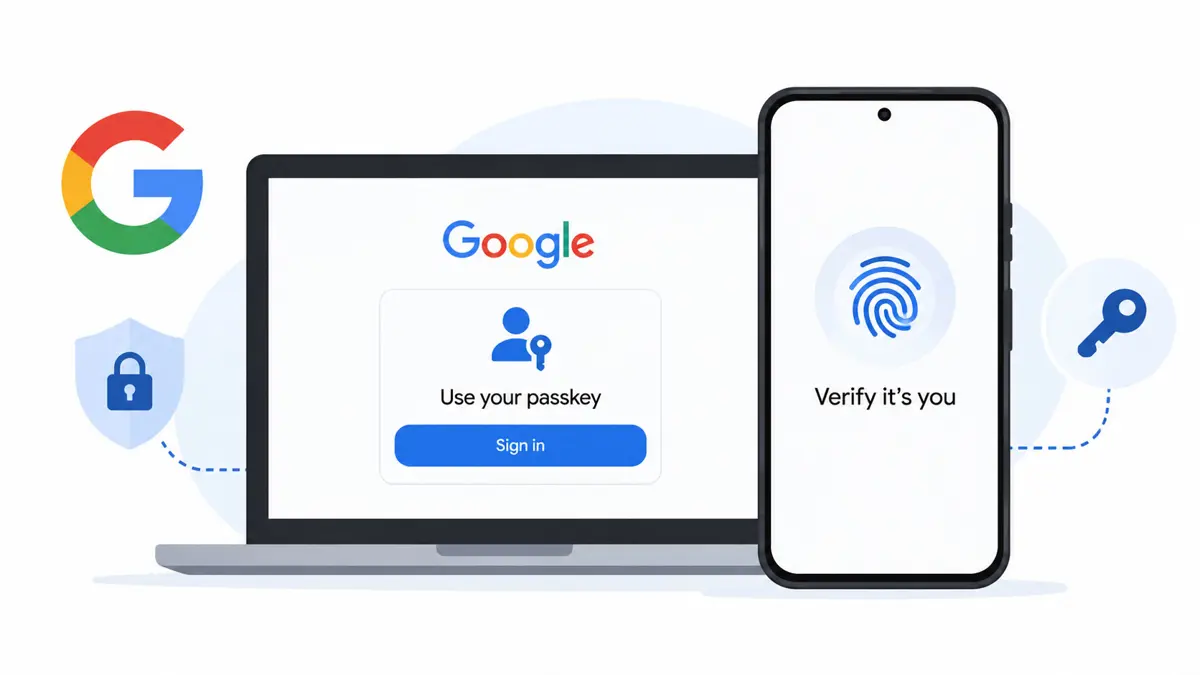
Google passkeys let you sign in to your Google Account with the screen lock on a supported phone or computer instead of typing your account password. You can create one at g.co/passkeys, then follow the prompts to verify your identity with a fingerprint, face scan, or device PIN. This guide explains how to set up Google passkeys, use one to sign in, and remove a passkey if a device goes missing.
What Are Google Passkeys?
A passkey is a sign-in credential linked to a device or credential manager. Instead of entering a password, you approve the sign-in using the device's screen lock, such as a fingerprint, face scan, or PIN. Google says biometric data stays on your device and is not shared with Google.
Passkeys are designed to resist phishing. Unlike a password, a passkey cannot be typed into a fake sign-in page or accidentally disclosed in a message. A passkey also does not delete your existing password or recovery options. Google may offer a passkey-first sign-in experience after you create one, but other sign-in methods can still be available.
If you already use a password manager, Google passkeys may fit into your existing setup. Saganote has also covered how Google makes it easier to switch password managers on Android.
What You Need Before Creating a Passkey
- A personal phone or computer that you regularly use.
- A screen lock enabled on the device.
- A supported operating system and browser. Google's current guidance lists Android 9 or later, iOS 16 or later, Windows 10 or later, macOS Ventura or later, or ChromeOS 109 or later. Supported browsers include Chrome 109 or later, Safari 16 or later, Edge 109 or later, and Firefox 122 or later.
- Access to your Google Account so you can sign in or verify your identity during setup.
On an iPhone, iPad, or Mac, Google says iCloud Keychain must be enabled to create and use passkeys through that system. If you want to use a passkey on your phone to sign in on a nearby computer, Bluetooth may need to be on. The exact prompts can vary by device, browser, and account type.
Do not create a Google passkey on a public, borrowed, or shared device. Anyone who can unlock that device may be able to use its passkey to access your account, even if you have signed out of Google.
How to Set Up a Google Passkey
The quickest way is to use Google's dedicated passkey page. The steps below follow Google's account help instructions; button wording may vary slightly between devices.
Step 1: Open Google's passkey settings
Open g.co/passkeys in a supported browser. If the shortcut does not take you to the setup screen, open the Google Account passkeys page directly.
Step 2: Sign in to your Google Account
If prompted, enter your Google Account details and complete any identity check. Google may ask you to verify that you are the account owner before allowing a new passkey to be created.
Step 3: Select Create a passkey
Choose Create a passkey. If another confirmation appears, select the create option again or continue as prompted. Your browser or operating system will open its passkey dialog.
Step 4: Verify your identity on the device
Follow the on-screen prompt to use your fingerprint, face scan, or device PIN. The method available depends on the device and its security settings. When the process finishes, Google should confirm that the passkey has been created.

If you want passkeys available on more than one device, repeat the setup process on each personal device where you need one, or check whether your credential manager syncs passkeys across your devices. Availability depends on the platform and the credential manager you use.
How to Sign In to Google With a Passkey
Once a passkey is set up, you can use it the next time you sign in to your Google Account on a compatible device.
- Open a Google sign-in page or a Google service that asks you to sign in.
- Enter your Google Account email address if requested.
- If Google offers a passkey, select it. If it does not appear, choose Try another way and look for the passkey option.
- Follow the browser or operating system prompt.
- Unlock your device with your fingerprint, face scan, or PIN to complete sign-in.
You can also use a phone's passkey to sign in on a computer. On the computer's Google sign-in page, enter your username and choose Try another way, then Use your passkey, if offered. A QR code may appear. Scan it with your phone, keep Bluetooth enabled if prompted, tap the passkey sign-in option on the phone, and verify your identity.
For managed Google Workspace accounts from an employer or school, the administrator may control whether a passkey can replace the password at sign-in. In those accounts, a passkey may instead be available as a second factor, recovery option, or verification method for sensitive actions.
What Happens if You Lose Your Phone or Computer?
A passkey does not remove your other Google Account authentication or recovery methods. Still, prepare for device loss before it happens. Keep your recovery email and phone number current, and maintain another sign-in option you can access.
If you lose a device that has a passkey, sign in to your Google Account from another trusted device and remove the passkey linked to the missing device.
- Open your Google Account passkey settings.
- Find the passkey associated with the lost device.
- Select that passkey and choose Remove.
- Review your account's signed-in devices at google.com/devices and sign out of any device you no longer trust.
Google notes that some passkeys created automatically by Android devices may be managed through the device list rather than the passkey list. If the missing device appears under Your devices, open it and sign out. If you cannot sign in at all, use Google's account recovery process.
For more account protection context, see Saganote's guide to Gmail's easier-to-copy two-factor authentication codes. Keep in mind that a passkey and a recovery method serve different purposes: the passkey helps you sign in, while recovery options help you regain access when normal sign-in is unavailable.
Troubleshooting Google Passkeys
The Create a passkey option is missing
Check that you are signed in to the correct Google Account, your device has a screen lock enabled, and your operating system and browser meet Google's requirements. Work or school accounts may have restrictions set by an administrator.
Google does not offer my passkey during sign-in
Make sure the device or credential manager that stores the passkey is available and unlocked. Check that the device's screen lock is enabled. If Google offers Try another way, use it to return to other available sign-in methods.
I am trying to create a passkey on an iPhone or Mac
Google's guidance says iCloud Keychain must be enabled on iPhone, iPad, and macOS devices. If setup prompts you to turn it on, follow the device's instructions and then try creating the passkey again.
I use a work or school Google Account
Your administrator may limit passwordless sign-in. Check your organization's account settings or contact its administrator if the passkey works as a verification method but does not replace your password.
Google Passkeys: Security Tips to Follow
- Create passkeys only on devices you personally own and regularly use.
- Keep your device's screen lock enabled and choose a PIN that others cannot easily guess.
- Keep account recovery details current and maintain a backup sign-in method.
- Remove passkeys for devices you sell, give away, lose, or no longer trust.
- Review devices with access to your Google Account periodically.
- Do not confuse a passkey with a password manager's master password or your device PIN. They are related to authentication, but they are not interchangeable credentials.
Frequently Asked Questions
Are Google passkeys safer than passwords?
Does creating a passkey delete my Google password?
Does Google receive my fingerprint or face scan?
Can I use a passkey on another device?
Set Up a Passkey and Keep a Recovery Option
To create a Google passkey, visit g.co/passkeys, select Create a passkey, and complete the device verification prompt. Use a personal device, keep your screen lock enabled, and check that you have another way to recover your account if the device is lost.
