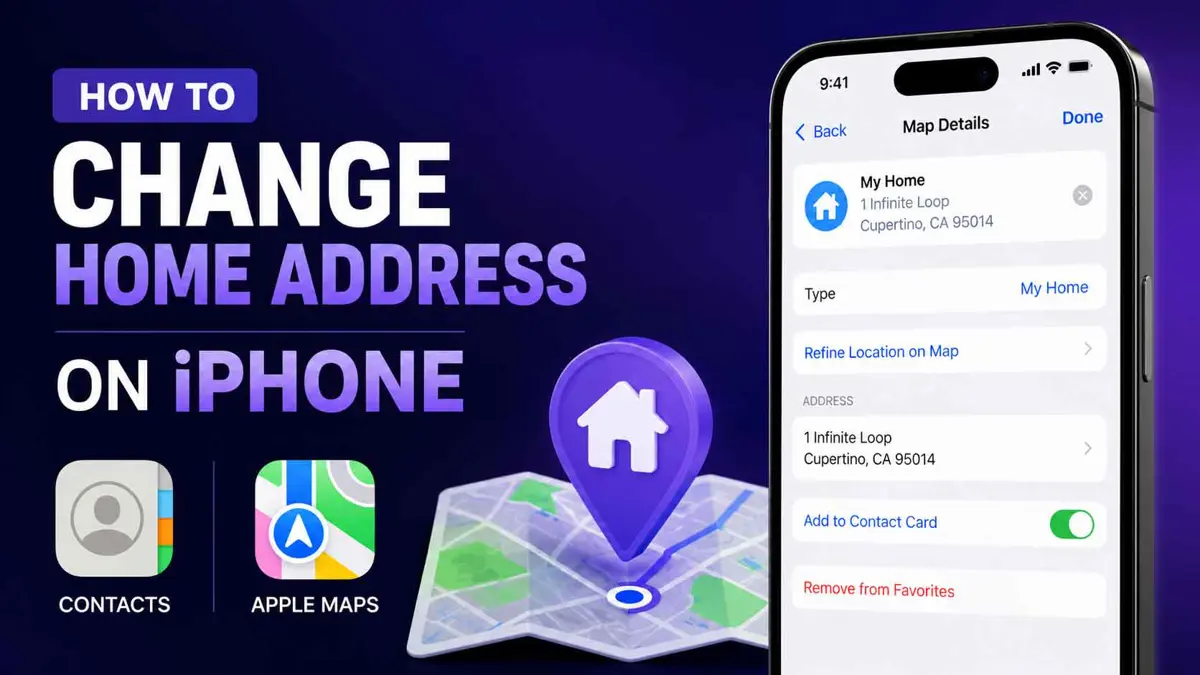
If you need to change home address on iPhone, you can update it in the Contacts app, Apple Maps, or both. In iOS 18 and later, your home or work address in Maps can also be different from the address saved on your Contact Card.
How to Change Home Address on iPhone in Contacts
Your Contact Card stores your personal information and can be used by features such as Siri, autofill, and Weather. If you want to change the main address associated with your Apple contact information, update your address in Contacts.
Step 1: Open Contacts
Open the Contacts app on your iPhone and tap My Card.
If you haven't created a My Card yet, tap the + button to create your contact information. You can then return to your contacts list, touch and hold your name, and tap Make This My Card.
Step 2: Tap Edit
Tap Edit in the top-right corner of your Contact Card.
Step 3: Add or Change Your Address
If you already have an address, edit the existing address. If you don't have one, tap Add Address and enter your new address.
Tap the label next to the address and choose home, work, school, or another label.
Step 4: Save the Changes
Tap Done to save your updated address.
In iOS 18 and later, the home and work addresses saved in Contacts can also be used by Weather, Siri, autofill, and other Apple features.
How to Change Your Home Address in Apple Maps
Apple Maps has its own home and work locations. This means the address used by Maps does not necessarily have to match the address saved on your Contact Card.
Step 1: Open Apple Maps
Open the Maps app on your iPhone and scroll down to the Places section.
Step 2: Add or Select Your Home Address
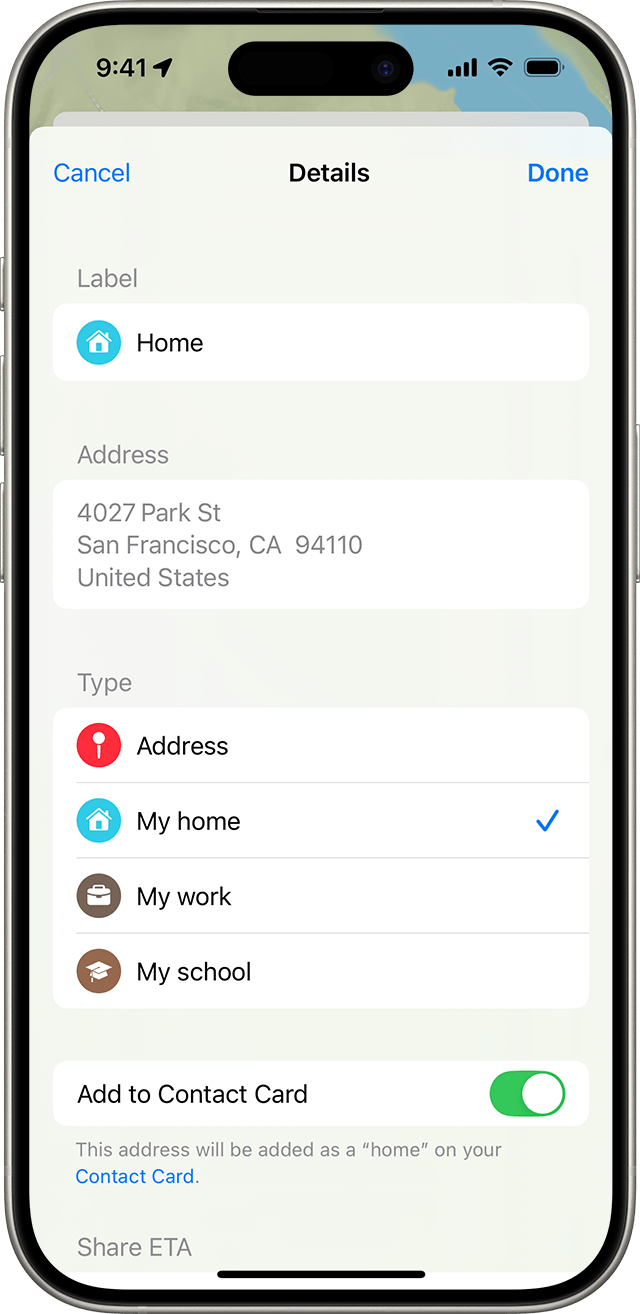
Tap Add, then start typing the address you want to use.
When the correct address appears, tap it.
Step 3: Set It as Home
Scroll down to Type, then tap My home.
If you want to set a work location instead, choose My work.
Step 4: Update Your Contact Card if Needed
If you also want the same address saved in your Contacts, tap Add to Contact Card.
Then tap Done.
For more information about Apple's latest Maps features, see our guide to What's New in Maps in iOS 27.
How to Delete Your Home Address From Contacts
If you no longer want an address saved in your Contact Card, you can remove it without deleting the entire contact.
- Open Contacts and tap My Card.
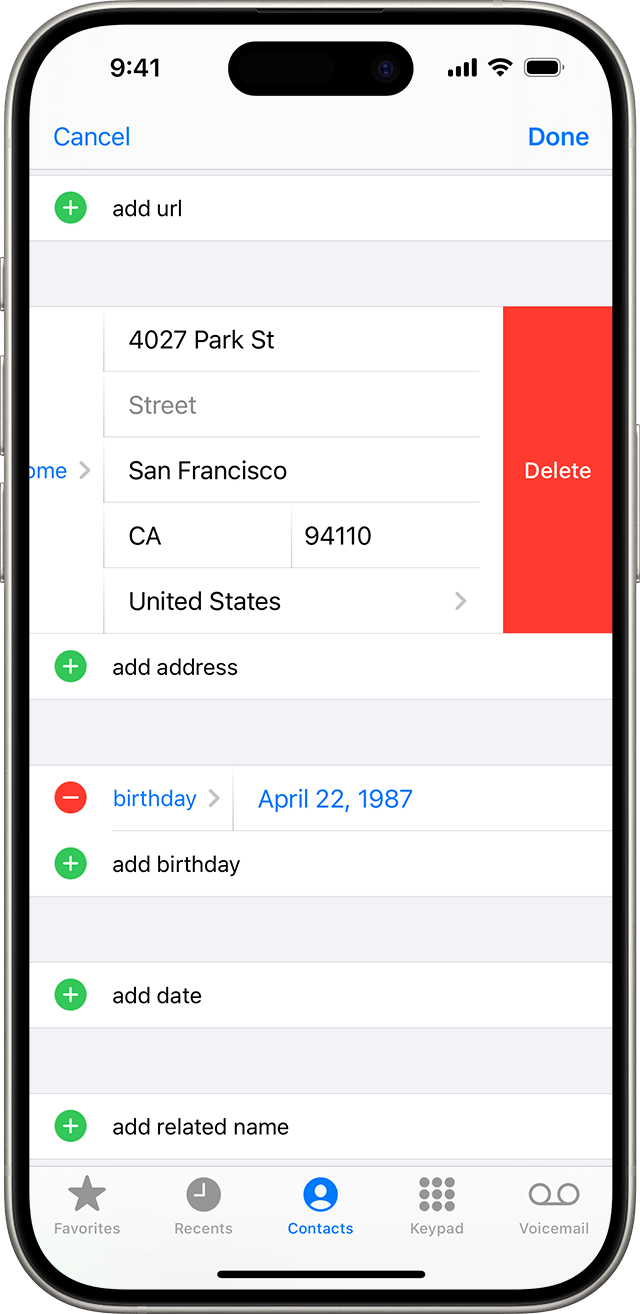
- Tap Edit.
- Tap the delete button next to the address.
- Tap Delete.
How to Delete Your Home Address From Apple Maps
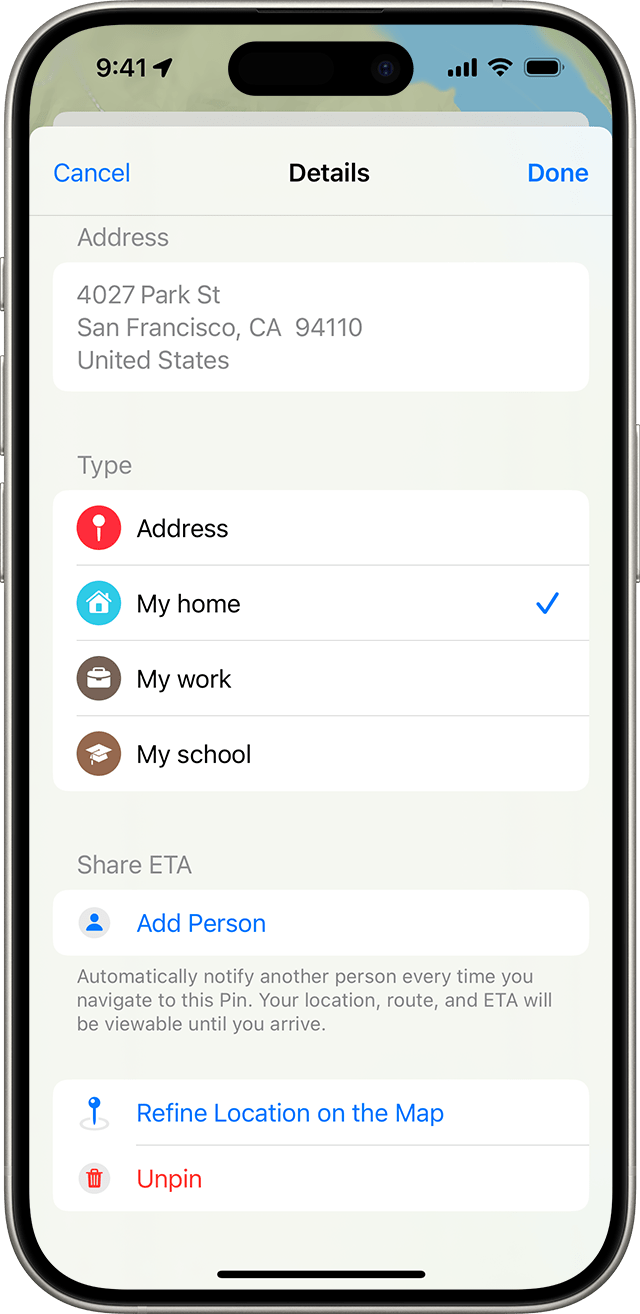
To remove a home or work location saved in Maps:
- Open Maps and scroll to Places.
- Touch and hold the address you want to remove.
- Tap Unpin.
This removes the location from your saved Places without deleting your entire Contact Card.
How to Fix an Incorrect Home Location in Apple Maps
Sometimes the address is correct but the location pin is not positioned exactly where you want it. Apple Maps lets you refine the location manually.
- Open Maps and scroll to Places.
- Touch and hold the home or work location.
- Tap Edit Details.
- Tap Refine Location on the Map.
- Move the location icon to the correct position.
- Tap Done.
This can be useful when your address covers a large property, a new development, or a location where the standard map pin does not land exactly where you need it.
Why Your Maps and Contact Addresses Can Be Different
If you're using iOS 18 or later, Apple allows you to set separate home and work addresses in Maps and Contacts.
For example, you might have one address saved as your home in Contacts for Siri and Weather while using a slightly different map location in Apple Maps for navigation.
This separation is useful when the address stored in your Contact Card and the exact location you want Maps to navigate to are not the same.
Frequently Asked Questions
How do I change my home address on iPhone?
Does changing my address in Maps change my Contact Card?
Why is my old home address still showing in Apple Maps?
Can I change the exact location pin for my home?
Does my home address affect other iPhone features?
