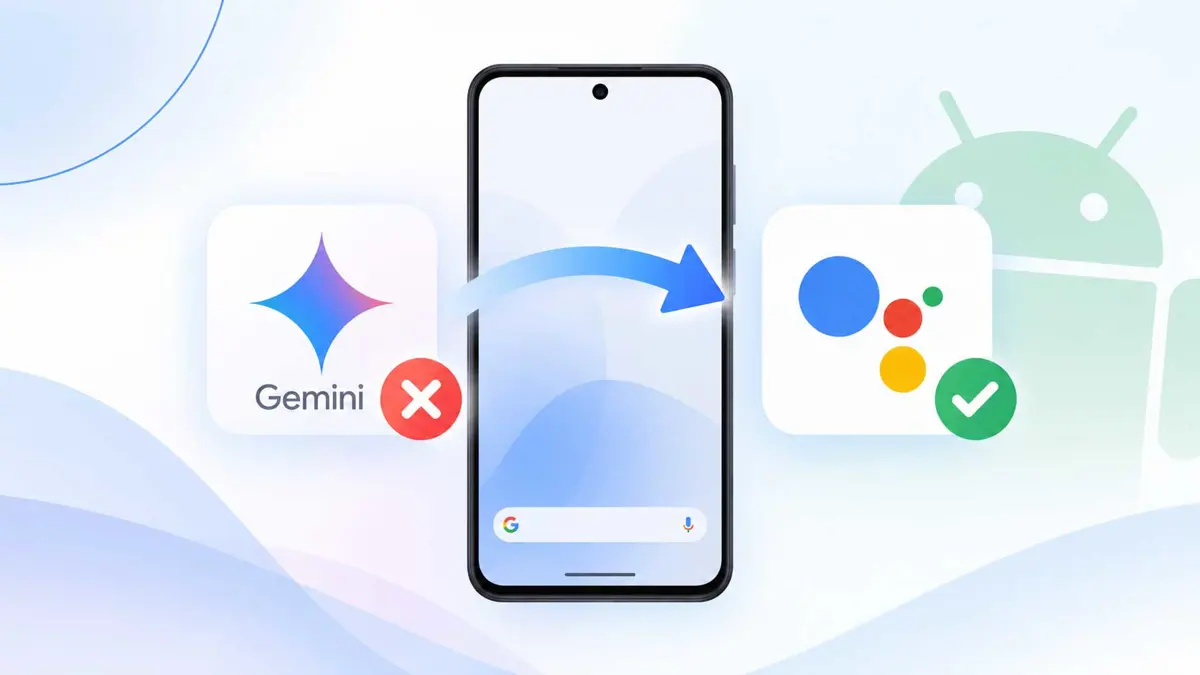
If you want to disable Gemini on Android, you do not necessarily need to uninstall the app. Google separates the controls for your default assistant, voice activation, lock-screen access, shortcuts, and Gemini Apps Activity. This guide shows what each setting does and which one to change for the result you want.
Takeaways
- Switching to Google Assistant changes the default assistant that responds to "Hey Google" and touch shortcuts.
- Uninstalling Gemini does not automatically remove it as the default digital assistant.
- Android lets you change or remove the default digital assistant app.
- You can also turn off "Hey Google," lock-screen access, and the power-button shortcut separately.
- Gemini Apps Activity is a separate privacy setting, and turning it off does not instantly erase every conversation.
What Does It Mean to Disable Gemini on Android?
There is no single setting that controls every Gemini feature on an Android phone. Google treats the assistant itself, the Gemini app, activation shortcuts, and Gemini Apps Activity as separate controls.
If the main problem is that Gemini replaced Google Assistant, switching back to Google Assistant is the quickest fix. If Gemini keeps appearing when the power button is held, change the digital assistant or button shortcut. If your concern is saved Gemini conversations, manage Gemini Apps Activity separately.
How to Disable Gemini on Android by Switching Back to Google Assistant
The simplest way to stop Gemini from acting as your phone's primary assistant is to switch the default assistant back to Google Assistant.
- Open the Gemini app on your Android phone or tablet.
- Tap the menu icon, then tap your profile picture or initial.
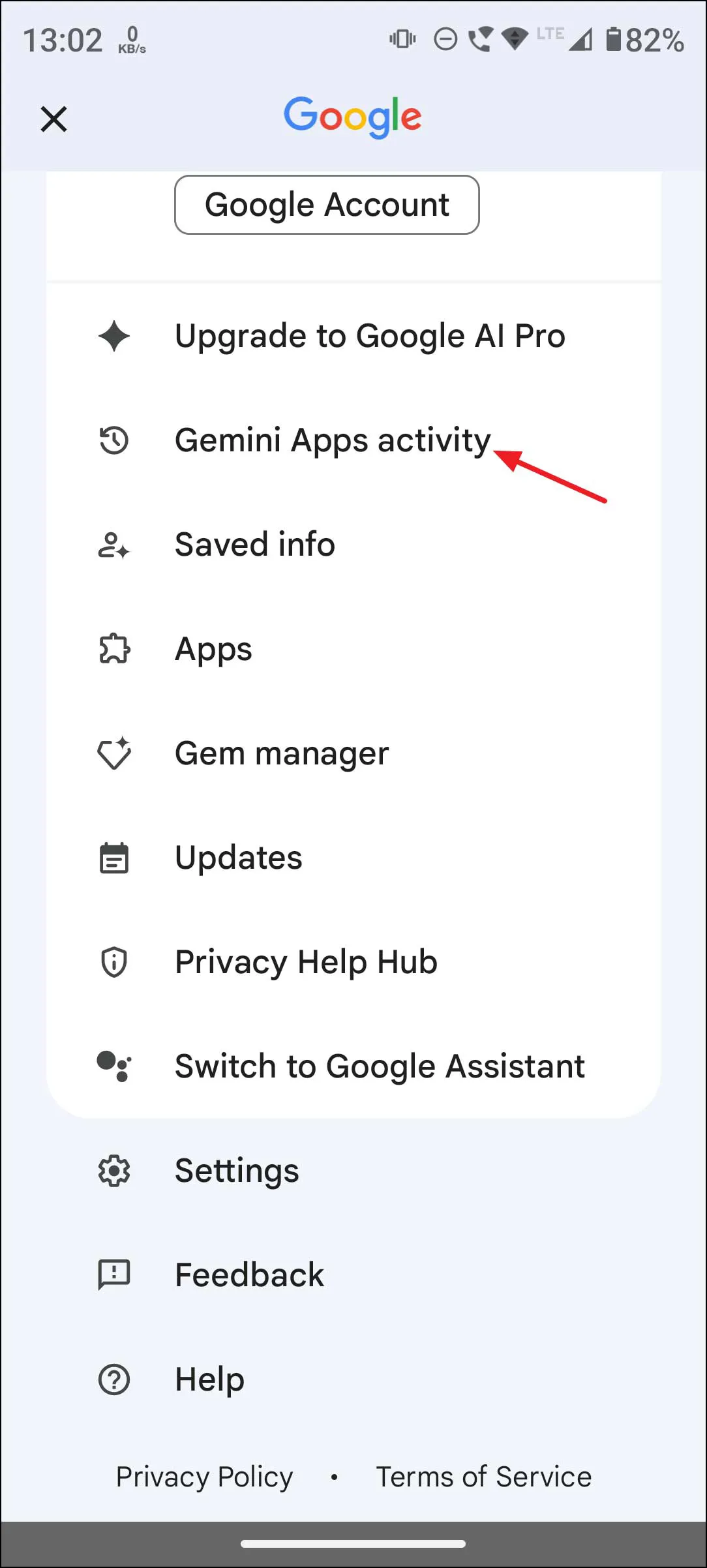
- Tap Switch to Google Assistant.
- Select Google Assistant.
- When the confirmation dialog appears, tap Switch.
After the change, Google Assistant responds when you say "Hey Google" or activate the mobile assistant by touch, such as pressing and holding the power button. Google says Gemini Apps Activity is not automatically deleted when you switch assistants.
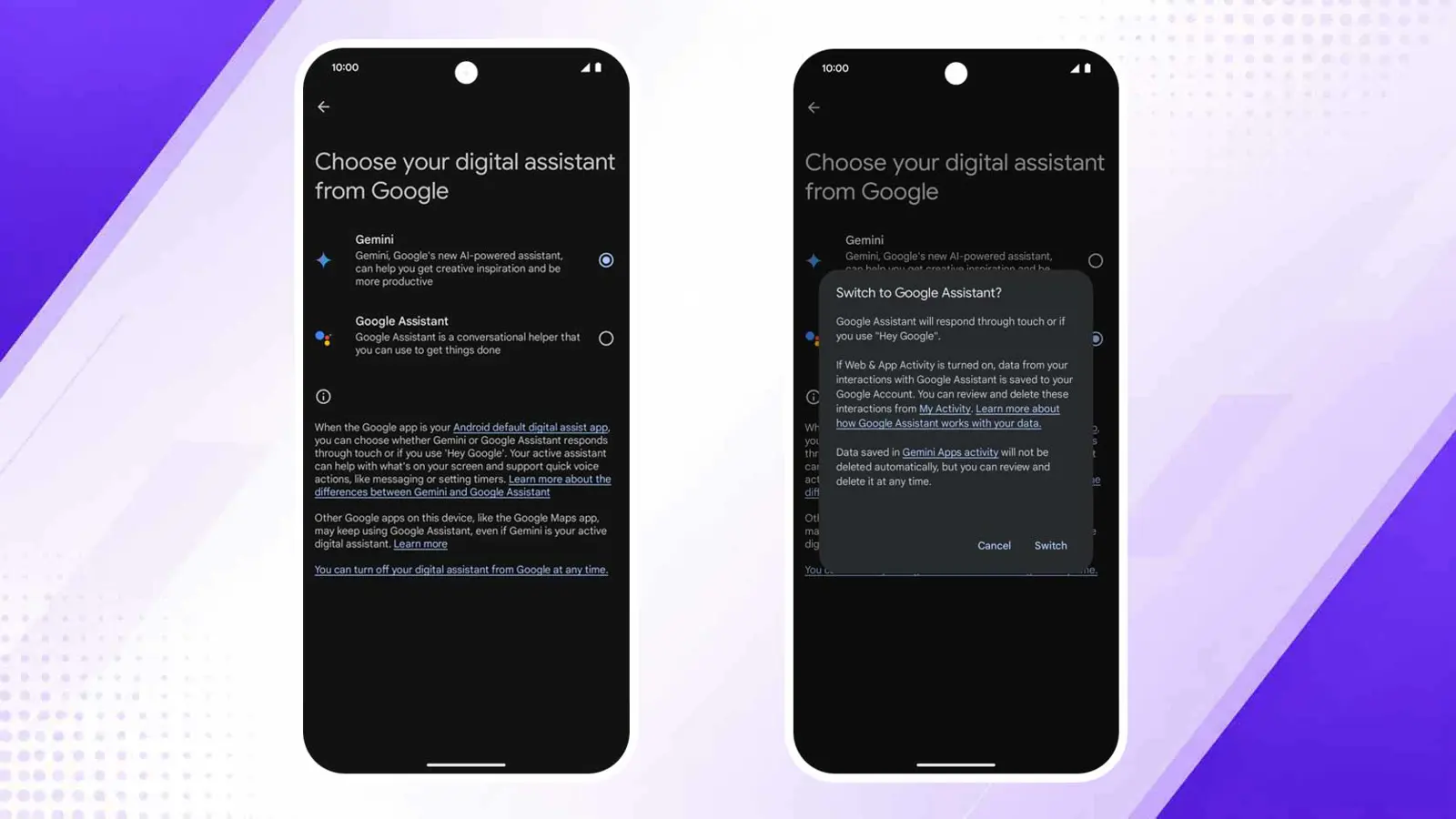
The exact menus can vary by phone maker and Android version. If the Gemini app does not show the switch option, use the default-assistant setting described below.
Change the Default Digital Assistant From Android Settings
Google also provides a system-level setting for changing or removing the default digital assistant. This is useful if you want to choose another assistant or stop an assistant shortcut from launching one at all.
- Open Settings.
- Tap Apps.
- Tap Default apps.
- Tap Digital assistant app.
- Tap Default digital assistant app.
- Choose another assistant or select None, if your phone provides that option.
Google notes that the names and location of these settings can vary between Android devices. If you cannot find them, search your Settings app for digital assistant app, assistant, or power button.
Stop Gemini From Opening With the Power Button
If Gemini only bothers you when you press and hold the power button, you may not need to remove the app. Google provides a separate gesture setting for this shortcut.
- Open Settings.
- Tap System.
- Tap Gestures.
- Tap Press & hold power button.
- Select the action you want to use instead.
Google says this path varies by device. Samsung phones, for example, use the Side button settings instead of the Pixel-style power-button menu. On some phones, searching Settings for "power," "side button," or "gesture" is the fastest way to find the control.
Turn Off "Hey Google" for Gemini
You can keep Gemini installed while preventing it from opening when it hears the "Hey Google" wake phrase.
- Open the Gemini app.
- Tap the menu icon.
- Tap your profile picture or initial.
- Tap Settings.
- Tap Talk to Gemini hands-free.
- Turn off Hey Google.
This changes voice activation. It does not uninstall Gemini or change other shortcuts that may still launch your default assistant.
Stop Gemini From Opening on the Lock Screen
If Gemini appears while the phone is locked, Google provides a separate lock-screen control.
- Open the Gemini app.
- Tap the menu icon.
- Tap your profile picture or initial.
- Tap Settings.
- Tap Gemini on lock screen.
- Turn off Use Gemini without unlocking.
After this change, you need to unlock the phone before opening Gemini. Google also notes that if Gemini has already been blocked from other voice or touch activation methods, you must unlock the device and open the Gemini app directly to use it.
How to Disable Gemini Apps Activity
Turning off Gemini as your assistant and turning off Gemini Apps Activity are different actions. If your goal is to stop future Gemini conversations from appearing in your Gemini Apps Activity, change the activity setting separately.
- Open the Gemini app.
- Tap the menu icon.
- Tap your profile picture or initial.
- Tap Gemini Apps Activity.
- Near the top, tap On.
- Choose Turn off or Turn off and delete activity.
Google says that even when Keep Activity is turned off, conversations can be retained with your account for up to 72 hours so Gemini can provide the service and process feedback. Those conversations do not appear in Gemini Apps Activity.
What Happens to Your Existing Gemini Activity?
Switching back to Google Assistant does not automatically delete data already saved in Gemini Apps Activity. You can review or delete that activity separately.
- Delete all Gemini Apps Activity.
- Delete activity from the last hour or day.
- Delete a custom date range.
- Delete activity from a specific day.
- Delete individual activity items.
Google also lets you change the auto-delete period for Gemini Apps Activity. The current options include 3, 18, or 36 months, or no automatic deletion.
Should You Uninstall Gemini?
Uninstalling Gemini is optional. If the problem is that Gemini has become the phone's default assistant, switch the default assistant first. Google specifically says deleting the Gemini mobile app does not automatically remove Gemini as the device's default digital assistant.
- Want Google Assistant back? Switch the primary assistant.
- Want to stop the power-button shortcut? Change the button or gesture setting.
- Want to stop voice activation? Turn off "Hey Google."
- Want to stop lock-screen access? Turn off Gemini on the lock screen.
- Want less Gemini activity saved? Turn off Gemini Apps Activity.
- Want the app gone? Uninstall Gemini if your phone allows it.
For more context on how Gemini fits into Google's broader AI tools, see Gemini Spark Can Now Manage Google Photos, Google AI Study Tools Expand Across Gemini and Search, and ChatGPT vs Gemini vs Claude: Which AI Should You Use?.
If You Use a Samsung Galaxy
Samsung uses some different names for assistant and button settings. Samsung's current support instructions use Settings > Apps > Choose default apps > Digital assistant app for the default assistant. The Side button shortcut is managed under Settings > Advanced features > Side button > Long press.
That means Pixel and Samsung instructions should not be treated as identical. On another Android phone, use the Settings search box if the menu names do not match.
Frequently Asked Questions
Can I completely disable Gemini on Android?
Does uninstalling Gemini switch me back to Google Assistant?
Does switching to Google Assistant delete my Gemini chats?
Can I stop Gemini without uninstalling it?
Why can't I find the same settings?
The Quickest Way to Disable Gemini
If Gemini has simply replaced Google Assistant and you want the old assistant back, start with the Gemini app's Switch to Google Assistant option. If Gemini still appears through a shortcut, change the default digital assistant or button setting. For privacy, handle Gemini Apps Activity separately because switching assistants does not delete the activity already saved to your account.
