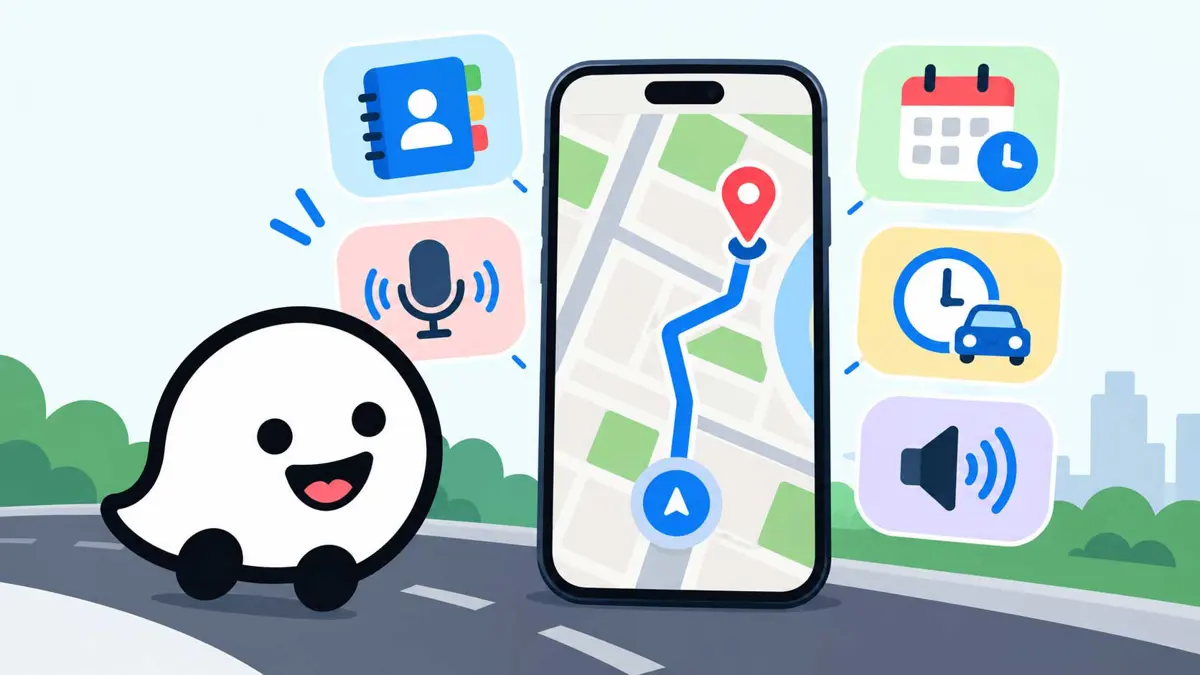
Waze hidden features can make everyday driving easier without requiring a new app. The navigation app can search for addresses saved in phone contacts, play directions in a recorded voice, remind drivers when to leave, connect planned trips to a calendar, and reduce how often navigation speaks. Some options depend on phone permissions, voice availability, and the device being used.
The steps below are based on Waze's current help documentation. Menu labels can vary slightly between Android and iPhone, and some features work differently when Waze is connected to a car display.
1. Navigate to a saved contact without typing an address
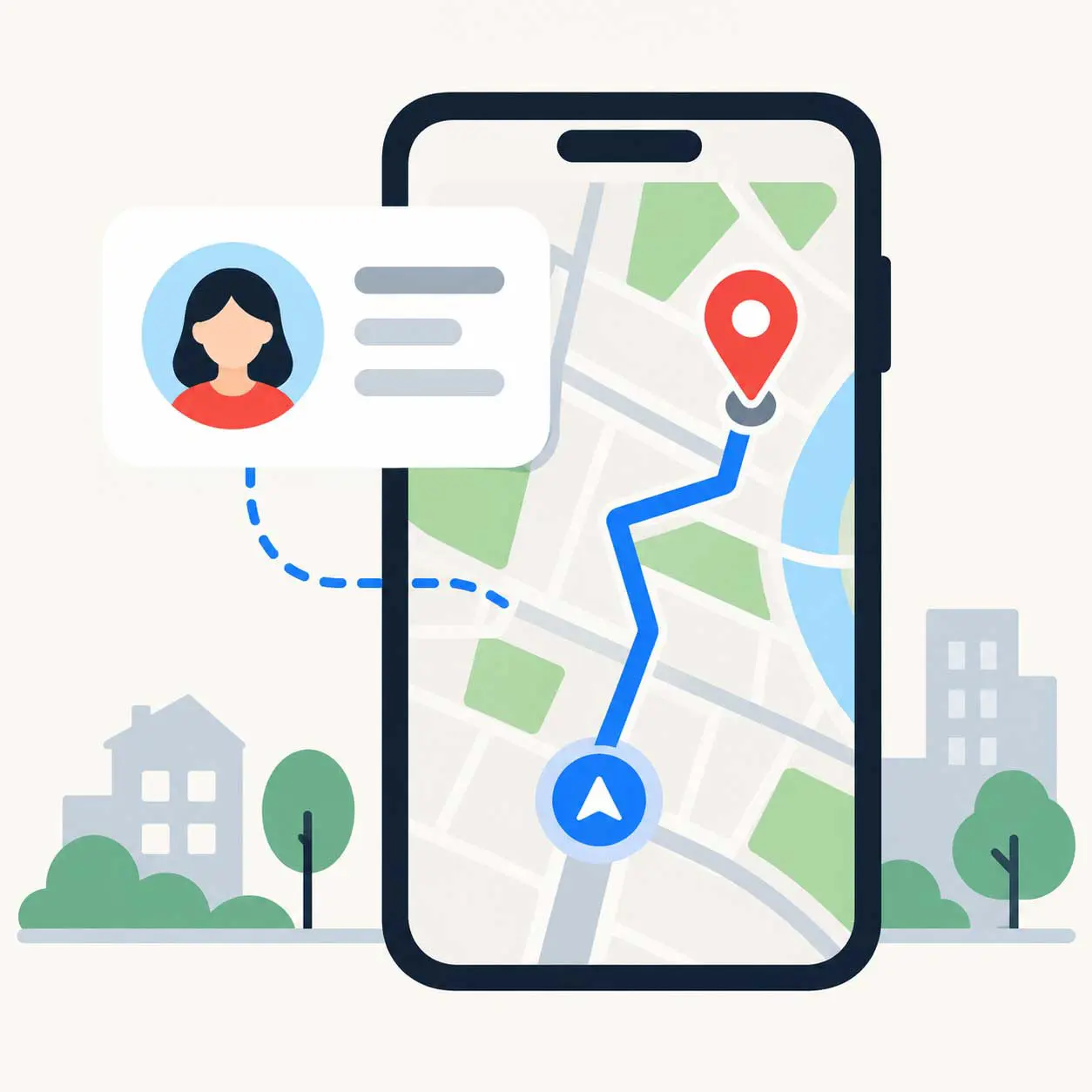
If a friend or family member's home address is saved in the phone's contacts, Waze can use that address as a destination. This is useful when arranging a pickup or visiting someone whose address is already stored in the contact card.
How to use it
- Open Waze and swipe up to find Drive to friends and family.
- Tap Next, then allow contact access when prompted.
- Return to the map and tap the search bar.
- Type the contact's name and select the matching address.
- Choose Go now to start navigating, or Leave later if you want to plan the trip.
The important detail is that the contact needs a street address saved in the phone. A name and phone number alone are not enough for Waze to know where to route you. You can revoke contact access later in your phone's app-permission settings.
Official instructions: Drive to a phone contact in Waze.
2. Record navigation directions in your own voice
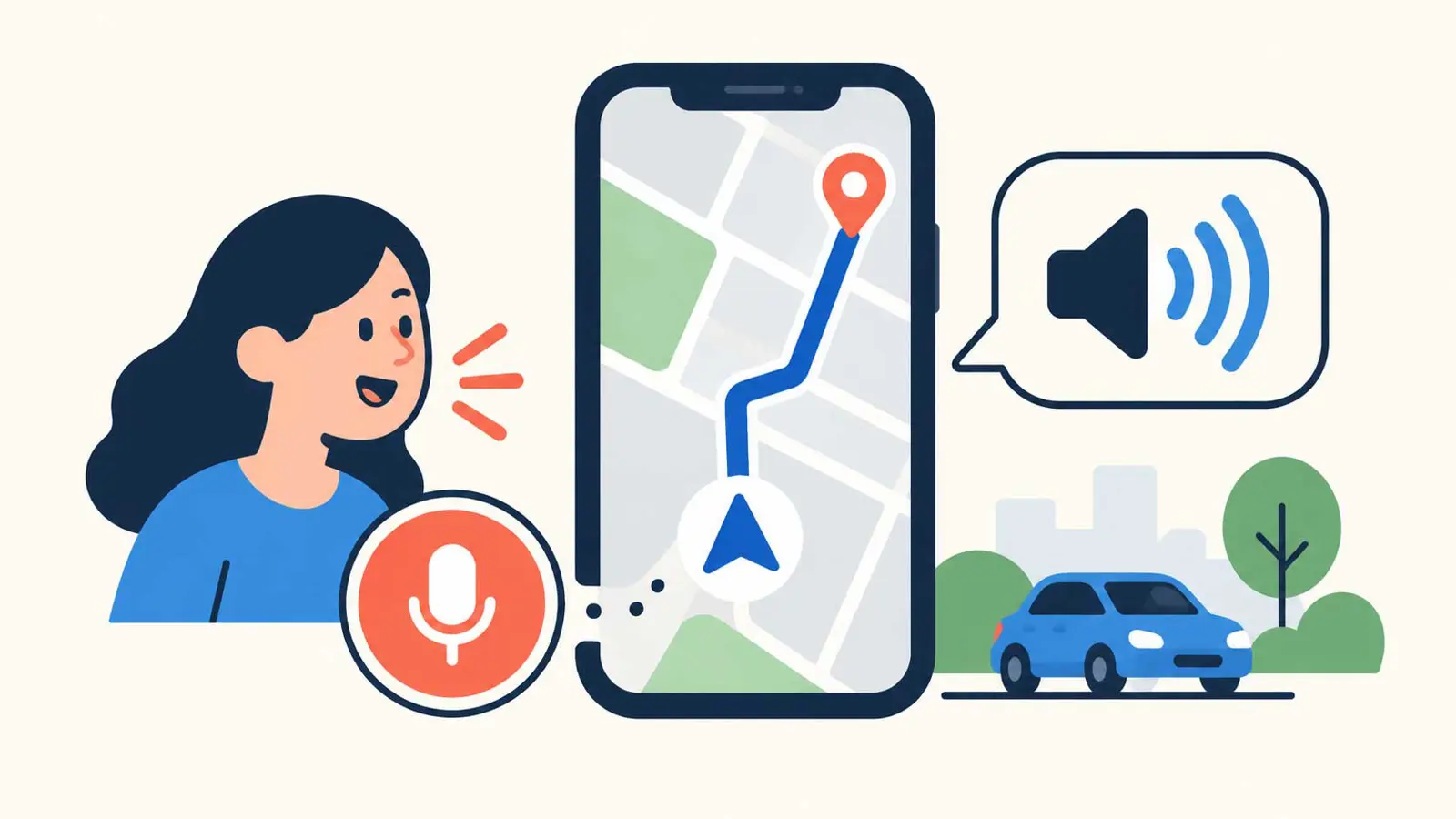
Waze can record custom voice prompts, so navigation can sound like you, a friend, or a family member instead of the default voice. The recording replaces supported spoken prompts; it does not mean the app will generate new speech in that person's voice.
How to record a voice
- Open Waze on your phone.
- Open the menu and go to Settings.
- Select Voice and sound, then open Current voice.
- Choose Add a voice or New voice, depending on the app version.
- Follow the prompts and record each phrase.
- Play the recordings back, save the voice, and give it a name.
You do not have to record every phrase at once. Start with the directions you use most, and make sure each recording is clear. Waze's help page explains how to share or delete a custom recording as well.
For Android Auto or CarPlay, set up the voice on the phone first. Waze says to disconnect from the car system while recording or changing the voice.
Official instructions: Record your own voice directions.
3. Schedule a drive before the day gets busy
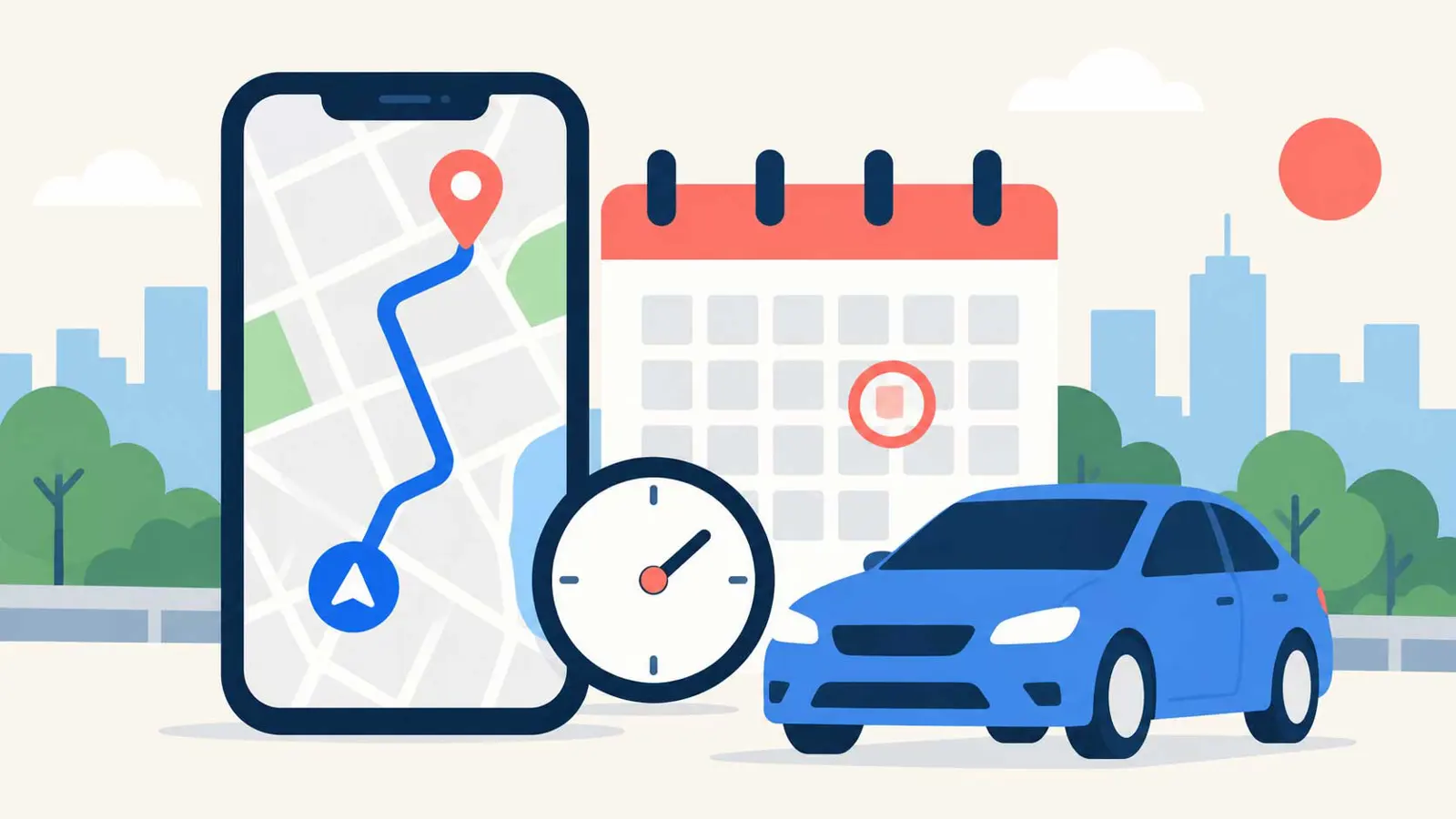
Waze can plan a trip around the time you need to arrive, rather than only calculating a route for right now. It estimates when you should leave using expected traffic and can send a reminder when departure time approaches.
How to plan a drive
- Open Waze and tap the menu.
- Choose Plan a drive.
- Tap the + button and search for the destination.
- Select the date and the time you want to arrive.
- Save the planned drive and make sure Time to leave notifications are enabled.
For example, if an appointment starts at 9:00 a.m., set the arrival time rather than guessing how early to leave. Waze can adjust the suggested departure based on traffic conditions. Check the planned trip before leaving because traffic, weather, and road conditions can still change.
You can also plan a drive after checking a route by selecting Leave later. Waze's support documentation notes that planning a drive is not supported directly on Android Automotive, and some steps require the phone app.
Official instructions: Plan a drive in Waze.
4. Connect your calendar to get departure reminders
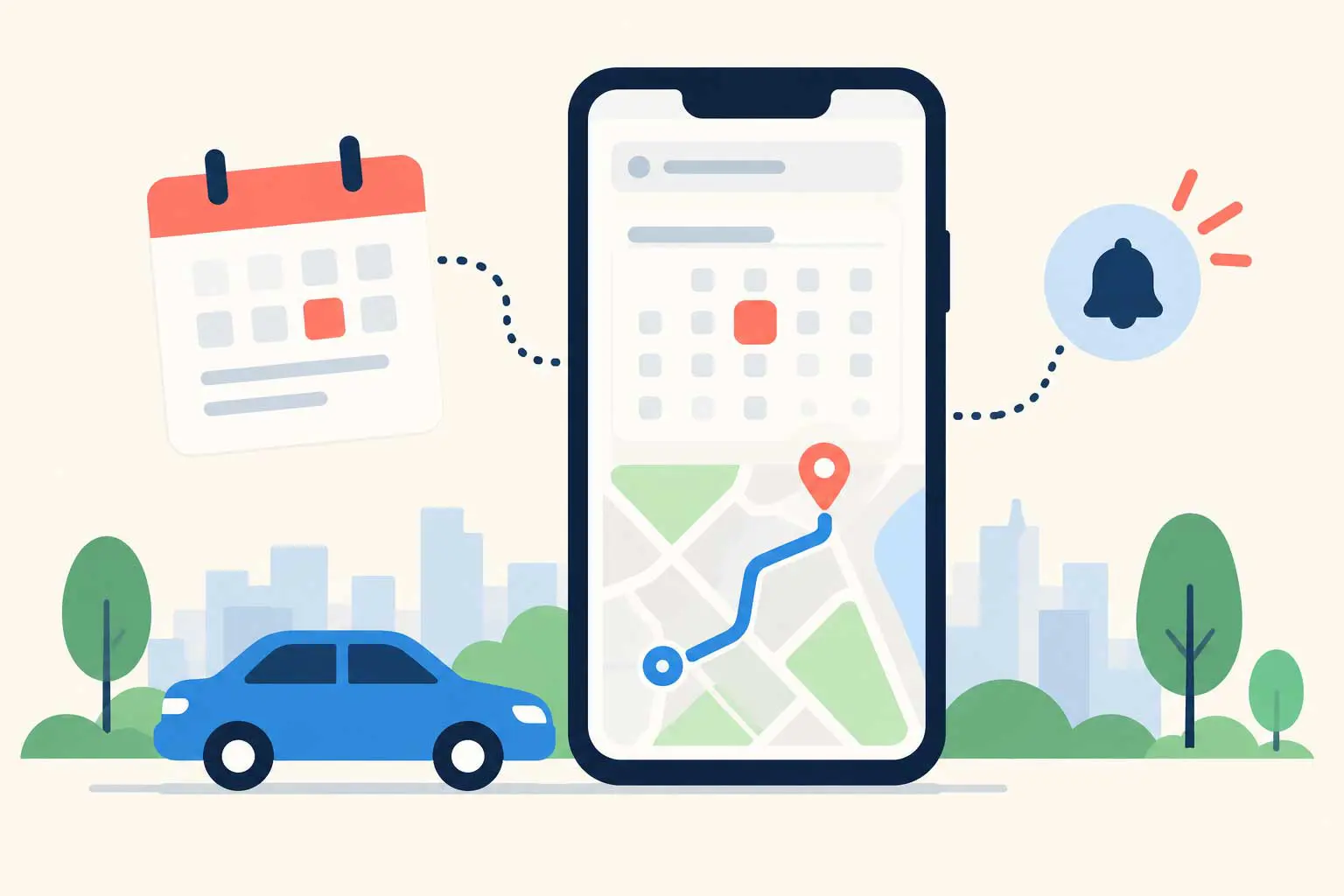
If appointments already live in your phone's calendar, you can connect the calendar to Waze instead of creating every trip from scratch. Waze can show upcoming events in planned drives and send a time-to-leave notification when it is time to go.
How to connect a calendar
- Open Waze on your phone.
- Tap the menu and select Plan a drive.
- Tap Connect calendar.
- Allow calendar access, then confirm.
- Check that upcoming events include a complete destination address.
The address matters. Waze says an event needs a full location, including street name, house number, and city, for a departure reminder to work. If Waze shows Set address beside an event, review the event's location and correct it.
Waze's calendar-sync help page says this feature is not supported on Android Auto, Android Automotive, or CarPlay. Connect and manage the calendar from the phone app, and check the current instructions for the device in use.
Official instructions: Sync your calendar with Waze.
5. Make Waze quieter, or troubleshoot missing voice audio
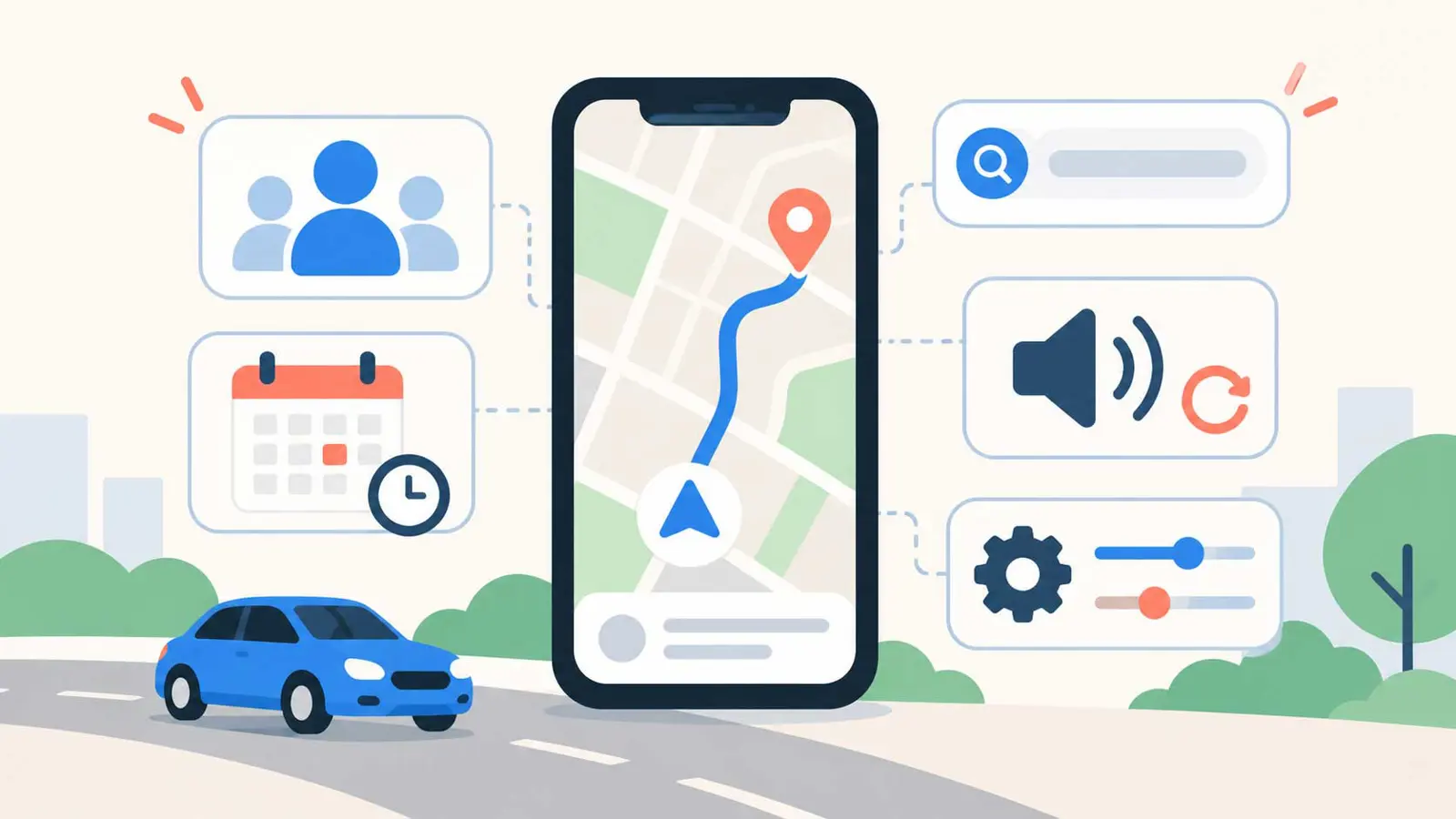
Waze does not have to announce every turn in the same way for every driver. Its sound settings can reduce spoken guidance, leave alerts on, or mute audio. This is useful when frequent instructions become distracting, or when a driver wants to hear hazard alerts without full turn-by-turn narration.
How to change the sound mode
- Open Waze and start or preview a route.
- Tap the sound icon.
- Choose Less chatty if it is available and you want only essential guidance and alerts.
- Choose Alerts only if you want alerts but not spoken turn-by-turn directions.
- To change the volume, open Settings, then Voice and sound, and adjust Guidance volume.
The available choices can depend on the device and selected voice. If Less chatty does not appear, check the current voice and the sound options shown in the app rather than assuming the feature is available in every configuration.
Waze also documents a search command, ##@cctts, for clearing its text-to-speech cache when voice audio is not working properly. This is a troubleshooting step, not a general performance booster. Try the standard sound settings first, and use the command only if you are troubleshooting spoken directions.
Official instructions: Set your sound preferences.
Which Waze feature should you try first?
Start with the feature that removes the most friction from your routine. Contact navigation is useful for frequent visits, custom voice directions make navigation more personal, and planned drives are helpful for appointments with a fixed arrival time. Calendar sync is best for people who manage their schedule digitally, while sound controls help tailor how much guidance the app gives.
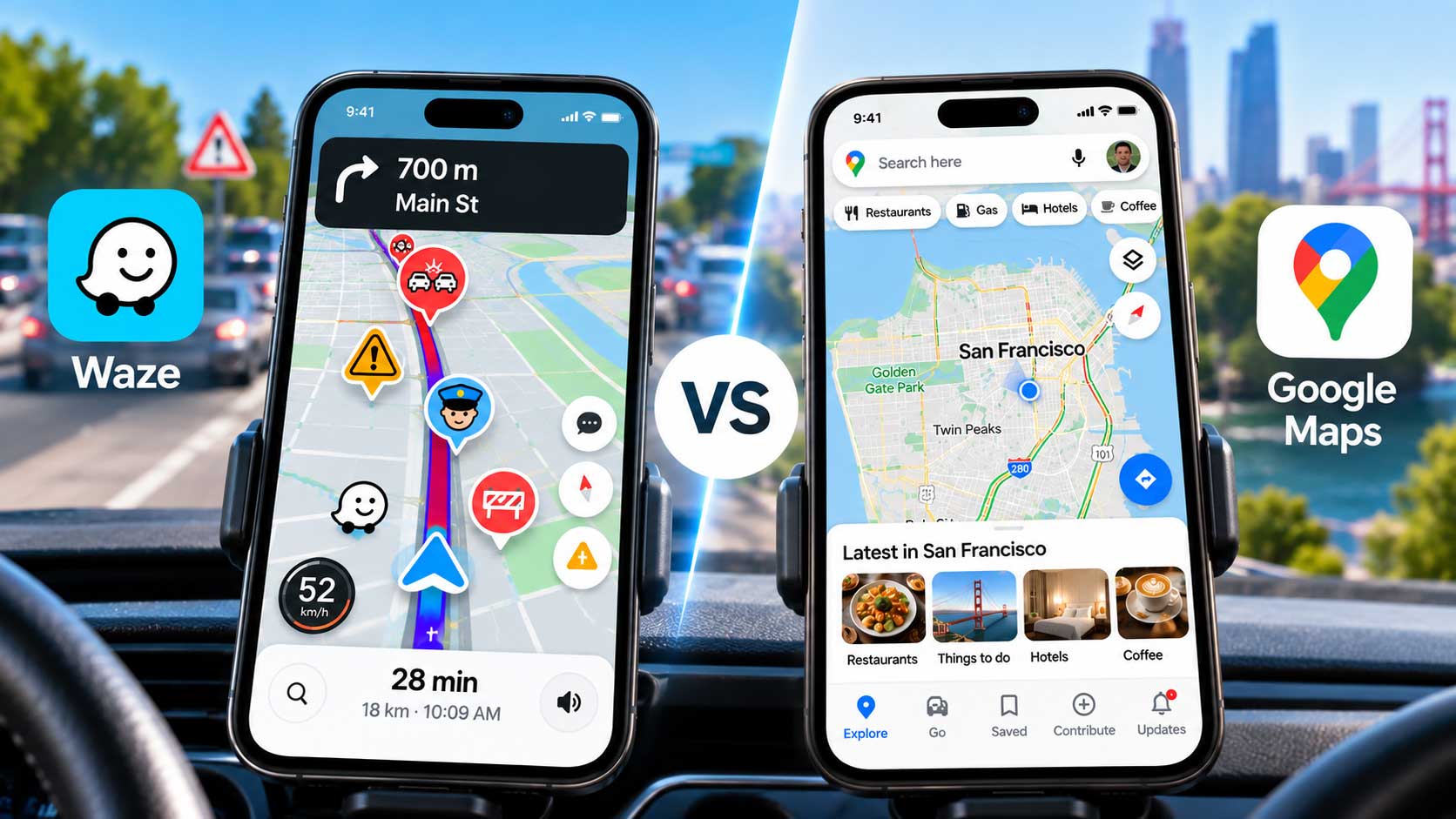
For a broader look at how Waze fits into everyday navigation, see Saganote's guide to Waze vs. Google Maps and their different navigation styles. Drivers interested in recent Waze changes can also read about Waze's motorcycle mode and personalized navigation updates.
What to know before relying on these features
- Keep Waze updated because menu names and feature availability can change.
- Review contact and calendar permissions, and share only the access you want to grant.
- Enter complete addresses in contacts and calendar events.
- Treat departure reminders as estimates, not guarantees. Check traffic before leaving.
- Set up custom voices and calendar access while parked, not while driving.
These features are most useful when they are configured before a trip. A few minutes spent saving accurate addresses, setting a preferred voice, and planning an arrival time can make Waze easier to use without changing the way you normally navigate.