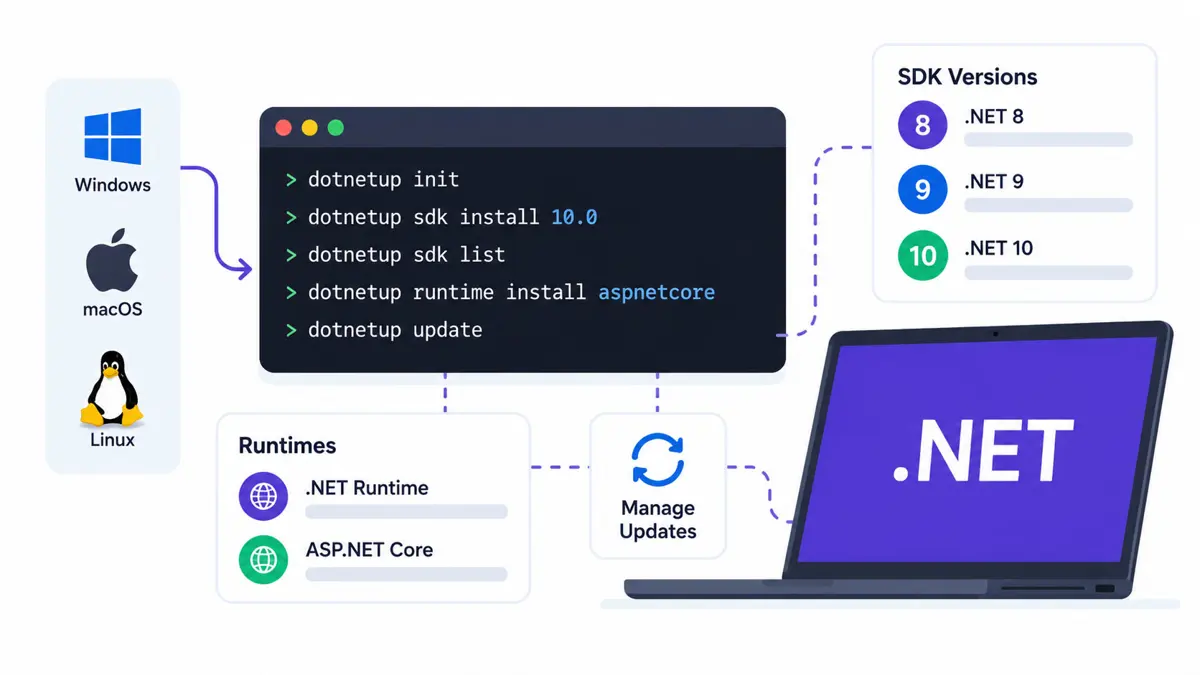
dotnetup is Microsoft's public-preview toolchain manager for installing and maintaining user-level .NET SDKs and runtimes. It can track version channels, keep several toolchains side by side, work with a repository's global.json, and update tracked installations. Start with Microsoft's official installation instructions, choose the access mode carefully, and verify which SDK your terminal and IDE actually use. On Windows, the default everywhere mode can change which machine-wide .NET installations are visible.Microsoft introduced dotnetup to make .NET toolchain management more consistent across platforms. Instead of juggling installers, package managers, environment variables, and multiple SDK directories manually, developers can use one command-line tool to manage versions in a user-owned installation. This guide explains how to install dotnetup, use its core commands, manage project-specific SDK requirements, and avoid common migration problems. Because dotnetup is still in public preview, check the official Microsoft announcement and current documentation before relying on a command in a team or production workflow.
What Is dotnetup?
dotnetup is a cross-platform toolchain manager for .NET. It installs, updates, tracks, and removes .NET SDKs and runtimes without relying on a system-managed .NET directory. Its purpose is to make it easier to keep stable releases, servicing versions, previews, and daily builds available side by side.
- Manage SDKs and runtimes: Install the development SDK, the .NET runtime, or the ASP.NET Core runtime as needed.
- Track versions by intent: Request a rolling channel such as a major version or feature band, rather than manually reinstalling every servicing release.
- Keep versions side by side: Maintain different SDKs and runtimes for different projects or testing needs.
- Respect project requirements: Use
global.json-based SDK requirements so a repository can specify which SDK it expects. - Configure command discovery: Choose how terminals and applications find the managed
dotnetinstallation. - Clean up managed installations: Remove components no longer referenced by tracked installation requests.
dotnetup does not replace the .NET SDK itself. It manages the SDKs and runtimes that developers use through commands such as dotnet build, dotnet test, and dotnet run. Its command syntax and behavior may change during preview, so use the current Microsoft Learn documentation as the reference for the version you install.
Before You Install dotnetup
Microsoft documents support for Windows, macOS, and Linux on x64 and Arm64, including glibc- and musl-based Linux distributions. You need a terminal and the appropriate shell to run the installation script: PowerShell on Windows, or Bash on macOS and Linux. On Unix-like systems, the documented setup also uses download and checksum utilities.
Before changing an existing developer machine, note how .NET is currently installed. You may have SDKs installed by Visual Studio, a system package manager, a standalone installer, or a custom script. Record the versions you need and check whether your projects rely on a machine-wide installation. This is especially important on Windows because the default access mode can prioritize the dotnetup-managed installation over system-wide .NET installations.
How to Install dotnetup
Windows
irm https://aka.ms/dotnetup/get-dotnetup.ps1 | iexThe script installs the current preview build by default. Review the setup prompts and choose an access mode that matches your environment. The recommended Windows mode is everywhere, but it changes the system PATH and can make machine-wide SDKs and runtimes unavailable to commands that resolve .NET through that path. If you rely on Visual Studio's machine-wide installation, understand the migration prompt and its consequences before proceeding. Choose shell or none if you want to avoid broader system-level changes.
macOS and Linux
curl -fsSL https://aka.ms/dotnetup/get-dotnetup.sh | bashOn macOS, Microsoft's announcement also documents running the script with Zsh. On macOS and Linux, the setup script downloads the tool and prints instructions for making it available on PATH. Follow those instructions and open a new terminal before verifying the installation.
Initialize and verify
dotnetup init
dotnetup --version
dotnetup list
dotnet --version
dotnetup init runs first-time setup. It asks which SDK channel to install and how the managed .NET installation should be exposed to your terminal and applications. The exact prompts depend on the operating system and selected mode. dotnetup list displays installations managed by the tool, while dotnet --version reports the SDK selected by the current command environment.
If you selected none mode, dotnet may not resolve to the managed installation through your normal PATH. Verify it with the forwarding command instead:
dotnetup dotnet -- --versionThe dotnetup dotnet command runs the managed .NET executable with a temporary environment for that child process. Other applications—including IDEs—do not automatically inherit that environment. If you want an IDE to use the managed installation, configure its environment deliberately or launch it from a terminal whose environment is set up for dotnetup.
Understand SDK Channels and Versions
A key feature of dotnetup is that it can track a version requirement separately from the version currently installed. A rolling channel can resolve to a newer matching release when you update it. An exact version remains pinned and is skipped by ordinary update operations.
| Requirement | Example | Meaning |
|---|---|---|
| Latest stable SDK | latest | Tracks the latest active stable SDK |
| Latest LTS SDK | lts | Tracks the latest active stable LTS SDK |
| Preview SDK | preview | Tracks the latest preview SDK |
| Daily SDK | daily | Tracks the latest daily SDK build |
| Major version | 10 | Tracks the latest SDK in that major version |
| Major and minor | 10.0 | Tracks the latest SDK in that major/minor line |
| Feature band | 10.0.1xx | Tracks the latest SDK in that feature band |
| Exact version | 10.0.103 | Pins that specific SDK version |
| No initial SDK | none | Skips installing an SDK during setup |
Use a rolling channel when you want servicing updates to be available through the normal update workflow. Use an exact version when a test, reproduction, or compatibility requirement depends on a specific SDK. Exact pins are intentionally not advanced by a routine update, so changing them requires an explicit change to the tracked requirement.
Install and Manage SDKs and Runtimes
Install an SDK channel
dotnetup sdk install 10.0
dotnetup list
This requests the latest SDK in the .NET 10.0 line, rather than one fixed patch version. Confirm the resolved version with dotnetup list, then check the version selected by dotnet --version from the shell you use for development.
Install a runtime
dotnetup runtime install aspnetcore@10.0
dotnetup list
Install a runtime when you need to run an application but do not need the full SDK to build it. The ASP.NET Core runtime is relevant to applications that depend on that shared runtime. Runtime requirements and SDK requirements are tracked separately, so check both when diagnosing a machine that can build a project but cannot launch its output—or can launch an application but cannot build the source.
Update tracked installations
# Update tracked SDK and runtime channels
dotnetup update

# Update SDK requirements only
dotnetup sdk update

# Update runtime requirements only
dotnetup runtime update

# Inspect the result
dotnetup list
dotnetup update processes tracked SDK and runtime requirements, resolves rolling channels again, and removes files that are no longer referenced by configured requirements. dotnetup sdk update updates SDK requirements only; dotnetup sdk update --all includes runtimes. Exact-version requirements are skipped. An individual update failure does not necessarily stop the tool from processing the remaining requirements, but the overall command reports failure after processing them.
Updating the tool itself is separate:
dotnetup self updatedotnetup update manages the .NET SDKs and runtimes, while dotnetup self update updates the dotnetup executable. Daily builds may require an explicit channel option when updating the tool, so consult the current reference if you installed a daily build.
Use dotnetup with global.json
A repository's global.json file can specify the SDK version used for builds. This helps teams keep builds predictable, but a build can fail when the required SDK is missing from the environment. dotnetup can install SDK requirements sourced from global.json, helping align the repository's requirement with the managed installation.
A practical repository workflow
- Open a terminal at the repository root and inspect its
global.json. - Install the SDK requirement from that repository using the current
dotnetup sdk installworkflow documented by Microsoft. - Verify the installed requirements with
dotnetup list. - Run
dotnet --versionand confirm that the selected SDK matches the repository's expectation. - Build and test the project before changing the version requirement.
If you deliberately want to write an updated resolved SDK version back to applicable global.json files, Microsoft documents the --update-global-json option:
dotnetup sdk update --update-global-jsonWithout that option, updating an installed SDK does not automatically rewrite the repository file. After manually changing global.json, run the documented SDK-install workflow from the repository before updating the stored requirement; otherwise, the first update can still process the previous requirement. Review repository-file changes in version control before committing them.
Test Preview and Daily Builds
Preview and daily builds are useful when you need to test an upcoming SDK, reproduce a bug fixed after a stable release, or check compatibility before a release ships. dotnetup supports these channels alongside stable installations, allowing experiments to remain separate from normal development.
# Install a preview SDK
dotnetup sdk install preview

# Install a daily runtime
dotnetup runtime install daily

# Or install a daily SDK
dotnetup sdk install daily
Use daily builds only for short-lived testing. Microsoft's documentation warns that daily builds have not completed release validation and are not code-signed. Keep a stable SDK available for everyday development, and record which preview or daily version was used when reporting a bug.
Choose the Right Environment Access Mode
The access mode controls how terminals and applications discover the dotnetup-managed installation. It is one of the most important setup decisions because a correct SDK installation is not enough if the shell or IDE resolves a different dotnet executable.
| Mode | Behavior | Best fit |
|---|---|---|
none | Does not change PATH or DOTNET_ROOT; run .NET with dotnetup dotnet. | Explicit, limited environment changes |
shell | Configures a supported shell profile so processes launched from that shell use the managed installation. | Controlled terminal workflows |
everywhere | On Windows, modifies the system PATH and sets user-level DOTNET_ROOT. | Broad application access when migration implications are understood |
On Windows, everywhere mode can make the user-level dotnetup installation take precedence over machine-wide SDKs and runtimes. If a project depends on an SDK or runtime that has not been installed under the managed root, it may stop building or launching. Setup can offer migration from existing installations; Microsoft also documents explicit migration commands for SDKs and runtimes.
dotnetup sdk install --migrate-from-system
dotnetup runtime install --migrate-from-system
Do not run migration commands blindly on a shared or production machine. First list the SDKs and runtimes you rely on, then confirm that the managed installation contains the versions needed by your projects and applications. Saganote's cross-platform desktop application roadmap also compares framework choices by project type, which can help when planning a desktop project's broader development stack.
Common Problems and Troubleshooting
The dotnet command is not found
Open a new terminal after setup and check whether the directory containing dotnetup is on PATH. If you chose none mode, use dotnetup dotnet -- --version instead of expecting the regular dotnet command to resolve to the managed installation.
The wrong SDK version is selected
Run dotnetup list to inspect managed installations, then check whether the current directory or a parent directory contains global.json. Also verify the environment mode and the location of the dotnet executable resolved by your shell. Installing a version does not guarantee that every terminal or IDE will select it.
A project builds in one terminal but fails in an IDE
The IDE may have been launched with a different environment and therefore resolve a different SDK or runtime. This is particularly relevant in none mode, where dotnetup dotnet changes the environment only for the process it starts. Configure the IDE's environment or launch it from a properly configured terminal, then verify the SDK version in that context.
An application says its runtime is missing
Check the application's target framework and required shared runtime, then inspect dotnetup list. Installing an SDK and installing a runtime are distinct actions. On Windows, also verify that everywhere mode has not changed runtime discovery so that a system-wide runtime is no longer visible.
An update did not change an exact version
That is expected behavior. Exact-version requirements are pinned and skipped by ordinary updates. Change the requested version explicitly if you intend to move to a different SDK or runtime, then verify the resulting installation list.
Should .NET Developers Adopt dotnetup?
dotnetup is worth evaluating if you regularly switch between .NET projects, need multiple SDK or runtime versions, test previews, or want a consistent user-level toolchain workflow across machines. Its tracking model can reduce manual maintenance by letting you declare which versions you want and update rolling channels together.
It is not necessary for every .NET developer. Teams with a stable, centrally managed environment may prefer their existing installation process, especially if Visual Studio or system-managed runtimes are important to their workflow. Because dotnetup is in public preview, check its current support and command behavior before standardizing it across a team or embedding it in build infrastructure.
Frequently Asked Questions
Does dotnetup replace the .NET SDK?
dotnet build, dotnet test, and dotnet run to develop applications.Is dotnetup free?
Does dotnetup work with global.json?
dotnetup sdk update --update-global-json.Can I install stable and preview SDKs together?
Will dotnetup update the SDK every time I open a terminal?
Does dotnetup update applications already deployed?
Should Windows developers choose everywhere mode?
everywhere mode provides broad access but changes the system `PATH` and can take precedence over machine-wide installations. Review Visual Studio and runtime dependencies, then choose the access mode that fits your environment.The Bottom Line
dotnetup gives .NET developers a single tool for managing SDKs and runtimes, tracking version channels, testing previews, and keeping project requirements aligned. Its biggest benefit is reducing manual version-management work—not replacing the .NET CLI or the team's responsibility to test updates. Start with a non-disruptive setup, verify which SDK your terminal and IDE select, and treat Windows environment migration and preview-build use as deliberate decisions.
For the latest commands, platform requirements, and preview limitations, use Microsoft's dotnetup getting-started guide and environment configuration documentation.