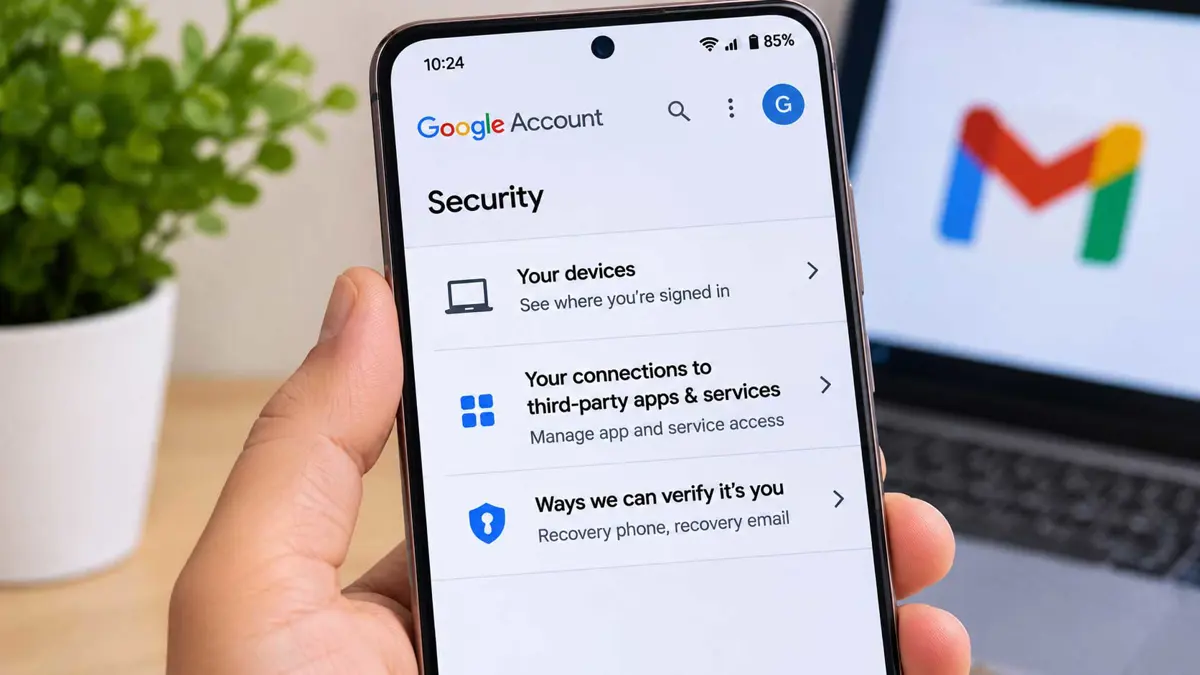
To check who has access to your Gmail, review more than the devices currently signed in. Your Google Account also shows third-party apps with permission to access services such as Gmail, along with the phone numbers and email addresses that can help someone recover the account. Checking all three areas gives a clearer picture of account access than looking at your inbox alone.
You can complete this review from a browser or phone using your Google Account settings. The names of some menus may vary slightly by device, but the main checks are available through Google's account security pages.
Google may show multiple sessions for one device, approximate locations, or activity timestamps caused by background syncing. Check the device details and recent activity before deciding that an account is compromised. If you find an unfamiliar session, sign it out and secure the account.
1. Check which devices have access to your Google Account
The device list shows phones, computers, browsers, and other sessions where your Google Account is currently signed in or was used recently. Start here to identify devices you no longer use and sessions you do not recognize.
- Open Google Account device activity.
- Sign in if Google asks you to.
- Review the devices and sessions listed under your account.
- Select a device to see more information, such as the device type, browser, and recent activity details.
- If a device is unfamiliar or no longer under your control, choose the sign-out option for that session.
- Review other sessions with the same device name individually. One phone or computer can appear more than once because of different browsers, apps, or sign-in sessions.
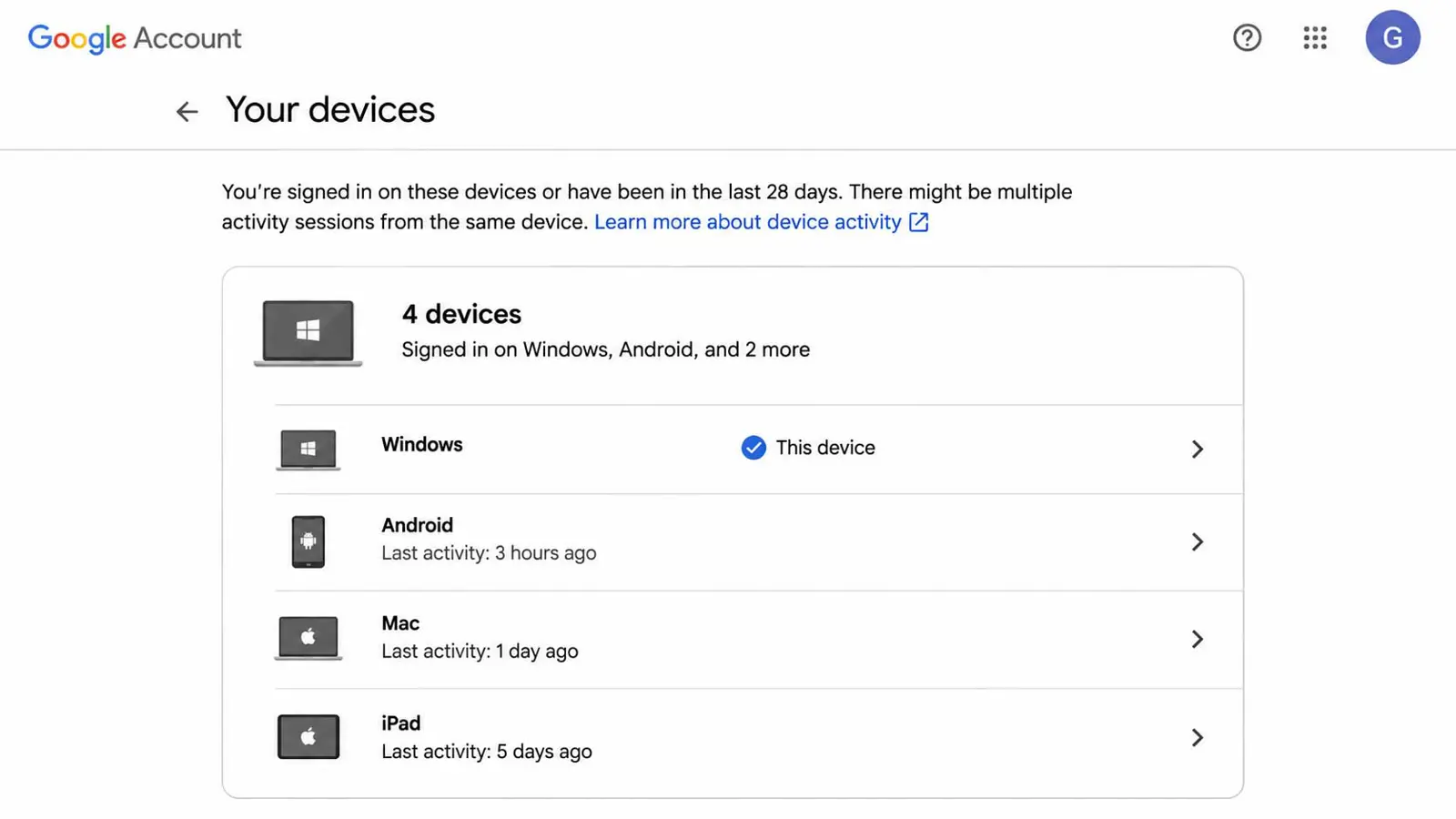
Google notes that one device can have multiple sessions. For example, signing in through a browser, a different browser profile, an app, or a private browsing window can create separate entries. The time shown may also reflect background communication between the device and Google rather than a person actively using the account. Location information can be approximate.
If you find a session you cannot explain, sign it out. Then change your Google Account password if you suspect someone else may know it, and review the account's recent security activity.
2. Review apps and services connected to your Google Account
A person does not need to sign in to Gmail directly to have some access to Google Account data. When you connect an app or service using Google, it may request permission to view or manage specific information. Depending on what you approved, that access can include Gmail, Drive, Calendar, Contacts, or other Google services.
- Open Google Account connections.
- Sign in to the Google Account you use for Gmail.
- Review the apps and services shown as connected.
- Open each unfamiliar or unnecessary connection to see which Google data or services it can access.
- Select the option to remove the connection if you no longer use the app or do not recognize it.
- Repeat the review for other connections that have access to Google services.
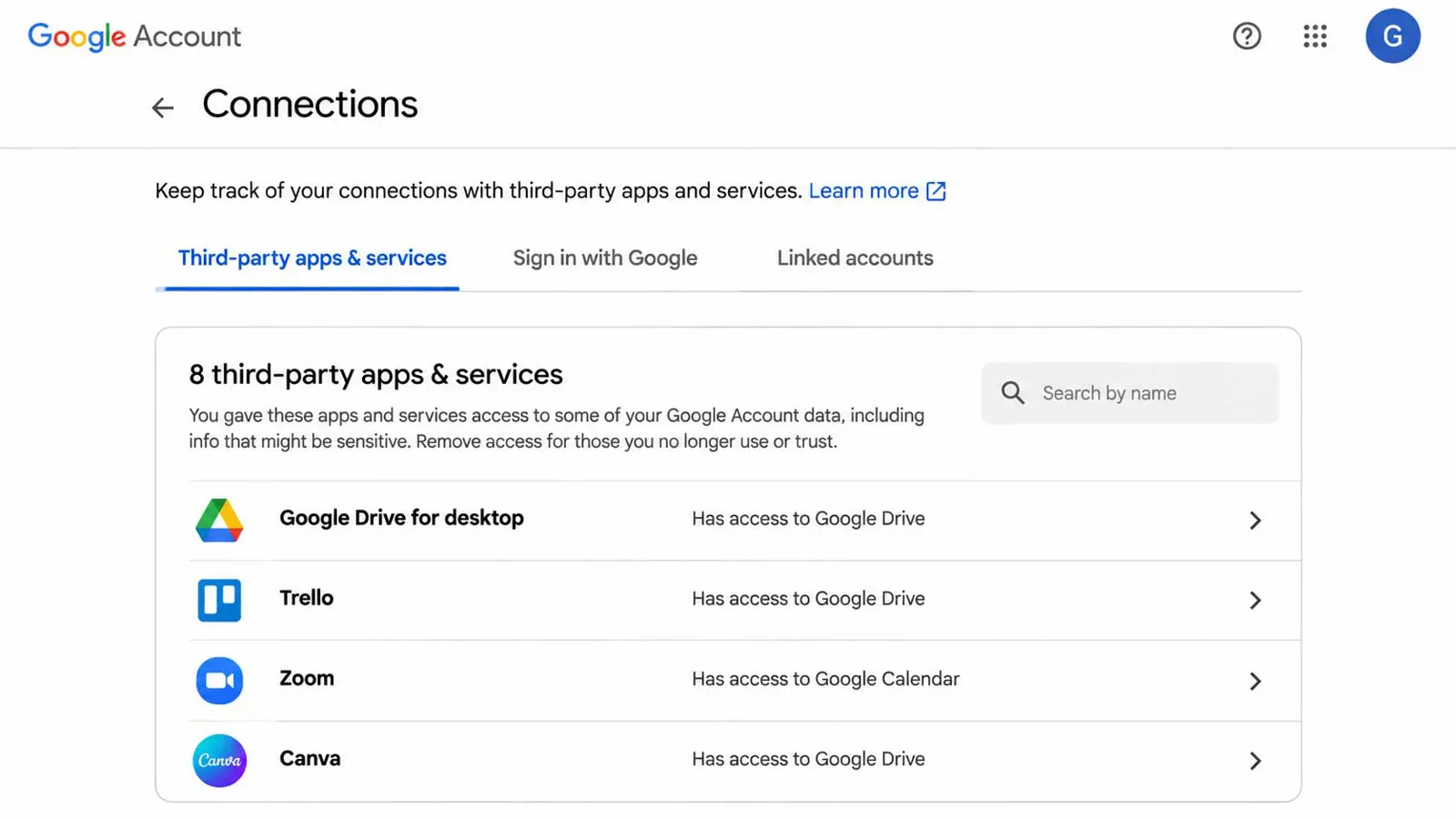
Pay attention to the specific permission rather than judging an app by its name alone. A calendar tool may only need Calendar access, while an email client may request Gmail access. Remove permissions that are no longer needed, but expect the connected app's related features to stop working.
Revoking a third-party connection stops the app from using the Google Account permission going forward. It does not necessarily delete information the service previously copied or stored. If you are concerned about data already held by a provider, check that provider's privacy and account-deletion controls as well.
3. Confirm your recovery phone number and email address
Recovery details can help you regain access if you forget your password or Google detects a sign-in problem. They also deserve attention during an account audit because an outdated or unfamiliar recovery phone or email can affect who is able to complete account-recovery steps.
- Open Google Account Security.
- Find the section labeled How you sign in to Google.
- Open Recovery phone and confirm that the number belongs to you and is still active.
- Return to the same section and open Recovery email.
- Check that the address is one you control and can access. Google recommends using an email address different from the one used to sign in.
- Update any outdated or unfamiliar recovery details and complete Google's verification prompts.
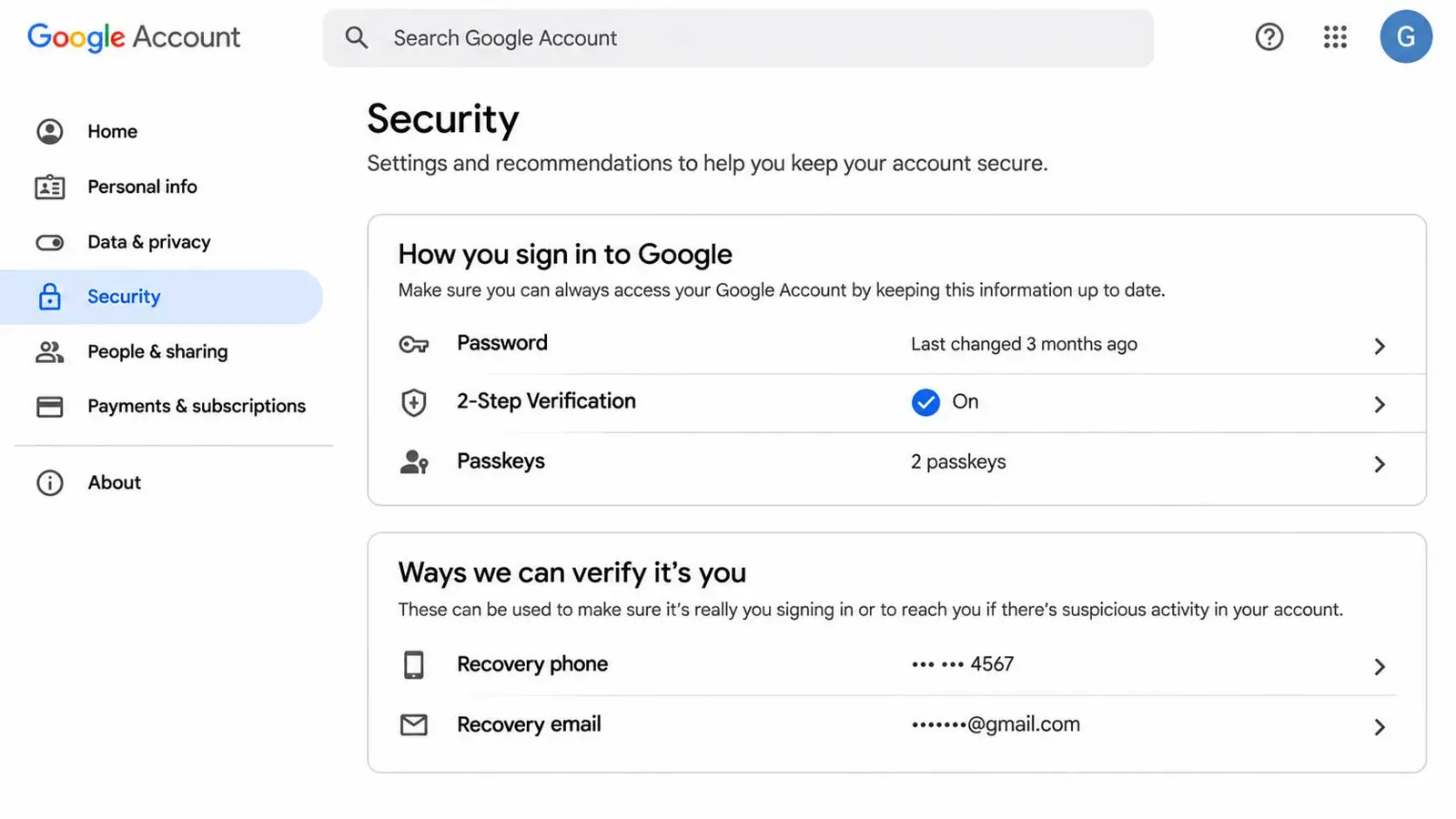
Google says changes to recovery information may take up to seven days to take effect. If you recently changed a recovery phone or email, an older option may remain available during that period. Do not assume that an old entry is unauthorized without checking when and why it was added.
Google has also been exploring other account-recovery methods. Saganote previously covered Google's selfie-video sign-in and account recovery approach, which provides context on why recovery options can change over time.
4. Check recent security activity and Gmail settings
After reviewing devices, connected apps, and recovery information, check the account's recent security events. This can help you spot changes such as a new sign-in, a password update, or a recovery detail being added.
- Go to Google Account Security.
- Review the recent security activity section.
- Open events you do not recognize and read the available details.
- Check whether a new device, app connection, password change, or recovery option was added.
- If an event appears unauthorized, follow Google's recommended account-security steps.
Also review Gmail's own settings for changes that could affect where messages go or who can access them:
- Forwarding and POP/IMAP: Check whether messages are being forwarded to an address you do not recognize.
- Filters and Blocked Addresses: Look for filters that automatically archive, delete, forward, or mark messages as read.
- Accounts and Import: Review any configured account access or delegation options. Remove unfamiliar delegates or linked accounts.
On Gmail for desktop, open Gmail, select the gear icon, choose See all settings, and open the relevant tab. The settings layout can differ in mobile apps, so use Gmail in a desktop browser if you cannot find these controls on your phone.
If you use Gmail verification codes, keep in mind that account security also depends on how those codes are handled. Saganote's guide to Gmail's easier-to-copy two-factor authentication codes explains a related sign-in convenience feature.
5. What to do if you find access you do not recognize
If a device, app, recovery method, or Gmail setting appears to have been changed without your permission, act from a device you trust. Do not rely on an email or message that claims to be from Google and asks you to sign in through a link.
- Sign out of unfamiliar device sessions from the Google Account device page.
- Remove third-party app connections you do not recognize or no longer need.
- Change your Google Account password to a new, unique password.
- Confirm that your recovery phone and email belong to you.
- Review recent security activity again for additional changes.
- Inspect Gmail forwarding, filters, and delegation settings for anything you did not configure.
- Follow Google's official compromised-account guidance if you believe someone has taken over the account.
If you cannot sign in, use Google's official account-recovery process rather than a third-party recovery service. Never share a verification code, password, or recovery link with someone who contacts you unexpectedly. A Google passkey can also provide a password-free sign-in option on supported devices.
How often should you review Gmail account access?
Check your Google Account after using a shared or public computer, replacing a phone, removing an old device, or connecting a new app that requests access to Google services. A periodic review is also useful if you receive an unfamiliar sign-in alert or notice messages behaving differently.
A practical review covers three areas: signed-in devices, connected apps, and recovery information. Checking Gmail's forwarding, filters, and delegation settings adds another layer because account access is not limited to the devices shown in Google's security dashboard.