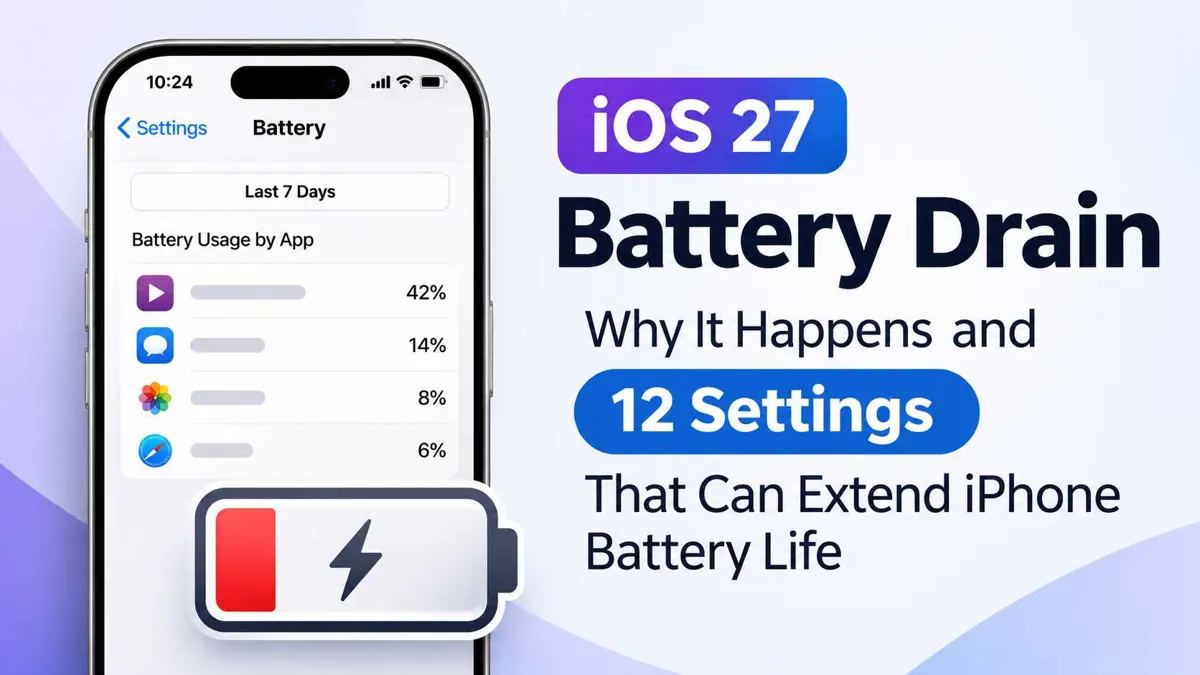
iOS 27 battery drain reports began soon after the September 14 release, and Apple's own support page calls a short-term impact on battery life normal after a major update. That does not make every drop harmless. A phone that still loses charge fast a week later deserves a closer look.
Why iPhones Drain Faster Right After a Major Update
Apple's software update page, published July 10, says that "immediately after completing an update, particularly a major release, you might notice a temporary impact on battery life and thermal performance." Setup runs in the background. Work such as "indexing data and files for search, downloading new assets, and updating apps" is part of it, the page explains.
Apple gives no number of days. Apple Headlines, an independent outlet, reported its own testing: battery life dipped for about 36 hours on an iPhone 18 Pro Max and closer to five days on an iPhone 17 Pro. Those are single-outlet figures, and heavy photo libraries or new features may stretch the time.
Release coverage set the expectation of a faster phone. Saganote reported when Apple confirmed the September 14 release date and when iOS 27 arrived with Siri AI and faster performance. Earlier public beta coverage listed battery as a focus.
Drain Beyond the First Few Days Needs Investigation
Saganote's iOS 27 problems tracker found no Apple battery fix as of October 30, and the sources read for that page turned up no charging fault tied to the update. iOS 27.2's security page lists no bug-fix notes. Any iOS 27 battery drain check starts with updating. Owners on an older build can follow how to upgrade to iOS 27 first.
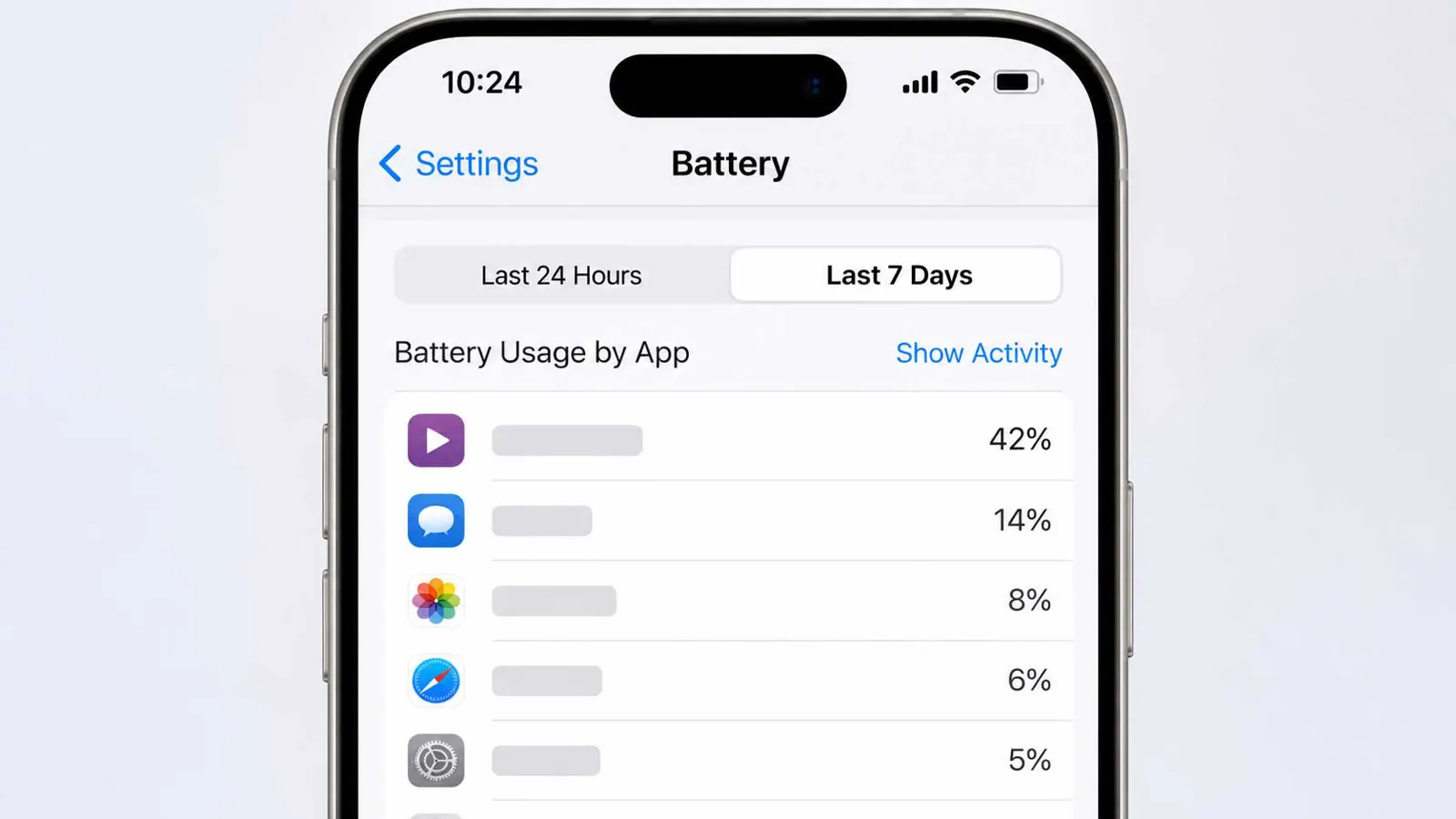
Start with the battery screen. Open Settings > Battery and look for one app that uses far more than the rest. Apple Headlines suggests sorting by the last seven days, which separates a one-day spike from a steady habit that repeats every evening.
12 Settings Worth Checking, Starting With the Cheapest
Apple documents the update behavior and the charging options. Third-party guides supply the settings below, mainly Geeky Gadgets (September 28), Apple Headlines, and iGeeksBlog, plus Gulf News for older advice. None of them measures a fixed saving, so treat them as checks, not cures.
- Restart the iPhone once and wait two or three days, per Apple's note that setup work finishes in the background.
- Settings > Battery: find any app dominating the list and update, close, or remove it.
- Settings > General > Background App Refresh: switch off apps that do not need to update in the background.
- Settings > Privacy & Security > Location Services: set apps to While Using or Never, as Geeky Gadgets advises.
- Settings > Accessibility > Motion: turn on Reduce Motion.
- Settings > Display & Brightness > Always On: turn it off on models that have it, a tip from Gulf News.
- Settings > Display & Brightness > Auto-Lock: shorten it to 30 seconds or one minute, per iGeeksBlog.
- Settings > Sounds & Haptics > Keyboard Feedback: turn off Haptic, per Gulf News and iGeeksBlog.
- Settings > Siri & Search: turn off Hey Siri, as Geeky Gadgets suggests, since voice activation keeps listening.
- Cellular settings: set 5G to Auto and try Low Data Mode, per Geeky Gadgets.
- Settings > Battery: use Low Power Mode when the charge runs short; Apple describes Power Mode as reducing power use when the battery gets low.
- Settings > General > Software Update: install the newest release, since Apple says it keeps optimizing these features in updates.
Turning it off can delay content updates until an app is opened. Switch off a few heavy apps first, then check Settings > Battery again after a day.
Battery Health and Charge Limit Settings
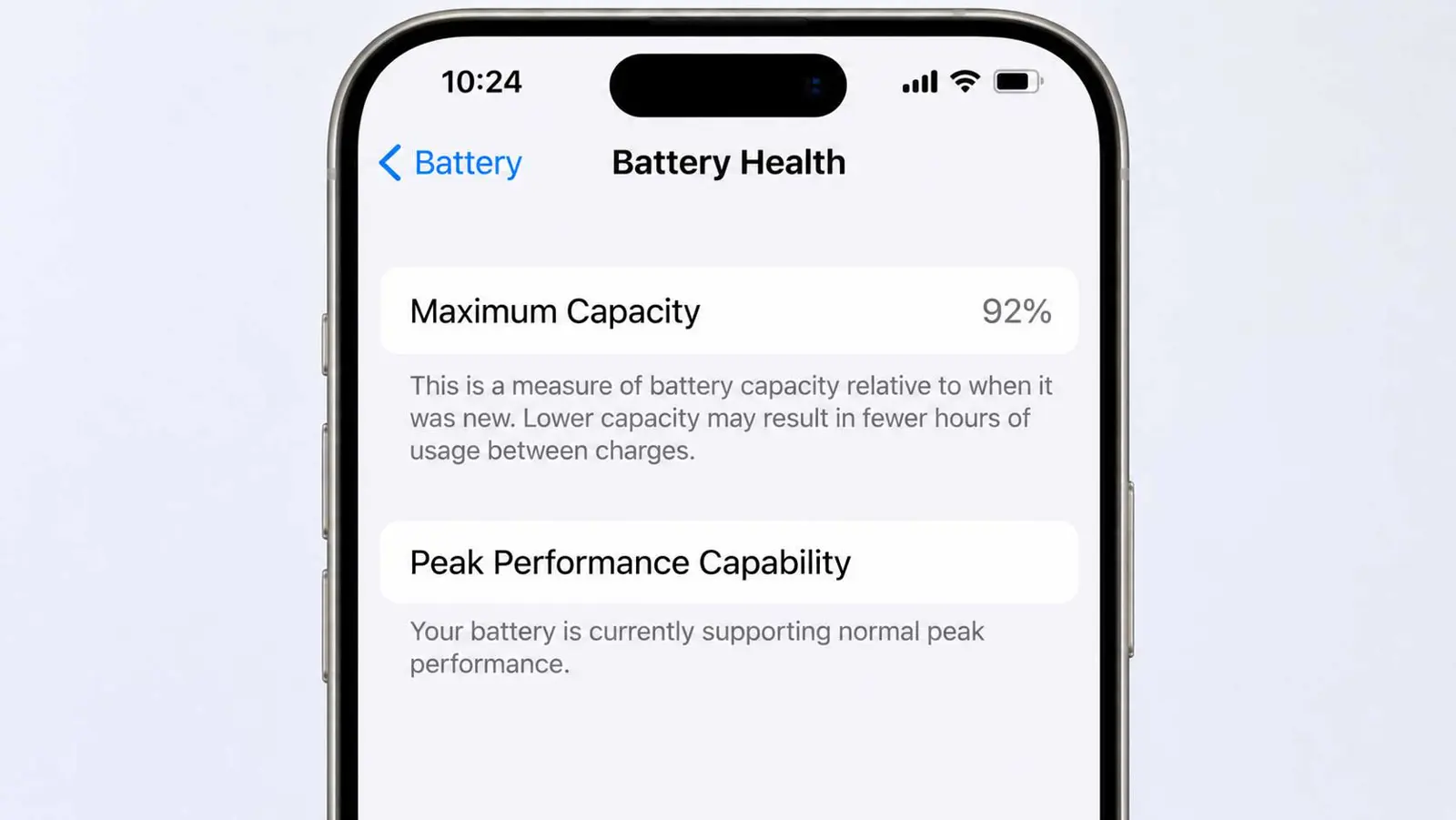
Aging explains some drain. Apple's battery page points to Settings > Battery > Battery Health, which shows maximum capacity and a peak performance status. Apple says iPhone 15 models are designed to retain 80 percent of original capacity at 1,000 complete charge cycles under ideal conditions.
| Setting | Where | Notes from Apple |
|---|---|---|
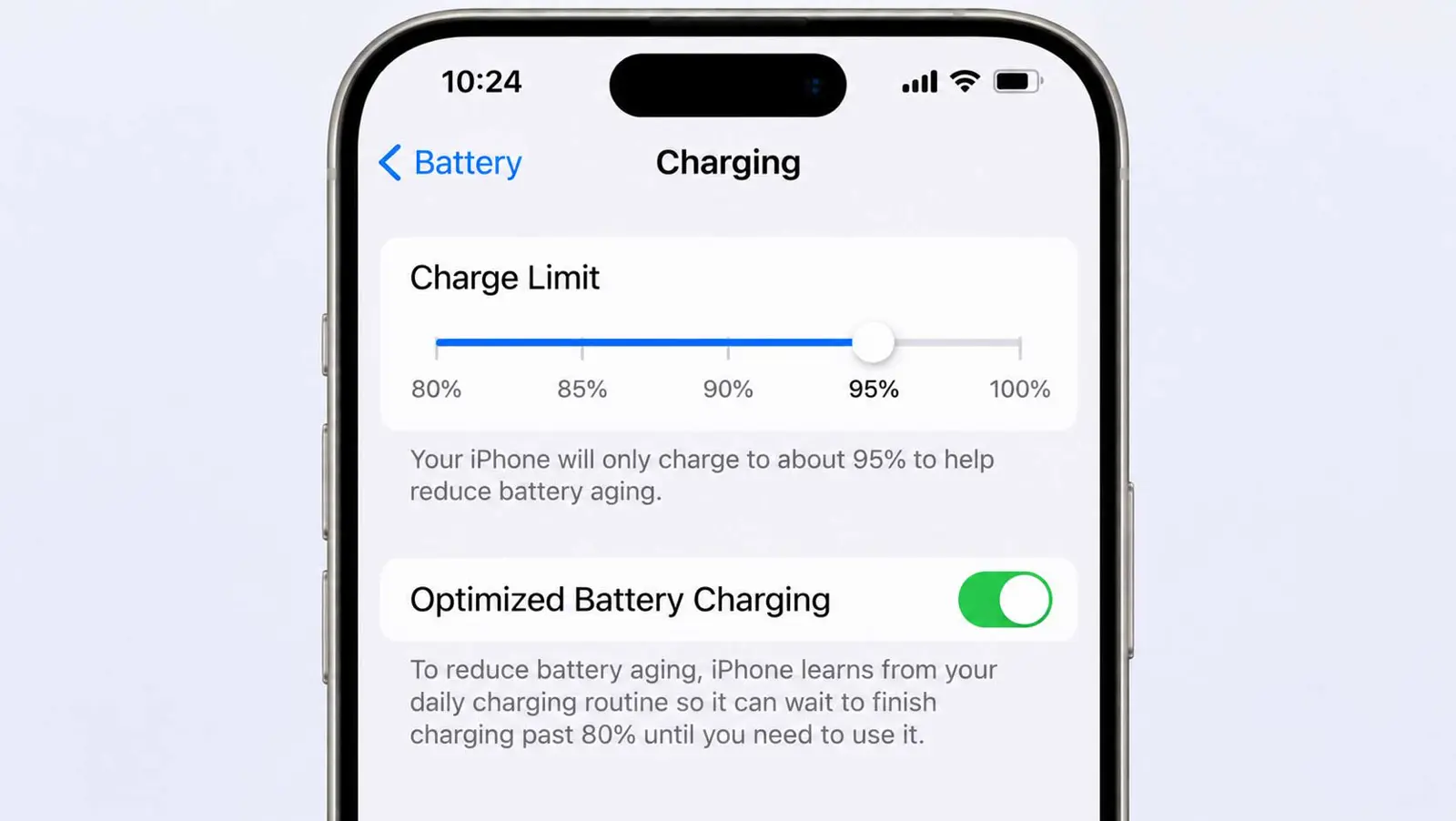
| Charge limit | iPhone 15 and later: Settings > Battery > Charging | Choose 80 to 100 percent in 5 percent steps |
| Optimized Battery Charging | Same screen; iPhone 14 and earlier: Settings > Battery > Battery Health & Charging | On by default; available only when the limit is 100 percent on iPhone 15 and later |
| Learning period | Not applicable | Needs at least 14 days of charging habits and at least nine charges of five hours or more in one location |
Charge limits slow wear but do not stop drain. Apple says Optimized Battery Charging is "designed to reduce the wear on your battery and improve its lifespan," and gives a sample recommendation of a 95 percent limit based on habits. A lower limit means fewer hours per charge, so heavy users may prefer the default.
When Battery Service Makes Sense
Hardware can be the cause. Persistent drain with a weak Battery Health reading points there, not to software, and Apple's page shows a degraded-health message when capacity falls. Apple Headlines treats anything under 80 percent maximum capacity as a likely explanation, though that threshold is the outlet's view.
Drain without any warning is harder to pin down. A restart, a software check, and a couple of weeks of normal use help separate a settling update from a fault, though no source gives a fixed timeline. Apple Support is the next step if the battery still drops fast by then.
Apple Says It Optimizes Features in Future Updates
Apple promises ongoing work. Its software update page says it "continually works to optimize these features in software updates." Phones on iOS 27.2 are the baseline now, and the iOS 27.2 public beta added a Health app and Siri AI languages before release. Apple has not named a battery-specific fix for iOS 27 battery drain in any release so far.
Frequently Asked Questions
Is battery drain after a major iOS update normal?
How long does the extra drain last?
Where is the iPhone charge limit setting?
How can a user check battery health?
Has Apple released a fix for iOS 27 battery problems?