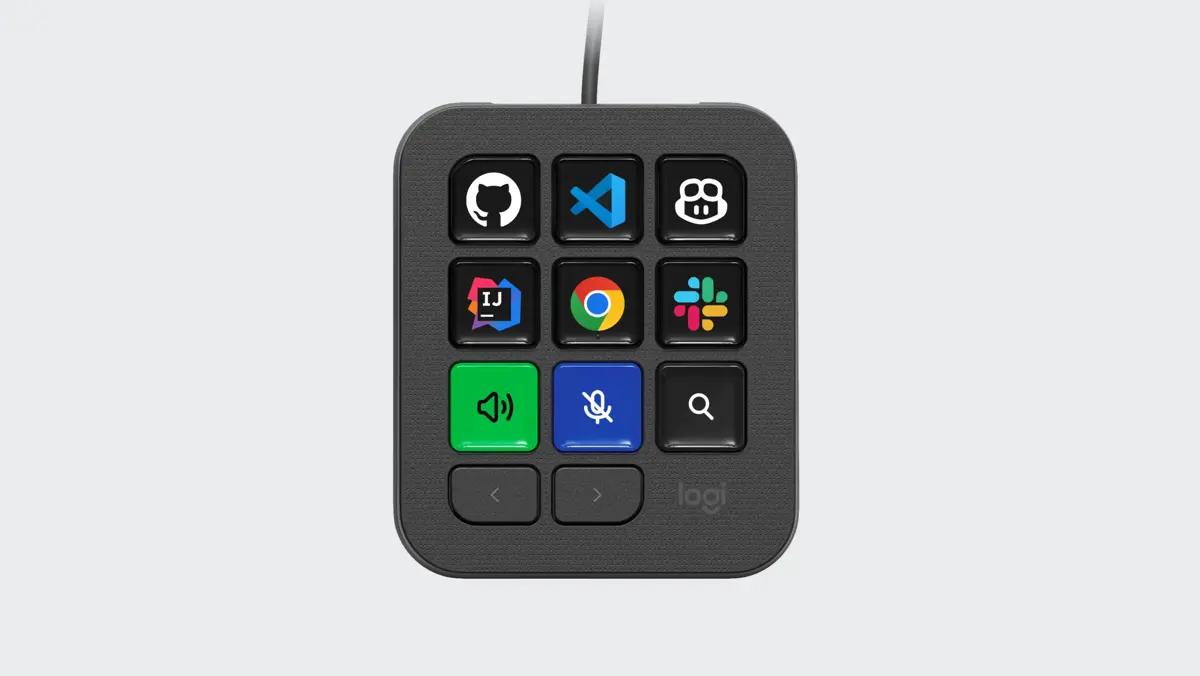
The Logitech MX Keypad is a programmable desktop controller for developers who move between AI coding assistants, integrated development environments, terminals, and other apps. Its LCD keys can launch tools, run shortcuts, trigger prompt macros, and control supported workflows. Logitech positions it as a physical command center for multi-app coding, rather than as a computer that runs AI models on its own.
The hardware is built around nine customizable LCD keys and two page-navigation buttons. Different pages and app-specific profiles let the same physical controls perform different actions in different applications. The device connects over USB-C and uses Logitech's Logi Options+ software for configuration. Logitech announced it on September 8, 2026, with a US launch price of $99.99.
What Is the Logitech MX Keypad?
The MX Keypad is a small programmable keypad designed to sit beside a regular keyboard. Each LCD key can show an icon or label for its assigned action, so the controls can be easier to recognize than a row of unlabeled macro buttons. The two page buttons let users move between sets of assignments.
It is not a replacement for a keyboard, and it does not generate code independently. Instead, it sends configured commands to software already running on the connected computer. A key might open an IDE, trigger a command, launch an AI agent, paste a prepared prompt, or run an action exposed by a supported plugin.
Logitech's official MX Keypad product page lists support for VS Code, GitHub Copilot, Claude Code, IntelliJ, Zoom, Figma, and other applications. The exact actions available depend on the relevant profile, plugin, application, and account.
Logitech MX Keypad Features for AI Coding
Nine customizable LCD keys and multiple pages
The nine display keys provide the physical controls, while the page buttons expand the number of actions available without making the keypad larger. Users can organize commands into groups, such as code navigation, debugging, AI prompts, terminal operations, and general desktop shortcuts.
That distinction matters: nine visible keys do not necessarily mean only nine available actions. Page switching and app-specific profiles make it possible to use different layouts for different tasks. The value depends on whether those actions are frequent enough to justify moving them onto dedicated controls.
AI agent and prompt actions
Logitech says the MX Keypad can trigger AI agents, execute prompt macros, refactor code, and launch voice commands across supported tools. Its launch announcement highlighted GitHub Copilot and Claude Code, while the product page also names OpenAI Codex. These actions depend on the connected applications and their own services, not on an AI model inside the keypad.
An example workflow could assign one key to open a coding assistant, another to send a reusable code-review prompt, and a third to launch a debugging action. These are configuration examples, not guaranteed default assignments. The available actions depend on the installed plugin and the software version.
The AI services still have their own account and connectivity requirements. Logitech's product information says AI features that call third-party providers require an active internet connection and an account with the relevant provider. The keypad does not bypass subscriptions, usage limits, or provider policies.
Native IDE integrations and app-aware profiles
Logitech identifies VS Code and IntelliJ as having native integrations for developer actions such as code navigation, launching agents, managing debuggers, and toggling terminals. Its app-aware feature can change the keypad layout when the active application changes. For example, a VS Code profile can show coding actions, while a Figma or Zoom profile can expose controls for that app.
The same idea applies outside software development. Logitech lists applications such as Slack, Spotify, Figma, Zoom, and Adobe Creative Cloud among the broader productivity uses. Check the current MX Keypad tutorials and marketplace listings for the latest supported profiles and plugins.
Logi Actions SDK and community plugins
Developers who need actions beyond the supplied profiles can use the Logi Actions SDK to build custom integrations. Logitech describes the SDK as a way to create profiles, plugins, and icon packs, then share them through the Logi Marketplace. The company's launch announcement also described community plugins for Claude Code and OpenAI Codex.
This makes the keypad more extensible than a fixed shortcut pad, but it also adds a software dependency. A custom workflow may require development, testing, and maintenance when the target app or plugin changes. Logitech's developer page is the starting point for SDK documentation and marketplace resources.
How to Set Up the Logitech MX Keypad
The setup process combines the physical USB-C connection with software configuration. Logitech's app and marketplace interfaces can change, so treat the steps below as a practical sequence and follow the current on-screen instructions for your operating system.
- Connect the keypad. Place it beside your keyboard and connect it to your computer with the USB-C cable.
- Install Logi Options+. Download the current version from Logitech's official Options+ page for a supported Windows or macOS computer.
- Open the keypad configuration. Launch Logi Options+ and select MX Keypad when it appears among your connected devices.
- Choose a profile or plugin. Look for a ready-made profile for the applications you use, such as VS Code or IntelliJ. Install supported marketplace plugins where needed.
- Assign your most-used actions. Start with a small set of repeatable commands, such as opening a terminal, switching to a debugger, launching an agent, or inserting a prompt macro.
- Organize pages by task. Keep related actions together. For example, use one page for navigation, another for debugging, and another for AI-assisted tasks.
- Configure app-aware behavior. If a profile is available for an application, enable or customize it so the keypad can switch layouts when that app becomes active.
- Test each key. Confirm that commands reach the intended application and that prompts, scripts, or macros behave as expected before relying on them in daily work.
Test custom commands and prompt macros before assigning them to high-impact workflows. A keypad action can trigger commands in another application, so confirm exactly what each key does before using it on production code or important files.
Practical MX Keypad Workflows for Developers
| Workflow | Example keypad action | Why it can help |
|---|---|---|
| AI-assisted coding | Open an agent or run a saved prompt | Reduces repeated navigation and prompt entry |
| Code review | Insert a review checklist or launch a review action | Makes a recurring review process easier to start |
| Debugging | Open a debugger, terminal, or configured command | Keeps common development controls close at hand |
| IDE navigation | Trigger supported navigation or formatting actions | Gives frequent commands dedicated physical controls |
| Context switching | Change to a profile for Slack, Figma, or Zoom | Keeps app-specific actions available as work changes |
These are examples of how a user could configure the device. They are not a promise that every action is preinstalled or available in every application. Confirm the profile or plugin supports the required command before building a workflow around it.
The keypad is most useful when a task repeats often and has a clear action that can be mapped to a key. It is less useful for one-off commands, workflows that change constantly, or actions that are already easy to reach through existing keyboard shortcuts.
Logitech MX Keypad vs. a Traditional Macro Pad
Both devices can place shortcuts and macros on dedicated controls. The MX Keypad's distinguishing features are its LCD labels, app-aware profiles, Logitech's supported integrations, and the Logi Actions SDK. A simpler macro pad may be cheaper or offer more physical buttons, depending on the model, but it may require more manual configuration to achieve similar app-specific behavior.
| Consideration | Logitech MX Keypad | Traditional macro pad |
|---|---|---|
| Key labels | Customizable LCD displays | Often fixed labels or small screens, depending on model |
| App-specific layouts | Supported through profiles | Varies by device and software |
| AI coding integrations | Logitech lists several supported AI and IDE workflows | Usually depends on third-party software or custom setup |
| Custom actions | Logi Options+ and Logi Actions SDK | Depends on the manufacturer's software and ecosystem |
| Setup | Requires Logi Options+ | Varies by model |
Saganote has also covered a different developer-focused controller in its Codex Micro setup guide and the Codex Micro announcement. Those articles provide useful context for readers comparing physical controls built around AI workflows. They describe a separate product, not an MX Keypad integration.
Compatibility, Price, and Limitations
Logitech lists recent versions of Windows and macOS as the software platforms for Logi Options+. The keypad's supported actions are not identical across every app: some applications have native integrations, some use marketplace plugins or profiles, and others may require a custom setup. Check Logitech's current compatibility and marketplace information before buying for a specific development environment.
At launch on September 8, 2026, Logitech listed the MX Keypad at $99.99 in the United States and €99.99 in Europe, with Graphite and Pale Grey color options in select markets. The US product page currently lists a $99.99 price, but stock, discounts, shipping, and regional availability can change. Check the official product listing for the current price in your market.
Logitech's launch announcement included three months of GitHub Copilot Pro+ with each MX Keypad, redeemable through Logi Options+. Treat this as a promotional offer rather than a permanent hardware feature. Confirm the current eligibility, redemption window, and terms on Logitech's product page before factoring it into the purchase decision. For plan details, see Saganote's GitHub Copilot pricing guide.
There are several limitations to consider:
- It does not run AI models locally. The keypad triggers actions in connected apps and services.
- It needs companion software. Customization and app-aware profiles depend on Logi Options+.
- Integrations vary. A named application may have a native plugin, a community plugin, a general shortcut profile, or limited support.
- It takes time to configure. The benefits depend on building useful layouts and remembering where actions are assigned.
- It does not replace a keyboard. Text entry, code editing, and many complex commands still belong on the main keyboard.
Who Should Buy the Logitech MX Keypad?
The MX Keypad is a better fit for developers who regularly switch between AI assistants, IDEs, terminals, and communication tools. It may also suit power users who repeat the same prompts or app commands throughout the day and want visible, dedicated controls rather than memorizing another set of shortcuts.
It is harder to justify for someone who uses only a few keyboard shortcuts, works in one application, or prefers a minimal desk setup. Developers who are still deciding which coding assistant to use should compare the tools themselves first. Saganote's Kimi Code vs. Claude Code comparison offers a separate look at two coding assistants that can form part of an AI development workflow.
The practical buying question is whether the keypad can remove enough repeated clicks and command entry from a real workday to justify its price and setup time. A useful test is to list five actions repeated every day, then check whether supported profiles can assign those actions reliably.
What the MX Keypad Adds to an AI Coding Desk
The Logitech MX Keypad turns selected software actions into physical controls. Its LCD keys, page switching, app-aware profiles, and developer integrations can make repeated AI and IDE tasks easier to trigger, while the Logi Actions SDK gives developers a route to build custom actions. It does not replace the AI services, accounts, or applications behind those actions.
For developers with repeatable multi-app workflows, that distinction is the product's main appeal. For everyone else, ordinary keyboard shortcuts may already solve the same problem without adding another device to the desk.
Frequently Asked Questions
Does the Logitech MX Keypad run AI models locally?
Does the MX Keypad work with GitHub Copilot and Claude Code?
Can the MX Keypad work with OpenAI Codex?
Is the MX Keypad limited to nine actions?
What software does the MX Keypad require?