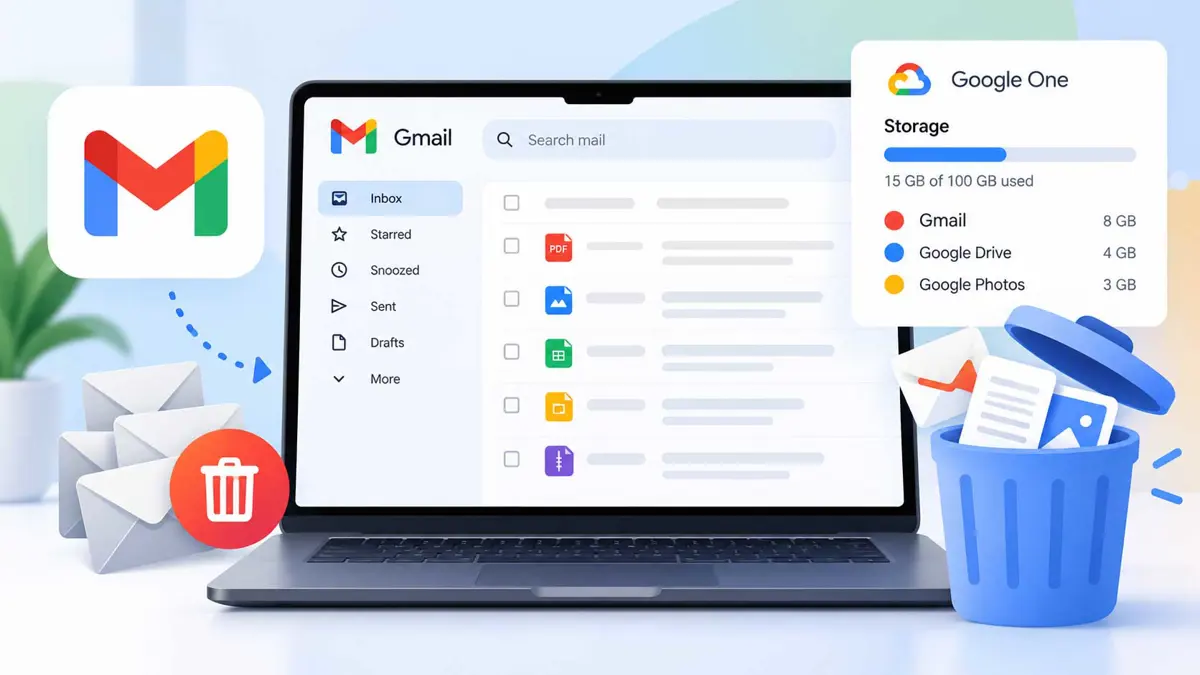
How to Free Up Gmail Storage Without Deleting Everything
Use Gmail's search tools to find large attachments, old messages, and other emails taking up space before you start deleting at random.

If your Gmail account is running out of space, you do not have to delete your entire inbox. The quickest approach is to find the messages that consume the most storage, remove the ones you no longer need, and then permanently clear them from Trash and Spam.
Google storage is shared across Gmail, Google Drive, and Google Photos, so a full account may not be caused by Gmail alone. Google provides storage-management tools that show which service is using the space, while Gmail's search operators let you target large or old messages inside the inbox.
Check What Is Using Your Google Storage
Before deleting anything, check your Google Account storage. Gmail shares the storage quota with Google Drive and Google Photos, so cleaning email may not solve the problem if photos or Drive files are responsible for most of the usage.
- Open your Google Account storage management page.
- Check how much space Gmail, Google Drive, and Google Photos are using.
- If Gmail is the main source, continue with the Gmail searches below.
- If another service is using most of the space, clean that service first.
This distinction matters because deleting a large number of emails will not recover much space if the real problem is a full Google Photos or Drive library.
Find Your Biggest Gmail Emails First
Large attachments are usually the best place to start because a small number of messages can consume more space than thousands of ordinary text emails.
In Gmail's search box, enter:
has:attachment larger:10M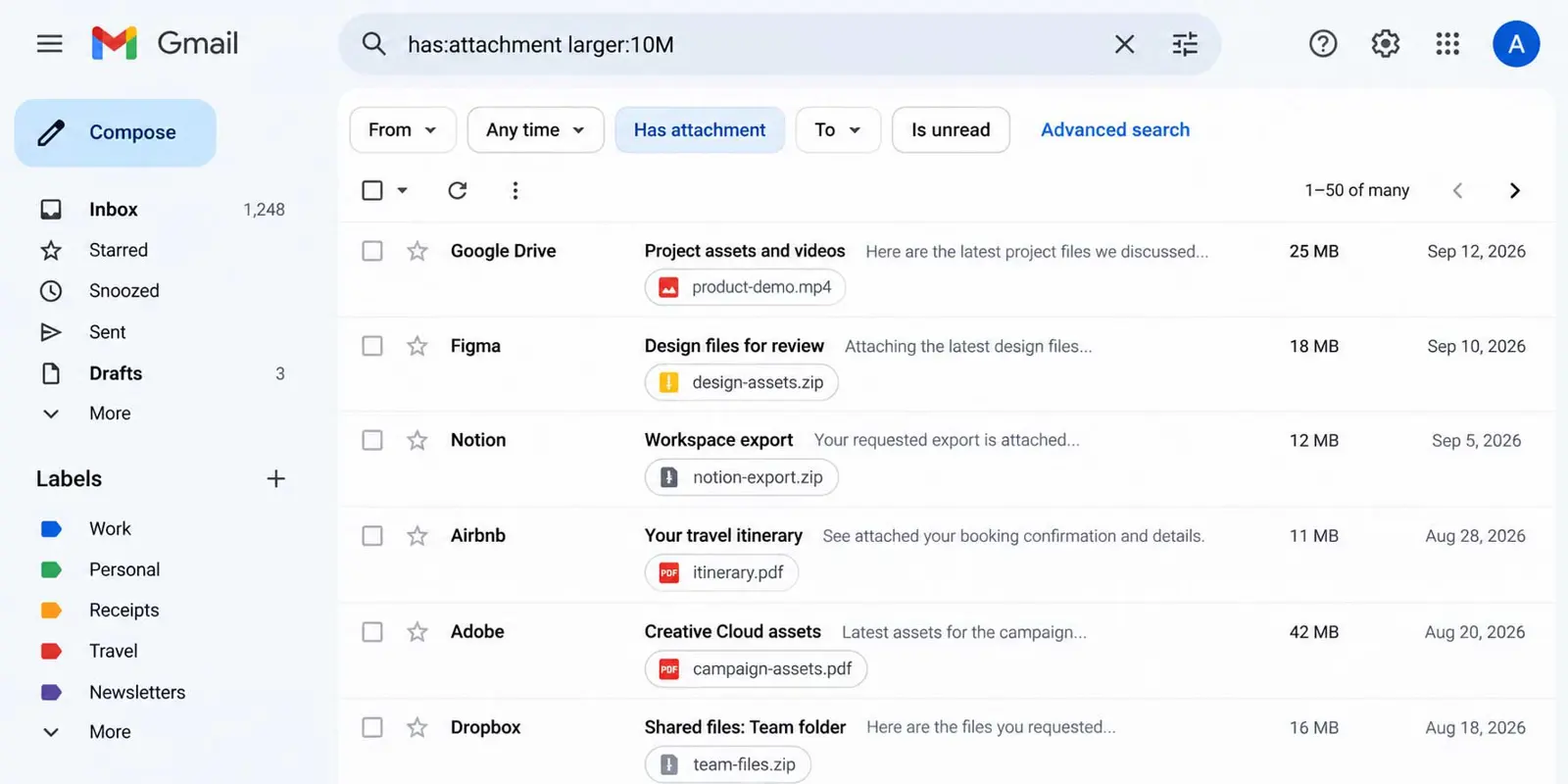
This finds messages with attachments larger than 10 MB. Google also documents searches for specific attachment types, including PDFs larger than a chosen size.
filename:.pdf larger:5MReview the results before deleting anything. Save files you still need somewhere else, then delete only the messages and attachments you no longer want.
Search for Old Emails You No Longer Need
If large attachments are not enough, search for old messages. Gmail supports the older_than: operator with days, months, or years.
older_than:1yYou can combine age and attachment searches when you want a narrower cleanup:
older_than:2y has:attachmentGmail also supports before: and after: searches when you want to work with a specific date range. Google documents these operators in its Gmail search guide.
Do not delete old mail simply because it is old. Check the sender and subject first, especially for receipts, contracts, account records, or other messages you may need later.
Clean Up Promotions and Other Repetitive Mail
Newsletters, promotional messages, and automated updates can build up over several years. Gmail lets you narrow these messages with search operators and categories, making it easier to remove groups of unwanted mail.
- Search
category:promotions older_than:1yfor older promotional messages. - Search
category:social older_than:1yfor older social notifications. - Search for a specific sender if one company sends frequent newsletters or updates.
- Unsubscribe from recurring newsletters you no longer read.
Delete in batches only after checking the search results. If a search catches something you need, narrow the query before selecting messages.
Search by Attachment Type
Sometimes the biggest space savings come from a particular type of file. Gmail lets you search for messages using an attachment filename or extension.
filename:.pdffor PDF attachmentsfilename:.zipfor ZIP archivesfilename:.pptfor PowerPoint filesfilename:.mp4for video files
You can combine a file type with a size filter to focus on larger files.
filename:.zip larger:5MRemember That Google Drive and Photos Share the Same Storage
If Gmail is not responsible for most of your usage, check Google Drive and Google Photos before spending time deleting email. Google says those services share the same Google Account storage quota.
Saganote has also covered Google Photos' shorter Trash recovery window, which is useful to know before permanently deleting photos.
Drive can also contain large files and backups. If you use Android, our guide to Google Drive local document backups on Android explains another way files can end up in your Google storage.
If you work with files across cloud services, ChatGPT can now open and edit Google Drive files inside the chat, which is useful context when deciding where important files should live.
Empty Trash and Spam
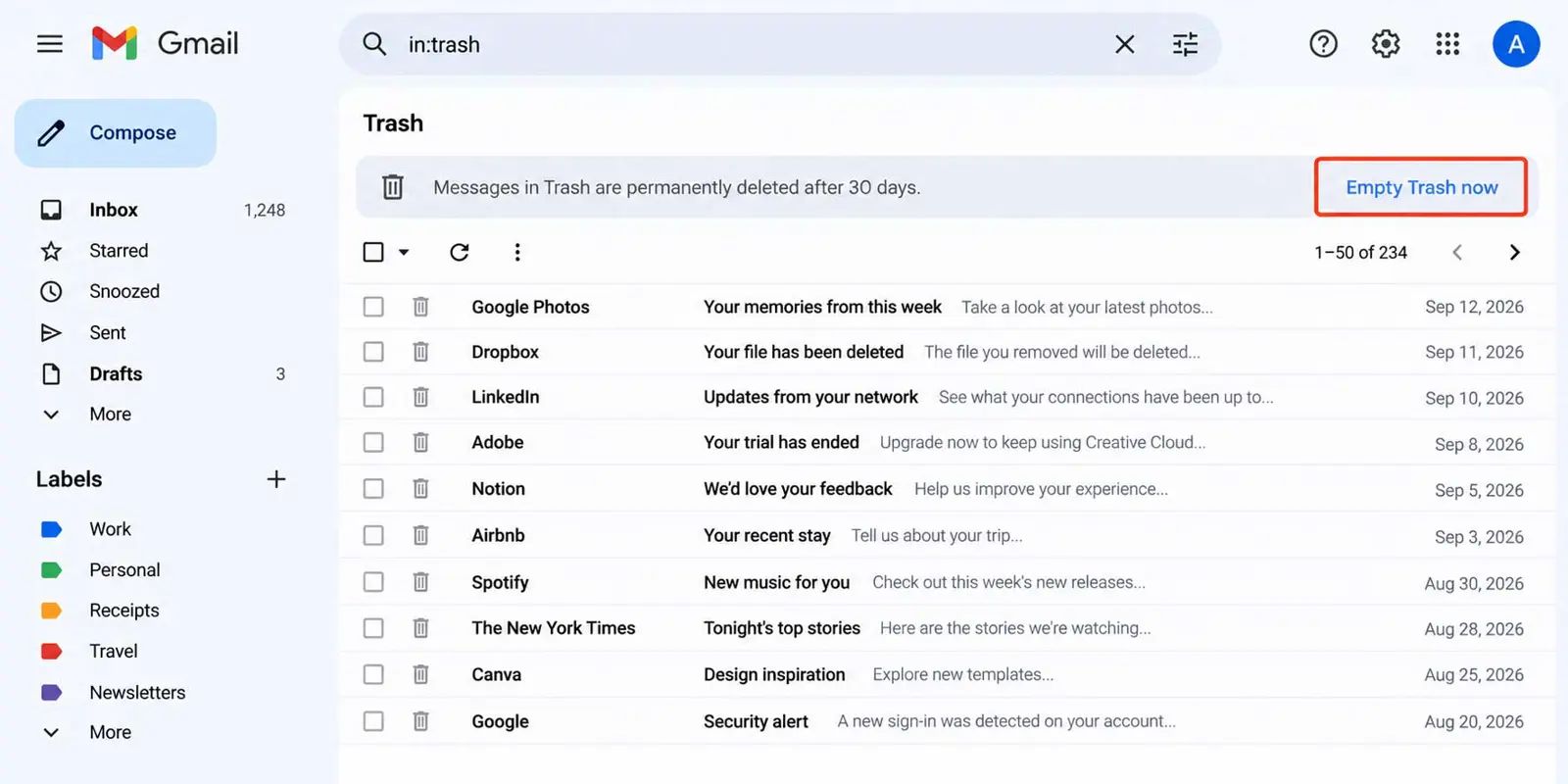
Deleting messages is not the final step. Gmail keeps deleted messages in Trash, and unwanted messages can remain in Spam. Google recommends emptying both when you need to free up space.
- Open Gmail.
- Open Trash.
- Choose Empty Trash now if you are sure the messages no longer matter.
- Open Spam.
- Choose the option to permanently delete the messages.
Google says storage can take a short period to update after deleting files and emptying Trash. If the account still appears full after the storage update period, use Google's storage cleanup options.
How to Keep Gmail Storage Under Control
- Delete large attachments when you no longer need them.
- Unsubscribe from newsletters you consistently ignore.
- Periodically search for old promotional and social messages.
- Check Google Drive and Photos when your overall storage is nearly full.
- Empty Gmail Trash and Spam after a cleanup.
- Keep important receipts, contracts, and account records instead of deleting them just to reduce the message count.
FAQ
Does deleting Gmail emails immediately free storage?
What is the fastest Gmail search for large emails?
has:attachment larger:10M. You can adjust the size threshold if the results are too broad or narrow.Can old emails take up Gmail storage?
older_than:1y can help identify mail you may no longer need.Why is Gmail still full after I delete emails?
Free Up Gmail Storage Without Deleting Everything
The safest cleanup method is to search before deleting. Start with large attachments, move to old or repetitive messages, then empty Trash and Spam. If Gmail is not the main source of storage usage, check Google Drive and Google Photos instead. This lets you recover space while keeping the messages and files you still need.