How to Create and Delete Stickers on iPhone
Learn how to create custom stickers from your photos, organize them, and remove stickers you no longer need on your iPhone.

How to create and delete stickers on iPhone is easier than ever thanks to Apple's built-in Stickers feature in iOS. You can turn photos into custom stickers, use them in Messages and other supported apps, and remove them whenever you no longer need them.
If your sticker library has become cluttered, iOS also lets you delete stickers you no longer use. In this guide, we'll walk through how to create, manage, and remove stickers on your iPhone step by step.
What Are iPhone Stickers?
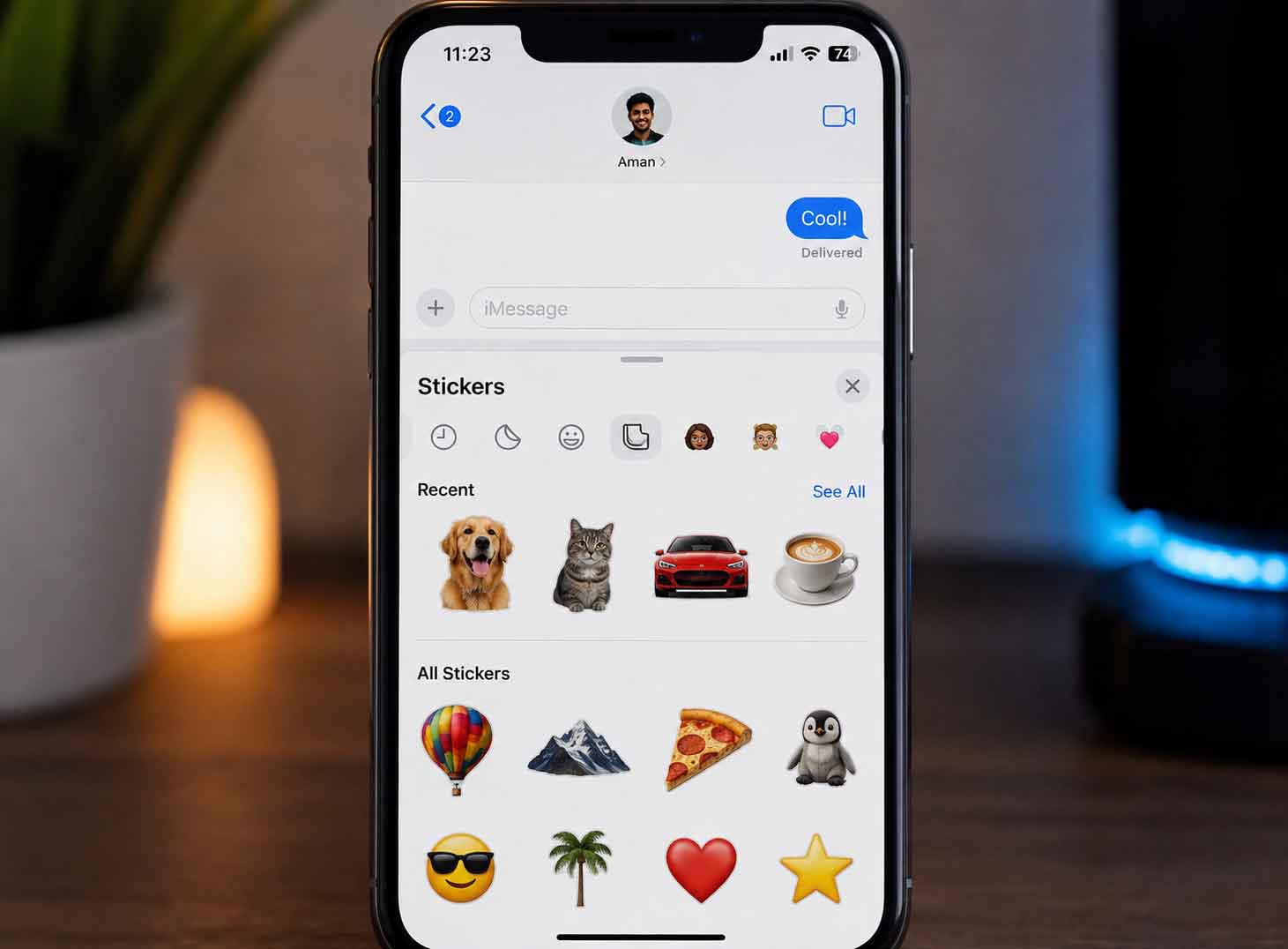
iPhone Stickers are custom images created from your photos that can be shared in Messages and other compatible apps. Introduced in iOS, the feature uses on-device intelligence to separate the main subject from the background, turning it into a reusable digital sticker.
You can also personalize stickers by adding effects, combining them with emoji, and using them in conversations just like regular stickers. Once saved, they're available from the Stickers drawer whenever you want to send them.
How to Create a Sticker on iPhone
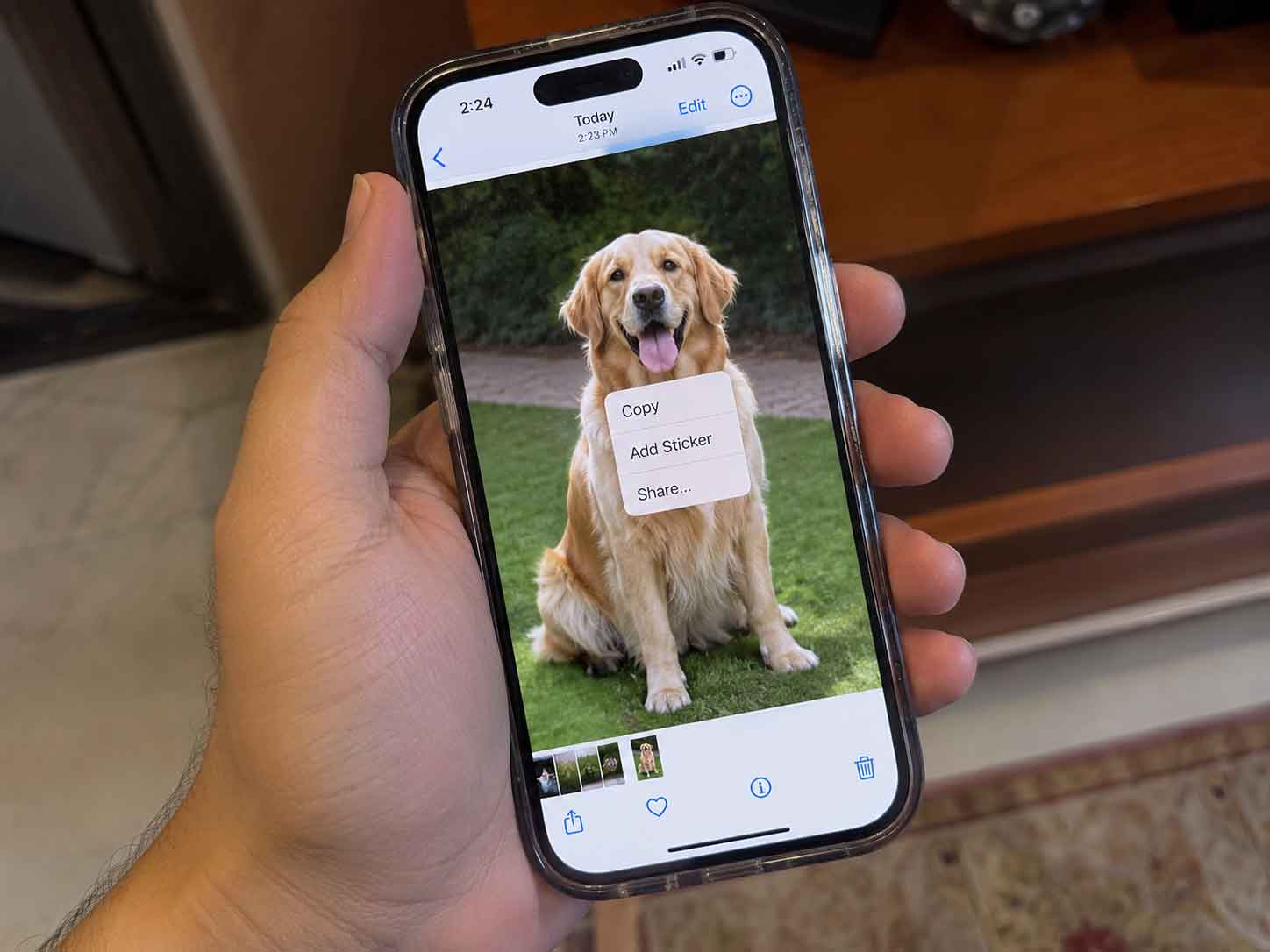
Creating a custom sticker only takes a few seconds as long as the photo has a clear subject. iOS automatically removes the background and saves the subject as a reusable sticker that you can use in Messages and other supported apps.
- Open the Photos app and select the picture you want to use.
- Touch and hold the subject until it lifts from the background.
- Tap Add Sticker from the menu that appears.
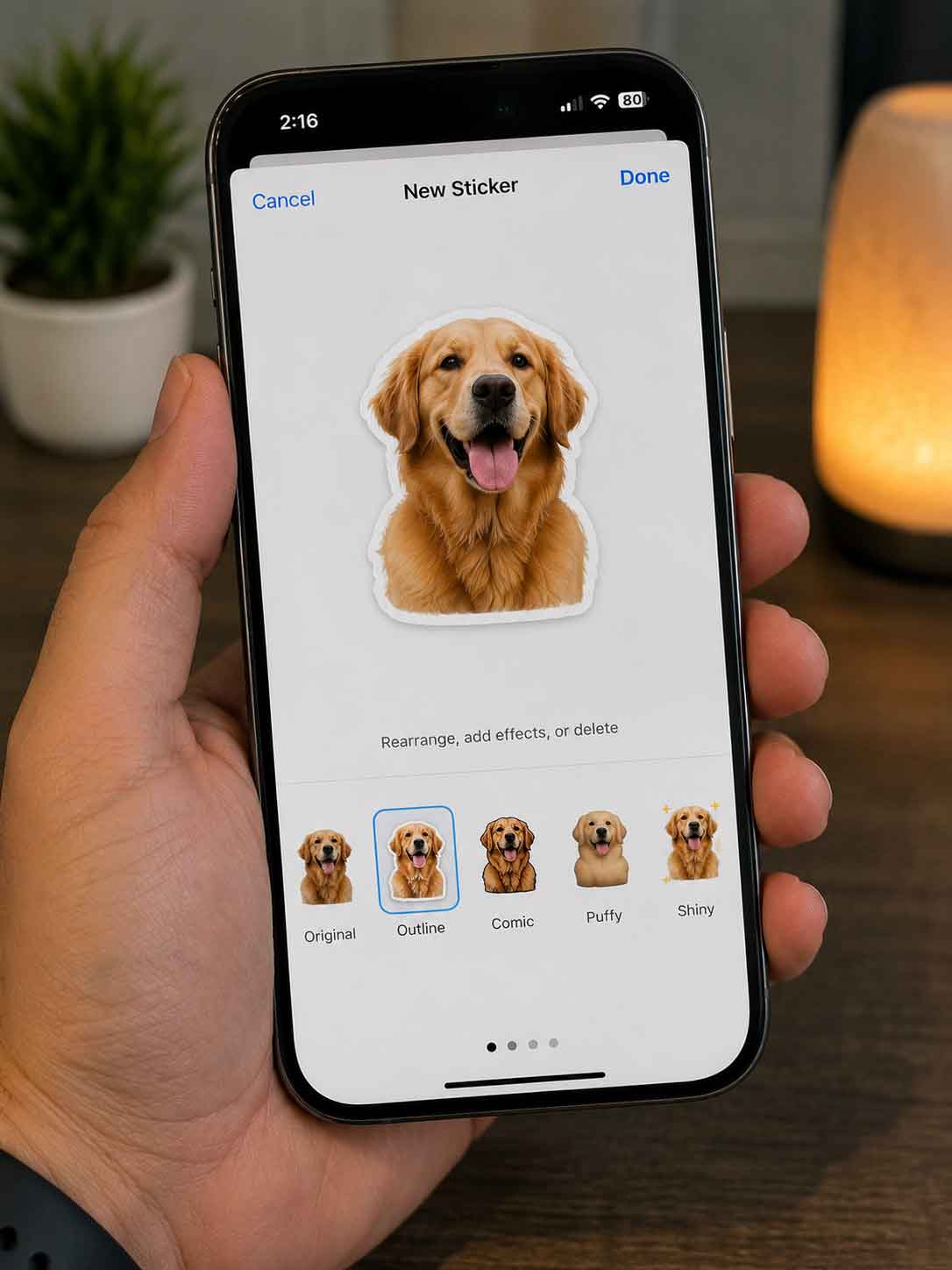
- Choose an optional effect such as Outline, Comic, Puffy, or Shiny.
- Tap Done to save the sticker to your collection.
After saving, the sticker becomes available from the Stickers drawer inside Messages. You can also use it in supported third-party apps that work with Apple's sticker keyboard.
How to Delete Stickers on iPhone
If you no longer use a sticker or want to clean up your collection, you can remove it in just a few taps. Deleting a sticker removes it from your saved Stickers library, though you can always create it again from the original photo.
- Open the Messages app on your iPhone.
- Open any conversation.
- Tap the "+" button, then choose Stickers.
- Touch and hold the sticker you want to remove.
- Tap Delete to remove it from your collection.
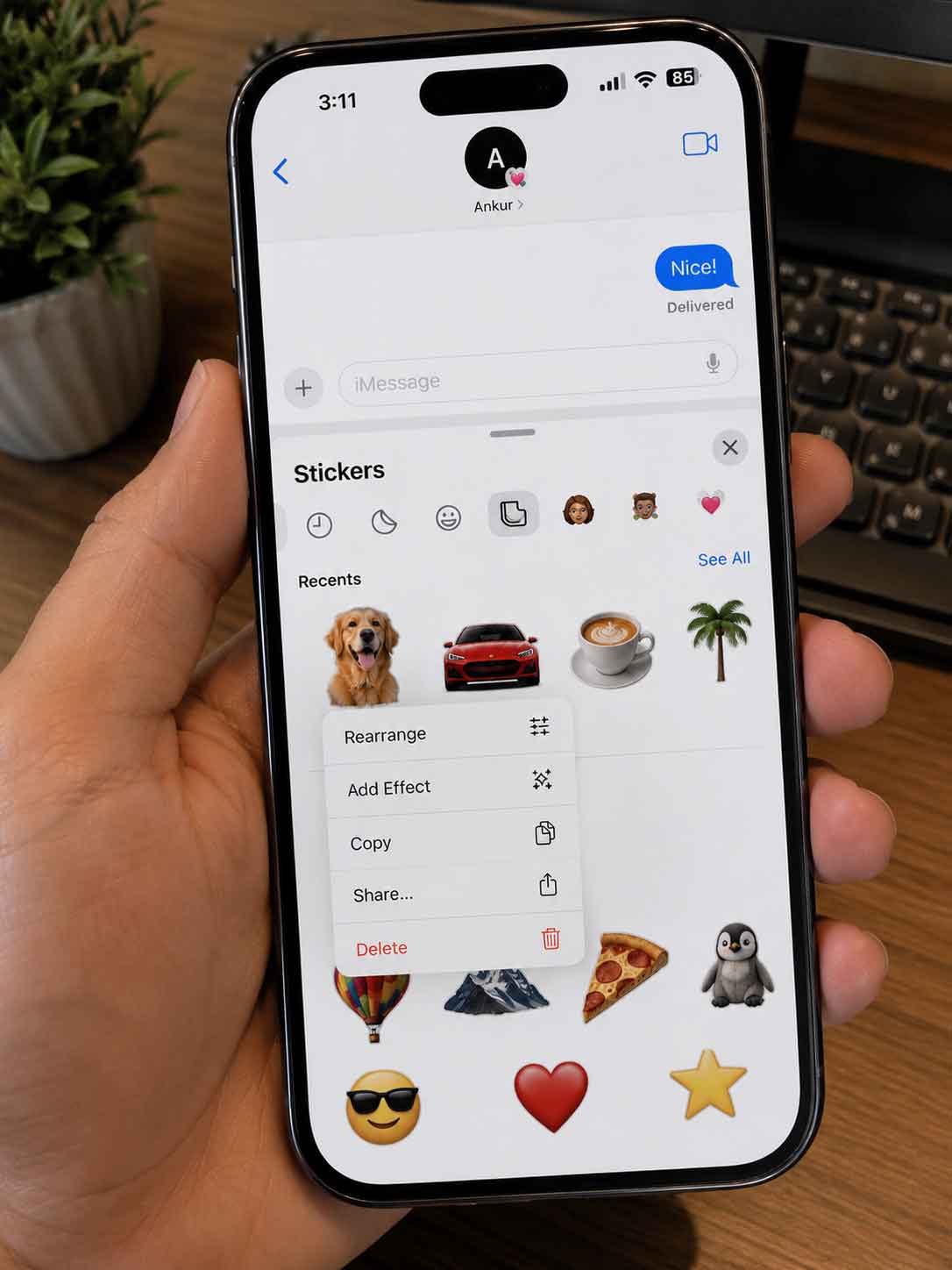
Deleting a sticker doesn't affect the original photo stored in your Photos library. It only removes the sticker from your saved collection, allowing you to keep your sticker library organized.
How to Edit Sticker Effects
When creating a sticker, iPhone lets you personalize its appearance with built-in visual effects. These effects don't change the original image-they simply change how the sticker looks when you send it in Messages or supported apps.
- Original - Uses the cutout without extra styling.
- Outline - Adds a white outline around the sticker.
- Comic - Gives the sticker a comic-book appearance.
- Puffy - Adds a raised, three-dimensional look.
- Shiny - Applies a glossy animated effect.
Why You Might Not Be Able to Create Stickers
If the Stickers option doesn't appear on your iPhone, there are a few things to check. The feature is available on supported versions of iOS and works best with photos that have a clearly recognizable subject. Images without a distinct person, pet, or object may not produce a sticker.
- Make sure your iPhone is running a supported version of iOS.
- Use a photo with a clearly defined subject.
- Restart the Photos or Messages app if the option doesn't appear.
- Ensure you're creating the sticker from the Photos app.
If the problem continues after updating iOS, try using a different image with better lighting or higher contrast. The subject detection feature relies on Apple's on-device image processing to separate the foreground from the background.
Final Thoughts
Creating custom stickers is one of the simplest ways to personalize conversations on iPhone. With just a few taps, you can turn your favorite photos into reusable stickers, apply fun visual effects, and share them across Messages and other compatible apps.
Whether you're creating stickers for friends, pets, or memorable moments, the built-in iOS feature makes the process quick without requiring any third-party apps. If your sticker collection grows too large, you can easily remove old stickers to keep everything organized.
FAQ
What are iPhone Stickers?
How do I create a sticker on iPhone?
Can I delete stickers later?
Do stickers delete the original photo?