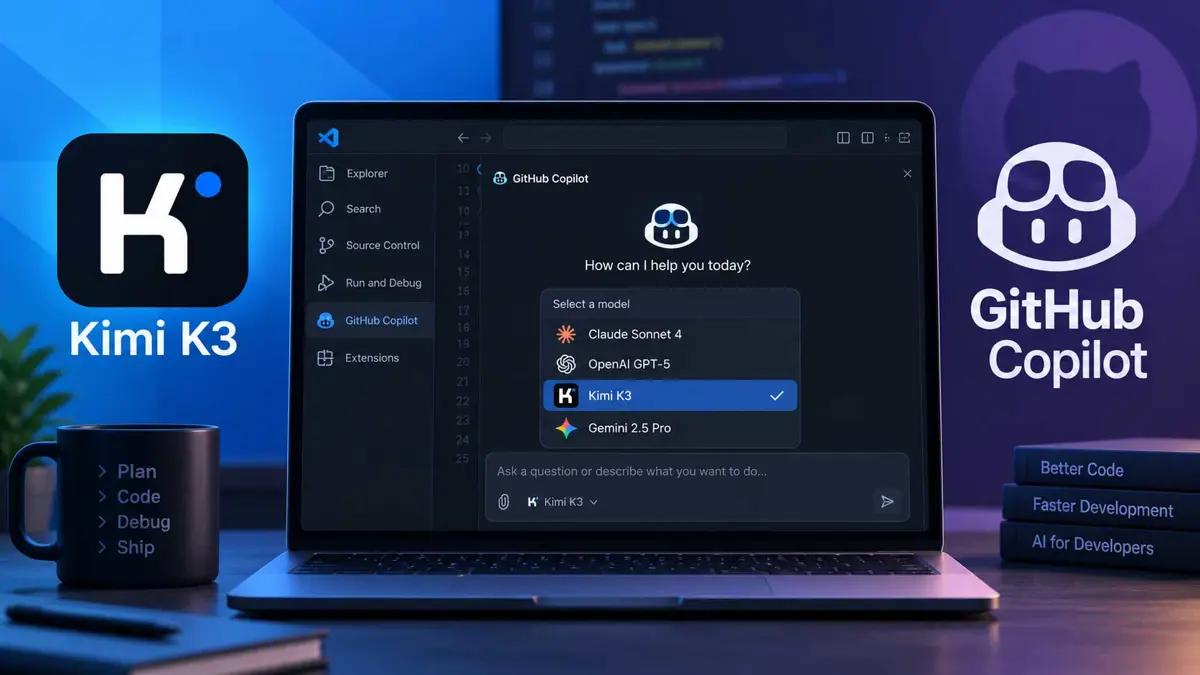
GitHub Copilot is no longer tied to a single AI model. Its current model list includes Kimi K3 from Moonshot AI alongside models from OpenAI, Anthropic, Google, Microsoft, and xAI. GitHub notes that model availability depends on the Copilot plan and the client you are using, and that availability can change over time.
If you already use Kimi for coding, this gives you another way to bring Kimi K3 into an existing Copilot workflow instead of moving to a separate coding environment. If you are new to Kimi K3, our Kimi Code coding guide covers the separate Kimi Code workflow, including its own coding tools and model setup.
What You Need Before Using Kimi K3 in GitHub Copilot
Before trying to select Kimi K3, make sure you have access to GitHub Copilot and are using a client that supports the model. GitHub currently lists Kimi K3 as a generally available Copilot model, but the exact models exposed to you depend on your plan and where you use Copilot.
- A GitHub account with access to GitHub Copilot
- A supported Copilot client; this guide uses Visual Studio Code because GitHub currently documents a minimum VS Code version for Kimi K3
- A current version of the Copilot extension or plugin
- A Copilot plan that permits direct model selection if you want to choose Kimi K3 manually
- An organization or enterprise policy that allows the model if your Copilot access is managed by an organization
Copilot Free and Copilot Student currently provide model access through Auto model selection rather than manual model selection. Paid individual plans provide a selection of models, while organization-managed accounts can also be affected by administrator model policies.
You do not need to separately configure a Kimi API key just to select Kimi K3 from GitHub Copilot's built-in model picker. That is different from configuring Kimi's own API with a third-party coding tool.
Does GitHub Copilot Support Kimi K3?
Yes. GitHub's current supported-model documentation lists Kimi K3 as a model from Moonshot AI and marks it as generally available. GitHub also lists Kimi K3 in the Copilot model catalog and provides client-specific availability information.
Kimi K3 is also part of the Kimi Code model family. Kimi's own documentation identifies the k3 model ID as its flagship K3 coding model and describes it as a model designed for large codebase analysis, multi-file refactoring, and other long-context programming tasks. You can read more about the model itself in our Kimi K3 model guide.
The important distinction is that Kimi K3 inside GitHub Copilot is provided through GitHub's model infrastructure. You are not connecting GitHub Copilot directly to a Kimi API endpoint when you select Kimi K3 from the Copilot model picker.
How to Use Kimi K3 in GitHub Copilot: Step by Step
Step 1: Open Copilot Chat
- Open the project you want to work on in your supported Copilot client.
- Open GitHub Copilot Chat.
- Start a new chat or open an existing chat where you want to use Kimi K3.
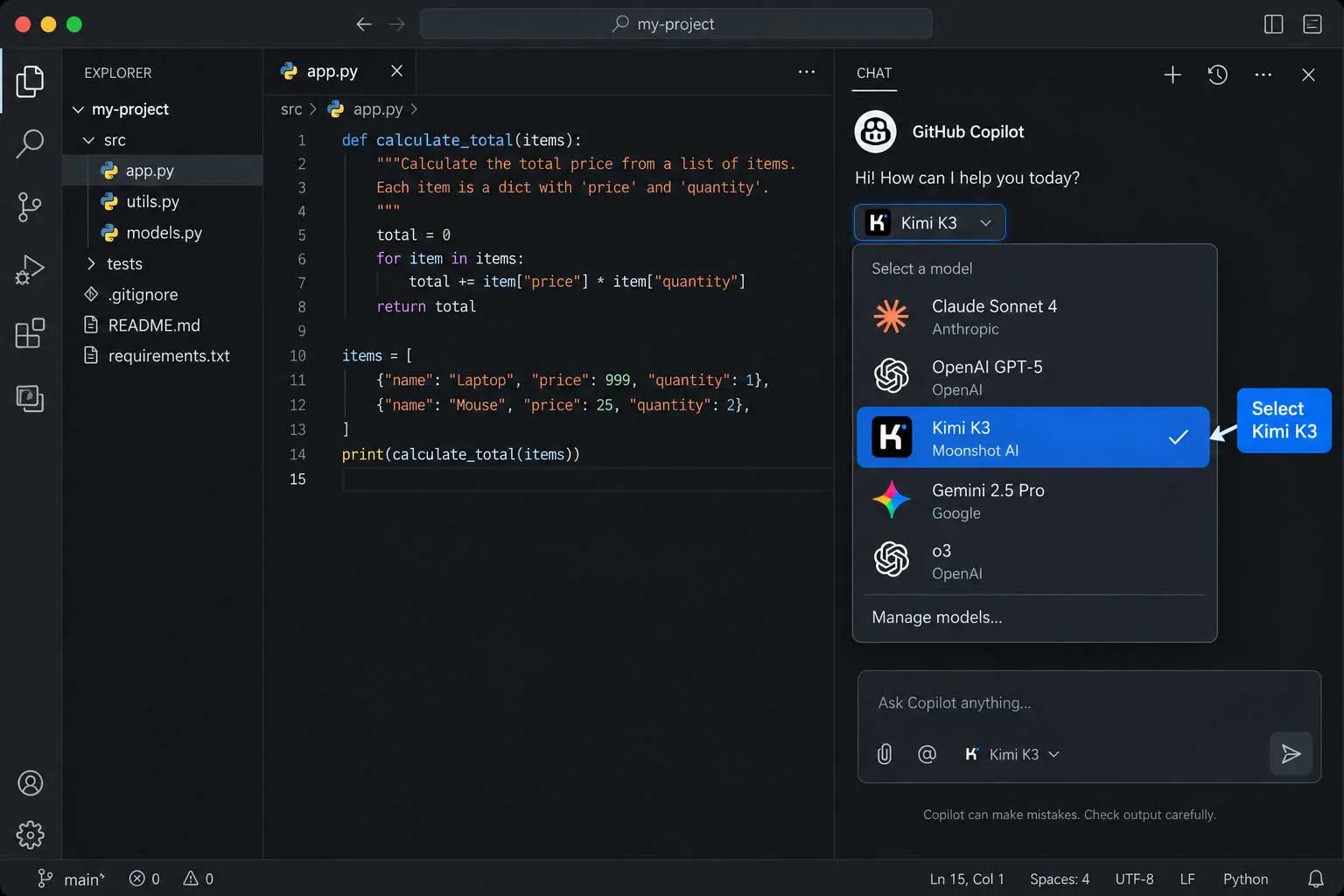
In Visual Studio Code, GitHub's current instructions say to open Copilot Chat from the title bar. GitHub currently lists Visual Studio Code 1.131 as the minimum VS Code version for Kimi K3, so keeping VS Code and the Copilot extension up to date is important. The chat view contains the current model selector at the bottom of the panel.
Step 2: Open the Current Model Menu
- Look at the bottom of the Copilot Chat view.
- Find the CURRENT-MODEL dropdown.
- Open the model list.
GitHub uses the current-model dropdown to let supported users switch models during a Copilot Chat conversation. The available list can differ between clients and plans.
Step 3: Select Kimi K3
- Find Kimi K3 in the model list.
- Select it.
- Send your next prompt.
The selected model is then used to generate the Copilot Chat response. You can change models again later in the same chat if the model is available to your account and client.
If Kimi K3 is missing from the list, do not assume that the model has been removed. GitHub says model availability depends on the Copilot plan and client, and organization policies can restrict available models.
Step 4: Test the Model With a Small Task
Before giving Kimi K3 a large repository-wide task, start with something easy to verify.
Explain this function, identify any edge cases, and suggest a minimal fix if one is needed.Then inspect the response for correctness before applying any suggested changes.
How to Use Kimi K3 for Coding Tasks in Copilot
Selecting Kimi K3 is only the first step. The quality of a coding session still depends on the context you provide, the size of the task, and how carefully you review generated code.
Use It for Debugging
- Open the file or code involved in the bug.
- Give Copilot the error message and the relevant behavior.
- Ask Kimi K3 to identify the likely cause.
- Ask for the smallest practical fix.
- Review the proposed change.
- Run the relevant tests.
A focused debugging request is usually easier to verify than a broad request to rewrite the entire module.
The test fails with this error: "..."
Find the likely cause, explain why it happens, and propose the smallest change that fixes the failing case without changing the public API.
Use It for Refactoring
For refactoring, tell Kimi K3 what must remain unchanged. That can include public APIs, database behavior, error handling, test behavior, or performance constraints.
Refactor this function to make it easier to read.
Keep the current behavior, function signature, error handling, and tests unchanged.
Show the proposed changes before making broader edits.
This keeps the task bounded and makes the resulting diff easier to review.
Use It for New Features
For a new feature, split the request into smaller stages rather than asking for the entire application at once.
- Describe the feature and its acceptance criteria.
- Ask Copilot to identify the files that should change.
- Review the proposed approach.
- Ask for the implementation.
- Generate or update tests.
- Run the tests and inspect the final diff.
This workflow is particularly useful when you are working in a repository you did not build yourself. For a broader look at how different coding assistants fit into an IDE workflow, see our GitHub Copilot vs Cursor vs Tabnine guide.
Use It With Larger Codebases
Kimi K3 is designed for long-context programming, but a large context window does not mean every task should include the entire repository. Give Copilot the files, symbols, error messages, and requirements that are actually relevant to the task.
GitHub currently documents a 1 million token context option for supported models in Visual Studio Code and Copilot CLI. GitHub also notes that larger context and higher reasoning settings can consume more AI credits.
Kimi K3 in GitHub Copilot vs Kimi Code
Kimi K3 can now be used in two different kinds of coding workflow: inside GitHub Copilot or through Kimi Code. They are related, but they are not the same product.
| Feature | Kimi K3 in GitHub Copilot | Kimi Code |
|---|---|---|
| Main environment | GitHub Copilot | Kimi's coding environment |
| Model selection | GitHub Copilot model picker | Kimi Code model picker or model configuration |
| IDE workflow | Uses supported Copilot clients | VS Code, CLI, Desktop, and supported third-party tools |
| API key required for built-in model picker | No | No for normal Kimi Code membership use |
| Separate Kimi API integration | Not required for built-in Copilot model selection | Available for third-party tools |
| Coding tools | Depends on Copilot client and mode | Kimi Code provides code reading, editing, command execution, and agentic tools |
| Context and model limits | Governed by GitHub Copilot | Governed by Kimi Code model and membership limits |
If you already live inside GitHub Copilot, selecting Kimi K3 lets you keep that workflow. If you want Kimi's dedicated coding environment and its own CLI or tool ecosystem, Kimi Code is the separate option. Our Kimi Code vs Claude Code comparison covers how Kimi Code compares with another agentic coding environment.
What Kimi K3 Can and Cannot Do in Copilot
What You Can Use It For
- Explaining unfamiliar code
- Debugging errors
- Writing or modifying code
- Refactoring existing code
- Generating tests
- Working through multi-file coding tasks when the client and mode provide the required context
- Reviewing proposed implementations
Important Limitations
- Model availability depends on your Copilot plan and client.
- Copilot Free and Copilot Student use Auto model selection rather than manual model selection.
- Organization and enterprise policies can restrict access to models.
- Changing the Copilot Chat model does not automatically change the model used for inline suggestions.
- Changing the inline suggestion model does not change the model used by Copilot Chat.
- Model availability and supported clients can change over time.
The separation between Chat and inline suggestions is easy to miss. GitHub documents separate controls for the model used by Copilot Chat and the model used for inline completions.
How to Change the Model for Copilot Inline Suggestions
If you want Kimi K3 to affect inline code completions rather than only Copilot Chat, the setup is different.
- Open the VS Code Command Palette with
Ctrl+Shift+Pon Windows/Linux orCommand+Shift+Pon macOS. - Search for GitHub Copilot: Change Completions Model.
- Select the command.
- Choose the available model from the dropdown.
- Return to the editor and test an inline completion.
GitHub says this setting controls Copilot ghost-text suggestions. It does not change Copilot Chat or Copilot next-edit suggestions. The available completion models can also change over time.
A Simple Kimi K3 Copilot Workflow
For everyday development, a simple five-stage workflow keeps the AI assistance useful without handing over too much control.
- Understand: Give Kimi K3 the relevant code, error, or requirement.
- Plan: Ask what files or functions need to change before requesting a large edit.
- Code: Ask for a focused implementation.
- Review: Inspect the diff and check assumptions.
- Test: Run the relevant tests, type checks, linting, or build.
For example, if an API endpoint is returning the wrong response, start by asking Kimi K3 to trace the request path and identify the likely source of the problem. Only after reviewing that explanation should you ask it to make the change.
Troubleshooting Kimi K3 in GitHub Copilot
Kimi K3 Does Not Appear in the Model List
- Confirm that your Copilot plan allows manual model selection.
- Update VS Code and the GitHub Copilot extension.
- Check GitHub's current supported-model list.
- If you use Copilot through an organization, ask whether model access is restricted.
- Try reopening Copilot Chat after updating the client.
The Model Picker Is Missing
On managed Copilot accounts, administrators can control model access. GitHub also provides different model-selection behavior depending on the plan. Free and Student accounts currently use Auto model selection rather than the manual model picker.
Kimi K3 Works in Chat but Not for Inline Suggestions
Check the inline completion model separately. GitHub documents Chat model selection and inline completion model selection as separate controls, so changing one does not automatically change the other.
Copilot Keeps Using Auto
If Auto is selected, Copilot chooses a model based on availability and task considerations. Select Kimi K3 manually when your plan and client expose the model picker and you specifically want Kimi K3 for that task.
The Results Need Too Much Context
Do not immediately add the whole repository. Start by supplying the relevant files and requirements. If the task genuinely spans many modules, use the larger context option where your client and model support it.
Kimi K3 and Copilot Credits
GitHub says different Copilot models consume AI credits at different rates based on token pricing. Larger context windows and higher reasoning settings can also increase credit consumption.
That means choosing Kimi K3 is not only a model-quality decision. You should also consider the amount of context the task needs and how much Copilot usage it consumes.
For a separate look at Kimi's own membership and API pricing, see our Kimi K3 pricing guide.
Frequently Asked Questions
Can I use Kimi K3 with GitHub Copilot?
Do I need a separate Kimi subscription to use Kimi K3 in GitHub Copilot?
Can I manually select Kimi K3 on Copilot Free?
Does selecting Kimi K3 in Copilot Chat change inline code completions?
Can Kimi K3 work with large codebases in GitHub Copilot?
Is Kimi K3 in GitHub Copilot the same as Kimi Code?
Bottom Line
Kimi K3 is now part of GitHub Copilot's multi-model lineup, giving developers another model option without leaving the Copilot workflow. The basic process is straightforward: open Copilot Chat, open the current-model menu, select Kimi K3 when it is available, and start with a focused coding task.
For more reliable results, keep coding requests specific, review generated changes, and test before merging. If you want a dedicated Kimi coding environment rather than GitHub's Copilot layer, compare the workflow with Kimi Code before deciding which setup fits your project.
