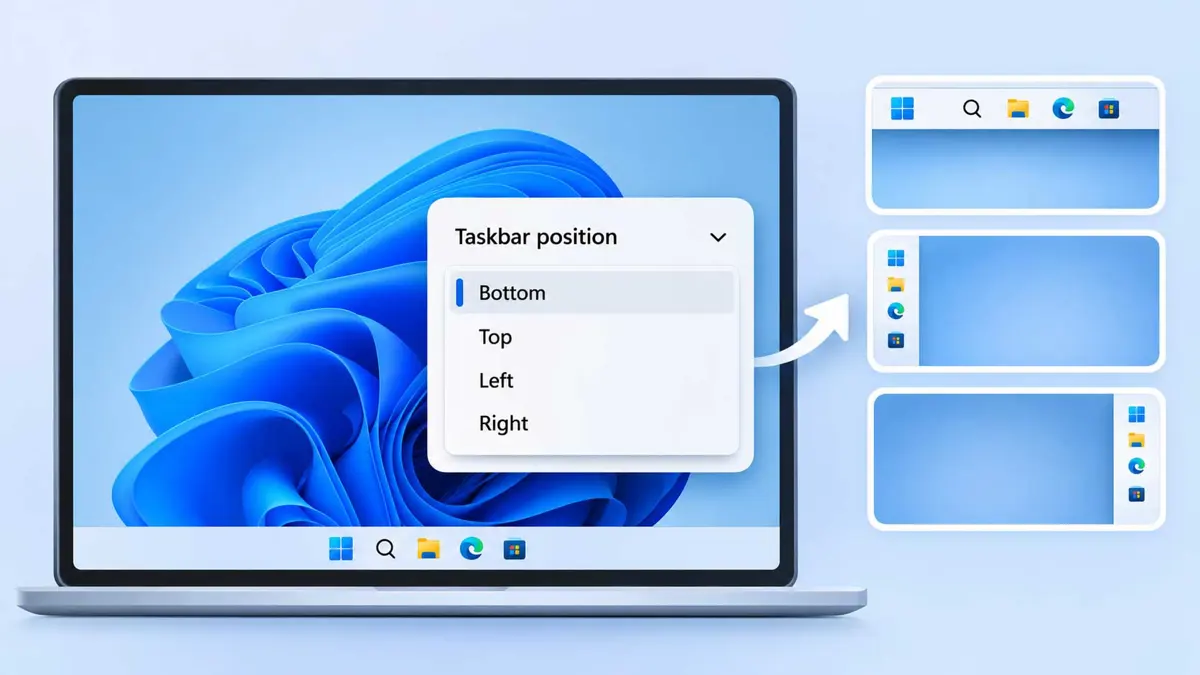
Anyone searching how to move Windows 11 taskbar to the top used to land on registry hacks and third-party tools, but 26H2 adds a native setting for it. Rollout is staged, according to Galaxus. Microsoft's release-health page lists 26H2 as generally available since September 29, 2026, but the part reviewed for this article did not mention the taskbar setting, so the feature details here come from Windows Central, Pureinfotech, Ask Leo, and Galaxus.
26H2 Brings Back Taskbar Positioning
Windows 11 dropped a Windows 10 staple. Windows 10 let users drag the taskbar to any edge, and TechRadar called a movable taskbar one of the most requested features from Windows 10 in a February 2026 report that was still a rumor at the time. Windows Central's July preview described a position setting for top, bottom, left, and right with a live preview, and Ask Leo wrote on October 21 that Windows 11 "finally lets you move the taskbar to the top or sides" again.
Galaxus says the update has been rolling out in waves since September 29, and Saganote's Windows 11 26H2 guide covers how to get it along with the known issues. Windows 10 owners cannot use the new setting. Their extended update window is covered in Saganote's Windows 10 ESU report.
Move the Taskbar in Settings
Steps to move Windows 11 taskbar are short. Sources name the control differently, so the wording on screen decides, and Galaxus and Pureinfotech each use their own label for it, which makes the exact name worth confirming on the PC.
- Open Settings > Personalization > Taskbar, or right-click the taskbar and choose Taskbar settings.
- Scroll to Taskbar behaviors.
- Open Taskbar position, which Galaxus calls Taskbar alignment, and pick Top, Left, Right, or Bottom.
- Check the result, since Galaxus says the change applies immediately.
- Optionally open Taskbar size and choose Small for a thinner bar, which Galaxus says works only at the top or bottom.
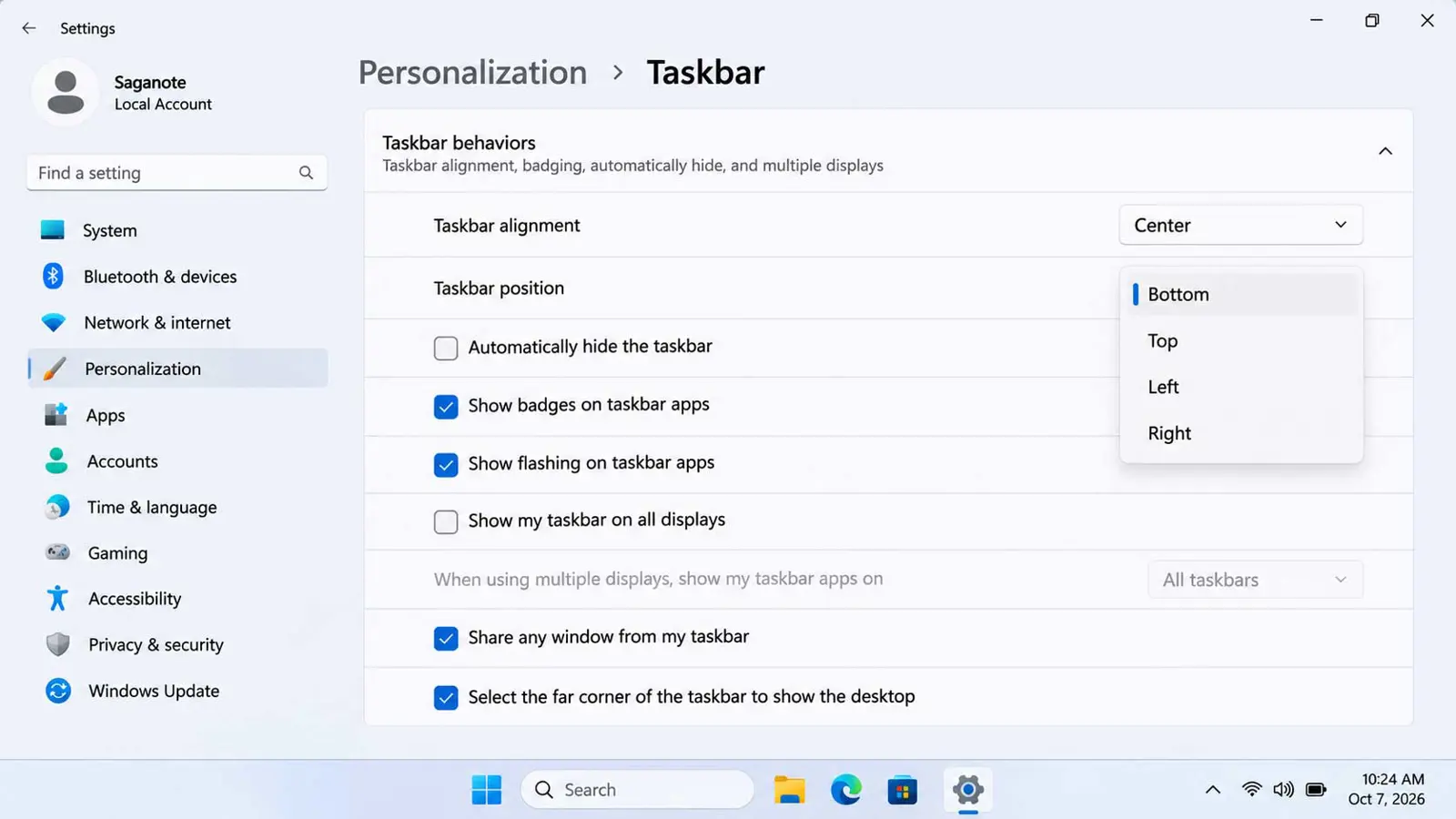
Dragging does not work. Galaxus reports that the taskbar cannot be moved with the mouse, so the Settings control is the only native route to a new position on any edge of the screen.
If the Setting Is Missing
Check the version first. Run winver and look for 26H2, as Ask Leo advises, then open Windows Update and check for updates. Galaxus adds that turning on "Get the latest updates as soon as they're available" can bring the feature sooner, and that managed PCs may not receive it. Microsoft's release-health page lists build 26300.9818 (KB5127936) for 26H2 as of October 28, 2026.
Sources disagree on scope. Pureinfotech ties the feature to the September 2026 update for version 25H2 and later, while Galaxus and Windows Central tie it to 26H2. Pureinfotech also mentions force-enabling the setting with ViVeTool but gives no commands, so this article leaves that method out.
What Works and What Does Not on Side Taskbars
- One position for every monitor: Galaxus says an individual position per monitor is not yet possible
- Desktop icons shift: moving to Left or Right moves desktop icons, and returning to Bottom restores them, while Top leaves the layout unchanged, per Galaxus
- Smaller size is top and bottom only: on Left or Right the Small option can be selected but changes nothing, according to Galaxus alone
- No thicker taskbar: Ask Leo says the taskbar cannot be made thicker, and Pureinfotech says drag resizing is gone
- Clock details shrink: Windows Central's preview said vertical layouts show an abbreviated year and no seconds
- Flyouts stay put: Pureinfotech, citing the company, says flyouts, tooltips, and animations still come from the taskbar wherever it sits
Gaps remain. Sources read here did not describe how the Start menu, Search, or Widgets behave on a side taskbar, so those are worth testing on the device. Several points above come from one outlet each, and Windows Central's notes predate the release.
Older Windows 11 Versions: Third-Party Tools and Risks
Two tools fill the gap. Owners who cannot move Windows 11 taskbar natively can use the tools Pureinfotech describes. Windhawk installs with winget install --id RamenSoftware.Windhawk and runs a mod named "Taskbar on top for Windows 11," which supports the top position only, and the Start menu still opens from the bottom while Notification Center stays there too. ExplorerPatcher comes from its GitHub releases, and its settings include a Windows 10 taskbar style and a primary taskbar location of Top.
Older guides also mention registry edits. None of the sources read here gave a verified key or value, so no registry steps appear in this article, since a wrong edit can damage a Windows install.
Pureinfotech says ExplorerPatcher "sometimes breaks due to Microsoft operating system changes," and browsers may flag its installer. Create a restore point before installing either tool, and remove the tool if a Windows update causes problems.
Start Menu Size Is the Related Setting
Start menu size gets its own control. Pureinfotech reports new Start menu size options named Small, Large, and Automatic, and Windows Central says users still cannot drag the edges or switch to a full-screen layout. Both describe settings under Settings > Personalization > Start in pre-release coverage, so the labels should be confirmed on a 26H2 PC. Another Windows 11 setting many people change is the shell context menu, covered in Saganote's guide to restoring the old right-click menu.
Microsoft's release-health page shows 26H2 updates continuing on build 26300 as of October 28, with the latest listed build being 26300.9818 (KB5127936) from that date. Galaxus says per-monitor positions are not available yet. Whether later updates add them, or settle the label differences between sources, remains to be seen.
Frequently Asked Questions
Where is the taskbar position setting in Windows 11?
Can the taskbar go to the top in Windows 11?
Why is the taskbar position setting missing?
Can each monitor have its own taskbar position?
Is there a safe way to move the taskbar on older Windows 11?