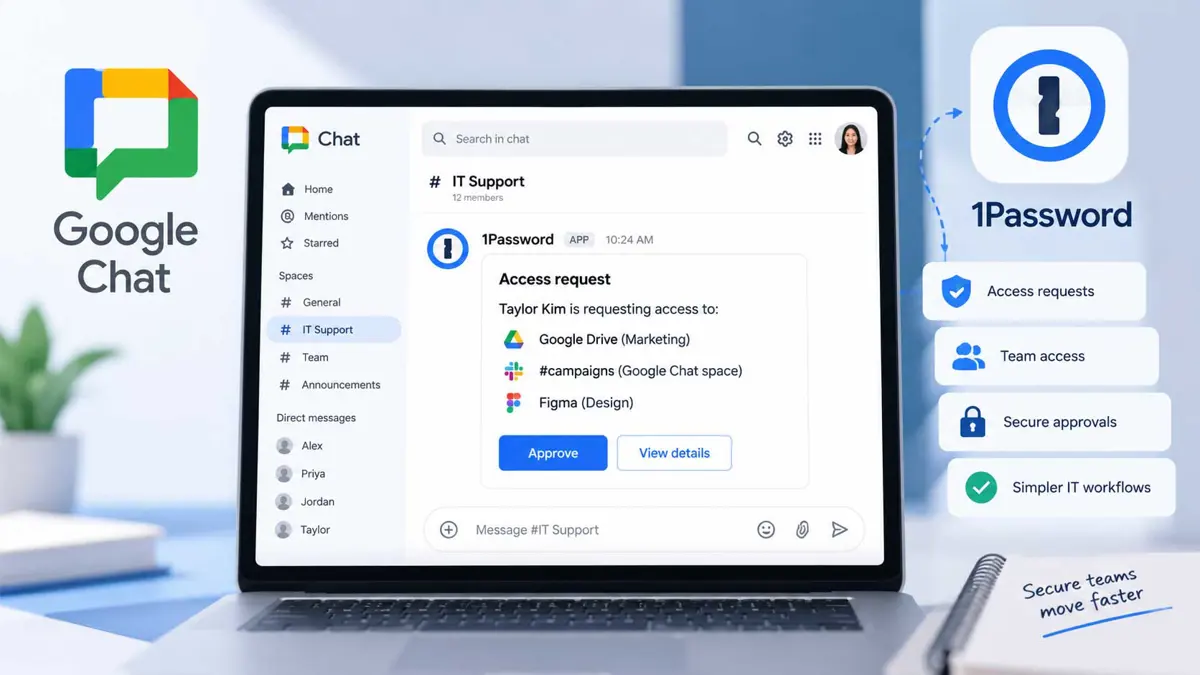
How to Install and Use the 1Password App in Google Chat
Set up the 1Password SaaS Manager integration in Google Chat so employees and approvers can handle access workflows without leaving Chat.

The 1Password app for Google Chat brings 1Password SaaS Manager notifications, actions, and approvals into Chat. It is designed for managed Google Workspace organizations that want employees, managers, and approvers to handle access workflows without switching between tools.
What the 1Password Google Chat App Does
The integration connects 1Password SaaS Manager workflows with Google Chat. Teams can use it for employee access scenarios such as provisioning and deprovisioning membership across Google Chat spaces. If your organization is changing password managers, see our guide to Google's password manager switching tools.
- Receive 1Password SaaS Manager notifications in Google Chat.
- Review access requests from interactive Chat messages.
- Approve or take action on requests without switching tools.
- Automate provisioning and deprovisioning workflows for Google Chat spaces.
- Let admins install the app for users across the organization.
How to Install 1Password in Google Chat
For Google Workspace Admins
- Sign in to your Google Workspace admin account.
- Open the Google Workspace Marketplace app installation controls.
- Find the 1Password SaaS Manager Chat app.
- Choose the option to install the app for your organization's users.
- Follow the Google Workspace prompts to complete the installation.
- Make sure the employees who need the workflow have 1Password SaaS Manager accounts.
Google's announcement directs administrators to its Help Center for the organization-wide Marketplace app installation process. The exact admin controls can vary depending on the organization's Google Workspace configuration.
For Individual Users
- Open Google Chat.
- Open the Apps section.
- Select Find apps.
- Search for the 1Password Chat App.
- Select the app and follow the prompts to install or connect it.
- Sign in with a 1Password SaaS Manager account when prompted.
How to Handle Access Requests in Google Chat
Once the integration is available, managers and approvers can review requests from interactive Google Chat messages. Instead of opening a separate administration tool for every request, they can take the supported action directly from the Chat message.
- Open the 1Password notification or request in Google Chat.
- Review the access request shown in the interactive message.
- Check the requested access and the available action.
- Select the appropriate approval or action control.
- Continue with any additional prompts required by the organization's 1Password workflow.
- Confirm that the request has been processed.
What You Need Before Using It
- A managed Google Workspace business or organizational account.
- A 1Password SaaS Manager account for each end user who will use the app.
- Administrator access if you are installing the app on behalf of an organization.
- A supported 1Password SaaS Manager workflow if your goal is provisioning, deprovisioning, or access approval.
Troubleshooting the 1Password Google Chat App
The app does not appear in Google Chat
Make sure you are using a managed Google Workspace account and search under Apps > Find apps. If the organization controls Marketplace app access, an administrator may need to install or allow the app for users.
I cannot use the app after installing it
Check that your account has 1Password SaaS Manager access. Google specifically lists a 1Password SaaS Manager account as a requirement for end users.
The workflow does not show the action I need
The Google announcement describes the integration at the workflow level rather than documenting every possible 1Password SaaS Manager action. For another Google messaging setup, see our guide to turning on RCS chats in Google Messages. Check your organization's configured workflow and the relevant 1Password documentation if a particular approval or provisioning action is missing.
What Happens Next
Google says the 1Password Google Chat integration is already available to managed Google Workspace business and organizational accounts. Google Workspace is also adding other ways to interact with apps, including voice features in Gmail, Docs, and Keep. Both Rapid Release and Scheduled Release domains are listed as available now.
The main benefit is keeping access requests and approvals inside a communication tool teams already use. This fits into a wider move toward connected workplace tools, including 1Password for Claude, which brings password-assisted sign-ins into an AI workflow. For organizations using 1Password SaaS Manager, the integration can put those workflow steps closer to the conversations where employees and managers already work.
Source: Google Workspace Updates, September 8, 2026.