Windows 11 slow after update reports have a short list of causes, and ten fixes cover them, ordered here from safest to most involved. Saganote verified the sources below on November 14, 2026. No fix requires paid cleaner software, and Techdows reports that 26H2 rarely slows a PC by itself.
26H2 Rarely Slows a PC by Itself, Techdows Reports
Windows 11 26H2 reached general availability on September 29, 2026 as a 174 KB enablement package for PCs already on 24H2 or 25H2. Techdows says the package shares system files with those versions, so it rarely slows a PC alone. Slowness comes from the work around it.
Only Techdows names the package numbers, KB5121794 for the enablement package and KB5124010 as the September 22 update it needs first. Confirm both in Update history before trusting them. Microsoft's own pages read for this article did not repeat either number.
| Fix | Where | Main risk |
|---|---|---|
| 1. Restart and wait | Start > Power > Restart | None |
| 2. Update Windows and drivers | Settings > Windows Update | Low |
| 3. Disable startup apps | Task Manager > Startup apps | Low |
| 4. Best performance power mode | Settings > System > Power & battery | Faster battery drain on laptops |
| 5. Roll back or update the graphics driver | Device Manager > Display adapters | Low |
| 6. Free storage | Settings > System > Storage | Removing previous Windows files ends rollback |
| 7. Limit Delivery Optimization | Settings > Windows Update > Advanced options | Low |
| 8. Reduce visual effects | Adjust the appearance and performance of Windows | Cosmetic loss |
| 9. Run DISM, then SFC | Administrator terminal | Takes time |
| 10. Go back or uninstall the update | Settings > System > Recovery | Removes apps and drivers added after the upgrade |
Wait Out Indexing, Then Restart Properly
A PC showing Windows 11 slow after update symptoms right after install is often still busy. Online Tech Tips advises restarting through Start, Power, Restart instead of Shut down, then leaving the PC idle for 15 to 30 minutes so indexing and Defender can finish. Techdows also points to automatic indexing of frequently used folders as a background load after updates. Waiting is dull, but it is free.
Settings, Windows Update, Check for updates installs follow-up patches, and Advanced options, Optional updates lists driver updates, per Techdows. Online Tech Tips adds that Update history and Microsoft's release health dashboard show whether a follow-up patch exists, so a fix that already shipped does not get missed. Install what appears, then restart again.
Startup Apps and Power Mode Are Two Quick Settings Changes
Measure first. Before changing anything, capture the Processes tab in Task Manager with Windows + Shift + S, which opens the Snipping Tool overlay, so a before-and-after comparison exists.
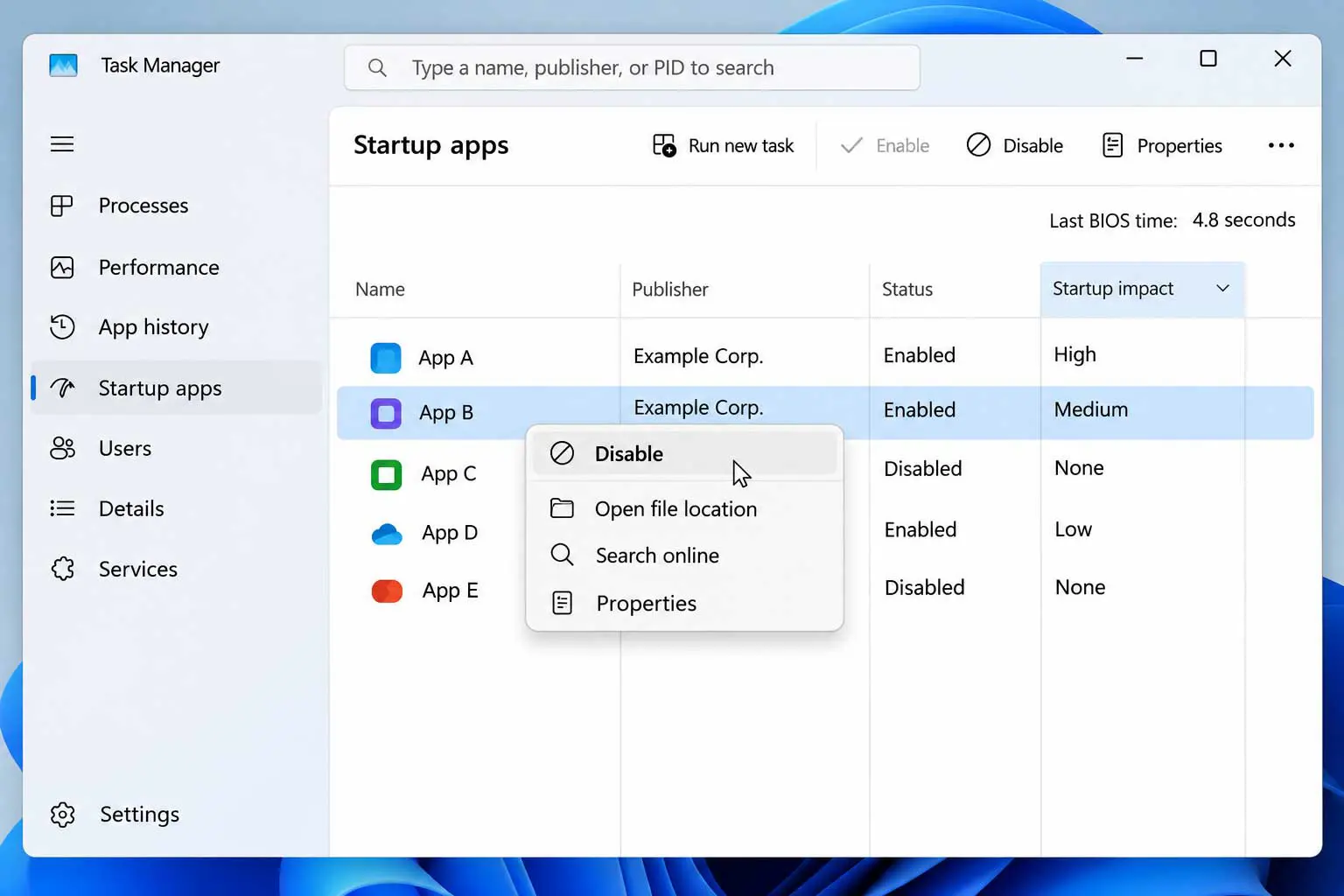
Press Ctrl+Shift+Esc, open Startup apps, right-click an app, and choose Disable. Both Techdows and Online Tech Tips list this fix, and Online Tech Tips sorts the list by Startup impact so the heaviest apps show first. Disabled apps still open manually.
Settings, System, Power & battery, Power mode, Best performance is the next setting both pages mention, and Online Tech Tips limits it to plugged-in use. Techdows warns it drains laptop batteries faster. Laptops pay for it in battery life, while a desktop has no battery to drain.
Drivers, Storage, and Delivery Optimization
Online Tech Tips places graphics drivers in Device Manager under Display adapters, where Properties, Driver offers Roll Back Driver or Update driver. Choose rollback if the slowdown began with a driver change, and update if the driver is old. Pick one, not both.
Techdows runs Storage Sense from Settings, System, Storage, Storage Sense, Run Storage Sense now, then removes files under Temporary files. Serverman also ticks Previous Windows installation(s) and says that often frees 10 to 20 GB, but Microsoft's rollback page requires the windows.old folder to stay in place. Deleting it ends the Go back option.
Online Tech Tips mentions a Delivery Optimization memory problem on certain builds without naming a KB or a fix. Limiting the feature to PCs on the local network only, or turning it off, is the suggested workaround, found under Settings, Windows Update, Advanced options, Delivery Optimization. Treat it as an experiment.
Techdows also lists Adjust the appearance and performance of Windows, with the Adjust for best performance option, which turns visual effects off. Techdows lists Game Mode, under Settings, Gaming, for PCs used for games. Both changes are reversible.
Microsoft requires the windows.old and $windows.~bt folders for Go back, so removing a previous Windows installation in Storage settings ends that route. Best performance power mode drains laptops faster. Menu paths can shift between builds, and these sources were verified on November 14, 2026.
Repair System Files in the Right Order
Microsoft's System File Checker page runs DISM first and sfc /scannow second, and says to keep the window open until verification reaches 100%. Online Tech Tips lists SFC first, which contradicts Microsoft's order. Follow Microsoft.
DISM.exe /Online /Cleanup-image /Restorehealth
sfc /scannow
Run both as administrator. Techdows adds a reinstall route under Settings, System, Recovery, Fix problems using Windows Update, Reinstall now, which keeps the current version in place. Microsoft says to try a reinstall before removing a security update on Windows 11.
Roll Back Within 10 Days If Nothing Works
Microsoft says that in most cases Go back is available for 10 days after upgrading, at Settings, System, Recovery. Going back keeps personal files but removes apps and drivers installed after the upgrade and reverses settings changes, and it needs the windows.old and $windows.~bt folders left in place. Microsoft's page does not say whether the 26H2 enablement package qualifies. Check the button first.
For a bad cumulative update, Settings, Windows Update, More options, Update history, Uninstall updates removes it, and Windows Recovery offers a second route under Troubleshoot, Advanced options, Uninstall Updates. Microsoft says some updates cannot be uninstalled. Security updates carry risk, so read what an update contains before removing it.
Two known 26H2 problems have no everyday fix. Techdows lists a black screen or slow desktop after sign-in in virtual desktop setups, with a workaround of Run new task, then explorer.exe in Task Manager, and it lists USB Audio Class 1.0 Code 10 faults as mitigated or pending.
Time is limited. Anyone facing Windows 11 slow after update trouble has a finite window to act. PCs that installed 26H2 on its September 29 release date passed the usual 10-day Go back limit on October 9, while later installs still have time if the option exists for the enablement package.
Frequently Asked Questions
How long should a PC sit idle after a feature update?
Does Go back work for 26H2?
Should DISM or SFC run first?
Do cleaner apps help?