
Claude Google Workspace is now in public beta, bringing Claude directly into Google Docs, Google Sheets, and Google Slides. Instead of copying text or data into a separate Claude chat, the new Workspace add-on opens Claude in a sidebar beside the file and lets it read the file you have open, answer questions about it, and make edits in place.
Anthropic says the add-on is available on paid Claude plans, including Pro, Max, Team, and Enterprise. One installation covers Docs, Sheets, and Slides. Anthropic is also offering separate Google Workspace connectors that let Claude work with Google files from its main chat interface, so the sidebar add-on and the connectors are related but different features. Read Anthropic’s announcement.
What Claude Google Workspace Actually Adds
The practical change is where Claude works. With the add-on installed, Claude appears beside the Google file instead of requiring a separate browser tab. It can work with the document, spreadsheet, or presentation currently open and can also use selected content.
- In Google Docs, Claude can draft, rewrite, summarize, restructure, and edit long documents.
- In Google Sheets, Claude can build models, write or fix formulas, clean data, and analyze spreadsheet content.
- In Google Slides, Claude can create slides, tighten text, restructure a deck, and restyle presentation content.
- Changes are made directly in the Google file, with edits visible in Google’s version history.
The workflow is different from Claude in Chrome, which works across webpages in the browser. It is also different from Claude Cowork, which combines larger tasks with regular Claude conversations. The Google Workspace add-on is focused on the file already open in Docs, Sheets, or Slides.
How to Install Claude in Google Docs, Sheets, and Slides
The installation happens through the Google Workspace Marketplace. If a Workspace administrator blocks Marketplace applications, the install may need to be approved or performed by an administrator first.
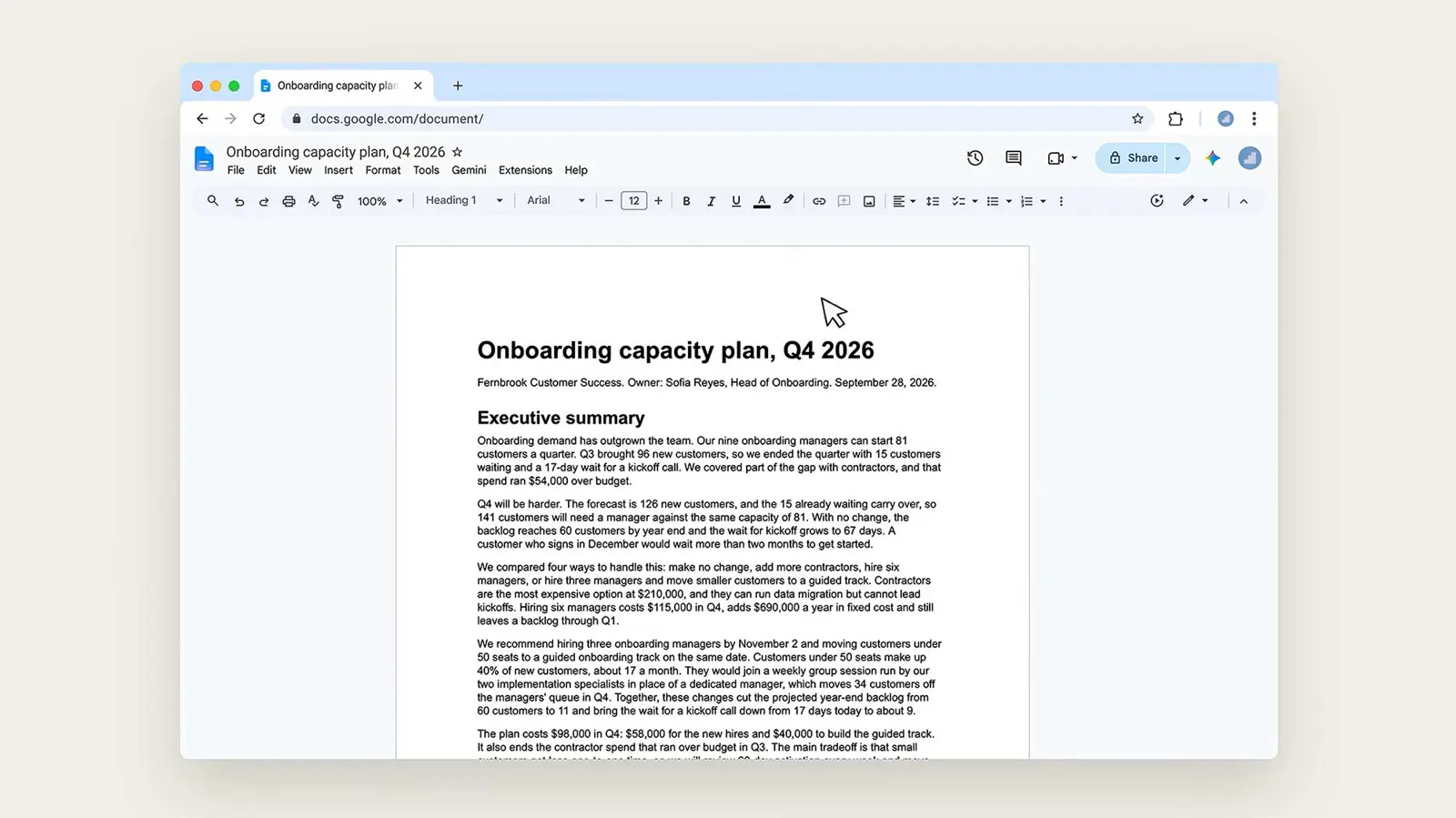
Start by opening the Claude listing in the Google Workspace Marketplace and selecting Install. Choose the Google account used for Docs, Sheets, and Slides, continue through Google's permission screen, and allow the requested access.
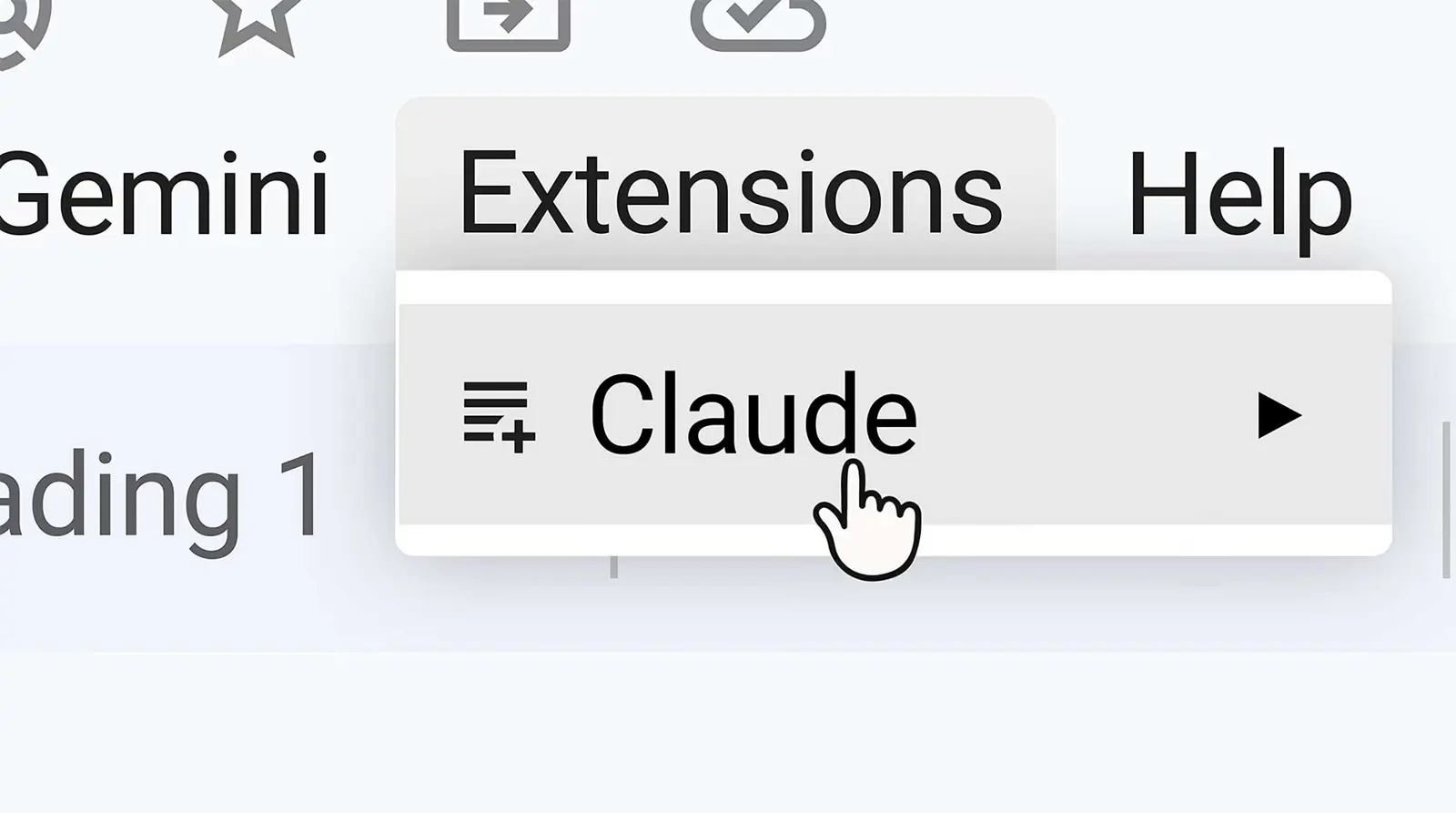
After installation, reload any Docs, Sheets, or Slides files that were already open. Then open a file and select Extensions > Claude > Open Claude. You do not need to install a separate extension for each Google app.
- Install Claude from the Google Workspace Marketplace.
- Select the Google account used with the Workspace files.
- Review Google's requested permissions and select Allow.
- Reload an already-open Google Doc, Sheet, or Slide.
- Open Extensions > Claude > Open Claude.
- Sign in to the Claude account shown in the sidebar.
- Ask Claude a question about the open file or request an edit.
If Claude does not appear after installation, reload the file and make sure the Google account is the same account that installed the extension. On managed Workspace accounts, an administrator may need to allowlist or install the application.
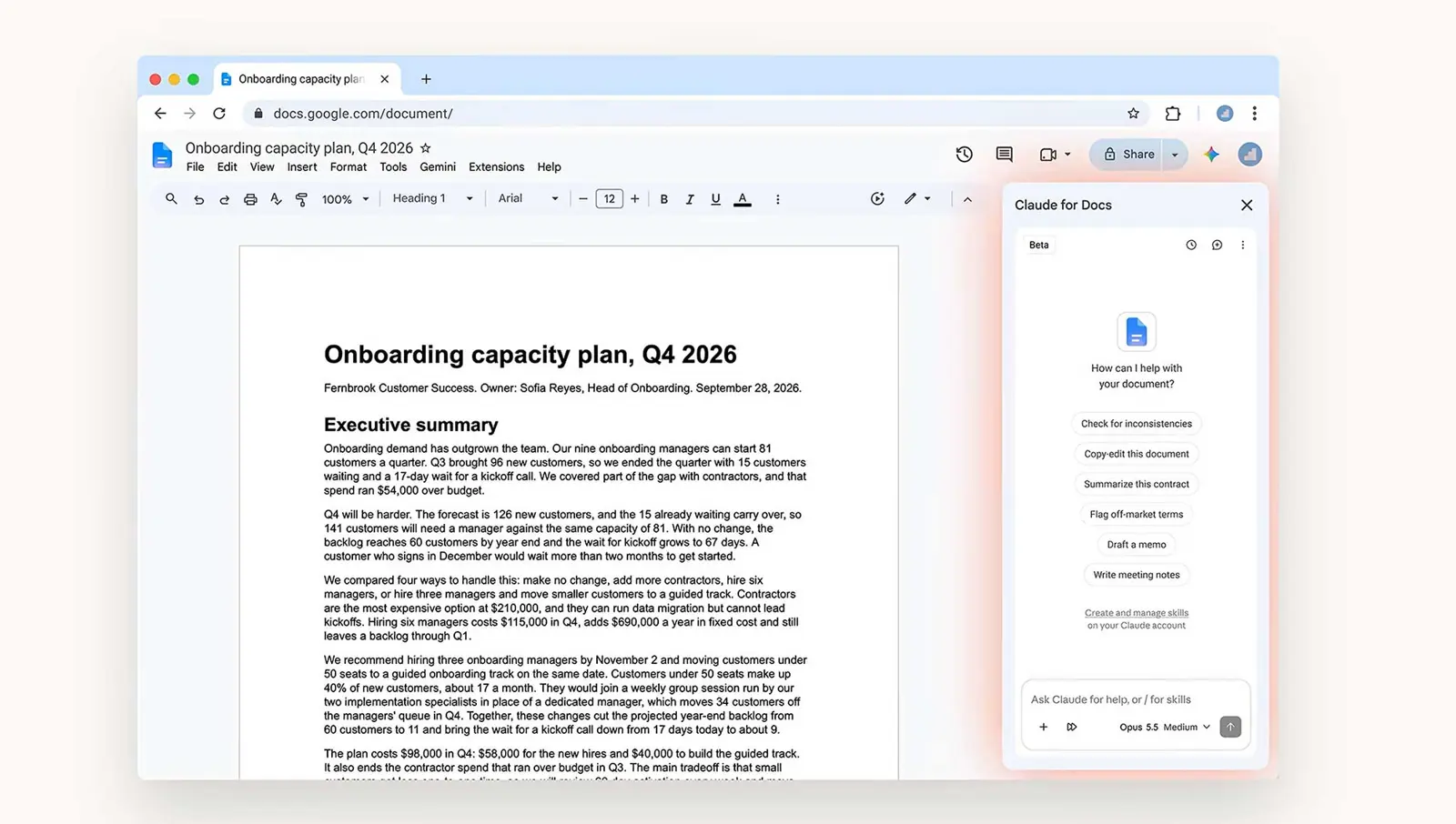
How to Use Claude in Google Docs
Docs is the easiest place to start because Claude can work directly with the text already in the document. It can answer questions about the document or change the content without a copy-and-paste round trip.
- Ask Claude to summarize a long document into a short executive brief.
- Highlight or select text and ask Claude to rewrite it for a different audience.
- Ask it to restructure a report while keeping the existing content.
- Ask it to identify inconsistencies, unclear sections, or repetitive wording.
- Ask it to draft a section from notes already in the document.
For example, a useful prompt is: “Rewrite the executive summary for a non-technical audience, keep all numbers unchanged, and make the recommendation clear in the first paragraph.” The important part is to give Claude a specific outcome and constraints rather than simply asking it to “improve” the document.
For another workflow involving Google Docs, Saganote also covers how to edit Markdown files in Google Docs without converting them. That can be useful when a document starts as structured text rather than a conventional Word-style file.
How to Use Claude in Google Sheets
In Sheets, Claude is most useful when the task involves formulas, data cleanup, analysis, or building a model. It can inspect the spreadsheet you have open and work with the relevant cells and data.
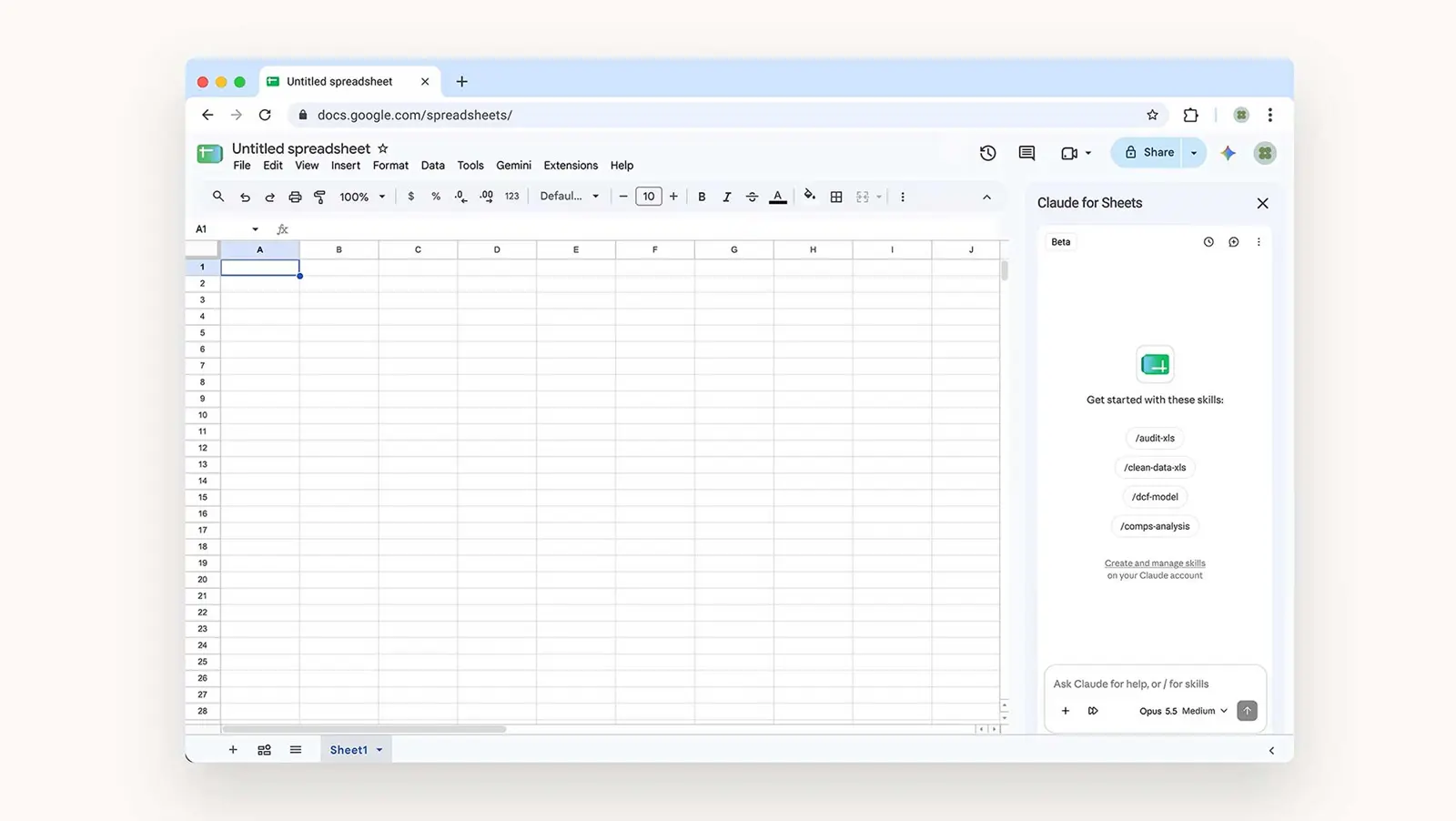
The best prompts describe the intended result and the part of the sheet Claude should change. For a shared or important spreadsheet, ask Claude to explain the proposed changes before allowing them.
This also puts Claude into the same broader AI productivity conversation as Gemini. Saganote’s ChatGPT vs Gemini vs Claude comparison looks at the three assistants more broadly, while this integration is specifically about bringing Claude into Google's existing work environment.
How to Use Claude in Google Slides
Slides can use Claude for both content and presentation cleanup. Anthropic's examples include drafting slides from notes, splitting crowded slides, improving titles, creating charts, and restyling a deck to match an existing design.
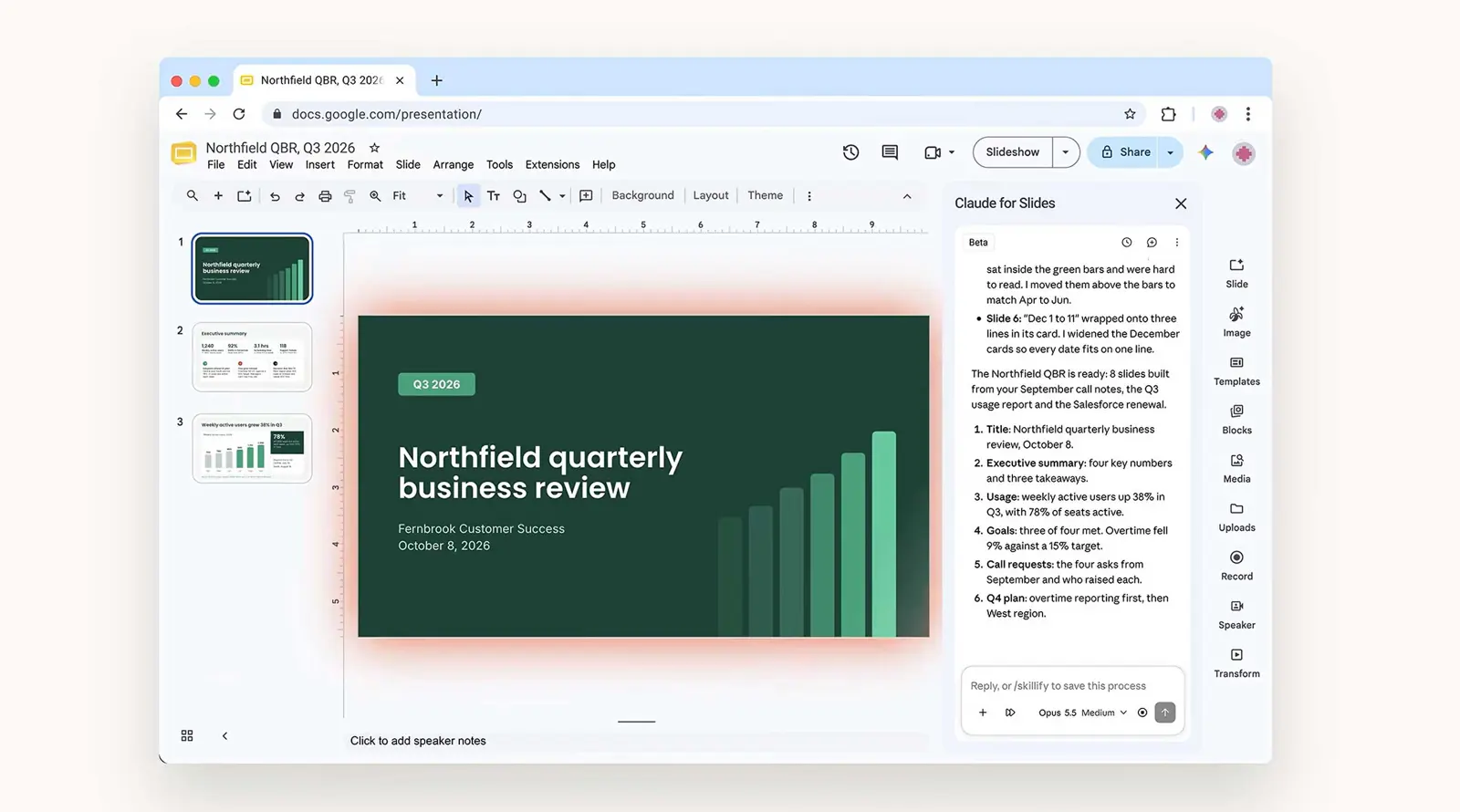
A good Slides prompt should describe the desired structure and preserve any design constraints that matter. For example: “Split slide 7 into two slides, keep the current theme, and make each slide communicate one main point.”
Ask Before Editing or Let Claude Make Changes
Claude can make edits directly in the open Google file, so the level of control matters. The safest workflow for shared documents is to review changes before accepting them. Claude's edits also appear in Google version history, which gives the file an additional way to review or undo work.
For shared documents, financial spreadsheets, contracts, or other high-stakes files, review Claude’s changes before accepting them. Google version history can help restore an earlier state if needed.
The exact controls available in the sidebar can change as the beta develops. Anthropic currently documents an “Ask before edits” option for workflows where each change should be reviewed.
What Claude Can Actually See
The Google Workspace add-on does not give Claude unrestricted access to an entire Google Drive. By default, Claude reads the file currently open in Docs, Sheets, or Slides, along with content you select. It cannot simply browse other Drive files, Gmail, or Calendar through the extension.
That distinction matters because Anthropic also offers Google Workspace connectors. Those connectors can give Claude access to Google Drive, Gmail, and Calendar from Claude's main chat, depending on what has been enabled. The sidebar extension and the connectors should not be treated as the same permission model.
That broader file-access workflow is similar in concept to ChatGPT’s Google Drive file integration, although the products and permissions are different.
Browser, Gmail, and Other Claude Workflows Are Separate
Claude's Google Workspace integration is one part of a wider set of tools. For browser-based work, Claude in Chrome is designed for interacting with webpages, while Claude Code’s built-in browser is aimed at development workflows.
Claude can also work with Gmail through a separate workflow. Saganote has covered Claude sending emails in Gmail without approval, which is useful context when comparing what Claude can do inside different Google services.
Google itself is also adding more AI and voice features across Workspace. See Saganote’s coverage of Google Workspace voice features in Gmail, Docs, and Keep for a look at the other side of the Workspace AI equation.
For readers comparing AI integrations outside Google Workspace, ChatGPT for Word shows a similar idea inside Microsoft's document workflow. And Google Workspace supports many other extensions, including tools such as 1Password in Google Chat, although those extensions serve different purposes.
Claude Google Workspace Limits to Know
The beta has several practical limits that are easy to miss when first setting it up.
- The Workspace extension is currently available for paid Claude plans.
- It works with the single Google file that is open in the app, rather than giving automatic access to the rest of Drive.
- The sidebar must stay open while Claude is working.
- Firefox is not supported for the current beta workflow; Anthropic lists Chrome, Edge, and Safari as supported browsers.
- A single long operation can run for up to six minutes, so large jobs may need to be split into smaller requests.
- In Google Docs, Claude cannot read, reply to, or resolve existing comments.
- In Google Sheets, Connected Sheets backed by BigQuery are not supported for direct reading or editing.
- In Google Slides, charts created by Claude are inserted as images rather than linked Sheets charts.
These limits make the integration better suited to focused tasks than unattended, cross-file automation. For a large document, spreadsheet, or deck, breaking the work into smaller requests can also make it easier to review the results.
The Practical Way to Start
Claude Google Workspace is most useful when the AI task and the Google file are already part of the same workflow. Install the add-on once, open the file that needs work, and use the sidebar for a specific task such as rewriting a section, fixing a formula, or restructuring a slide.
The main advantage is not a new standalone Claude workspace. It is the removal of the copy-and-paste step between Claude and the Google file where the work already lives. That makes the integration most useful for people who spend much of their day inside Docs, Sheets, or Slides.
Anthropic says the Google Workspace add-on is still in beta, so the available controls and capabilities can change as the integration develops. For the current setup and permissions, the official Claude Google Workspace help guide is the best reference.