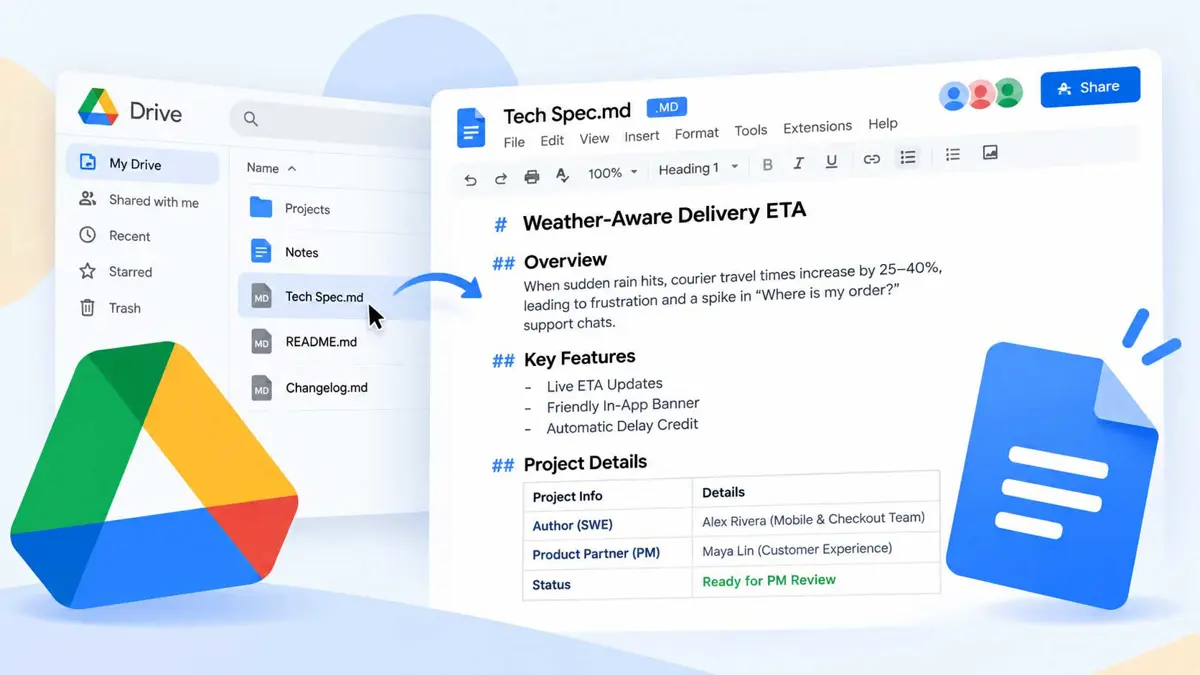
If an AI tool, developer workflow, or writing system produces Markdown, the next step is often awkward: open the raw .md file in an editor, convert it to another format, or paste the content into a collaborative document. Google is making that handoff much simpler.
Google Docs can open Markdown files from Drive as Markdown files, while still giving people a familiar document editor for review and collaboration.
What changed with Markdown in Google Docs?
Google Drive can preview Markdown files with rendered formatting, including clickable links and structured tables. When the same file is opened in Google Docs, it stays an .md file rather than becoming a separate Google Docs file.
That distinction is important. Google Docs is acting as the editing and collaboration layer, while the underlying file remains Markdown.
How to edit Markdown files in Google Docs
The process is straightforward on the web.
- Upload the .md or .markdown file to Google Drive.
- Open the Markdown file from Drive.
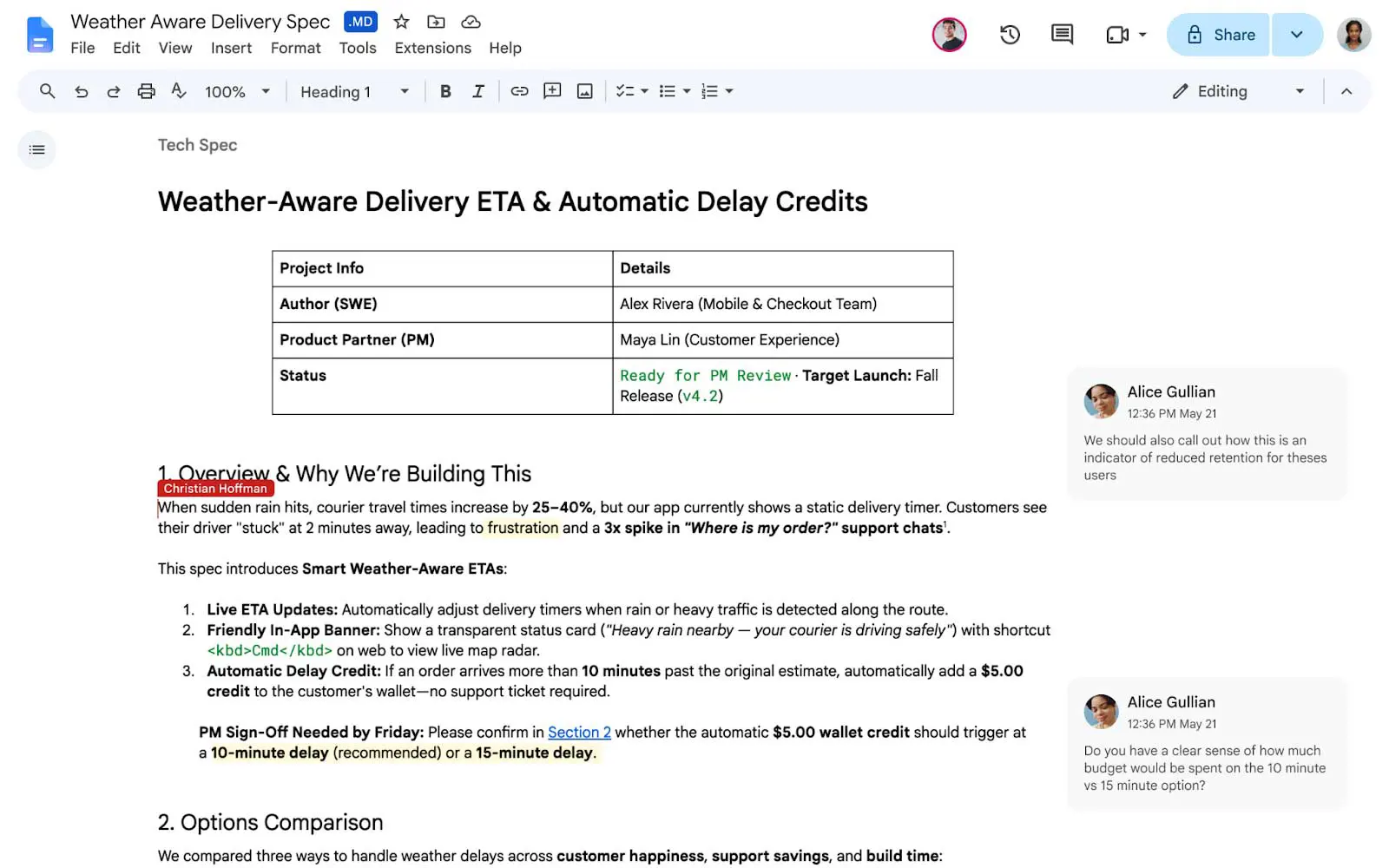
- Google Docs opens it in Markdown mode and shows an .md label beside the title.
- Edit the document using Google Docs.
- Share the file with collaborators when review or comments are needed.
- Continue working on the same Markdown file without turning it into a separate Google Docs file.
This is useful when the Markdown file is already the source document. Instead of creating a second copy for collaboration, the team can review the same .md file.
How to preview a Markdown file before editing
If the goal is simply to check how a Markdown file renders, editing is not required.
- Open Google Drive.
- Right-click the .md file.
- Choose Open with and then Preview.
- Switch between the Markdown and Preview views.
- Open the file in Google Docs when changes are needed.
The preview is useful for checking headings, links, tables, and other formatting before an editorial review begins.
Why this is useful for AI-generated Markdown
Markdown is a common handoff format for AI tools because it preserves headings, lists, links, tables, and other structure in plain text. That makes Google's workflow useful for teams that generate content with AI and then need a human review stage.
A practical workflow looks like this:
- AI generates a structured Markdown draft.
- The .md file is saved to Drive.
- An editor opens it in Google Docs.
- Reviewers add comments and make edits.
- The team keeps the Markdown file as the working source.
This fits naturally with other AI-to-workspace workflows. ChatGPT can already work with Google Drive files, while Google Workspace voice features show how Google is bringing more work into familiar productivity apps.
What happens to formatting?
Most of the Markdown structure is preserved, but Google warns that some Google Docs-specific formatting does not map cleanly to Markdown.
For example, Smart Chips can become text or links, HTML formatting can become plain text, and some font colors, highlights, and text alignment can be removed.
Google Docs is an editor for the Markdown file, not a replacement for every Markdown-aware editor. If a document uses Google Docs features that Markdown does not support, check the result and use Version history if you need to restore the original.
How this fits into a broader Google workflow
The Markdown feature becomes more useful when combined with the rest of Google's document and AI ecosystem.
Teams can use Google Vids to turn Docs and other files into video summaries, while Google is also adding more automation around document workflows. Google Docs API improvements show the broader direction toward connecting documents with automated tools.
On the agent side, Google Home MCP shows how Google is exposing capabilities to AI agents, while Claude in Chrome is another example of an AI system working through browser-based interfaces.
Technical AI workflows are also becoming more automated. Google CodeMender is designed to find, validate, and fix software vulnerabilities, while Gemini can manage Google Photos shows the same move toward AI performing actions inside existing services.
Even Google's AI search tools are moving in this direction. Gemini's map prompting and WeatherNext 3 demonstrate how structured information and actions are increasingly being connected to AI interfaces.
A practical Markdown workflow for content teams
For a content team, the cleanest approach is to treat Markdown as the source and Google Docs as the review surface.
- Generate or write the article in Markdown.
- Store the original .md file in Drive.
- Open it in Google Docs for editorial review.
- Use comments for questions and approvals.
- Make content edits directly in the Markdown-backed document.
- Check the rendered preview before publishing or handing the file to another tool.
- Keep the .md file as the canonical version.
This is especially useful when content moves between AI tools, CMS systems, developer tools, and human editors. The main benefit is not that Google Docs replaces Markdown editors. It gives non-technical collaborators a familiar place to work on the same source file.
What you should know before using it
| Feature | What to expect |
|---|---|
| File format | The file stays .md |
| Drive preview | Markdown and rendered preview are available |
| Google Docs editing | Edit the Markdown-backed file directly |
| Collaboration | Sharing and comments are supported |
| Smart Chips | May become text or links |
| HTML formatting | May become plain text |
| Font colors and highlights | Can be removed |
| Text alignment | Can be removed |
| Best use | Review and collaboration on Markdown content |
Is Google Docs replacing a Markdown editor?
No. The useful change is interoperability.
A dedicated Markdown editor is still better when the workflow depends on raw syntax, developer tooling, version control, or precise Markdown behavior. Google Docs is more useful when writers, editors, managers, and other collaborators need to review the same file.
The strength of the feature is that teams can use both approaches without immediately creating separate copies.
Frequently Asked Questions
Does Google Docs convert an .md file into a Google Docs file?
Can I preview Markdown without editing it?
Can other people comment on a Markdown file?
Will every Google Docs formatting feature work in Markdown?
Is this a replacement for a developer Markdown editor?
Google's native Markdown workflow makes .md files easier to review with non-technical collaborators. The key advantage is simple: the source remains Markdown while Google Docs handles the familiar editing and collaboration experience.