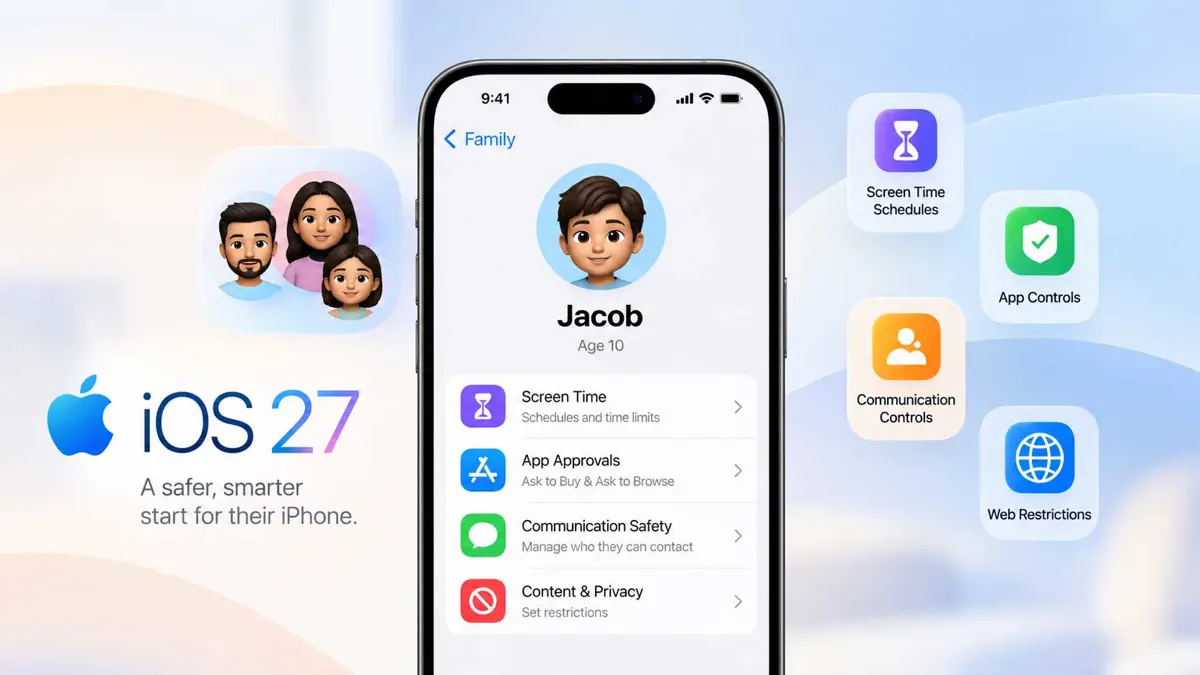
How to Set Up an iPhone for a Child in iOS 27
Create a Child Account, connect Family Sharing, and configure apps, Screen Time, communication, web access, and content controls.

If you want to set up an iPhone for a child in iOS 27, the process starts with the child's own Apple Account and Family Sharing. From there, Apple guides parents through age-based protections, app access, Screen Time, communication controls, and web permissions. The current setup also adds a simpler way to choose which apps a child can use from the beginning.
Before you start, make sure the iPhone is running iOS 27. If it is not, follow How to Upgrade to iOS 27 first. Apple released iOS 27 on September 14, 2026, and the new child-safety tools are part of that release. (Apple's iOS 27 release)
What You Need Before Setting Up a Child's iPhone
Have these items ready before opening the setup flow:
- An iPhone that can run iOS 27.
- A parent or guardian's Apple Account.
- Family Sharing set up on the family organizer's account.
- The child's correct name and date of birth.
- The child's iPhone available for setup. If it is a used device, back up and sign out of the previous Apple Account first.
- All family devices updated to the required software versions if you want the newest Family Sharing and Screen Time controls across devices.
Apple says a Child Account is required for children under 13 and is available for children up to 18, although the minimum age can vary by country or region.
If you are setting up the iPhone after a fresh iOS installation, it can be useful to review Everything New in iOS 27: Messages, Wallet, Maps, Apple Intelligence, and More so the child account is not configured without context about the apps and system changes on the device.
Create a Child Account in iOS 27
The Child Account is the foundation for the parental controls. Apple connects it to Family Sharing so the parent or guardian can manage settings from their own device.
- Open Settings on the parent or guardian's iPhone.
- Tap Family.
- Tap the Add button.
- Tap Create Child Account.
- Enter the child's name and birthday.
- Follow the onscreen instructions to finish the account and add the child to the Family Sharing group.
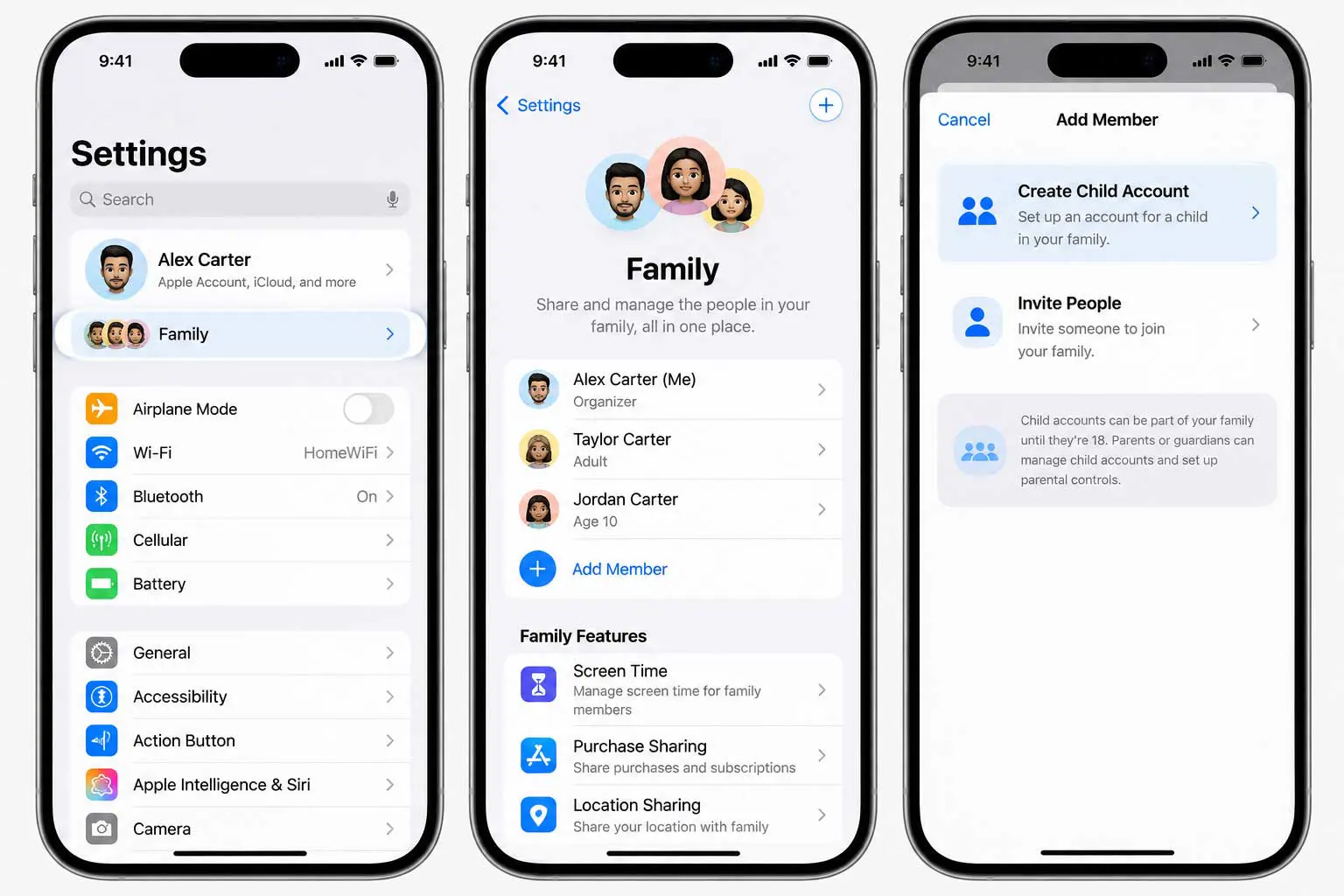
Use the child's real birthday. Age-based protections depend on the account's age information, and Apple notes that an incorrect birthday can prevent age-based settings from working as expected.
If the child already has an Apple Account, do not automatically create a second one. Check Apple's guidance for the existing account and correct the birthday or convert the account when appropriate.
Set Up the Child's iPhone
With the Child Account in Family Sharing, set up the iPhone as the child's device. For a new iPhone, Apple's Quick Start flow can guide the setup. If the iPhone is being handed down, remove the previous owner's account and personal information before starting.
- Turn on the iPhone and choose the country or region and language.
- Bring the parent or guardian's iPhone nearby when prompted for Quick Start.
- Choose the option indicating that the iPhone will be used by a child or another family member.
- Select the child's account when the setup flow asks who will use the device.
- Continue through the Apple Account and parental-control screens.
- Finish setup, then open the child's Family settings from the parent or guardian's device to review the controls.
Apple says the newest Screen Time Schedules and Time Allowances require iOS 27, iPadOS 27, macOS 27, watchOS 27, and visionOS 27 or later on the devices in the Family Sharing group. Some features also vary by region, language, and device.
For a broader record of what changed at launch, see Apple Releases iOS 27 With Siri AI and Faster iPhone Performance and iOS 27 Ships September 14 - Apple Confirms Release Date at Today's Event.
Choose Which Apps Your Child Can Use
iOS 27 adds a setup experience that lets parents choose which apps a child can access from the start. Apple says parents can select essential apps, use a recommended set, or manually choose apps, then add more later.
- During the child-device setup, review the apps Apple presents for the child account.
- Keep only the apps that are appropriate for the child's current needs.
- Finish setup and review the child's app access from Family Sharing and parental controls.
- Revisit the list later as the child's needs change.
This is also a good point to decide whether built-in apps should be available immediately. For example, What's New in Wallet in iOS 27: Create a Pass, Split Bills, and Smarter Orders covers changes to Wallet that may matter when deciding which Apple apps belong on the child's device.
Set Screen Time Schedules and Time Allowances
iOS 27 redesigns Screen Time around schedules, time allowances, and quick controls. Apple lets parents set time windows for different parts of the day and manage allowances for categories such as Entertainment, Games, and Social Media.
- Open Settings on the parent or guardian's iPhone.
- Open Family, then select the child.
- Open Screen Time.
- Review the child's current schedule and usage summary.
- Set a Screen Time Schedule for periods such as school, after school, dinner, or evening.
- Open Time Allowances and adjust the categories that should have daily limits.
- Review Always Allowed so essential apps and contacts remain available when appropriate.
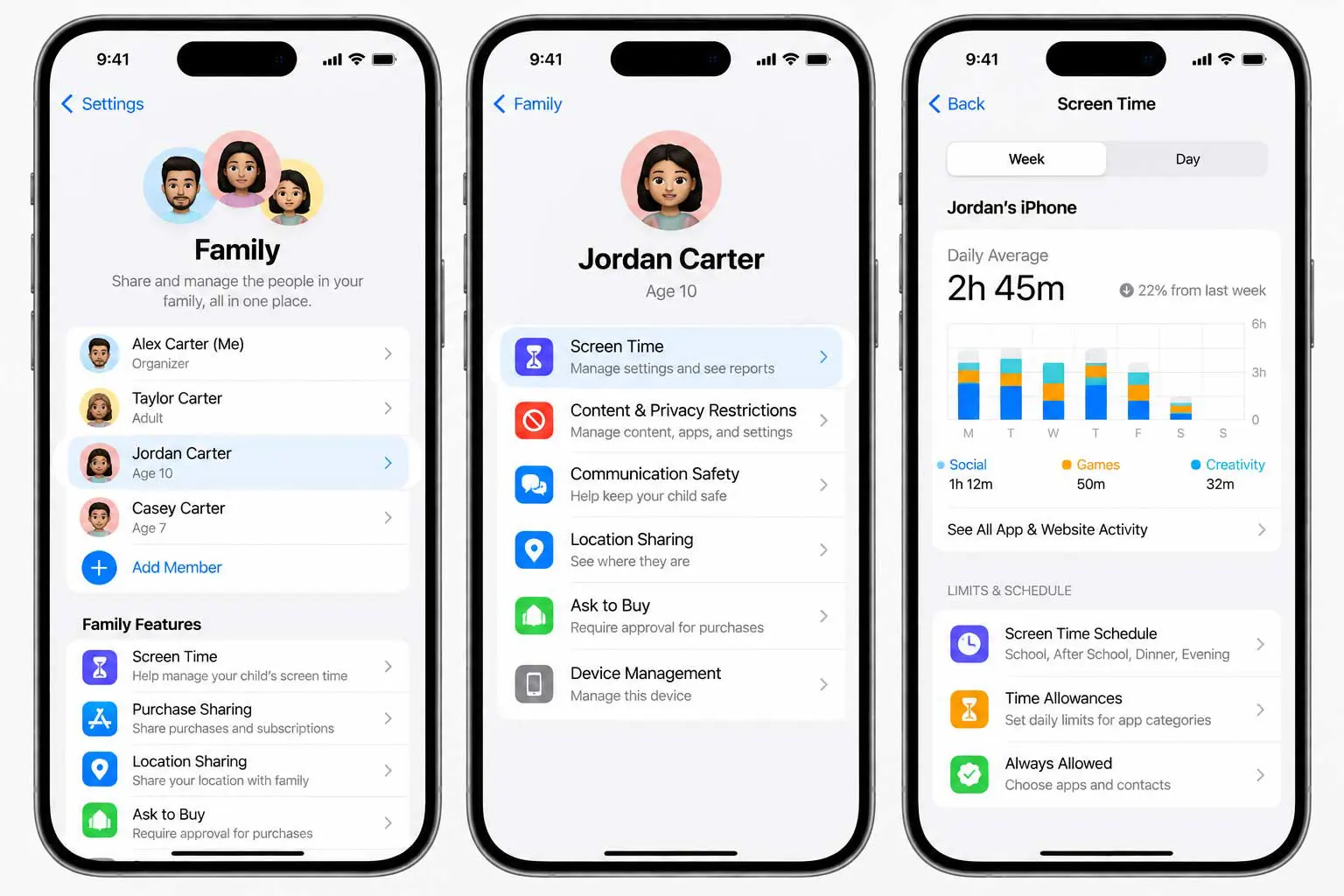
Apple's updated controls are designed to be managed from the parent or guardian's device when Family Sharing is configured. The parent can also use quick actions to pause device time, allow unlimited time, or change the child's schedule.
If you are also comparing the wider iOS 27 changes, iOS 27: 30% Faster Apps, a New Siri, and Every Feature That Changes Your iPhone explains the broader system update without focusing only on parental controls.
Control Who Your Child Can Communicate With
Screen Time can limit who the child communicates with during normal device use and when the device is paused. Apple supports controls for phone calls, FaceTime, and messages, with options such as Contacts Only or broader access.
- Open Settings on the parent or guardian's iPhone.
- Open Family, select the child, then open Screen Time.
- Tap Communication Limits.
- Review the setting for communication during Screen Time.
- Review the setting for communication when the device is paused.
- Choose the contact access level that fits the child's current needs.
Messages is one of the main places these rules can matter. For the app's broader iOS 27 changes, see What's New in Messages in iOS 27: AI Suggestions, Drawing, and Better RCS. If the child uses WhatsApp, its own controls are separate from Apple's system-level settings, so WhatsApp Is Making Parental Controls Easier to Find on iPhone is useful for the app-specific layer.
Turn On App and Website Approval
iOS 27 adds Ask to Browse, which can require a parent or guardian's approval before a child opens a new website in Safari. Apple also gives parents more ways to control app access and approve what a child uses.
- Open the child's settings from Family on the parent or guardian's device.
- Open the parental-control or Screen Time settings for the child.
- Review the controls for websites, apps, and content.
- Turn on the approval options that fit the child's age and how the device will be used.
- Test the setup with a website or app request before handing the phone over.
Keep in mind that app-level controls still matter after Apple's setup is complete. The child may use services with their own parental settings, so system controls should be treated as one layer rather than the only layer.
Review Content and Privacy Restrictions
Use the parental controls to review which apps, content types, websites, and other features the child can access. Apple also provides Communication Safety protections for shared images and videos, with iOS 27 adding detection for gore and violent content alongside existing protections for nudity. Availability varies by feature and region.
- Review app and content ratings before allowing downloads.
- Check web access and whether Safari should require approval for new sites.
- Review communication settings and allowed contacts.
- Check purchase and download approval settings.
- Revisit privacy and content restrictions after the child starts using the device.
If the child is using iOS 27 because a device was previously enrolled in beta software, iOS 27 Hits Public Beta With 12 Changes - New Siri App, Camera Vision, and Battery Focus provides background on the earlier testing phase. For a current setup, however, use the stable iOS 27 controls and Apple's current support documentation.
Review the Child's Settings From Your Own iPhone
After setup, the parent or guardian can return to the child's settings through Family Sharing instead of changing every control on the child's iPhone. Apple's redesigned parental controls put quick actions, Screen Time information, schedules, and other controls in the child's Family settings.
- Open Settings on the parent or guardian's iPhone.
- Tap Family.
- Select the child's name.
- Review Screen Time, parental controls, app access, communication settings, and other available options.
- Change one setting at a time and check the result on the child's iPhone.
This setup is easier to maintain when the parent checks the controls after major software updates, when a new app is added, or when the child's needs change. The exact controls available can depend on the child's age, the devices in the Family Sharing group, and the region.
A Few iOS 27 Details Worth Checking After Setup
Once the core controls are working, a few related iOS 27 features can affect the child's day-to-day experience. How to Create and Delete Stickers on iPhone can help when deciding what the child can do with images and messages, while the wider iOS 27 coverage is useful for reviewing other system changes that may appear on the device.
The goal is not to turn every setting into a permanent restriction. Start with the controls that match the child's age and actual use, then revisit them as needed. Apple provides the controls, but the right configuration depends on the family and the child's situation.
Frequently Asked Questions
Do I need Family Sharing to create a Child Account?
What age requires a Child Account?
Can I choose which apps my child can use during setup?
What is Ask to Browse?
Do all family devices need iOS 27?